
Fix external speakers that play too quietly
Check levels in more than one place
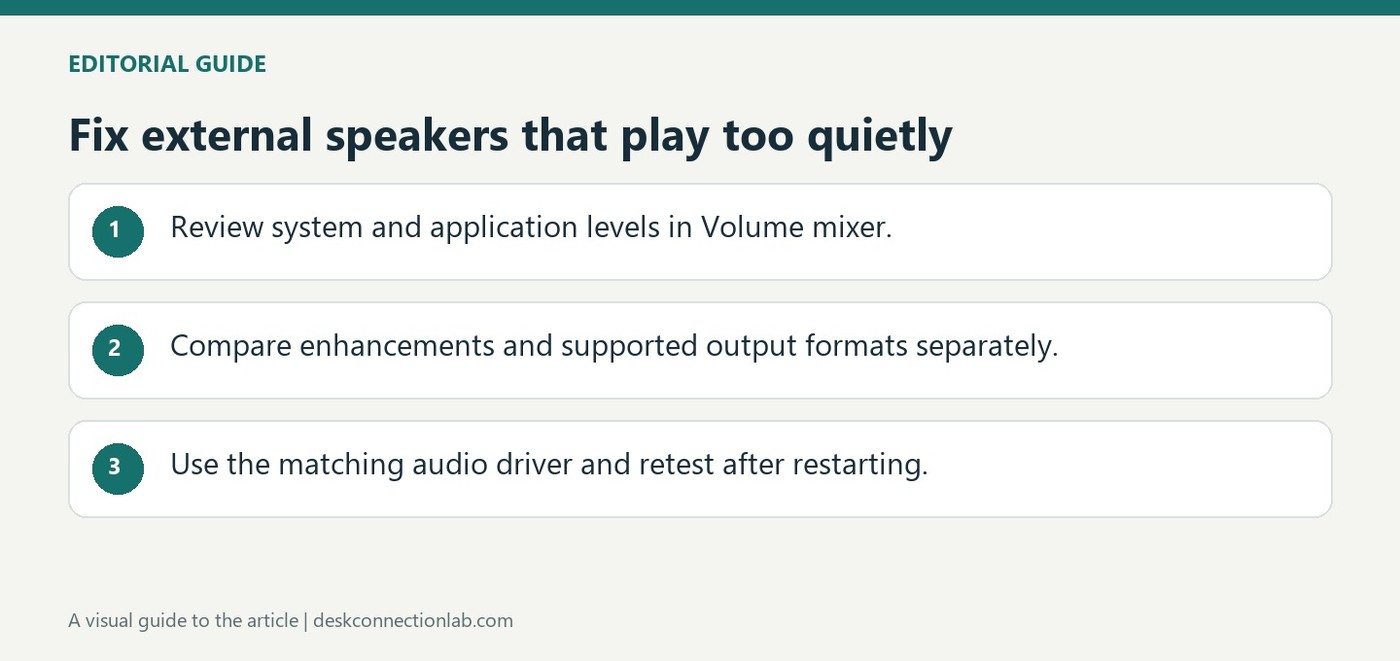
Microsoft recommends reviewing the Windows Volume mixer when an application sounds unusually quiet or muted. Check the system and application levels rather than assuming the speaker's connection is bad. A separate volume control on powered speakers can also affect what is heard, so adjust the accessory and computer deliberately during a short playback test.
Test enhancements and supported formats
The guide suggests turning audio enhancements off to see whether they are reducing or distorting output. It also describes trying a different supported default format and checking the audio driver. These are follow-up tests for a recognized output that produces inadequate volume; a speaker missing entirely from Sound settings first needs detection, power and connection checks rather than simply a higher volume setting.
Compare one supported format and one change at a time
The Windows 11 instructions place Default format under the selected output’s Advanced controls. Choose another available format and test audio, keeping the playback material and device consistent. This is distinct from turning off enhancements, so perform the comparisons separately if the aim is to learn which setting affected loudness. The Windows 10 section instead uses device Properties in the Playback tab and then Advanced. Use the route for the installed system rather than assuming that a missing menu label means the speaker has disappeared or that a microphone format controls headphone volume.
Move to the matching driver when level checks fail
Microsoft lists an outdated or corrupted audio driver as a possible cause of persistently low sound. Its sequence opens Device Manager, expands Sound, video and game controllers, and updates the relevant audio device’s driver before restarting the PC. If the issue continues, the source describes reinstalling a driver obtained from the device manufacturer. Identify the correct device and Windows version when following that route. A restart is part of evaluating the driver change, so do not judge it solely from the settings screen before Windows has restarted and the same playback test has been repeated.
Compare the affected application with the system level
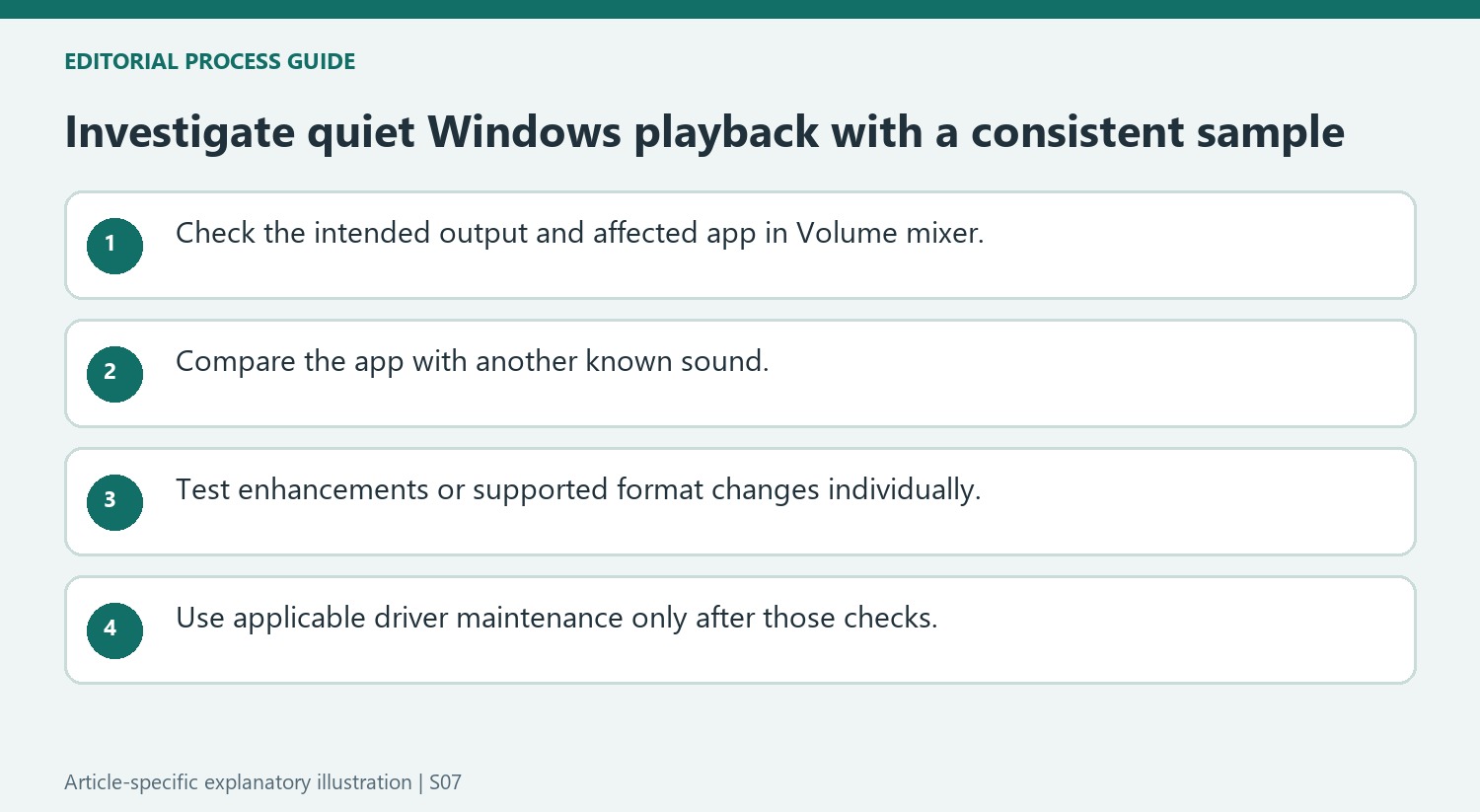
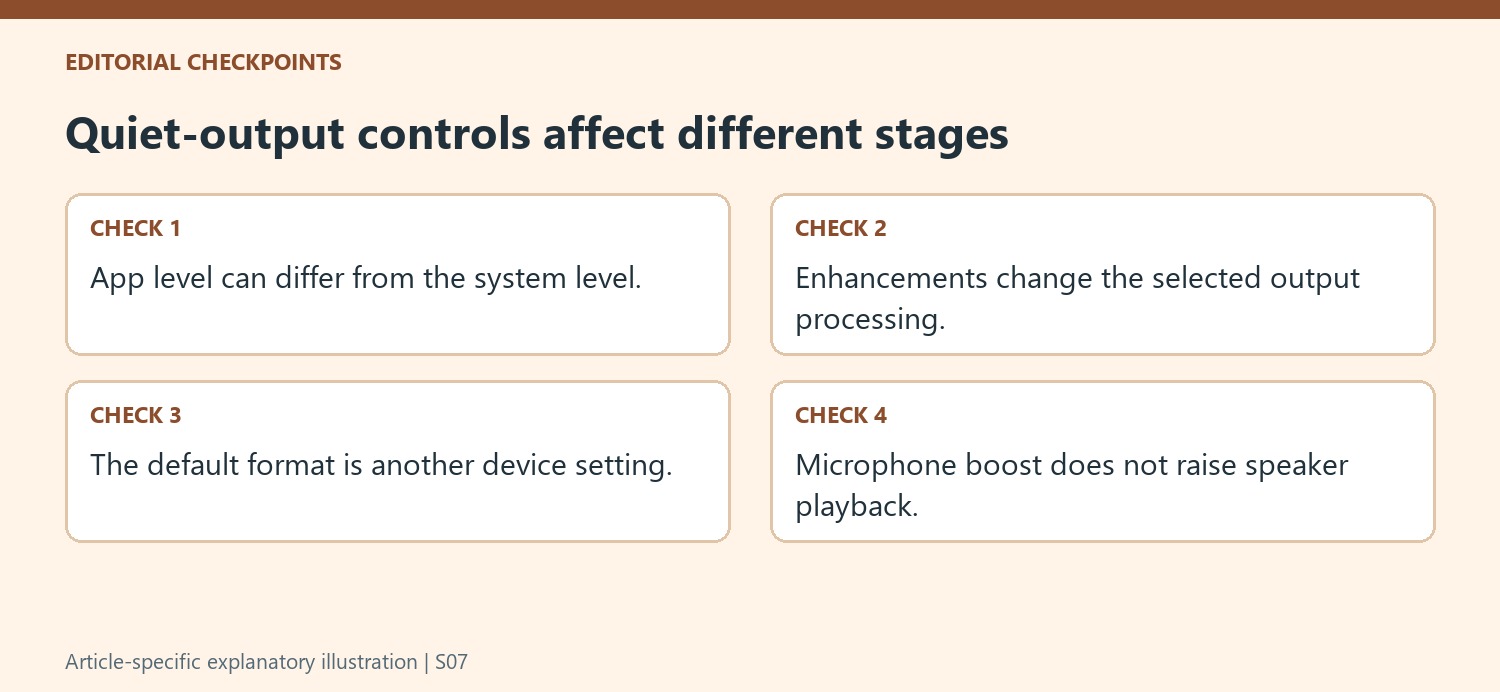
The Windows guidance uses Volume mixer because an individual app can be quiet or muted even when the main system level is raised. Read the relevant application control while it is producing a known sound, and confirm the intended output device at the same time. A different app playing normally is useful evidence about the scope of the problem. This is a playback check, so microphone input and boost settings do not address it. Adjust the control associated with the actual source instead of increasing every available slider. A clear comparison between the affected app and another known sound helps distinguish an isolated level setting from a broader output problem.
Test processing and format changes one at a time
Microsoft lists disabling audio enhancements and trying another supported default format as separate options. Both concern the selected output, but they change different parts of its configuration. Compare the same audio sample after one adjustment before proceeding to the next. A result obtained after changing the app level, enhancements, and format together cannot show which setting mattered. The source presents these as possible remedies, not a claim that every quiet speaker is using an invalid format. Keep the previous configuration understandable so a comparison can be reversed if it does not help. The visible names and available controls can differ between Windows versions and hardware, making the applicable device guidance important.
Use driver maintenance for a persistent supported-device problem
The article places updating or reinstalling the audio driver after the level and processing checks. Match a manufacturer-provided package to the actual PC or audio device and installed Windows version rather than choosing a file solely because it is newer. Complete the required restart and test again before another maintenance change. A connected external speaker can depend on the computer's audio path, but that does not mean every low-volume complaint proves the driver is damaged. Preserve the selected output, app comparison, processing test, and completed update history. Those details support a more useful next step if the issue remains and help avoid replacing otherwise functional speakers when the limiting setting is elsewhere.
References
- Fix low or quiet sound in Windows. support.microsoft.com.
Microsoft recommends reviewing the Windows Volume mixer when an application sounds unusually quiet or muted. Check the system and application levels rather than assuming the speaker's connection is bad. A separate volume control on powered speakers can also affect what is heard, so adjust the accessory and computer deliberately during a short playback test.


Leave a Comment
Comments (0)