
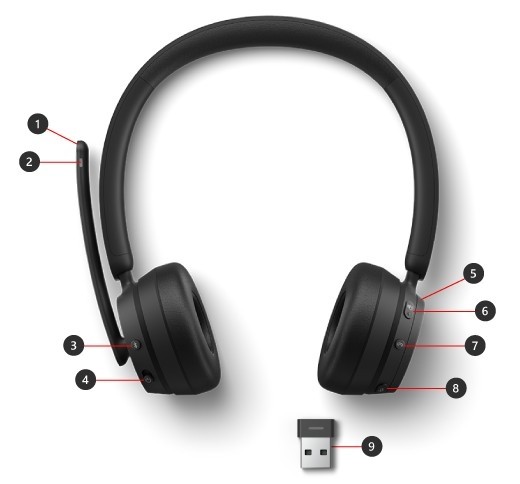
Select Microsoft USB Link as the Teams Audio Device
Microsoft Modern Wireless Headset is certified for Teams when used through Microsoft USB Link on a supported PC or Mac. The supplied headset and receiver are already paired, but Teams still needs the correct device selected within its own settings.
Open Teams Devices settings and choose Microsoft USB Link under Audio devices. The headset then provides dedicated meeting controls alongside its volume dial and microphone functions. A completed wireless connection does not by itself prove that the meeting app has stopped using the computer's built-in speakers or microphone.
Interpret the USB Link light before changing connections
The receiver’s indicator distinguishes several operating states. An unlit USB Link is not connected to the headset, while solid white indicates a connection ready for Teams. Flashing green marks an incoming call, solid green indicates an active unmuted Teams call, and solid red means mute. The headset’s microphone light also turns red during mute. These states are useful when a user can hear a meeting but cannot be heard: confirm whether the issue is an intentional mute state, an absent headset connection or the application’s device selection before pairing anything again.
Use the microphone controls and update routes correctly
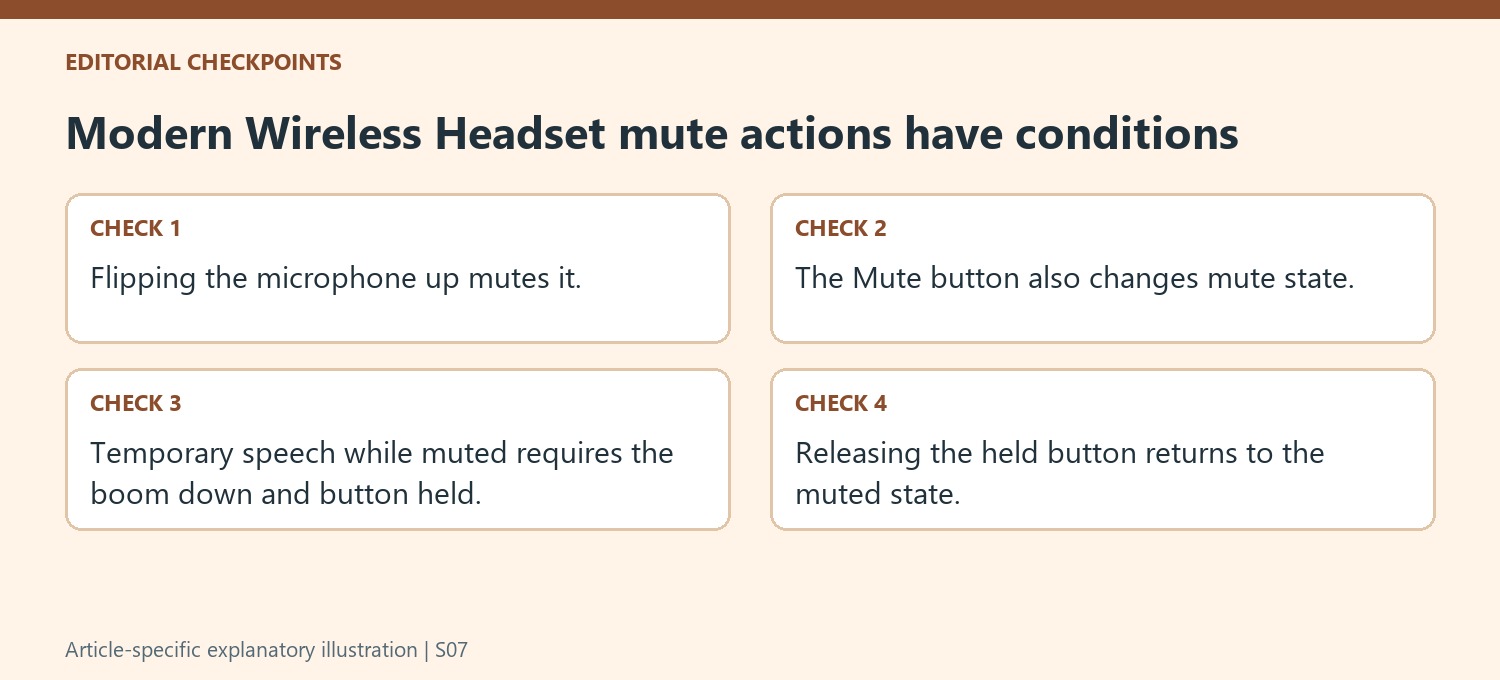
Flipping the microphone up mutes it, and lowering it or pressing Mute can restore speech. To speak briefly while muted, lower the microphone first, hold Mute while talking, and release to return to mute. The volume dial controls listening level, so it is a different adjustment. Microsoft Accessory Center on Windows provides headset customization and updates, while USB Link updates come through Windows Update with the receiver connected. Microsoft notes that Accessory Center is not available for macOS, even though the supplied receiver can support Teams use on a Mac.
Select the receiver name rather than guessing from the headset label
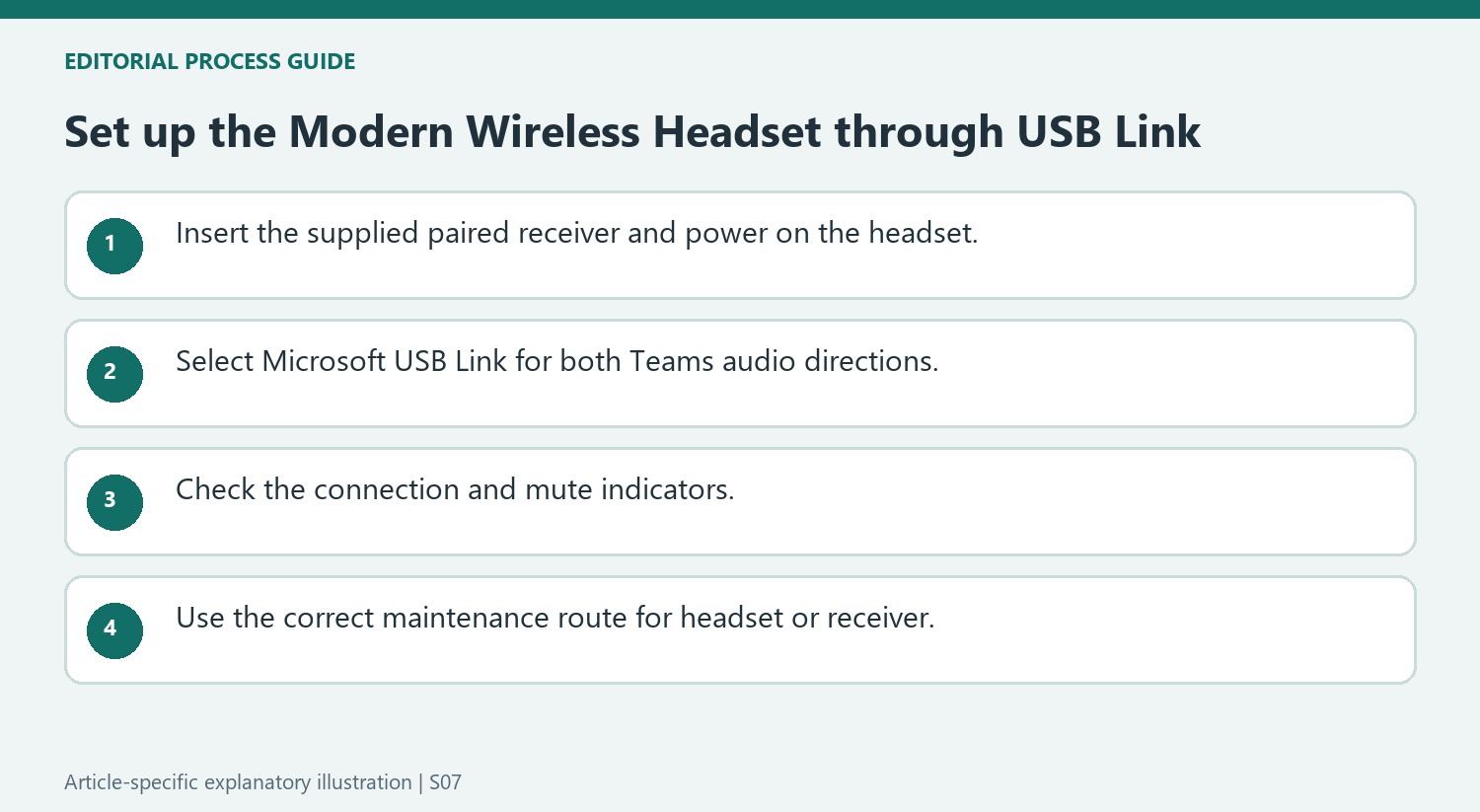
The documented Teams setup chooses Microsoft USB Link as the audio device. That name represents the included wireless connection path, and the source says it should then appear for both speaker and microphone. Someone searching only for the headset's marketing name could overlook the correct entry. Connect the supplied USB Link, switch on the already-paired headset, and check both Teams audio directions. The receiver being physically inserted is not the same as the headset being powered and connected. Microsoft's indicator table explicitly describes the off state when there is no headset connection, making the light useful alongside the selected device names rather than a substitute for reading them.
Use the two mute methods with their documented conditions
The headset can mute through its button or by flipping the microphone upward, with red indicators on the microphone and USB Link. Temporary speech while muted has an additional condition: the boom must be down before the Mute button is held. Releasing the button returns to mute. That sequence differs from simply flipping the microphone down to unmute normally. Learn the distinction before a call, then watch the indicators for the actual state. The answer control also uses a short action for accepting a call and a hold for declining. These physical controls are most useful when their durations and microphone position are understood instead of assumed during a live conversation.
Keep headset customization separate from receiver updates
Microsoft Accessory Center supports headset settings and updates on Windows, while the source directs USB Link updates through Windows Update with the receiver connected. Those are different maintenance routes for different parts of the arrangement. The page also states that Accessory Center is unavailable for macOS, even though it describes the included USB Link as part of the certified headset use on supported computers. Check the current platform instructions for the particular task rather than transferring a Windows app procedure to another system. After changes, verify the receiver connection, Teams input and output selection, and mute indication. A working music playback test alone does not demonstrate that the microphone and call controls are configured as intended.
References
- Use Microsoft Modern Wireless Headset in Microsoft Teams. support.microsoft.com.
Microsoft Modern Wireless Headset is certified for Teams when used through Microsoft USB Link on a supported PC or Mac. The supplied headset and receiver are already paired, but Teams still needs the correct device selected within its own settings.


Leave a Comment
Comments (0)