
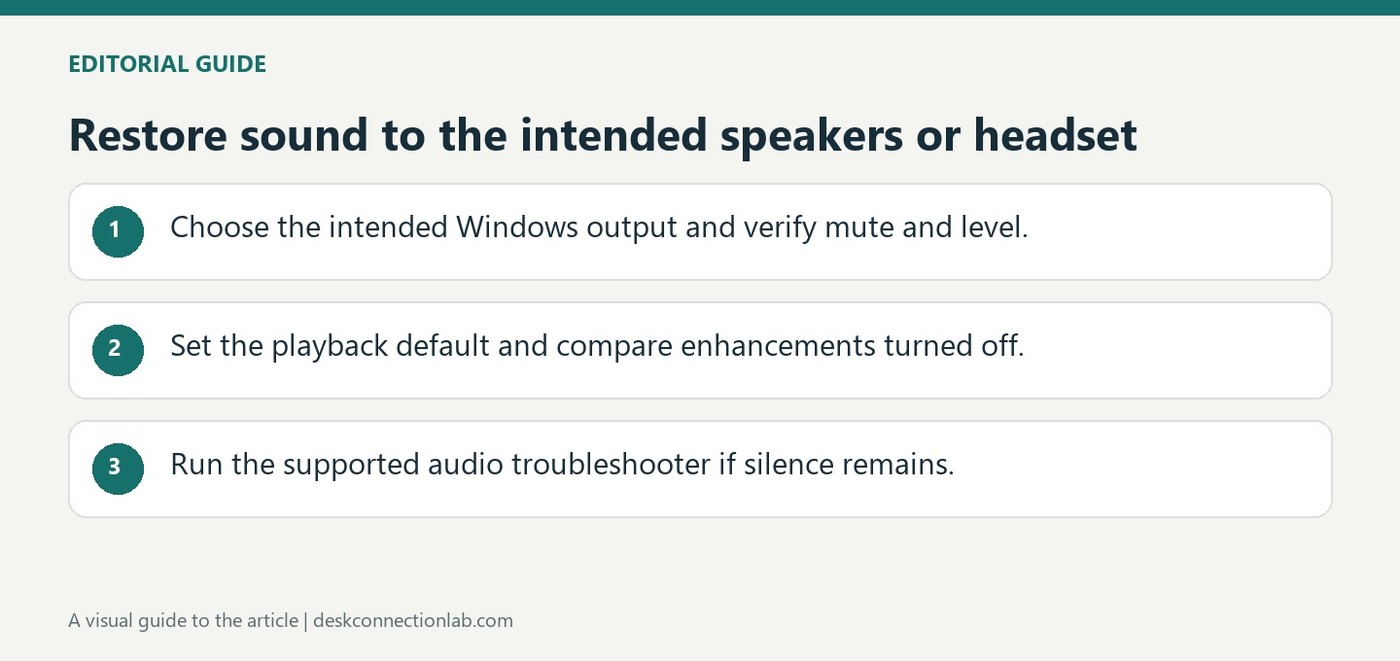
Restore sound to the intended speakers or headset
Check the selected output
Microsoft's no-sound guide begins by selecting the appropriate playback device from the taskbar sound controls. A monitor, headset and built-in speakers can all appear as outputs, so audio may be sent to a device that is connected but not being used. Choose the intended speakers before changing more complex settings.
Inspect power cables and volume
Check the accessory's power, the cable connection, the correct audio socket and any hardware mute or volume control. Application volume can also differ from the system level. Microsoft's Get Help audio troubleshooter provides another step when these checks do not restore playback. Testing one output at a time helps distinguish an incorrect Windows selection from an unpowered speaker or a damaged connection.
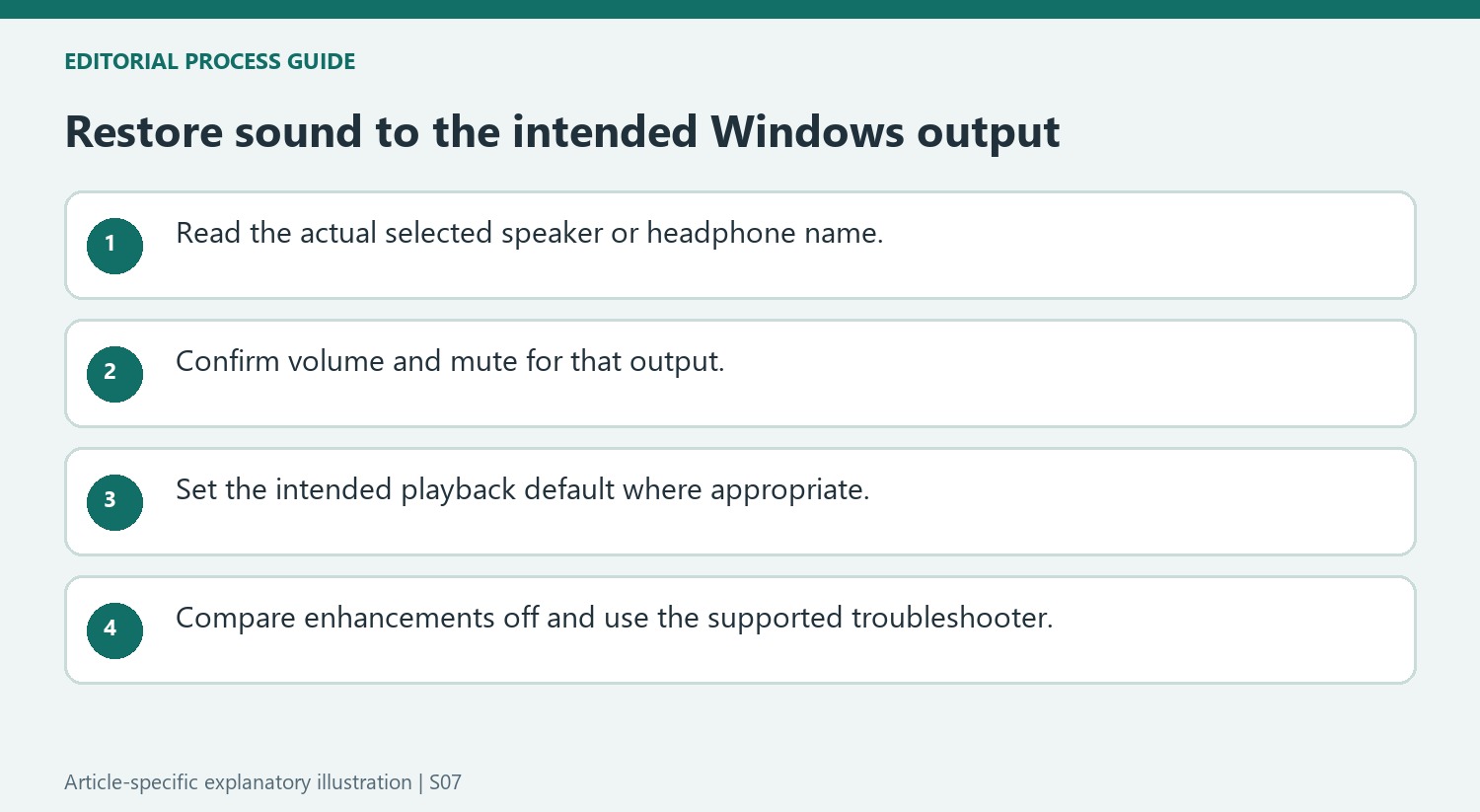
Set the playback default through the documented route
The no-sound article provides a separate default-device step under Settings, System, Sound, then More sound settings and Playback. Right-click the intended device and select Set as default. This is useful when several outputs are installed and merely seeing the correct name in a list has not established the default route. Check mute and the volume slider on the chosen device as well. The source focuses on playback, so changing a microphone default would not address the silent speakers or headphones described in this procedure.
Compare enhancement settings before deeper troubleshooting
Microsoft identifies audio enhancements as another possible cause even when the volume icon looks normal. Open the selected output’s page in Sound settings and set Audio enhancements to Off under Advanced settings, then compare playback again. Record whether the change helped rather than assuming enhancement processing was necessarily the fault. If sound remains absent, the article points Windows 11 users to the automated Audio troubleshooter in Get Help. Its broader sound-problem guide is the next reference for symptoms beyond this specific no-playback case, instead of inventing a driver-removal sequence that this short article does not prescribe.
Read the actual output name even when the volume icon looks normal
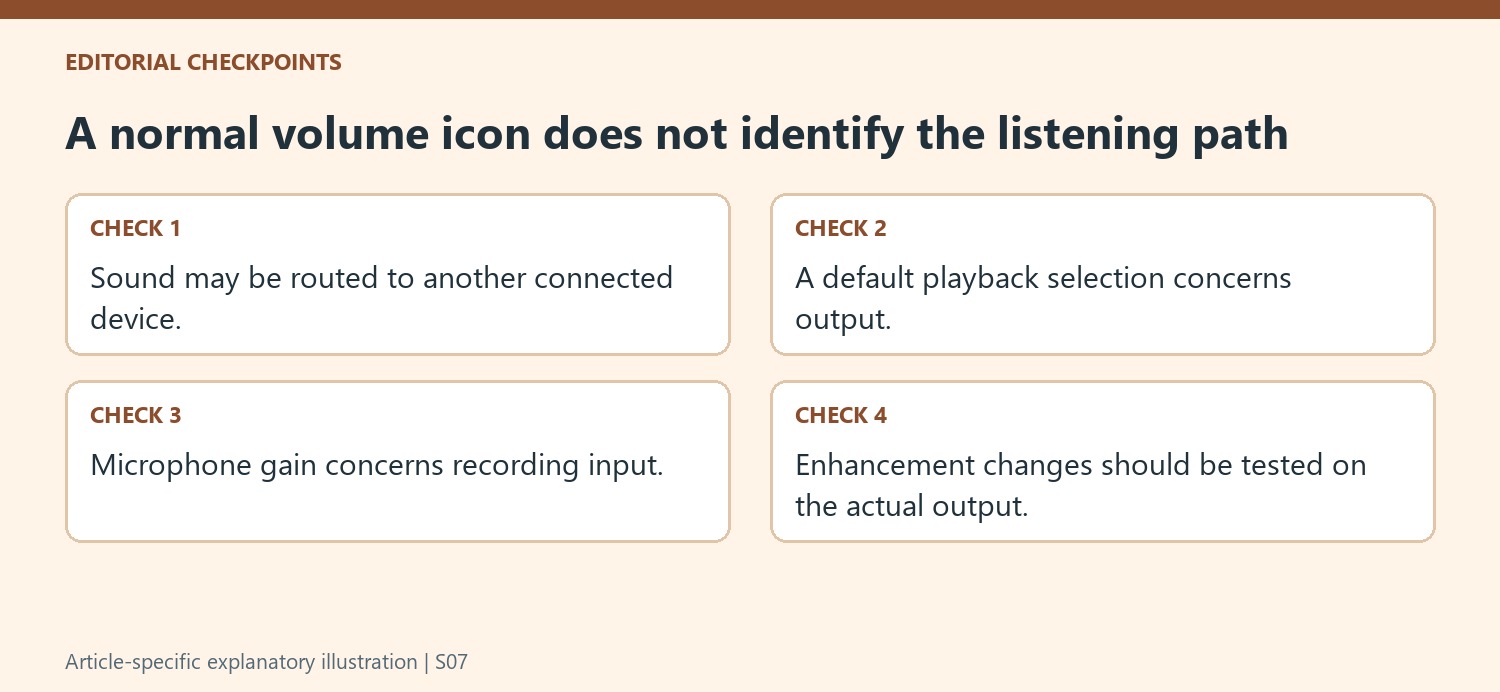
The support page begins with a common situation: the taskbar appears ordinary, yet no sound is heard. A visible volume icon does not identify which connected device is receiving the audio. Open Sound settings and read the chosen output, especially after connecting a screen, headset, or USB audio accessory. A slider can be raised while sound is directed somewhere else. Confirm the desired device and its mute state before changing more advanced settings. This simple identity check gives the rest of the investigation a clear target: the computer should be sending the test sound to the particular speaker or headphones being evaluated, rather than an overlooked alternative.
Use the default playback control deliberately
Microsoft separately describes setting the intended device as the default through the additional Playback controls. This provides a more persistent selection context than assuming the last device plugged in will remain the preferred output. Check the correct entry before applying the choice, then play a known sound. If several outputs have similar names, identify the associated accessory rather than selecting one by its position in a list. The task concerns playback, so recording-input settings are a different part of the system. A working microphone does not establish that the desired output is selected, and changing microphone gain is not a remedy for silent speakers. Keep input and output checks distinct throughout the test.
Treat enhancements as a controlled compatibility comparison
The article offers turning Audio enhancements off for the selected output because processing can sometimes interfere with playback. That is a targeted test, not proof that enhancements are always undesirable or the cause of every silent device. Apply the change to the actual output being used and compare the result before moving on. The Windows 11 Get Help audio troubleshooter is another supported route in the source, with broader audio guidance available if the symptom persists. Retain the selected device, mute state, default setting, and result of the enhancement test. That gives later troubleshooting useful evidence without beginning with unrelated driver changes or replacing speakers whose audio may simply have been routed elsewhere.
References
- Fix audio issues when no sound plays from speakers or headphones in Windows. support.microsoft.com.
Microsoft's no-sound guide begins by selecting the appropriate playback device from the taskbar sound controls. A monitor, headset and built-in speakers can all appear as outputs, so audio may be sent to a device that is connected but not being used. Choose the intended speakers before changing more complex settings.


Leave a Comment
Comments (0)