
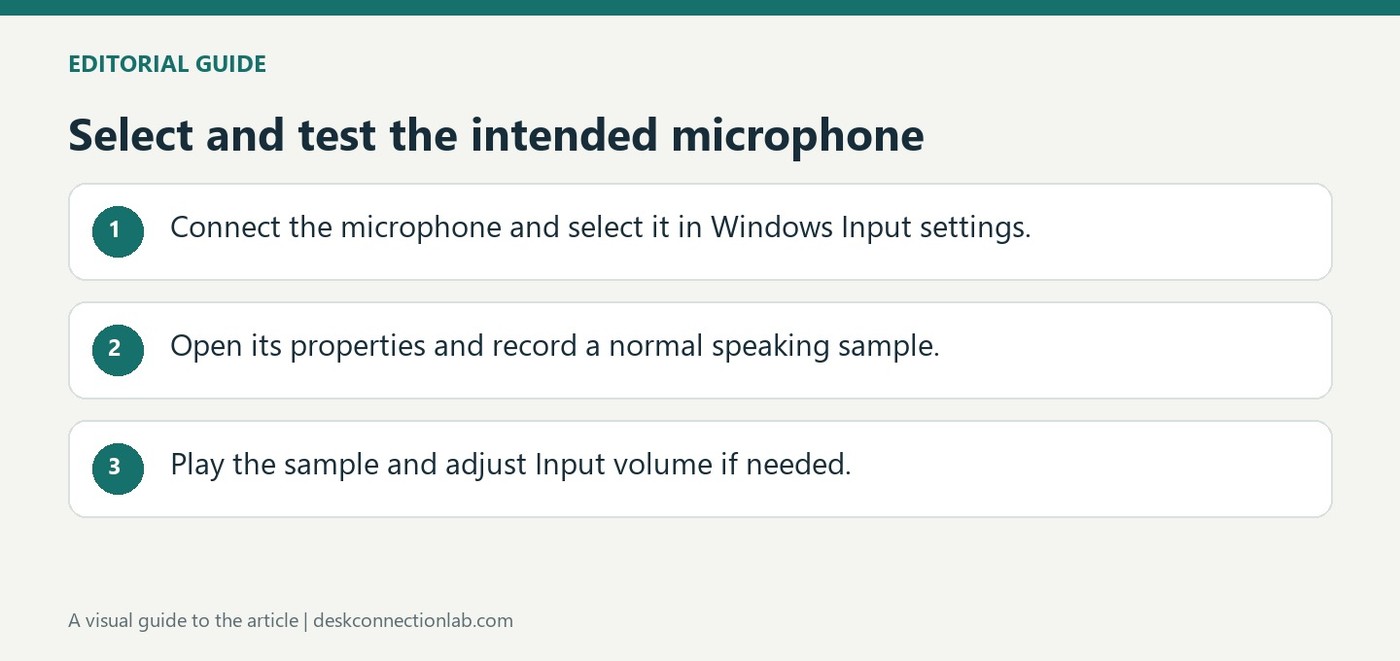
Select and test the intended microphone
Find the input rather than the speaker
Microsoft's setup guide directs users to Settings, System, Sound after connecting a microphone. The Input section lists the available recording devices. Select the microphone you intend to use; a laptop can have an internal array as well as a USB microphone, headset microphone or camera microphone, so the first visible device may not be the desired one.
Record a short sample
Open the selected microphone's properties and start the microphone test. Speak at the normal distance, stop the test and play the recording. Adjust Input volume if the level is unsuitable. This checks the actual recording path more effectively than looking only for a power light, and helps distinguish a working connection from the wrong input being selected.
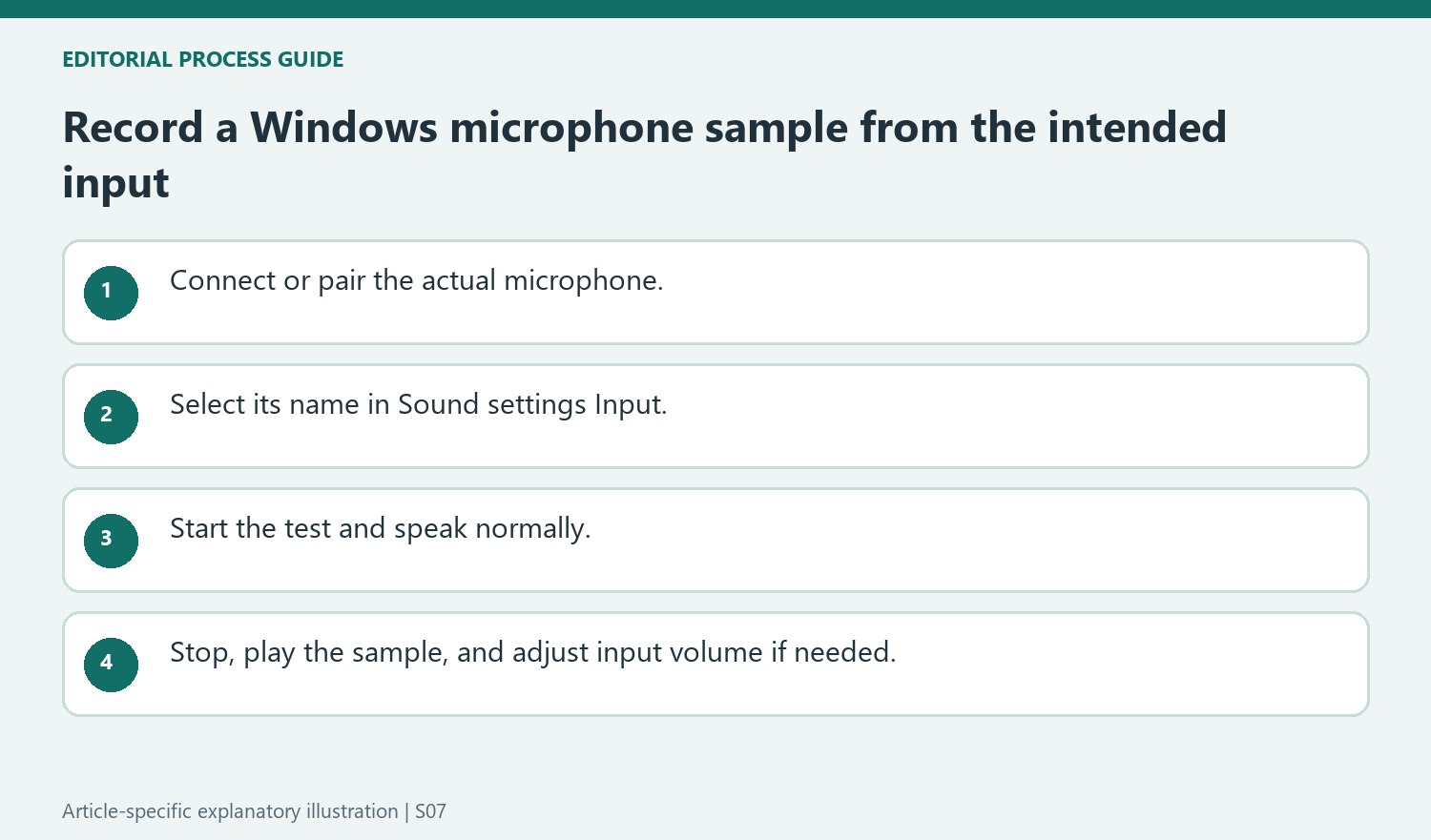
Separate a connected device from a selected recording input
The guide begins with the physical connection and then moves to the Input list, because those are separate checks. A connected speaker or a working playback test does not identify the microphone Windows will record. For a Bluetooth microphone, Microsoft directs users to Add device and the pairing prompts. Once the device is available, open the properties of that specific input. This keeps the test tied to the intended microphone rather than drawing conclusions from another recording device on the computer.
Compare recordings under consistent conditions
Use a normal speaking voice and the position you expect to use during a call or recording. Listen to the recorded sample, adjust Input volume where necessary, and make another sample from the same position. Changing the level and speaking distance together makes it harder to identify which change helped. The documented procedure provides a Windows recording check; it does not prove that every application has selected the same input. If the sample is clear but a particular app still sounds wrong, compare that application’s chosen microphone with the device whose properties you just tested.
Identify which microphone the test is actually measuring
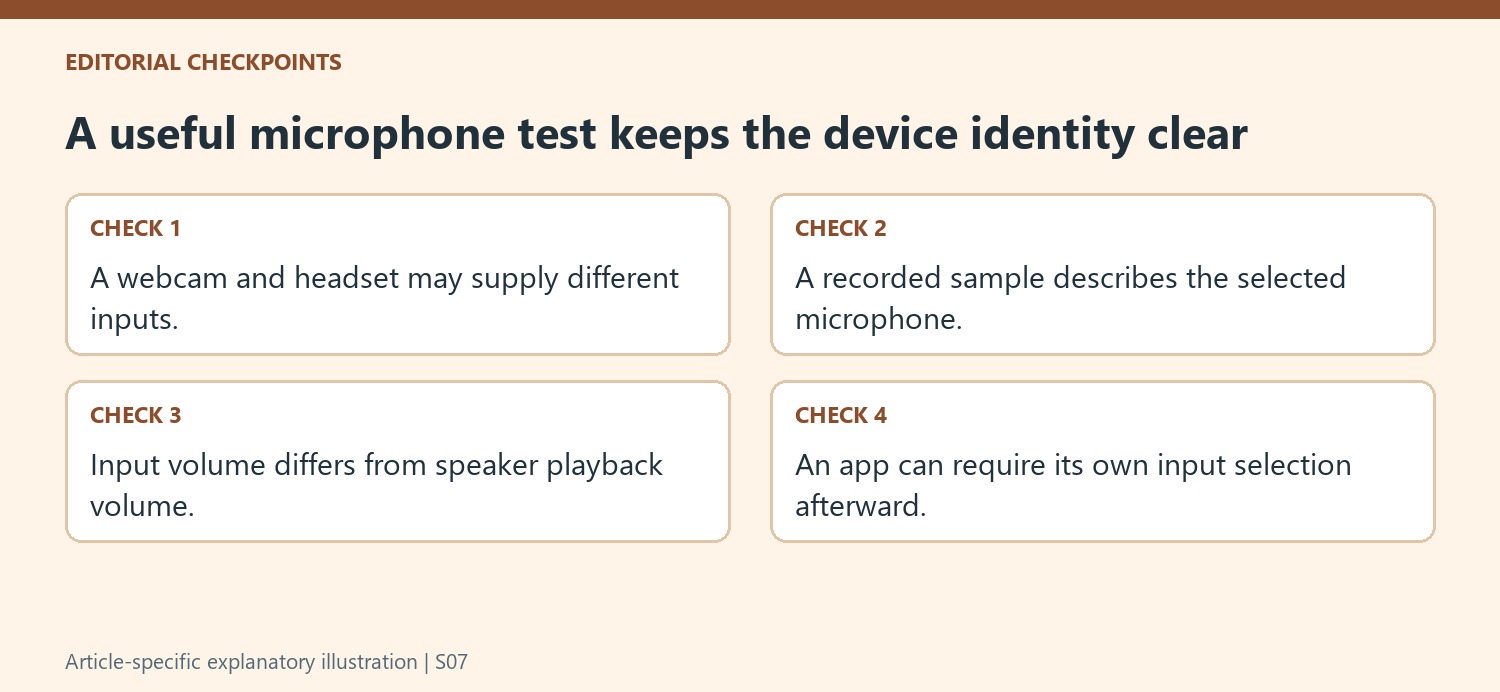
A computer can have a headset, webcam, built-in microphone, and another external input available at the same time. Microsoft's procedure therefore selects the intended device in Sound settings before opening its properties and starting a test. That choice is essential: a successful recording from the laptop's built-in microphone does not demonstrate that the newly connected headset microphone works. Read the device name and, where possible, make the test with the intended microphone positioned as it will be used. A clear input choice turns a general sound check into evidence about a particular connection. It also makes the next volume adjustment relevant to the correct device rather than another active input.
Use the recorded sample rather than speaking louder by guesswork
The documented test starts recording, asks the user to speak normally, then stops and plays the sample. That loop lets the person hear the result instead of relying only on a microphone icon or a general impression that sound is being captured. Keep the speaking position consistent when comparing an input-volume change. Otherwise, a louder sample might reflect moving closer rather than the slider adjustment. The support page suggests changing Input volume if needed, which is a targeted control for the selected microphone. It is not the same as raising speaker volume, and it does not establish which device a separate conferencing application will select for its own input.
Complete connection before treating volume as the problem
Microsoft begins with the microphone connected to the PC and provides Add device for a Bluetooth microphone that needs association. A product not yet connected cannot be evaluated meaningfully through the properties of a different input. Follow the appropriate physical or wireless setup first, then choose its entry in Sound settings. Once the local test produces a useful recorded sample, the setup has a clear baseline for later application checks. If a call still cannot hear the user, compare that app's input selection and relevant access settings rather than repeatedly increasing the system slider. The short recording is most valuable as a repeatable reference showing which device was tested and how it sounded under the intended conditions.
References
- How to set up and test microphones in Windows. support.microsoft.com.
Microsoft's setup guide directs users to Settings, System, Sound after connecting a microphone. The Input section lists the available recording devices. Select the microphone you intend to use; a laptop can have an internal array as well as a USB microphone, headset microphone or camera microphone, so the first visible device may not be the desired one.


Leave a Comment
Comments (0)