
Recover a Bluetooth accessory that will not connect
Check discovery range and battery
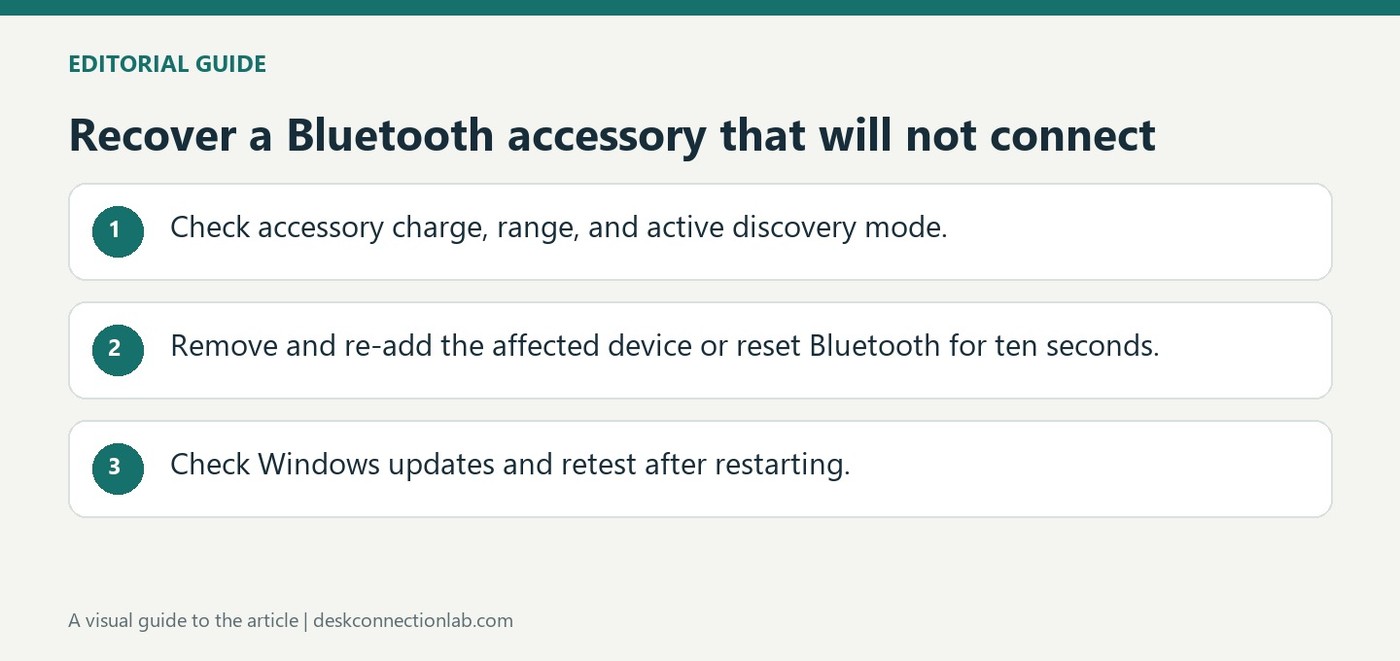
Microsoft distinguishes a visible Bluetooth adapter from a successful accessory connection. Confirm that Bluetooth is on, place the accessory in pairing mode and move it close to the computer. A weak battery may prevent either discovery or a stable link, so charge or replace batteries before concluding that the Windows adapter has failed.
Rebuild the pairing if necessary
Remove the affected device from Bluetooth settings and add it again. Turning Bluetooth off briefly and back on can also clear a temporary connection problem. The Windows 11 Get Help troubleshooter and available Windows updates provide further checks. Change one condition at a time so a successful reconnection can be traced to the pairing, battery, range or software adjustment that resolved it.
Use the documented radio reset and retry pairing
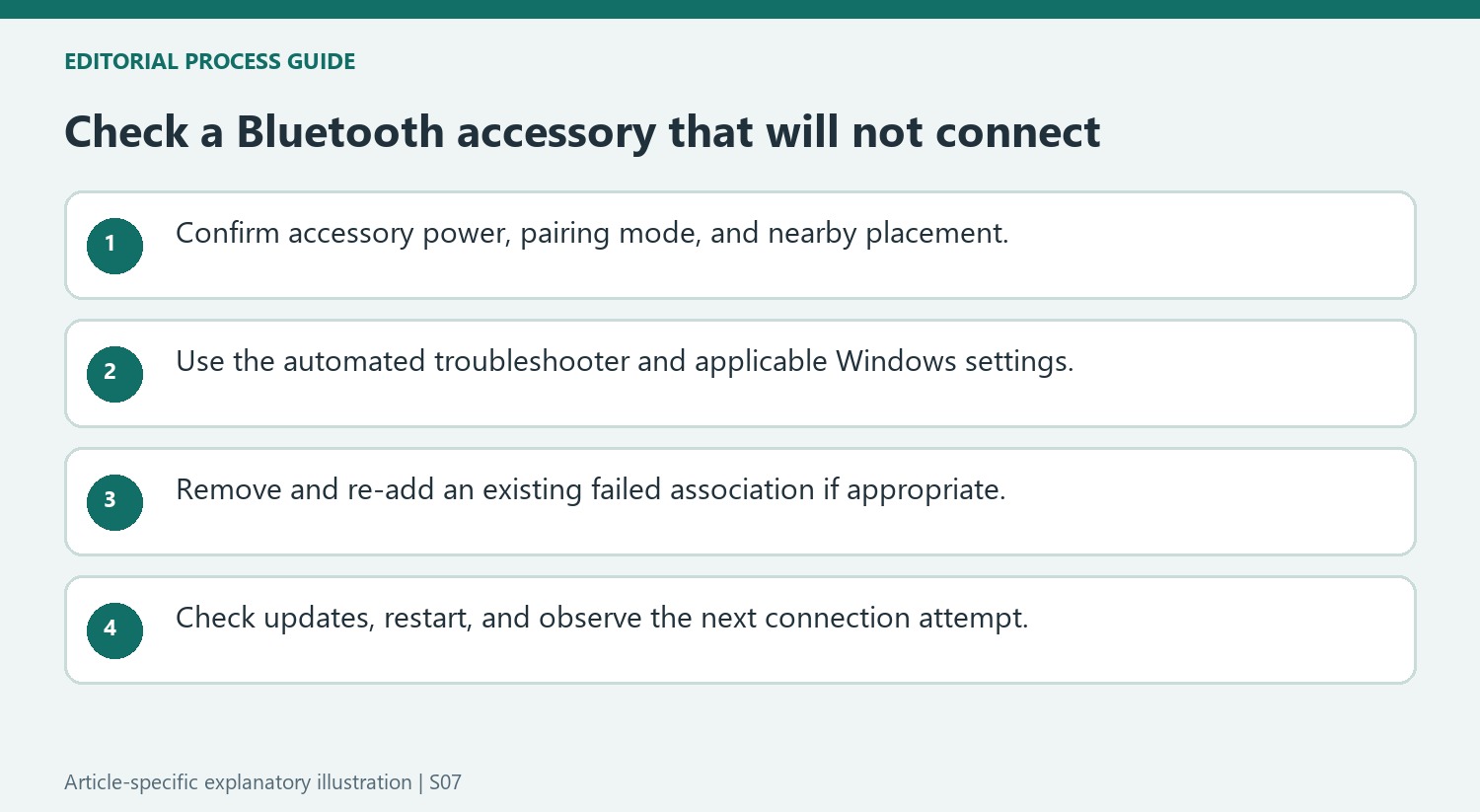
Microsoft describes turning Bluetooth off in Settings, waiting ten seconds and then turning it on again before another pairing attempt. That radio reset is separate from removing a stored device entry. Removing and re-adding is useful when the accessory appears in the list but will not connect, while the power-cycle step can address a temporary Bluetooth state. Keep the accessory in its documented discovery mode for the new attempt. A saved entry without an active connection is not the same observation as a device that never appears in discovery at all.
Retest after charging, updates and a real restart
The guide notes that low charge can prevent both entering pairing mode and maintaining a connection. It recommends fully charging a rechargeable device and turning it off and on; rechargeable headphones or speakers can remain on power during pairing. Windows Update and a PC restart are later supported checks. The Windows 10 and Windows 11 settings paths differ, so use the section matching the installed version. Observe whether the next attempt fails at discovery, pairing or later connection, instead of treating all three stages as an indistinguishable wireless fault.
Separate a visible adapter from a ready accessory
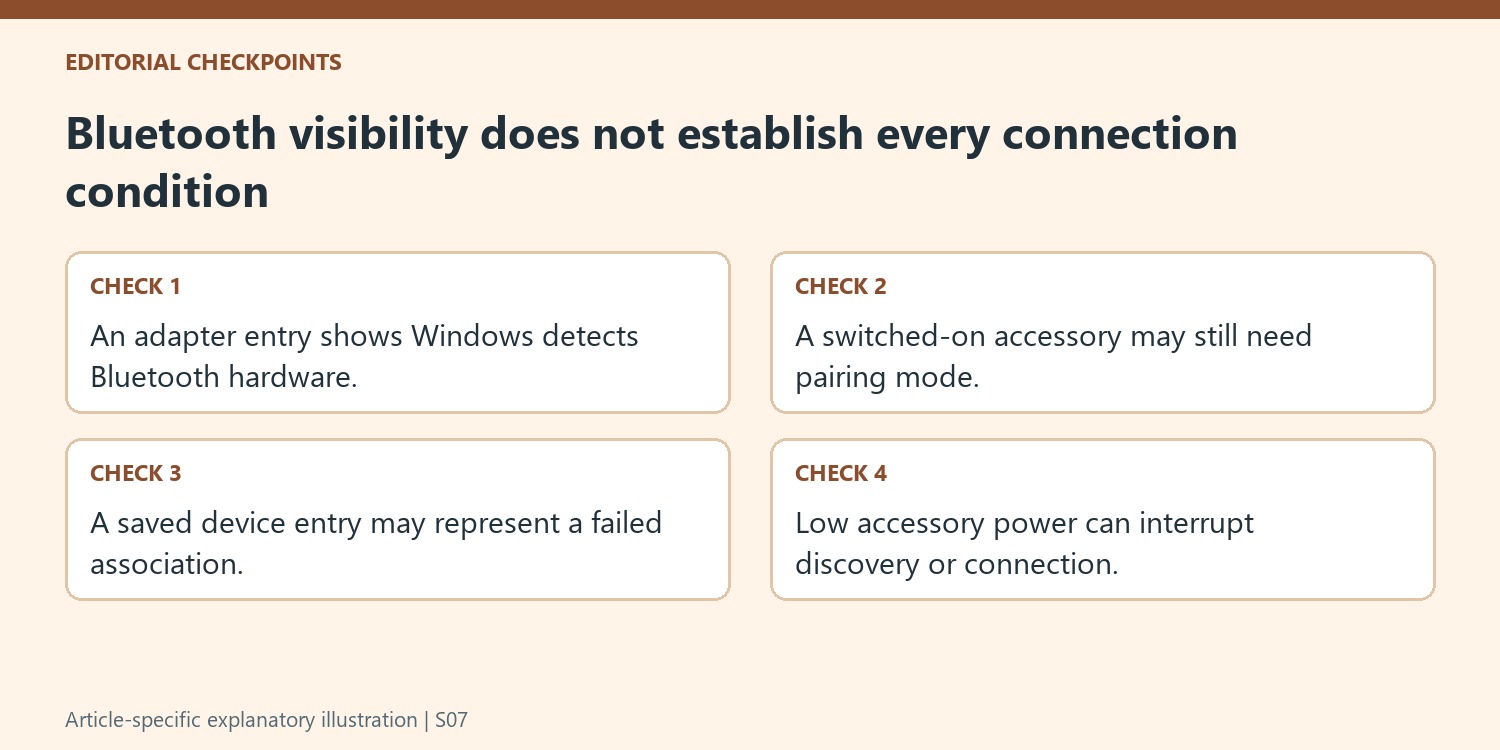
The support page starts from a situation where Bluetooth appears in Device Manager but pairing or connection still fails. Seeing the adapter therefore answers only one part of the problem. The accessory must also have sufficient power, be in its own pairing mode, and be close enough for the computer to find it. Checking those conditions avoids assuming that every failure is a Windows driver fault. A speaker that is merely switched on may still be unavailable for a new association, while a low battery may interrupt discoverability. Identify the intended accessory and its documented pairing control before removing devices or changing computer settings.
Use removal and re-adding for an existing failed association
Microsoft suggests removing an accessory from the Bluetooth list when it is already shown there but will not connect, then adding it again. This refreshes the association and has a different purpose from searching for a device that was never paired. Confirm the accessory's identity before removing it, especially when the list contains several similar names. The Windows 11 and Windows 10 settings routes differ, so use the path that belongs to the machine being repaired. After removal, put the accessory into the required pairing state and complete the new connection process. Simply deleting its entry without making it discoverable again leaves the task unfinished.
Work through the computer checks after the immediate conditions
The page offers the automated Bluetooth troubleshooter in Get Help, a ten-second off-and-on cycle for Bluetooth, Windows Update, and a PC restart. Those steps address different possible temporary or software-related causes. Carry them out deliberately and check the result so a successful change can be identified. A fully charged accessory and a nearby pairing attempt give those tests a clearer starting point than a nearly empty device across the room. Microsoft's guidance also suggests keeping suitable rechargeable speakers or headphones connected to power while pairing. If the problem persists, retain the exact symptom and the completed checks; that information is more useful for further troubleshooting than repeatedly starting the same unsuccessful pairing attempt without changing the conditions.
References
- Troubleshoot Bluetooth not connecting in Windows. support.microsoft.com.
Microsoft distinguishes a visible Bluetooth adapter from a successful accessory connection. Confirm that Bluetooth is on, place the accessory in pairing mode and move it close to the computer. A weak battery may prevent either discovery or a stable link, so charge or replace batteries before concluding that the Windows adapter has failed.


Leave a Comment
Comments (0)