
Pair the Keyboard and Touchpad on Their Own Easy-Switch Channels
Logitech's multi-device guide gives the keyboard and touchpad separate Easy-Switch controls. The keyboard uses F1, F2, and F3, while the touchpad's button is on its back. Each device can pair with up to three computers, so setting up one peripheral does not automatically establish the other's connection.
Choose the intended channel on the peripheral you are configuring and hold its button for three seconds. When the LED flashes quickly, open Bluetooth settings on the target computer to complete pairing. A short press subsequently changes the active channel. Repeat the process for the other peripheral when you want both available on the same set of computers.
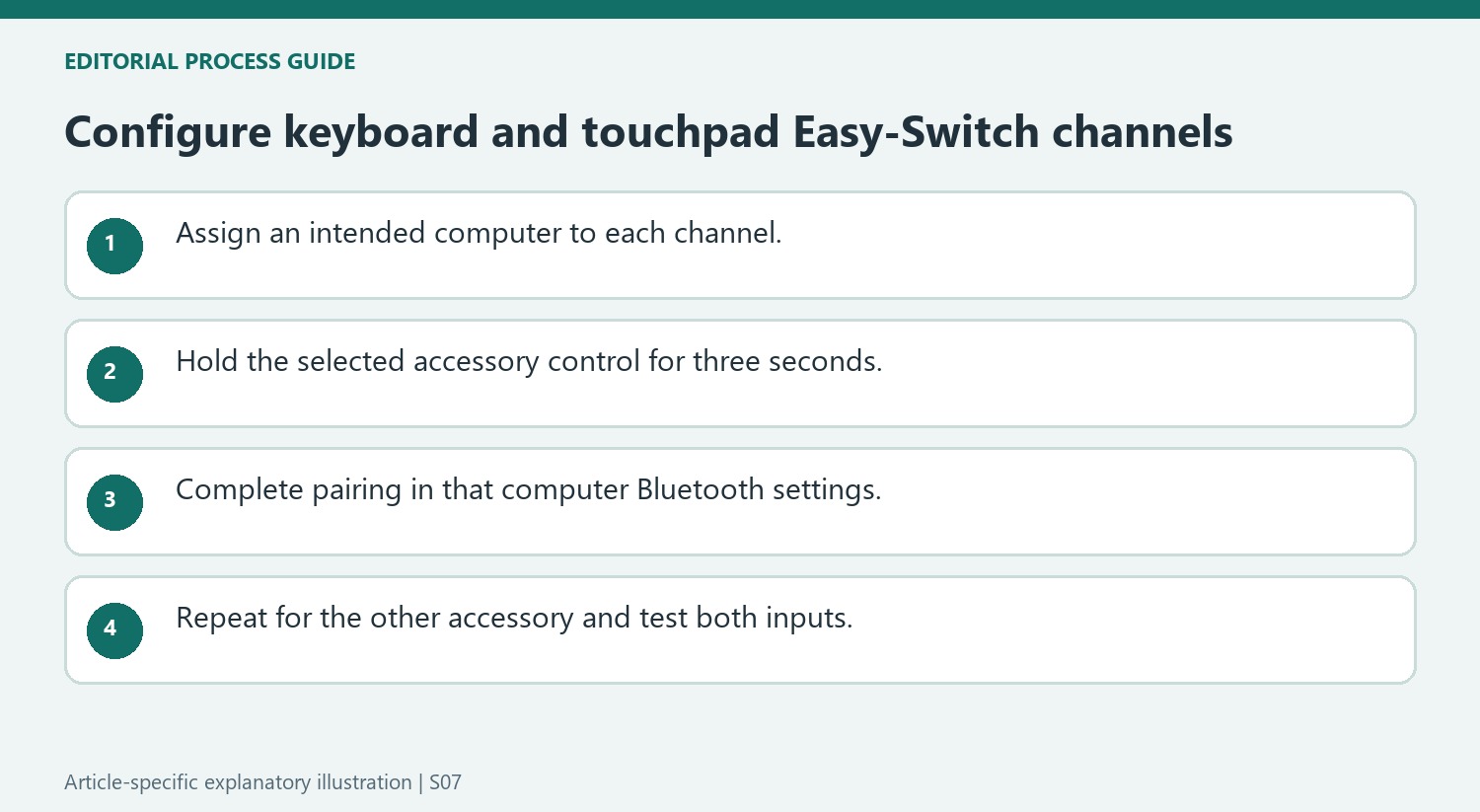
Pair the keyboard and touchpad as separate peripherals
The article assigns the keyboard’s F1, F2 and F3 keys to Easy-Switch, whereas the touchpad uses a control on its rear. Choosing a channel on the keyboard does not simultaneously choose a touchpad channel or pair that other peripheral. For a two-computer setup, decide which channel on each accessory corresponds to each computer, then complete each Bluetooth pairing separately. That record makes it easier to explain a split result where typing reaches one computer but pointer input reaches another, without assuming the two accessories share a synchronized receiver or automatic channel map.
Distinguish a short channel switch from renewed discovery
A three-second hold starts discoverability and a rapidly blinking indicator; a short press switches among already configured channels. Use the hold when establishing the relationship with a computer and the short press when returning to a stored pairing. On the target computer, complete the Bluetooth settings stage before treating the flashing LED as a finished connection. This sequence applies to the keyboard and touchpad described by Logitech’s guide. It does not establish that every Easy-Switch product uses the same physical keys, so retain the device-specific control locations when adapting the steps to another accessory.
Assign channels to computers before pairing the pair of accessories
Logitech's instructions describe up to three computers, selected through Easy-Switch channels. The keyboard uses F1, F2, and F3 for those controls, while the touchpad's control is on its back. A simple channel plan helps when both accessories are intended to follow the same set of computers: decide which machine belongs to each channel before beginning. This is a convenience convention, not a claim that changing one accessory automatically changes the other. Each device has its own selection control. Check both when the pointer responds on one computer but typing appears on another, because they may simply be aimed at different remembered connections.
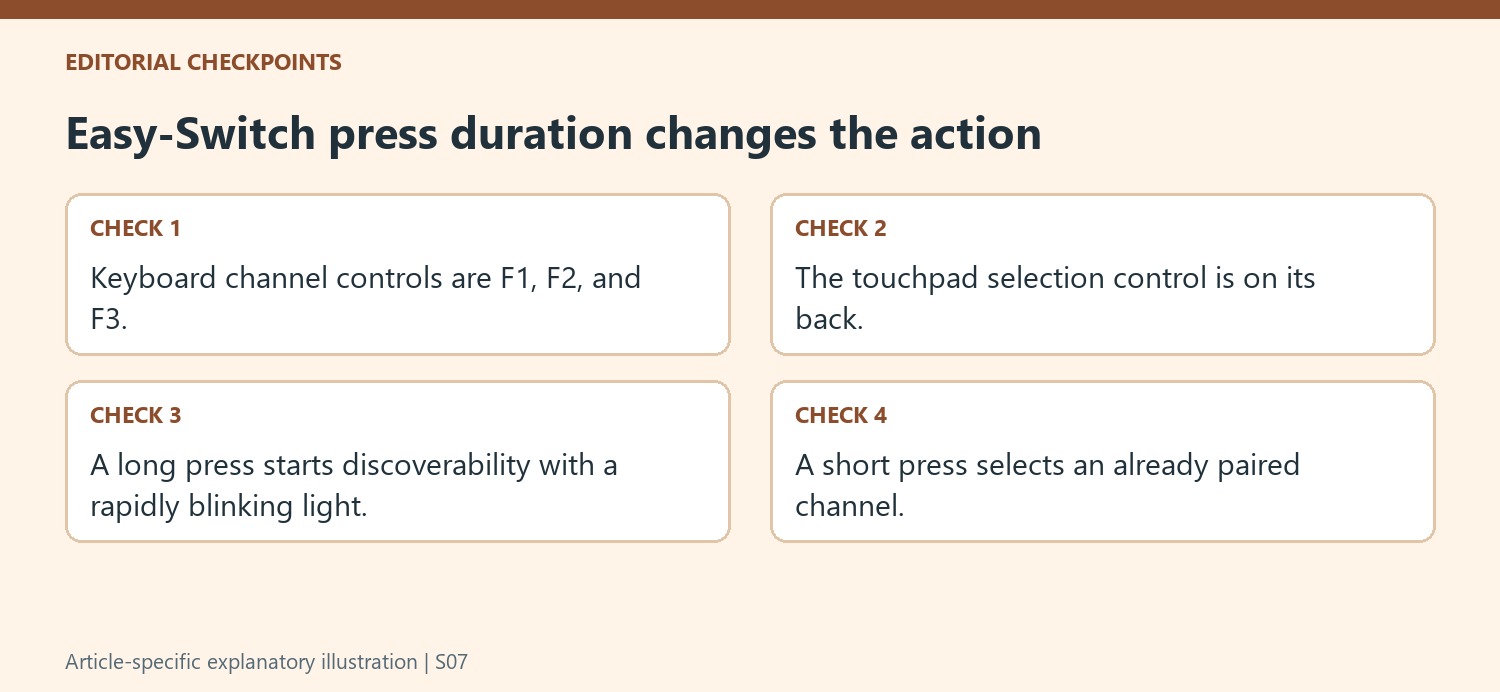
Use a long press for discoverability and a short press for selection
The support note distinguishes holding an Easy-Switch control for three seconds from pressing it briefly after pairing. The longer action starts discoverable mode, indicated by a rapidly blinking LED, so the intended computer can find the accessory through Bluetooth settings. A short press later changes the selected channel and computer. Those different actions explain why repeatedly holding a button is not the ordinary way to switch an already configured setup. Identify whether the current task is creating a new association or returning to an existing one, then use the matching action on the keyboard or touchpad being configured. Complete the Bluetooth step on the intended computer before moving to another channel.
Verify both input paths after a channel change
Once the keyboard and touchpad are paired, test the two controls independently on the intended machine. A small typing action checks the keyboard's selected destination, and pointer movement checks the touchpad's destination. If only one responds, compare its Easy-Switch selection with the other accessory before changing unrelated computer settings. The article supplies a concise pairing and switching procedure rather than a universal diagnosis for all Bluetooth failures, so unresolved discovery problems should be investigated using the relevant device and computer guidance. A clear channel assignment and awareness of the two press durations make the everyday routine simpler: select an existing channel for ordinary use and reserve a new pairing sequence for an association that actually needs to be created.
References
- Pair your touchpad and keyboard to multiple devices with Easy-Switch. Logitech Support.
Logitech's multi-device guide gives the keyboard and touchpad separate Easy-Switch controls. The keyboard uses F1, F2, and F3, while the touchpad's button is on its back. Each device can pair with up to three computers, so setting up one peripheral does not automatically establish the other's connection.


Leave a Comment
Comments (0)