
Use separate pairing slots on Designer Compact
Pair up to three devices
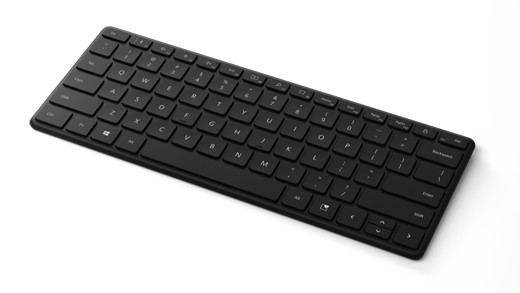
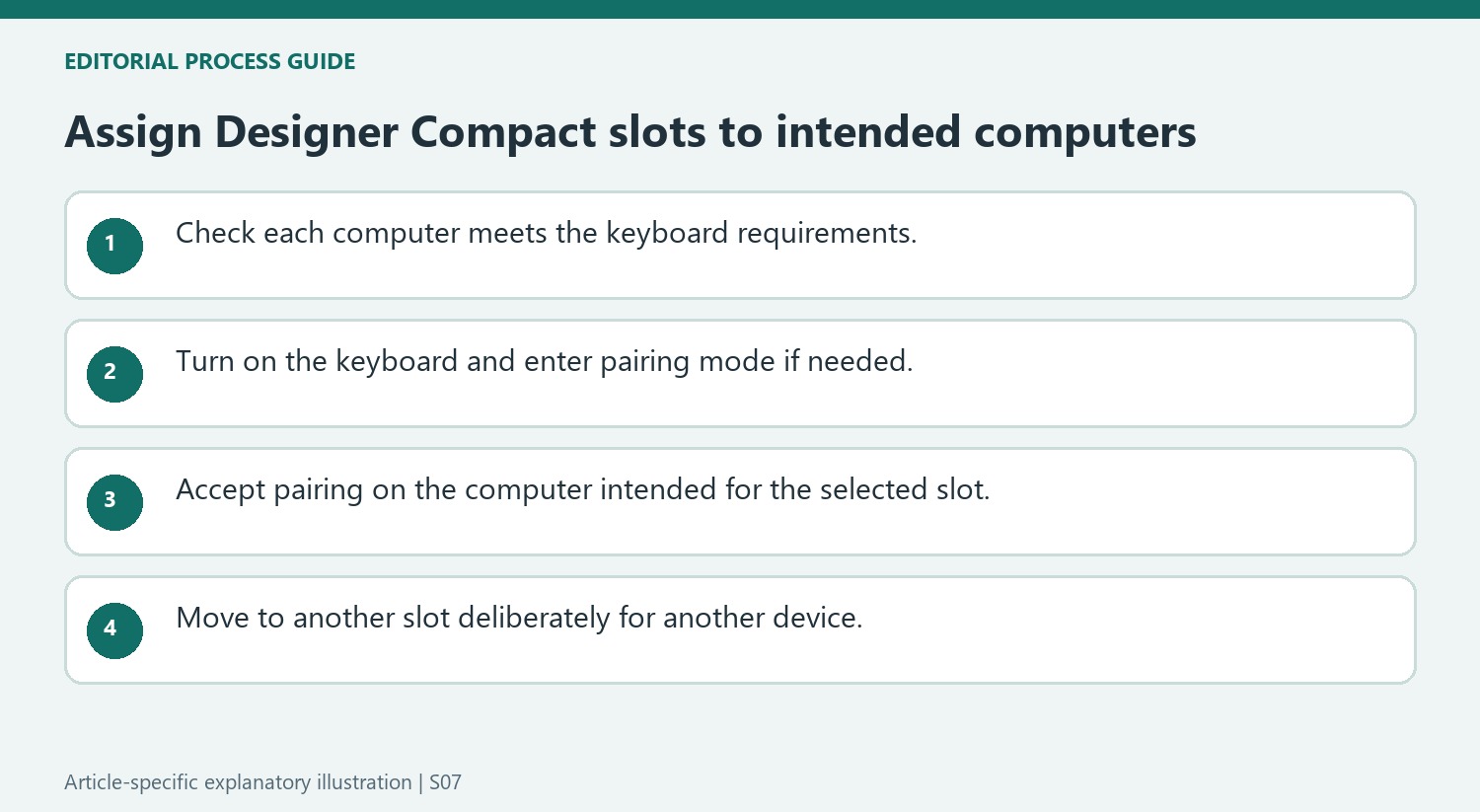
Microsoft Designer Compact Keyboard supports three paired devices, making it a concrete example of a keyboard designed for switching between computers. Turn it on and watch for the flashing pairing light. If necessary, hold its pairing button for about five seconds, then accept the Windows notification or select it in Bluetooth settings.
Choose the intended slot and computer
To connect another device, press the pairing button to advance to the next Bluetooth slot and repeat the pairing process. When several nearby computers show a connection notification, accept it on the intended computer. This slot-based procedure should not be assumed for every Bluetooth keyboard. Windows typing preferences and the keyboard's battery status can be checked separately once each connection is established.
Replace the four coin cells using the documented compartment
Microsoft describes four coin-cell batteries in this keyboard and opens the battery door by inserting a pin into the small hole, holding it there and sliding the door away. Place the batteries with their positive sides facing upward, then slide the cover back into position. That physical procedure is specific to Designer Compact Keyboard; it differs from a full-size keyboard using AAA cells. Checking power is relevant before assuming a missing flashing indicator is a Bluetooth-software failure, but opening the battery compartment is not the same action as choosing a new device slot.
Check software features after each pairing is established
The requirements include Bluetooth 4.0 or later and a supported Windows 10 or Windows 11 PC, while Microsoft specifically requires Windows 11 for the Expressive key. The source also directs users to Time and language, Typing for typing preferences and mentions Mouse and Keyboard Center for personalization. Test text entry on the intended computer after accepting its connection notification. With multiple nearby PCs, a completed pairing on one machine does not establish which slot is currently selected for another. Keep the channel indication and destination computer together when diagnosing unexpected switching behavior.
Use the selected Bluetooth slot deliberately
The Designer Compact Keyboard can remember up to three paired devices, with the pairing button moving to another Bluetooth slot. This makes it suitable for a desk where one keyboard serves different computers, but it also makes the selected slot important during setup. Microsoft's instructions note that a connection notification can appear on several nearby PCs; accept it on the intended one. Pairing an unused slot is different from simply expecting the keyboard to type on any nearby computer. Plan which computer belongs to each slot and observe the light change when choosing the next slot so the relationship remains understandable after the initial setup session.
Distinguish first power-on from a fresh pairing attempt
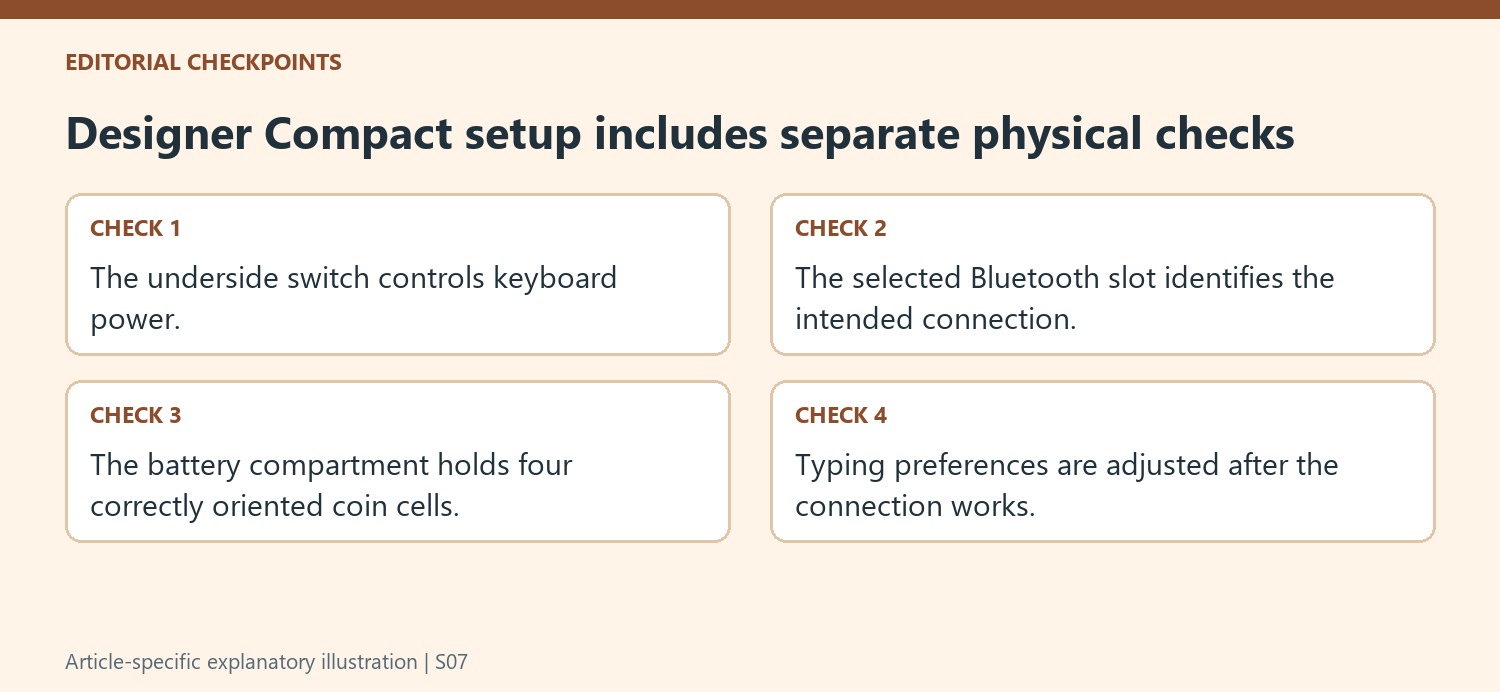
The underside switch turns the keyboard on, and the documented initial behavior is automatic pairing mode with a flashing LED. If that does not happen, holding the pairing button for five seconds provides another route to discoverability. Windows 11 and Windows 10 then use their respective Bluetooth settings paths, while Swift Pair may offer a faster notification. The requirements include Bluetooth 4.0 or later, and the Expressive key has a Windows 11 qualification in the support page. Check those requirements for each intended computer rather than assuming that remembering three devices makes every feature identical across operating systems. Successful pairing and availability of a particular shortcut are separate checks.
Treat battery replacement as a physical setup task
The keyboard uses four coin-cell batteries, with the battery door released through the small underside hole described by Microsoft. The instructions specify positive sides facing upward before the door is slid back into position. Follow the battery type and handling information for the actual keyboard rather than transferring a procedure from another compact model. Battery condition, power-switch position, and the selected Bluetooth slot can all affect the impression that the keyboard has stopped responding, but they call for different checks. Once the keyboard is working, use Windows Typing settings for typing preferences and the appropriate customization tools for supported functions. Keeping those tasks separate avoids changing software settings when the immediate issue is power or device selection.
References
- Use Microsoft Designer Compact Keyboard. support.microsoft.com.
Microsoft Designer Compact Keyboard supports three paired devices, making it a concrete example of a keyboard designed for switching between computers. Turn it on and watch for the flashing pairing light. If necessary, hold its pairing button for about five seconds, then accept the Windows notification or select it in Bluetooth settings.


Leave a Comment
Comments (0)