
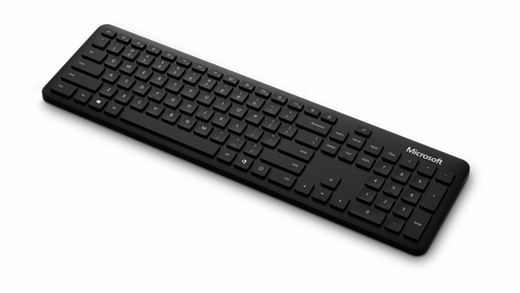
Connect Microsoft's Bluetooth Keyboard
Use its dedicated pairing button
Microsoft's Bluetooth Keyboard requires Bluetooth 4.0 or later on a supported Windows computer. Hold the button underneath for about five seconds until the light flashes. Accept the Swift Pair notification if it appears, or open Bluetooth and devices, add a Bluetooth device and choose the keyboard from the list.
Adjust typing after the link works
After pairing, Windows typing preferences are available under Time and language, Typing. The keyboard's Emoji key provides another shortcut, and Microsoft Mouse and Keyboard Center offers supported customization. These settings affect the typing experience rather than repairing a missing wireless connection. Establish a reliable Bluetooth link first, then check language and layout if the keys produce unexpected characters.
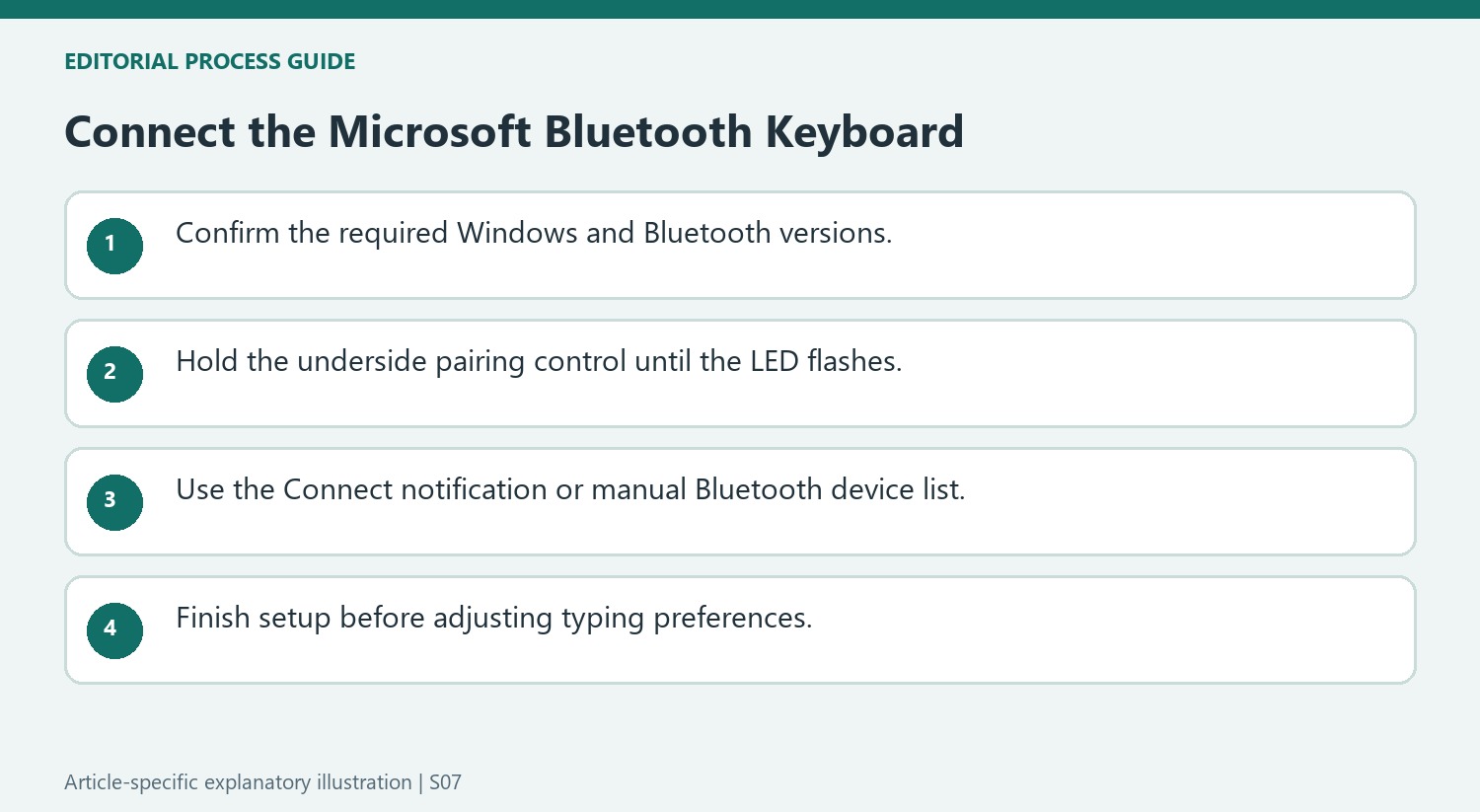
Separate the discovery signal from completed setup
The five-second press underneath the Microsoft Bluetooth Keyboard starts a flashing LED, which indicates the pairing stage. Windows then needs to select the matching keyboard, either from Swift Pair or through Add a device. Keep the name in the device list attached to this model; Microsoft’s procedure does not describe choosing an arbitrary nearby keyboard. The supported requirements include Windows 10 or Windows 11 and Bluetooth 4.0 or later, so confirm the host capability when a computer cannot discover the accessory rather than treating a USB charging or storage connection as equivalent to Bluetooth support.
Use the Emoji key and typing tools for their intended tasks
The dedicated Emoji key opens a selection of expressive characters. That is a typing shortcut, separate from the button used to establish the wireless connection. Windows Typing settings adjusts the typing experience, and the source points to Microsoft Mouse and Keyboard Center for supported personalization. These functions become relevant after a dependable connection exists. If the keyboard is already entering text but the result is not what was expected, record the active layout and the exact key behavior before repeating discovery; reconnecting does not itself define which language or punctuation mapping Windows should use.
Check the computer requirement before entering pairing mode
Microsoft specifies Windows 10 or Windows 11 with Bluetooth 4.0 or later for this keyboard's setup and the documented Office and Emoji key functions. That requirement belongs at the start of the process, particularly with an older desktop or a computer using a separate Bluetooth adapter. A familiar Bluetooth symbol alone does not identify the supported version. The support page directs uncertain users to Microsoft's version-checking guidance. Establishing compatibility first makes later pairing steps more meaningful: if the keyboard does not appear, the investigation can focus on its discoverable state and the Windows connection route rather than an unverified assumption about the computer's wireless support.
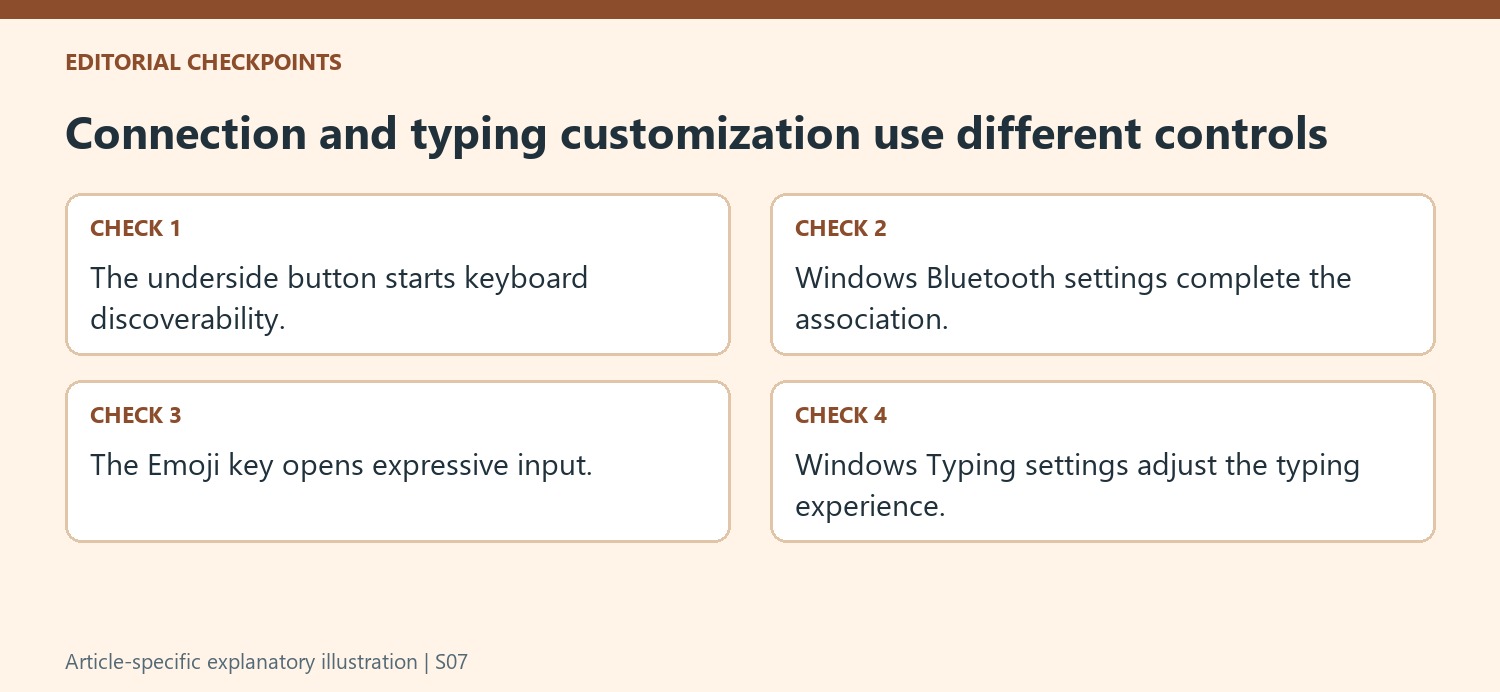
Use the flashing light as the pairing cue
The documented pairing control is on the bottom of the Microsoft Bluetooth Keyboard. Holding it for five seconds causes the LED to flash, indicating the stage at which Windows should be able to discover it. Swift Pair may then present a Connect notification, but Microsoft also provides the manual Add a device route if no notification appears. Those are alternative ways to complete the same intended pairing, so the absence of a pop-up should not lead immediately to repeatedly holding the button or replacing the keyboard. Select the named keyboard in Windows Bluetooth settings and wait for setup to complete before judging whether normal typing works.
Keep typing preferences separate from connection setup
After pairing, Microsoft's Typing settings page provides a place to adjust the Windows typing experience. The Emoji key offers a direct route to expressive input, while Mouse and Keyboard Center is identified as an additional customization tool. These features concern how the working keyboard behaves, rather than whether Bluetooth can detect it. Make one change at a time when adjusting preferences so its effect is easy to recognize. If the problem is that the keyboard never connects, return to the connection and troubleshooting guidance instead of searching through typing preferences. Treating pairing, ordinary text entry, and optional customization as separate stages makes the initial setup easier to finish and later adjustments easier to understand.
References
- Use Microsoft Bluetooth Keyboard. support.microsoft.com.
Microsoft's Bluetooth Keyboard requires Bluetooth 4.0 or later on a supported Windows computer. Hold the button underneath for about five seconds until the light flashes. Accept the Swift Pair notification if it appears, or open Bluetooth and devices, add a Bluetooth device and choose the keyboard from the list.


Leave a Comment
Comments (0)