
Pair a discoverable Bluetooth accessory
Prepare both ends of the connection
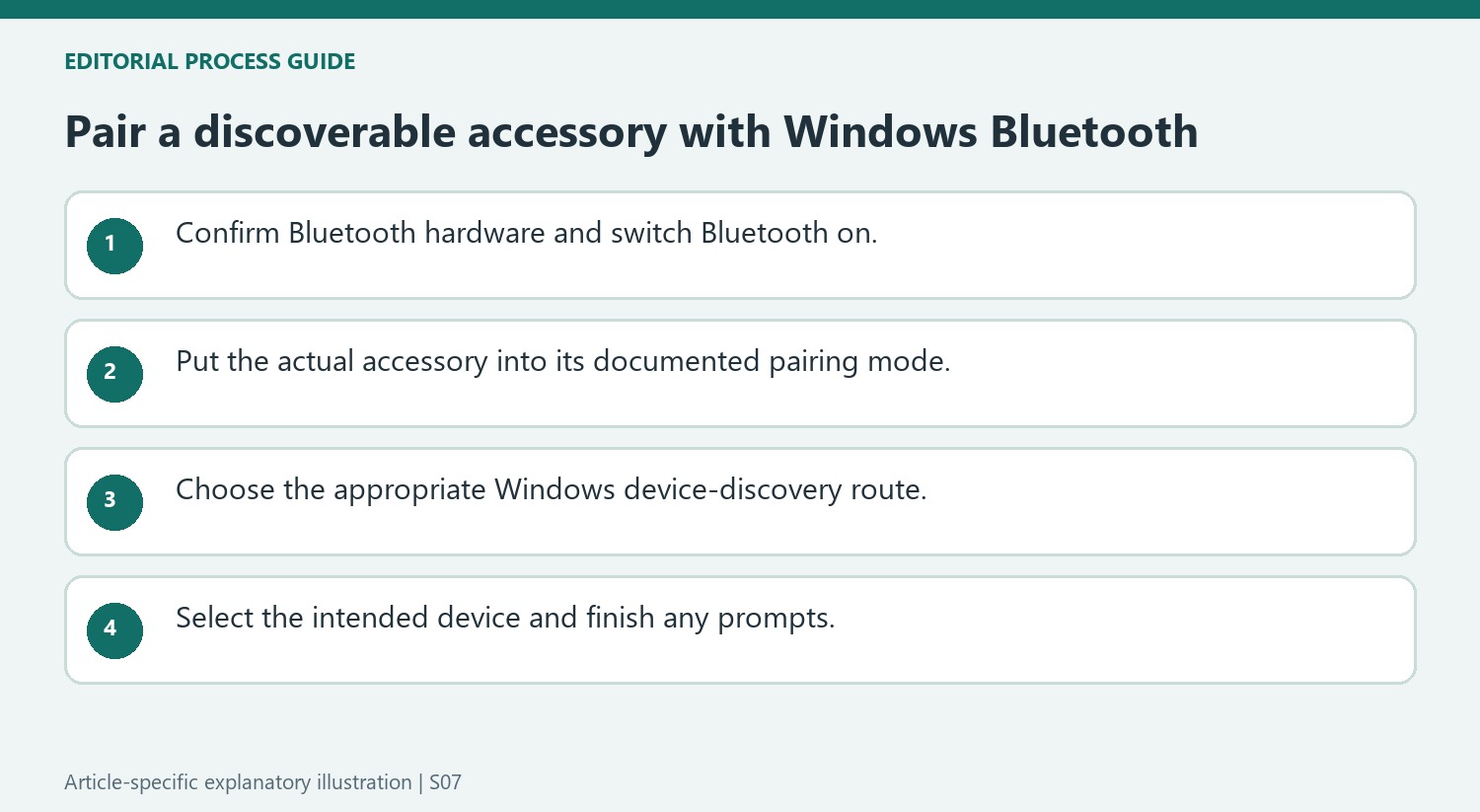
Windows must support Bluetooth and have it switched on before it can pair with a keyboard, mouse or other Bluetooth device. Microsoft notes that a USB Bluetooth adapter can add the feature to a computer that lacks it. Put the accessory into its manufacturer-specified discovery mode; simply powering it on may not be enough.
Complete pairing in Windows
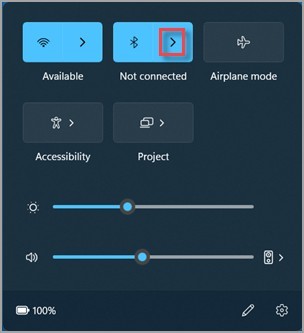
Open Bluetooth and devices or use the taskbar Bluetooth controls, choose the newly discovered device and follow any additional prompts. If the accessory is absent, the guide suggests checking discovery settings as well as its pairing mode. Once paired, the computer and accessory can reconnect when Bluetooth is enabled and they are within range, without repeating the initial setup every time.
Read the Bluetooth tile before looking for the accessory
Windows 11 provides Bluetooth both in Settings and in quick settings opened through the Network, Sound or Battery area. An inactive tile can say Off, while an enabled tile can show Connected, Not connected or the current accessory. From its device-management chevron, look under New devices and complete any further prompts. The source notes that this section can require scrolling past existing devices. An enabled radio and a visible previously paired accessory do not necessarily mean a new keyboard has entered discovery or completed its own setup.
Use Swift Pair only with a supporting device
A nearby accessory supporting Swift Pair can trigger a notification while it is discoverable. Microsoft describes an initial permission prompt to enable Swift Pair, followed by Connect when the new device is found. This is a convenience route, not a requirement that every Bluetooth accessory show the same pop-up. Printers and scanners have a separate Add device route under Printers and scanners, which can take time to search. Match the device class and supported pairing method rather than assuming that a missing keyboard-style notification proves that Bluetooth is unavailable on the computer.
Make the accessory discoverable as well as powered on
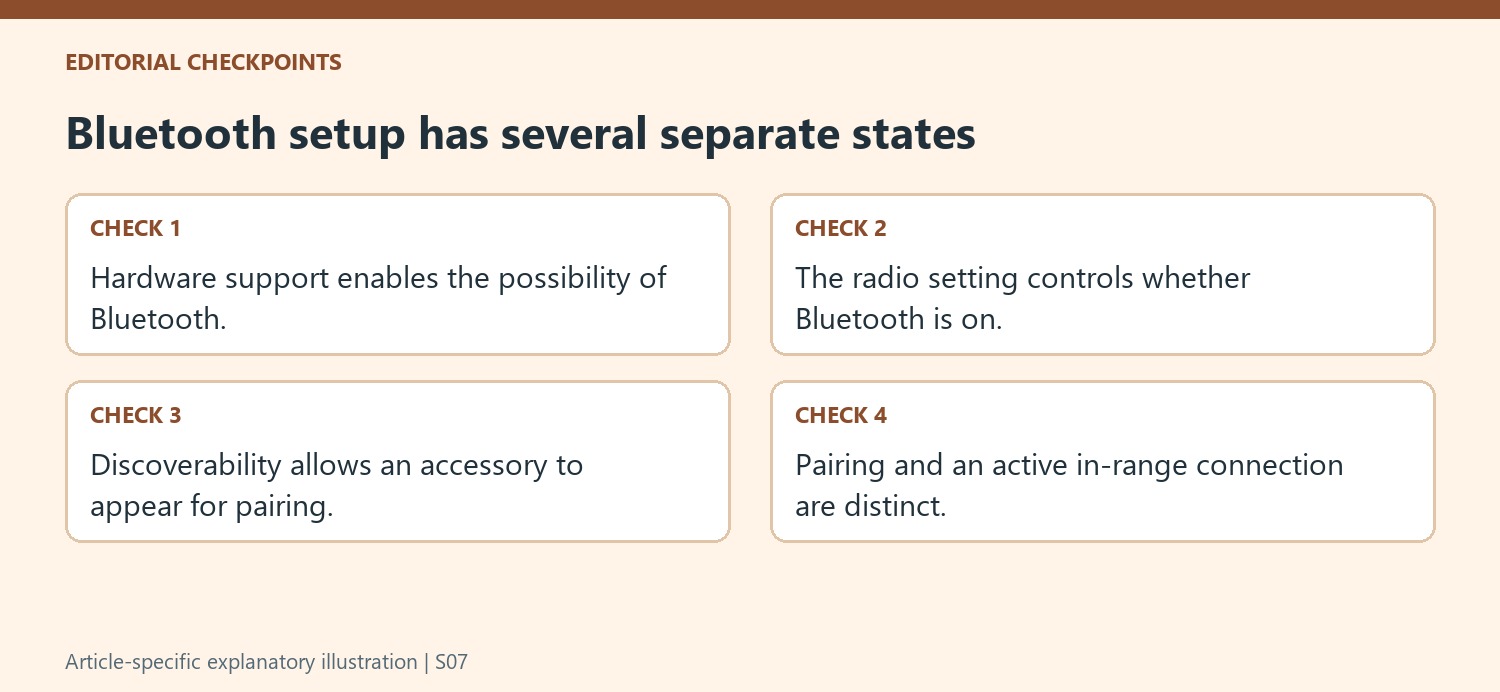
Turning a speaker, mouse, or keyboard on is not necessarily the same as putting it into pairing mode. Microsoft's procedure requires the accessory to be discoverable, and the exact control depends on its manufacturer. Check that step before repeatedly refreshing the Windows device list. Windows must also have Bluetooth hardware, either built in or supplied through a suitable USB adapter, and Bluetooth must be enabled. These are separate requirements: the computer can support Bluetooth while the setting is off, and the accessory can be on while unavailable for new pairing. Confirm both sides of the intended connection before interpreting an empty list as a fault.
Use the pairing route that fits the device
For ordinary Bluetooth accessories, the quick-settings Bluetooth management view provides a route to new devices. Printers and scanners have a separate discovery path under Printers and scanners, where Windows searches and offers an Add device control. The source notes that discovery can take a little time. Swift Pair adds another convenient route, but only for accessories that support it and are nearby in discoverable mode. A missing Swift Pair notification therefore does not mean a standard Bluetooth accessory is incompatible. Use the documented route for the actual product type and follow any additional prompts shown by Windows, rather than waiting indefinitely for a notification that the accessory never promised to provide.
Read connection status separately from discovery status
The Bluetooth quick-settings tile can indicate that the radio is enabled while no accessory is currently connected. That is different from a paired accessory being visible as an active connection. Once pairing is complete, the support page describes automatic reconnection when the devices are within range and Bluetooth is on. If the intended accessory does not appear during initial discovery, Microsoft points to the Advanced discovery setting and its dedicated troubleshooting guidance. Check the accessory's pairing state and identity before choosing a similarly named item from the list. Keeping hardware support, radio status, discoverability, pairing, and an active connection as separate checks makes the process easier to understand and reduces unnecessary repeated setup attempts.
References
- Pair a Bluetooth device in Windows. support.microsoft.com.
Windows must support Bluetooth and have it switched on before it can pair with a keyboard, mouse or other Bluetooth device. Microsoft notes that a USB Bluetooth adapter can add the feature to a computer that lacks it. Put the accessory into its manufacturer-specified discovery mode; simply powering it on may not be enough.


Leave a Comment
Comments (0)