
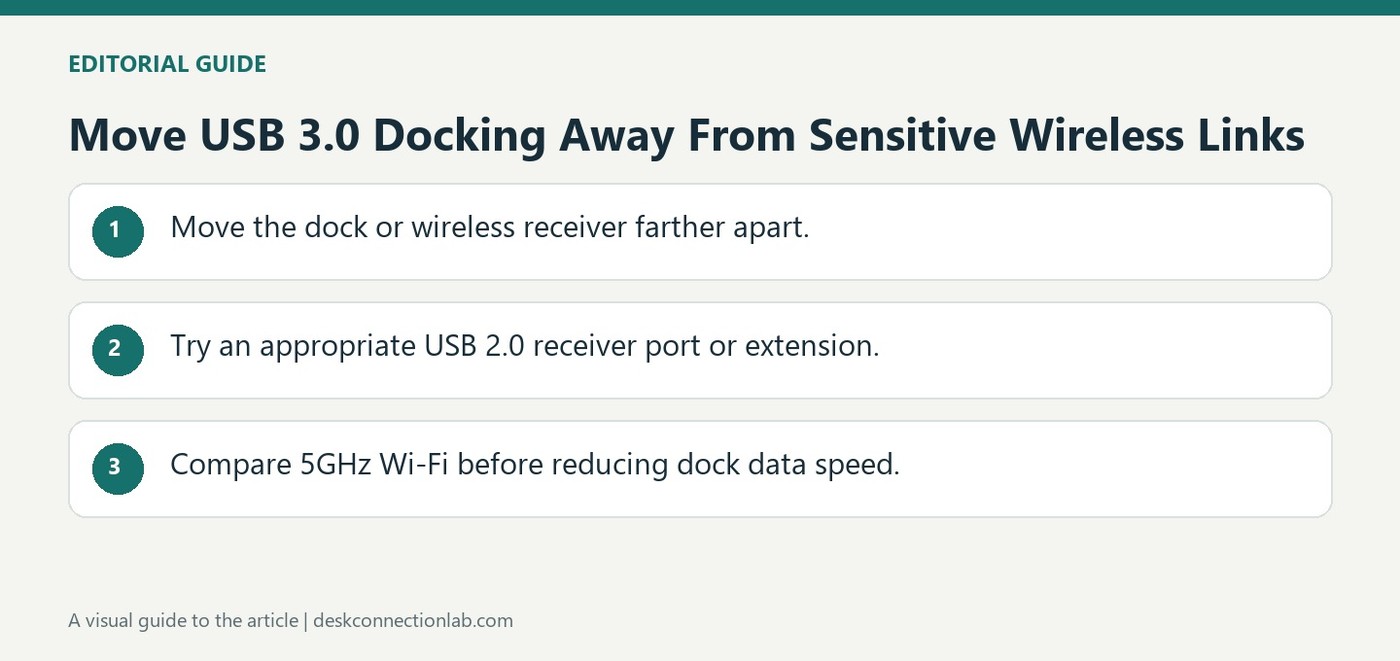
Move USB 3.0 Docking Away From Sensitive Wireless Links
Plugable explains that USB 3.0 connections can generate radio-frequency interference affecting nearby Wi-Fi equipment or wireless keyboard and mouse receivers. The behavior is not unique to its docking stations. A newly unreliable wireless connection can therefore be related to positioning around the dock rather than a failed network adapter.
Its initial suggestions include moving the dock farther from the computer or router and trying a USB port on the opposite side of the laptop. These changes increase separation between signals. Test placement before replacing hardware, and consider any performance tradeoff before deliberately switching the dock to a slower USB connection.
Separate the receiver from the high-speed connection
For a wireless mouse or keyboard, Plugable recommends trying a USB 2.0 port farther from the dock's USB 3.0 host connection. A short USB 2.0 receiver extension can increase that separation when suitable ports are unavailable. The point is to reposition the small wireless receiver, not to assume that every dock cable should be extended. Test whether inconsistent pointer movement or missed keystrokes change with the receiver position.
Review the wireless band before sacrificing USB speed
For Wi-Fi, a supported 5GHz connection can avoid the overlapping interference discussed for 2.4GHz equipment. Both the router and the computer's wireless adapter must support the chosen band. Changing the 2.4GHz channel is another option described in the guide, with regional channel availability and router instructions remaining relevant. Falling back to USB 2.0 may help isolate interference but also reduces the available data connection for the dock. Compare that trade-off with moving the dock or receiver first. These are diagnostic placement and connection checks, not proof that an unreliable wireless device must be defective.
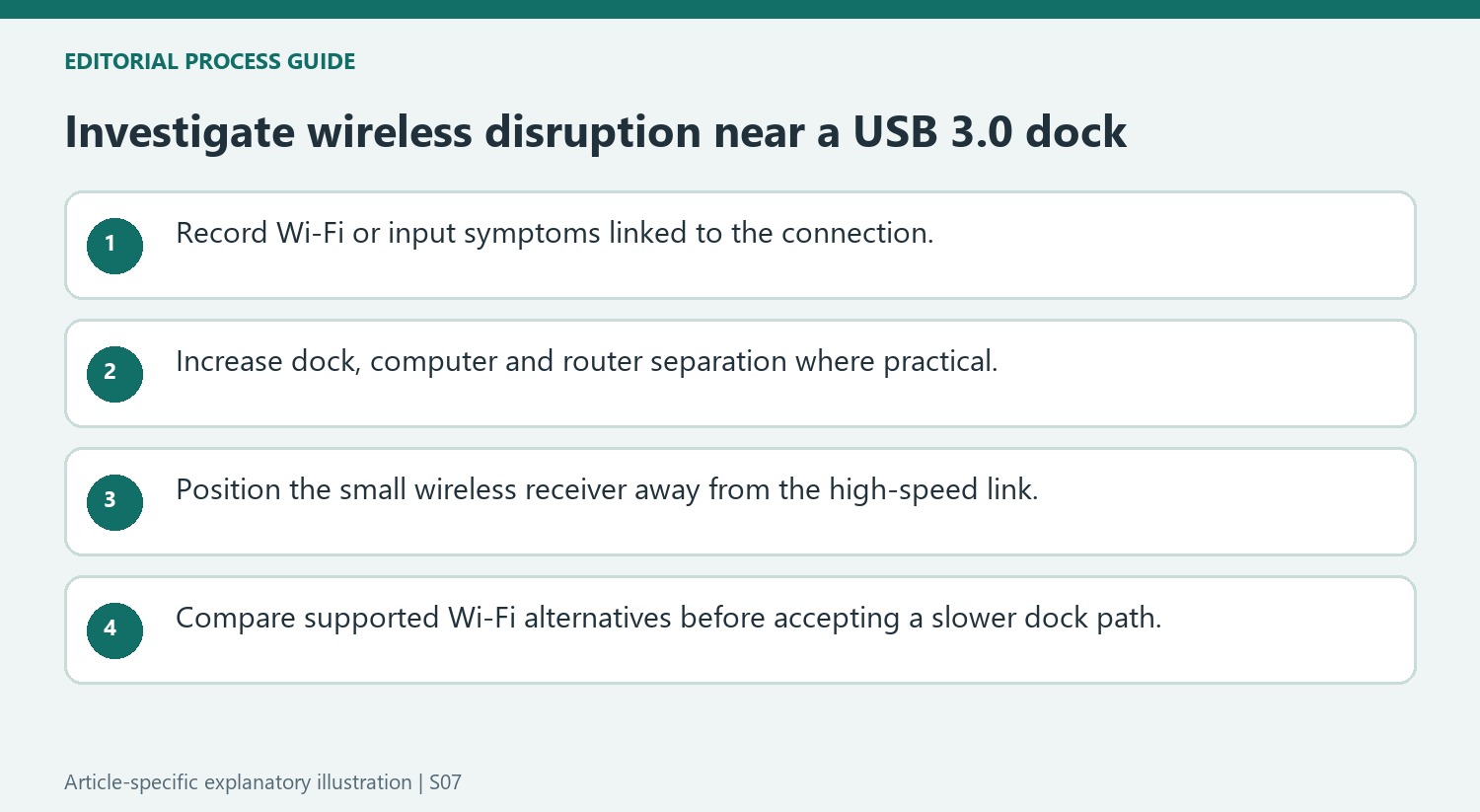
Describe the wireless symptom and its relationship to docking
Note whether the problem affects Wi-Fi, pointer movement or keyboard input and whether it begins when the USB 3.0 connection is present. The source describes radio-frequency interference as a possible cause, not as proof that every wireless failure originates in a dock. A repeatable change with connection or position gives a more useful starting observation than immediately replacing a receiver or network adapter.
Keep the same task and equipment while testing one placement change. Move the dock farther from the computer or router within the supported host-cable arrangement, or compare another suitable computer port where available. The goal is to increase separation between sensitive wireless reception and the high-speed connection. Record whether the same missed keystrokes, erratic pointer behavior or network disruption changes under that comparison. Keep the effective receiver and dock positions documented for later desk changes.
Move the small receiver without generalizing the extension advice
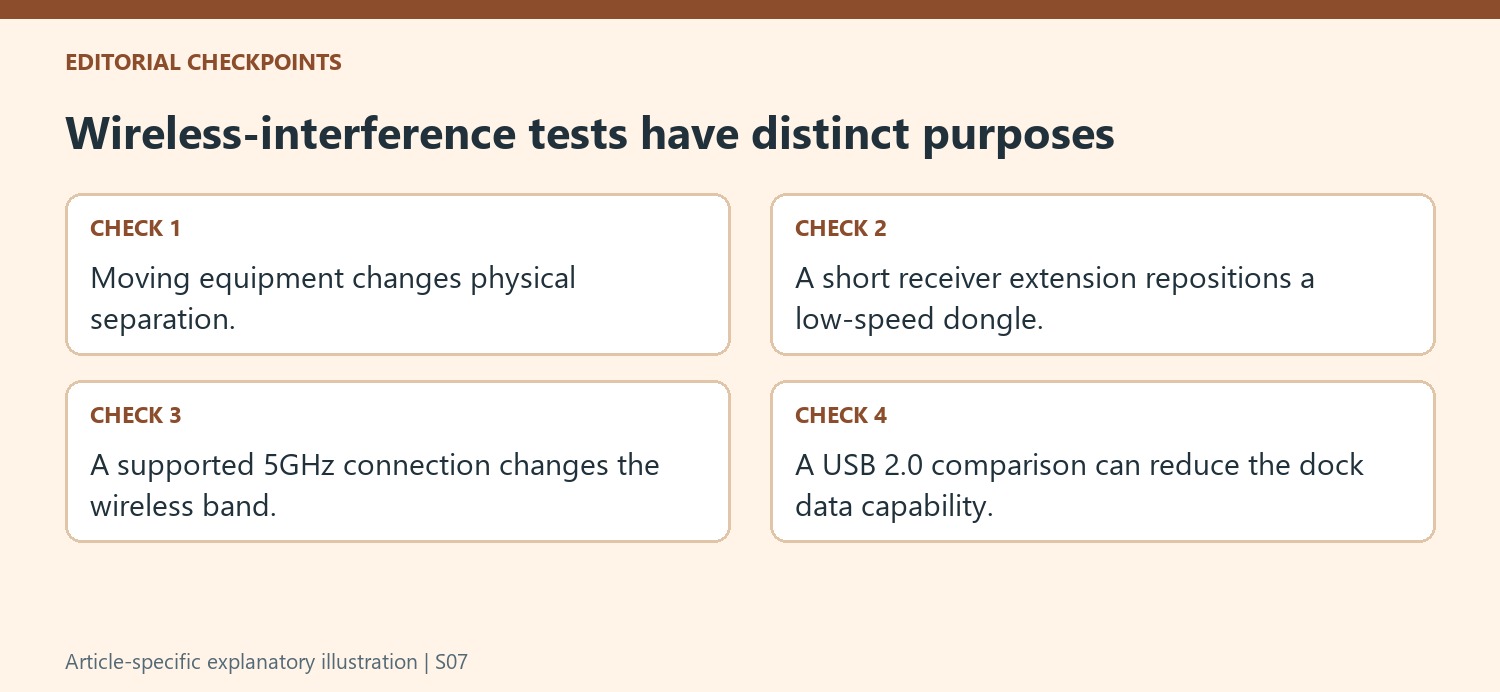
For a wireless keyboard or mouse, the guide recommends a USB 2.0 port farther from the dock’s USB 3.0 host link. A short receiver extension can help position the receiver when needed. This advice concerns relocating that low-speed wireless receiver; it is not a general instruction to add arbitrary extensions to the dock’s combined high-speed host cable.
Check the practical result with normal input, not merely whether the receiver remains detected. A recognized USB device can still receive wireless input inconsistently. If moving the receiver helps, retain the effective placement and cable path in the desk arrangement. If it does not, preserve the observation and continue with the appropriate support route rather than declaring every remaining fault to be the same interference mechanism.
Consider wireless band and bandwidth trade-offs separately
For Wi-Fi, verify support at both router and computer before trying the source’s 5GHz alternative. A channel change on 2.4GHz follows the router’s guidance and relevant regional options. A slower USB connection can be a diagnostic comparison, but it also reduces the dock’s available data link and may affect its usefulness. Evaluate separation and supported wireless choices before accepting that trade-off permanently. These tests help identify a workable arrangement while keeping the distinction between a possible interference cause, a specific observed improvement and a universal hardware-failure diagnosis clear.
References
Plugable explains that USB 3.0 connections can generate radio-frequency interference affecting nearby Wi-Fi equipment or wireless keyboard and mouse receivers. The behavior is not unique to its docking stations. A newly unreliable wireless connection can therefore be related to positioning around the dock rather than a failed network adapter.


Leave a Comment
Comments (0)