
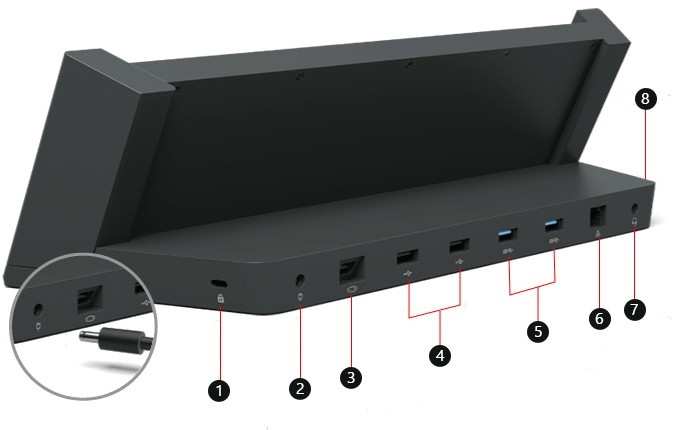
Identify the dock before comparing features
Read the model rather than the connector alone
Microsoft's dock identification guide separates several generations with different host connections and port combinations. A Surface Connect dock and a USB-C dock are not interchangeable merely because both add desktop accessories. Knowing the exact dock model makes its compatibility table, power supply and display specifications meaningful.
Compare the ports that matter
List the displays, USB accessories, network connection and charging requirement that the dock must support. Then compare those needs with the identified product's features. This avoids applying instructions for a newer Thunderbolt or USB4 dock to an older Surface Dock. Model identification is also the first step before choosing firmware updates or a replacement power supply.
Identify the host connector before comparing accessory counts
The original Surface Dock and Surface Dock 2 use Surface Connect, while the USB4 and Thunderbolt models use an appropriate USB-C host connection. Older docking stations can be specific to particular Surface generations. A row of familiar USB or video sockets on the rear does not establish that a dock physically attaches to the intended computer. Match the identified model with its dedicated setup page before considering its downstream ports.
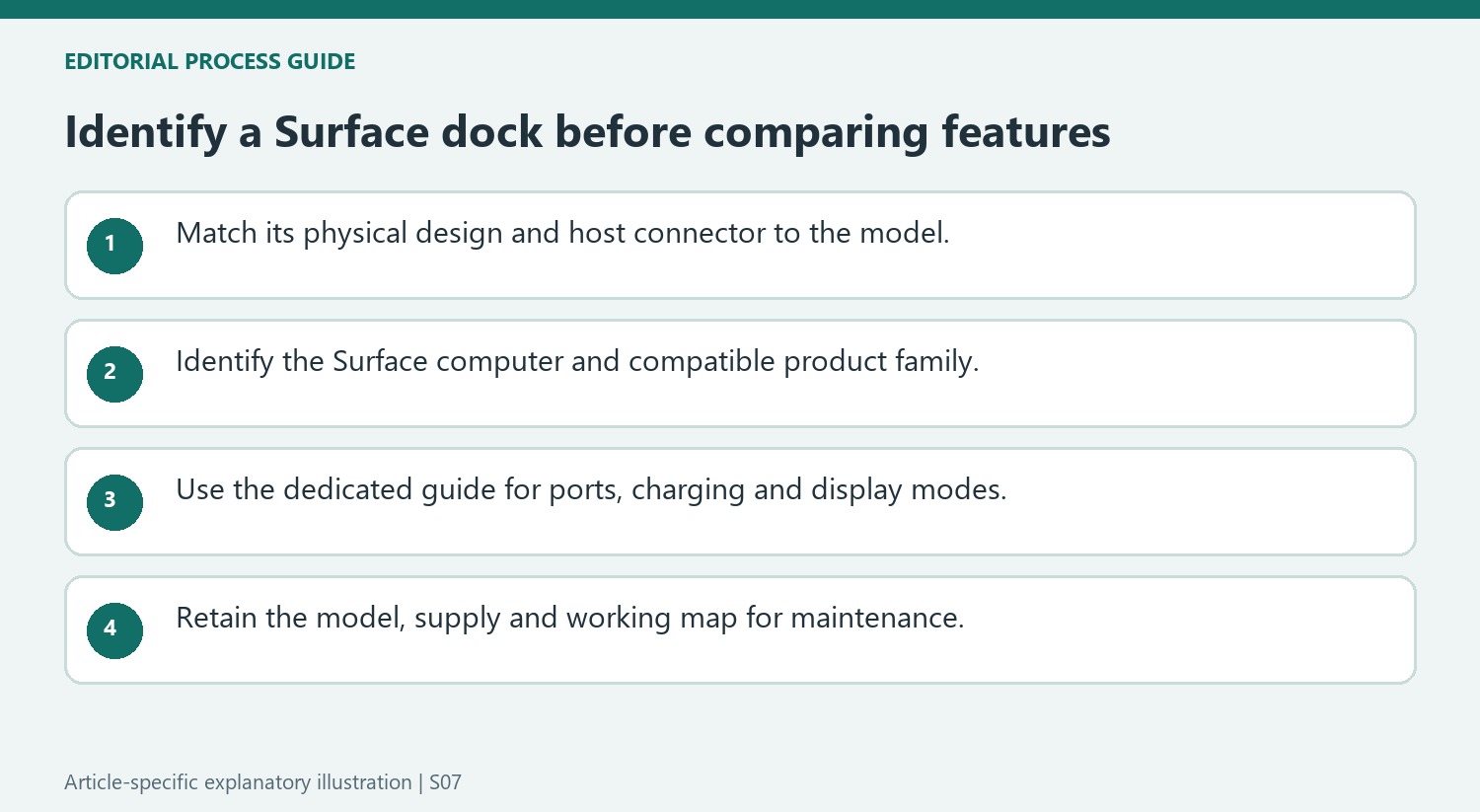
Use the identification page as a route to detailed specifications
Microsoft's overview summarizes features such as dual-screen support and power supplies, then links to the relevant product guides. A supply's headline wattage is different from the power delivered to the computer, and a display claim still needs the supported Surface configuration. Compare the exact model, host interface, required screens, and charging needs in those detailed guides. This is also the right preparation for troubleshooting: record the dock model and original supply before requesting firmware or replacement parts. Avoid applying instructions for the newest USB4 product to an older Surface Connect dock solely because both are called Surface Dock.
Identify both the dock and the computer before comparing functions
Begin with the dock’s physical host connector and model-specific details. Surface Connect accessories, USB-C docks and older device-specific docking stations do not attach to every Surface in the same way. A rear panel full of useful ports is irrelevant if the host connection or supported computer family does not match the intended device.
Use the identification overview to select the correct detailed guide, then verify the Surface model through the appropriate device information. This two-part identification prevents a familiar product-family name from substituting for compatibility. It also avoids applying instructions for a newer USB4 accessory to an older Surface Connect dock or using a legacy docking station description for a tablet it was never built to hold.
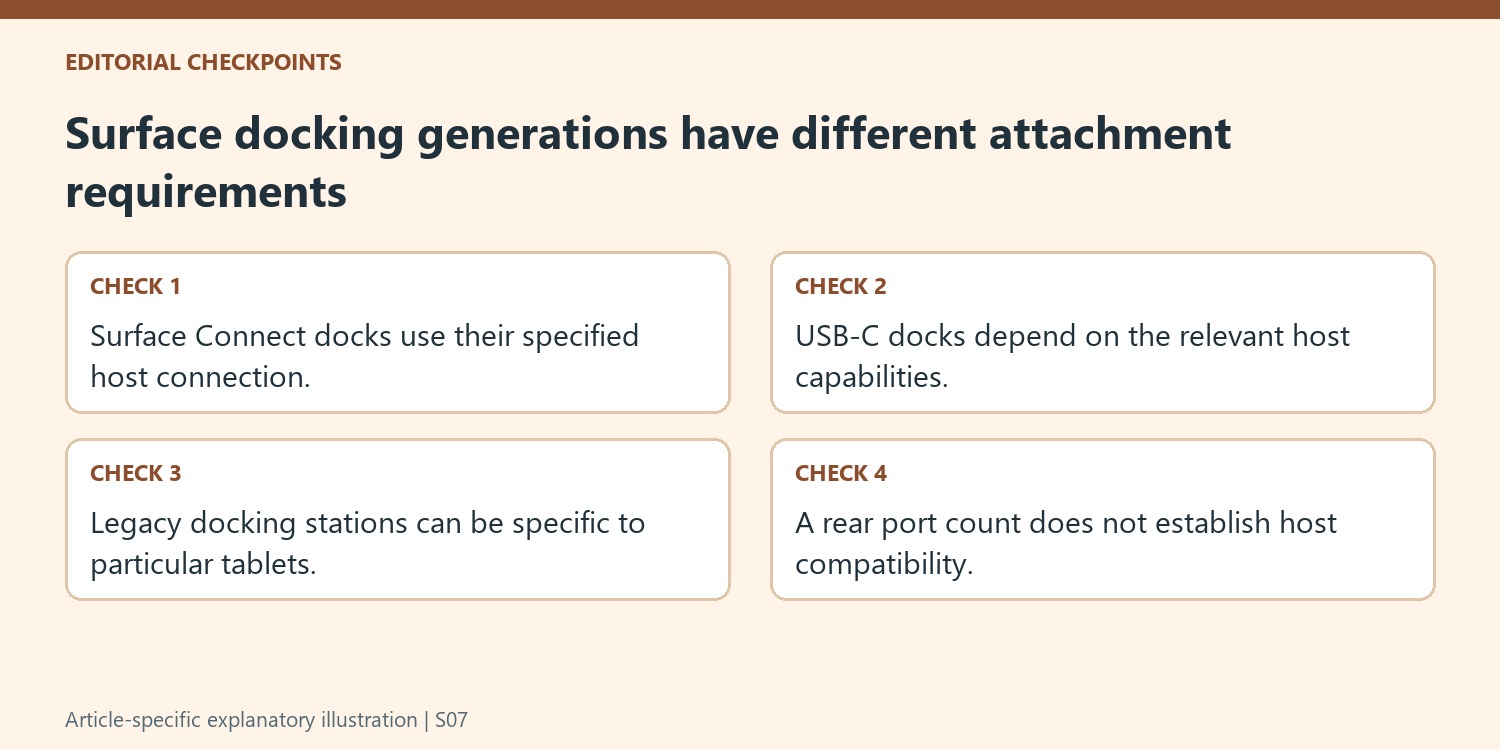
Compare requirements through the dedicated product guidance
List the number of displays, their desired modes, required USB devices, network and audio connections, and host charging needs. Check those requirements against the identified dock’s detailed specifications. A broad overview can point toward a product, but the exact host, display count and connection path determine whether its headline functions apply to the proposed arrangement.
Separate the dock supply’s rating from its host charging allowance, and keep individual port roles visible. Similar USB-C sockets can serve different purposes on different models. Where adapters are required, include them in the compatibility check instead of treating their connector pair as proof of complete function. This produces a comparison based on the working task rather than on the number of openings in a product photograph.
Carry model identity into maintenance and support
Record the dock model, compatible Surface, original supply and a simple connection map before seeking firmware, updates or replacement parts. Those details keep maintenance attached to the correct product generation. After setup, retain a verified baseline of the screens and accessories that work together. If a later replacement creates trouble, the record helps identify what changed rather than encouraging a generic reset intended for another dock. The identification page is most useful as the beginning of that precise product path, leading from recognizable hardware to supported setup, power and display guidance for the computer actually on the desk.
References
- Identify your Surface Dock and features. support.microsoft.com.
Microsoft's dock identification guide separates several generations with different host connections and port combinations. A Surface Connect dock and a USB-C dock are not interchangeable merely because both add desktop accessories. Knowing the exact dock model makes its compatibility table, power supply and display specifications meaningful.


Leave a Comment
Comments (0)