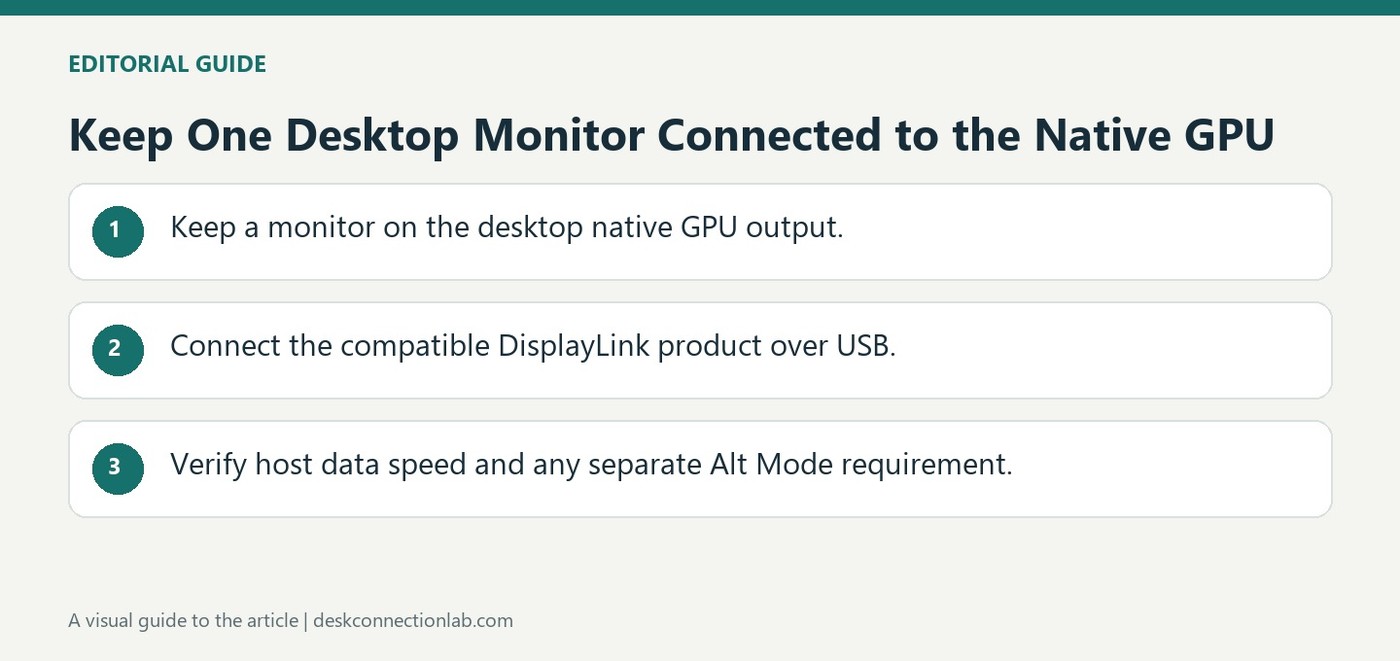
A desktop can use a DisplayLink docking station or USB video adapter, but Plugable recommends leaving at least one monitor attached to a native graphics output. Some desktop GPUs may not initialize fully without a directly connected display, which can make additional USB-connected screens unreliable.
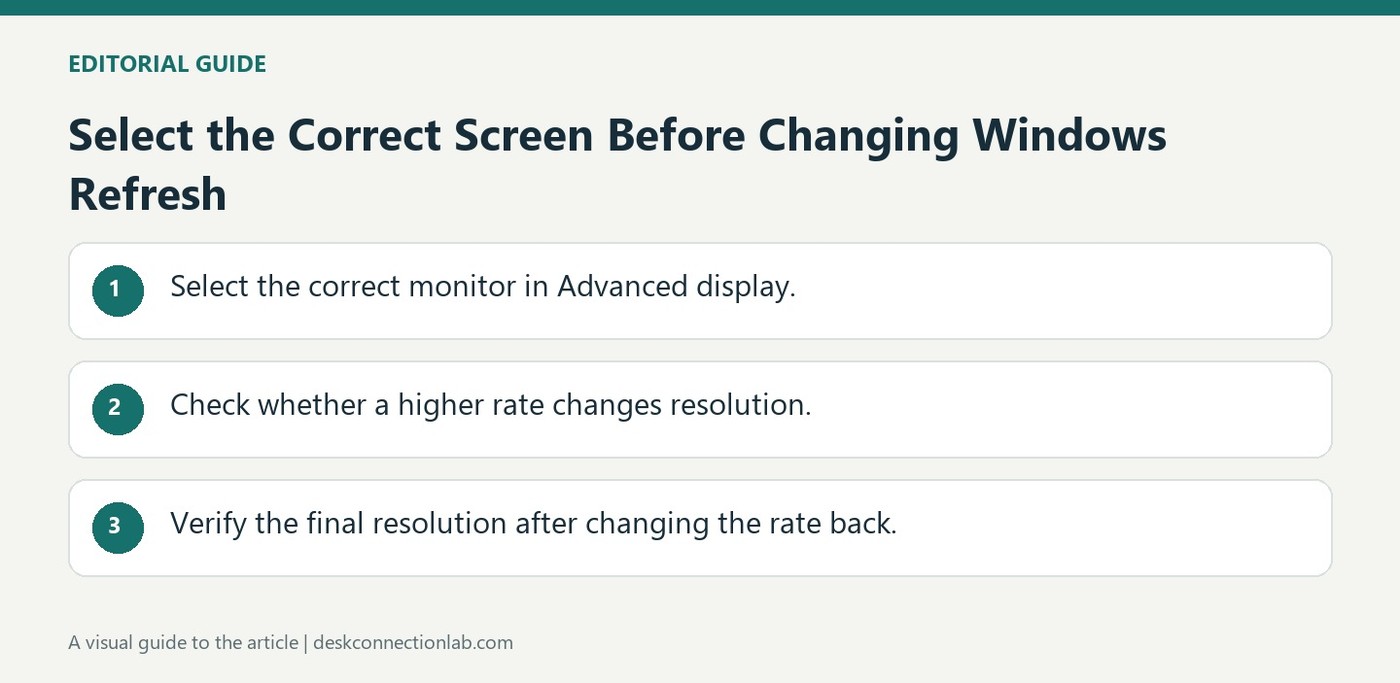
To change a refresh rate in Windows 11, open Display Settings, then Advanced display. Plugable emphasizes choosing the intended monitor in the display menu before selecting a rate. This matters in a multi-monitor workspace because the available choices can differ from one screen to another.
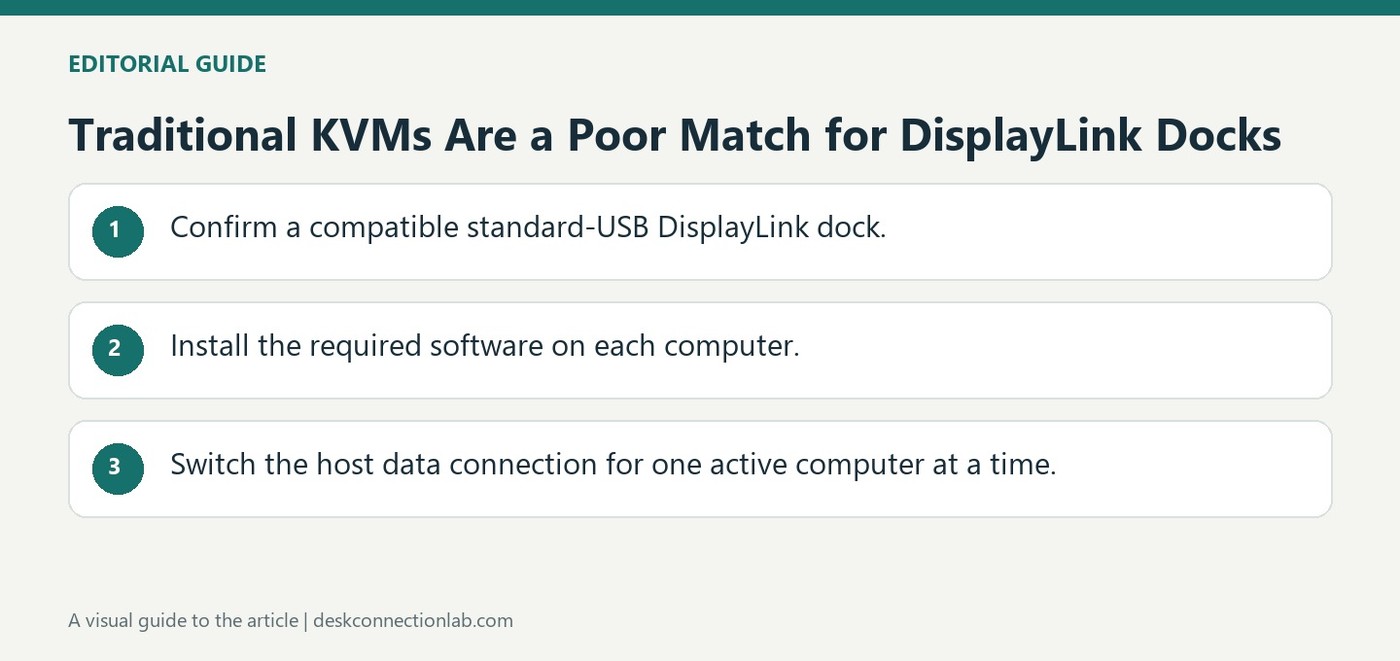
DisplayLink generates its monitor output through USB data and software on the active computer. Plugable therefore does not recommend pairing its DisplayLink docks with traditional KVM switches designed for direct video signals. A dock that works independently on each computer can still fail in an unsupported switching arrangement.
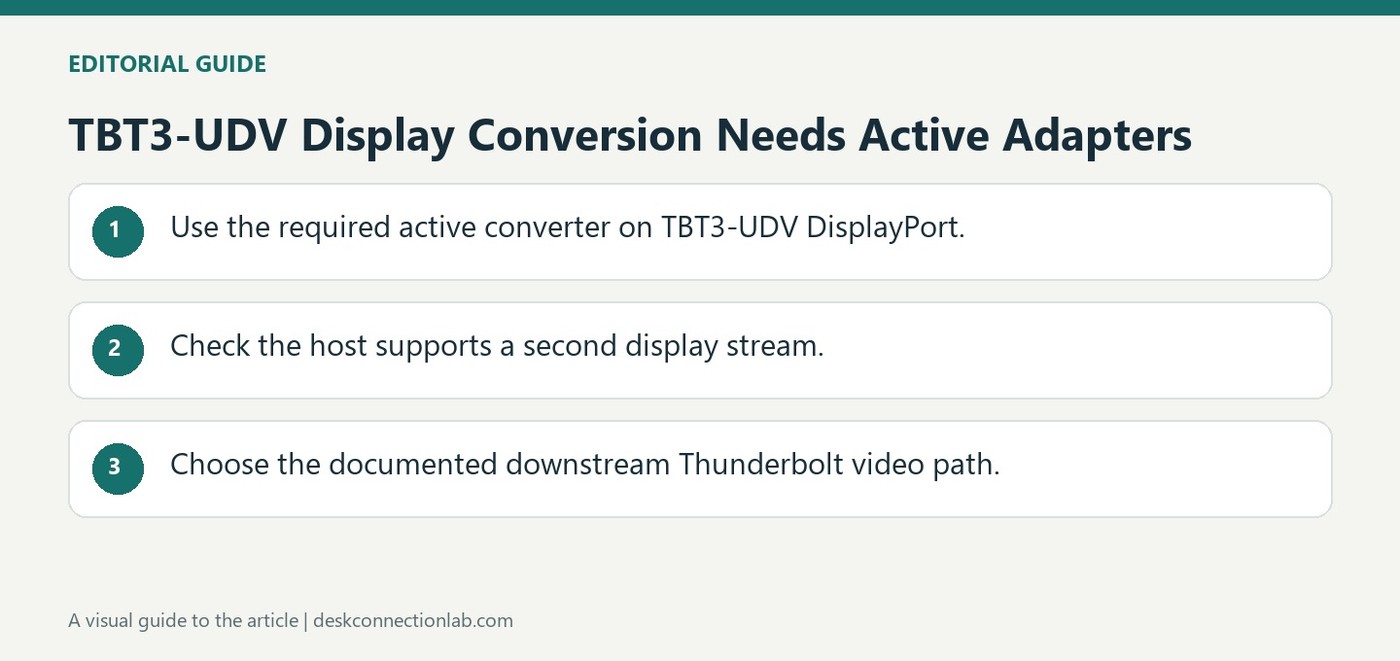
To convert the TBT3-UDV's DisplayPort output to HDMI, Plugable specifies the included active adapter, supporting up to 4K at 60Hz. Converting that output to DVI or VGA also requires an active adapter. A passive product with the same visible connectors is not an equivalent substitute for this dock.
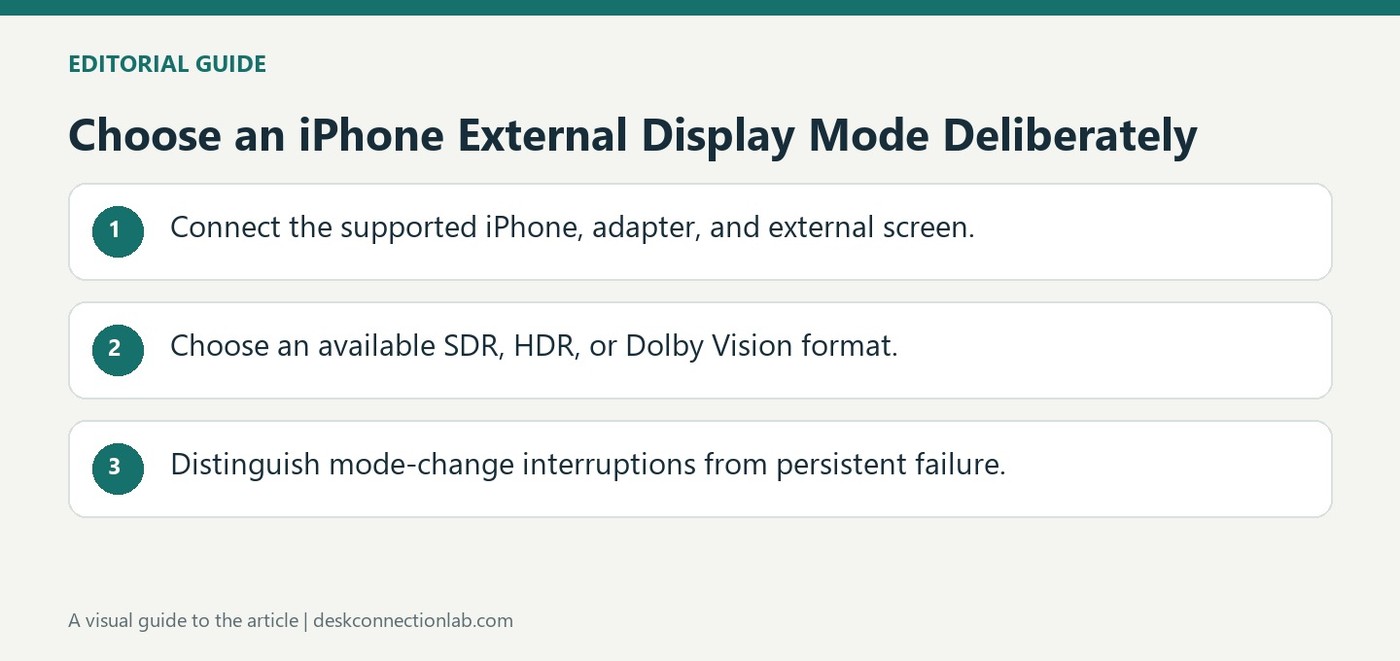
With a compatible USB-C iPhone and Plugable HDMI adapter, external display options appear under Display & Brightness in Settings. Plugable describes choosing the external screen and selecting Dolby Vision, HDR, or SDR where the particular phone and display support those formats. A missing option may reflect display capability.
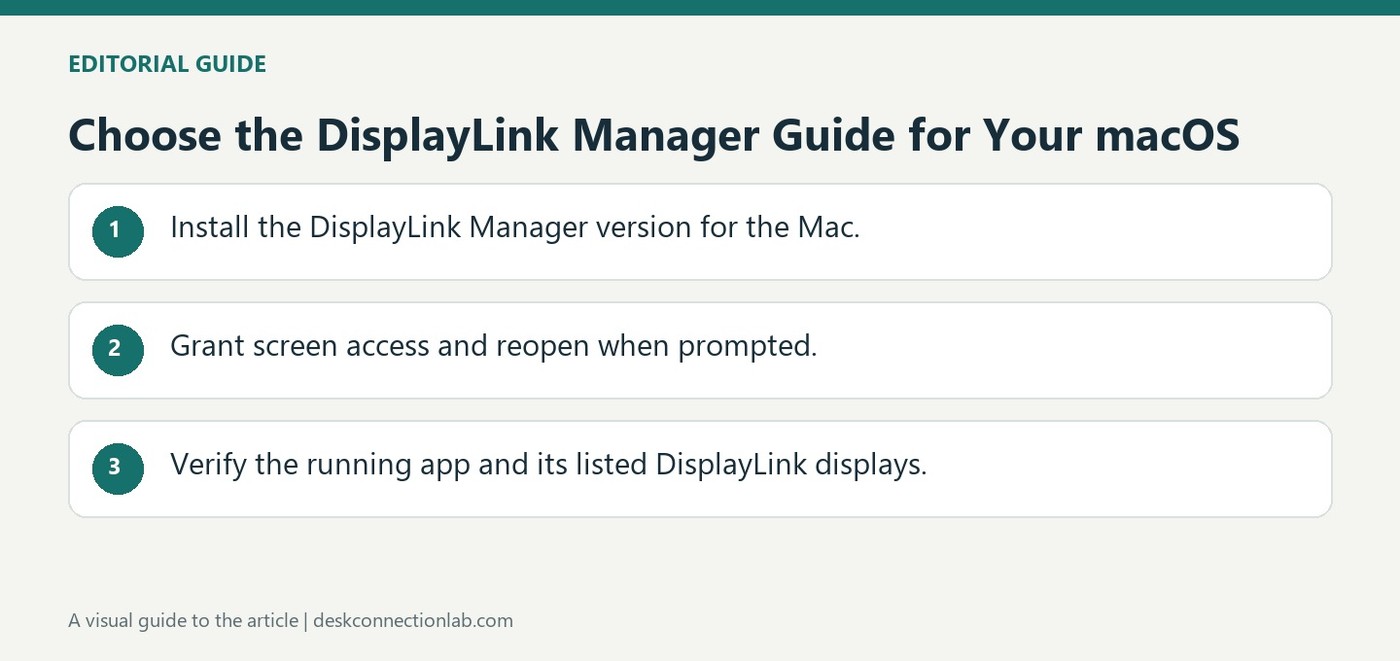
Installing DisplayLink Manager starts with identifying the Mac's operating system version through About This Mac. Plugable's current guide demonstrates macOS Tahoe and notes that Sonoma and Sequoia follow a similar process. Download the matching application version rather than relying on an old installer already stored on the computer.
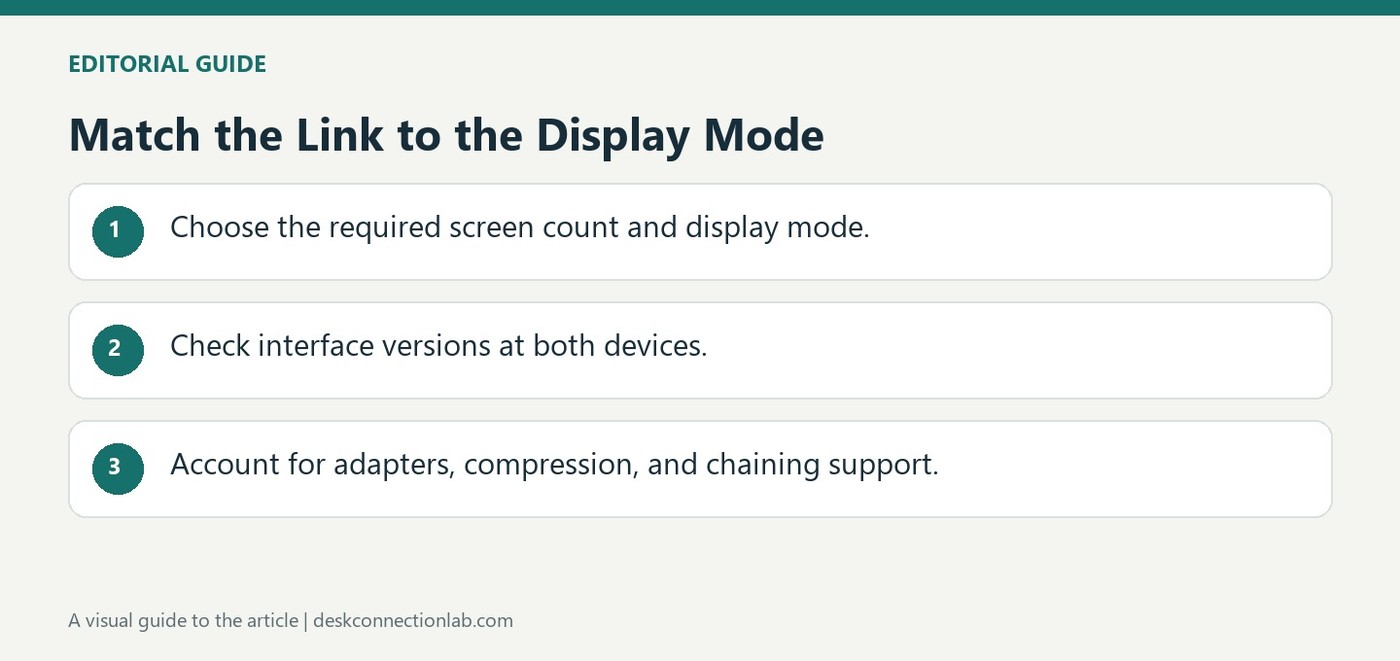
Standard DisplayPort and Mini DisplayPort describe connector formats; they do not by themselves identify the supported protocol version. HP lists 4K at 60 Hz as an example for DisplayPort 1.2, while its DisplayPort 1.3 examples include 4K at 120 Hz and 8K at 30 Hz. Its discussion of DisplayPort 1.4 adds higher resolution and refresh-rate possibilities, including 8K at 60 Hz, and explains the role of Display Stream Compression. These examples should be read as capabilities to verify for a particular setup, rather than promises made by the shape of a socket.
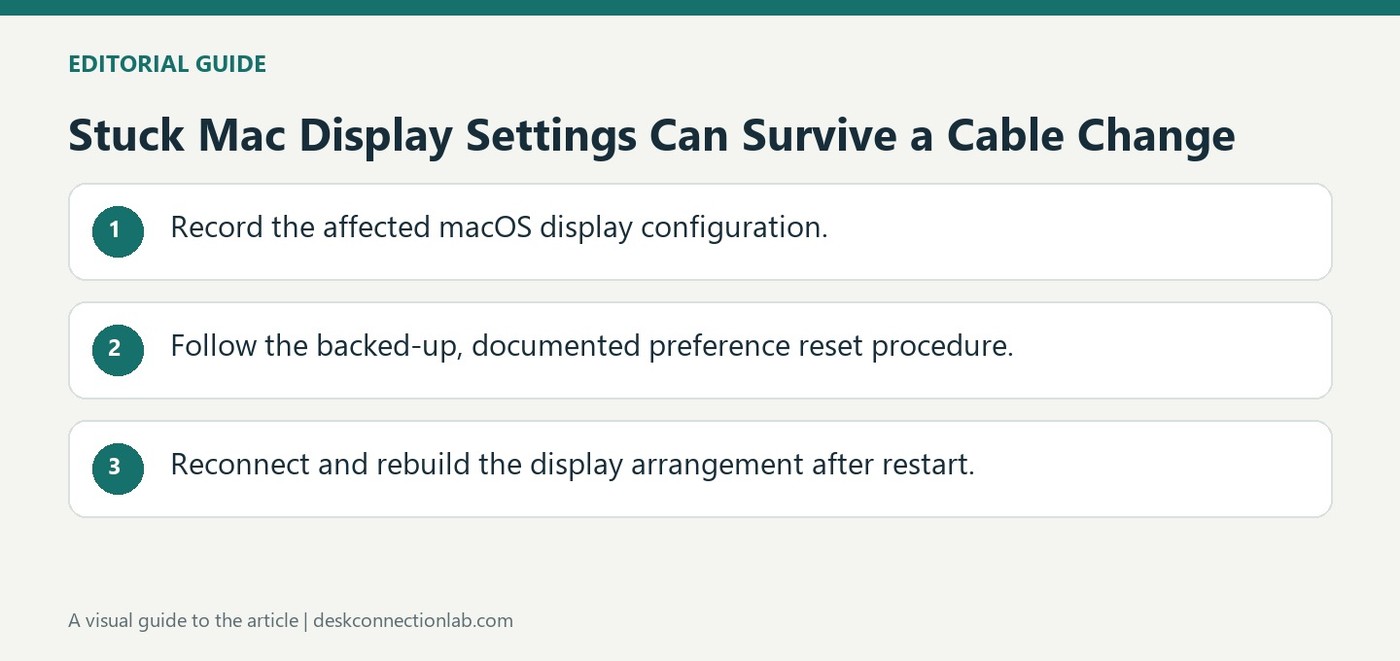
macOS retains external display settings including resolution, position, rotation, and color profiles. Plugable describes cases where an unsuitable saved configuration can leave a screen inaccessible or cause the window manager to return to the login screen. Changing an adapter does not necessarily clear those settings.
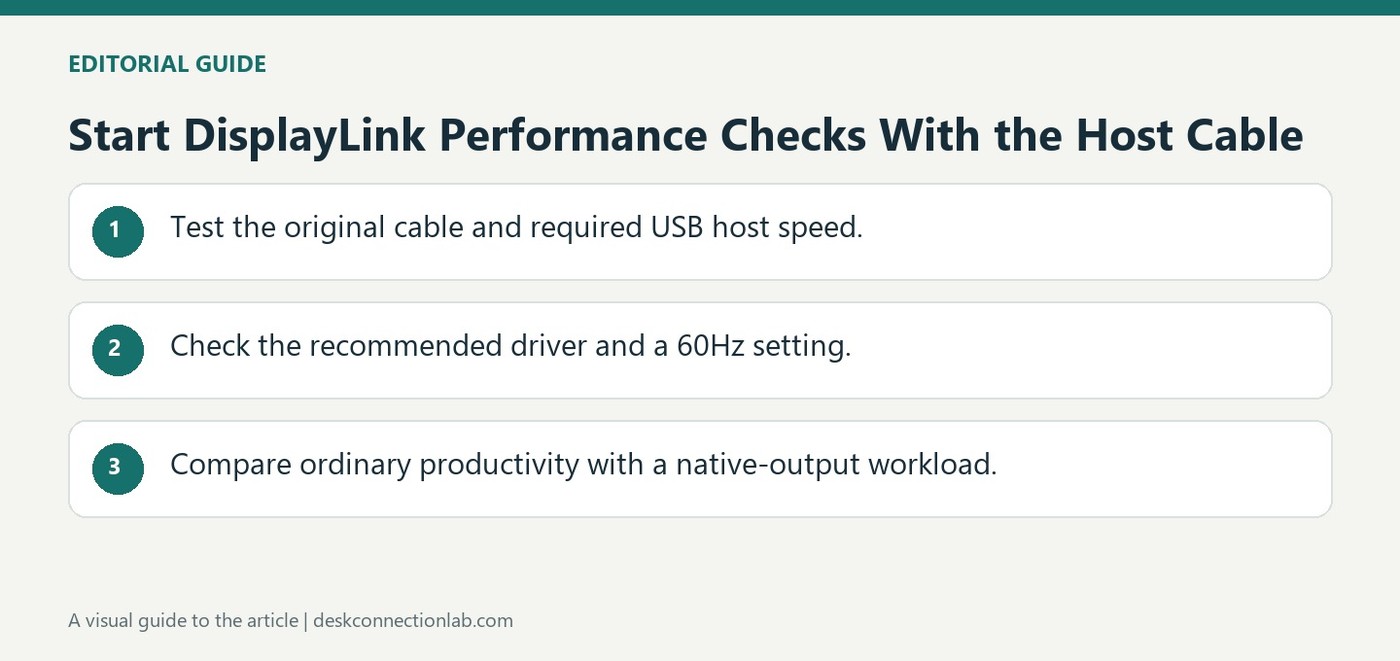
A slow DisplayLink display does not point to one universal fault. Plugable recommends starting with the original host cable and a computer USB port that meets the product's required connection speed. A cable that fits physically can still offer insufficient data bandwidth for the setup.
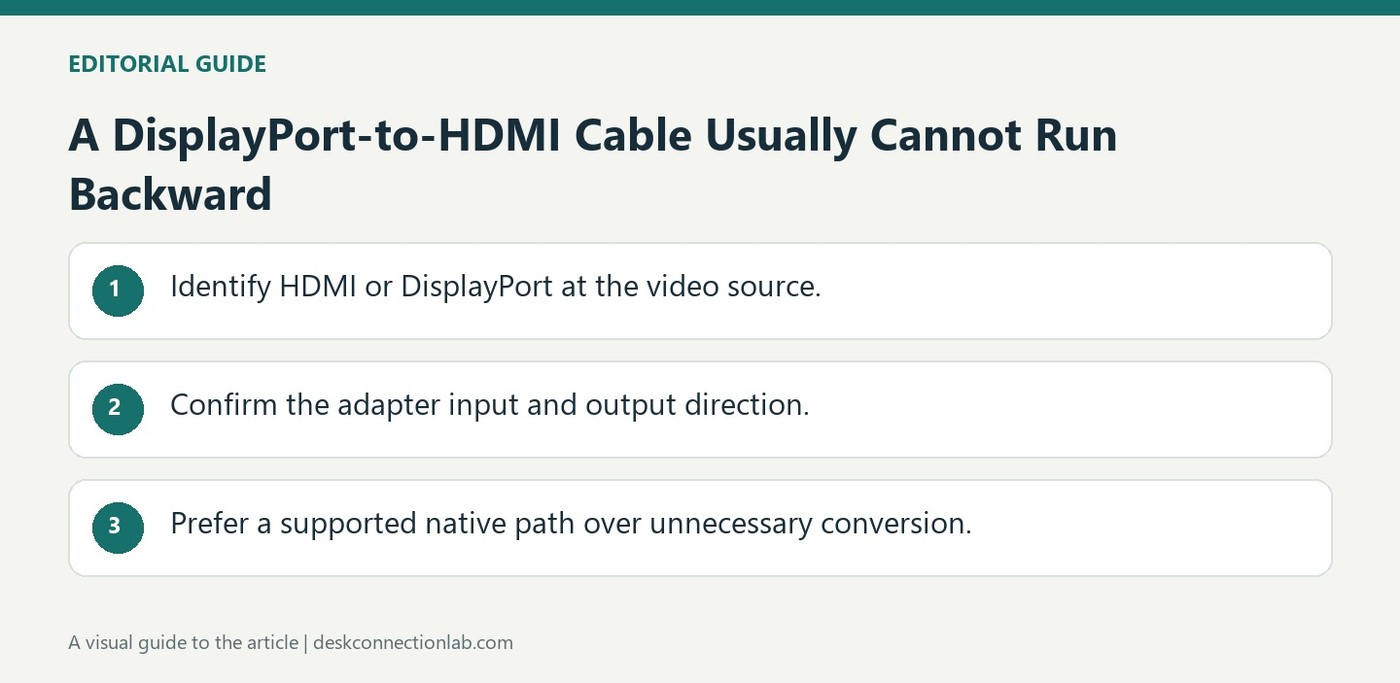
Most DisplayPort-to-HDMI cables accept a DisplayPort source and feed an HDMI display. Reversing their ends does not make them convert a dock's HDMI signal into DisplayPort. Plugable explains that these interfaces transmit video differently, and the reverse conversion needs additional processing.
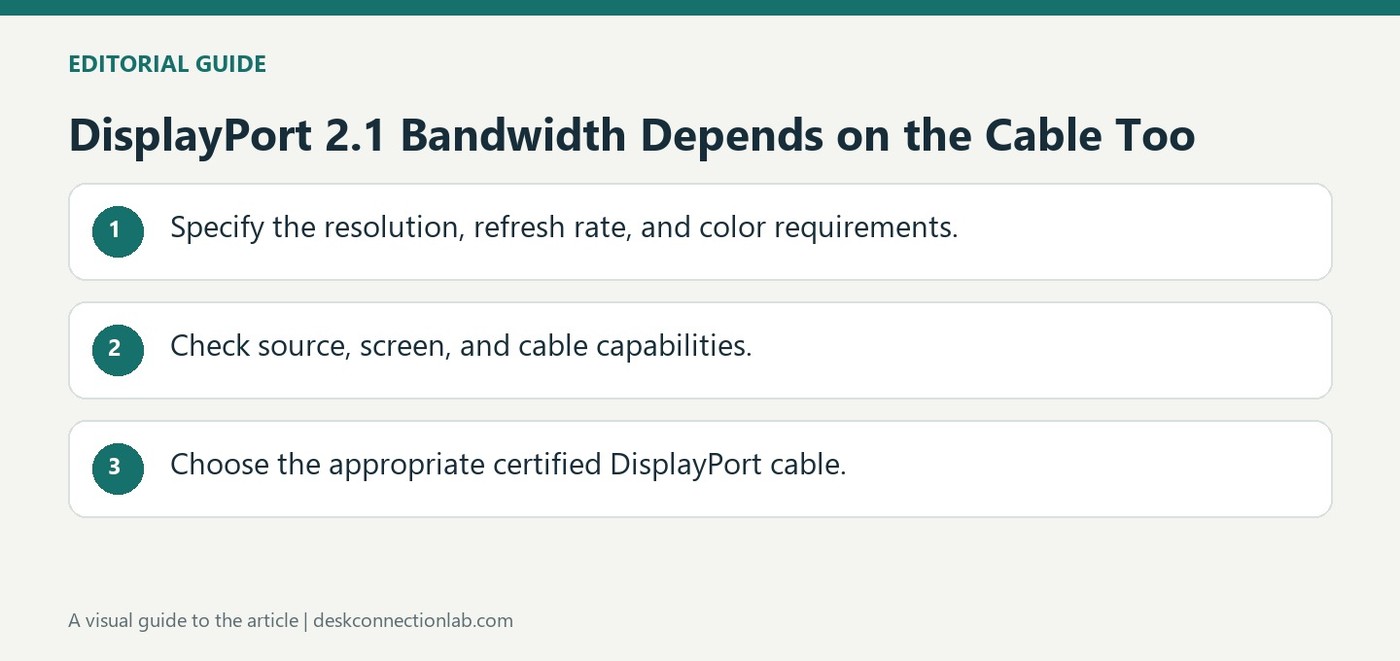
DisplayPort 2.1 uses four Ultra-High Bit Rate lanes and more efficient encoding to raise available bandwidth. Plugable explains that this supports higher resolution, refresh rate, and color-depth combinations than earlier connections could offer. The specification's maximum does not mean every cable can carry the same rate.
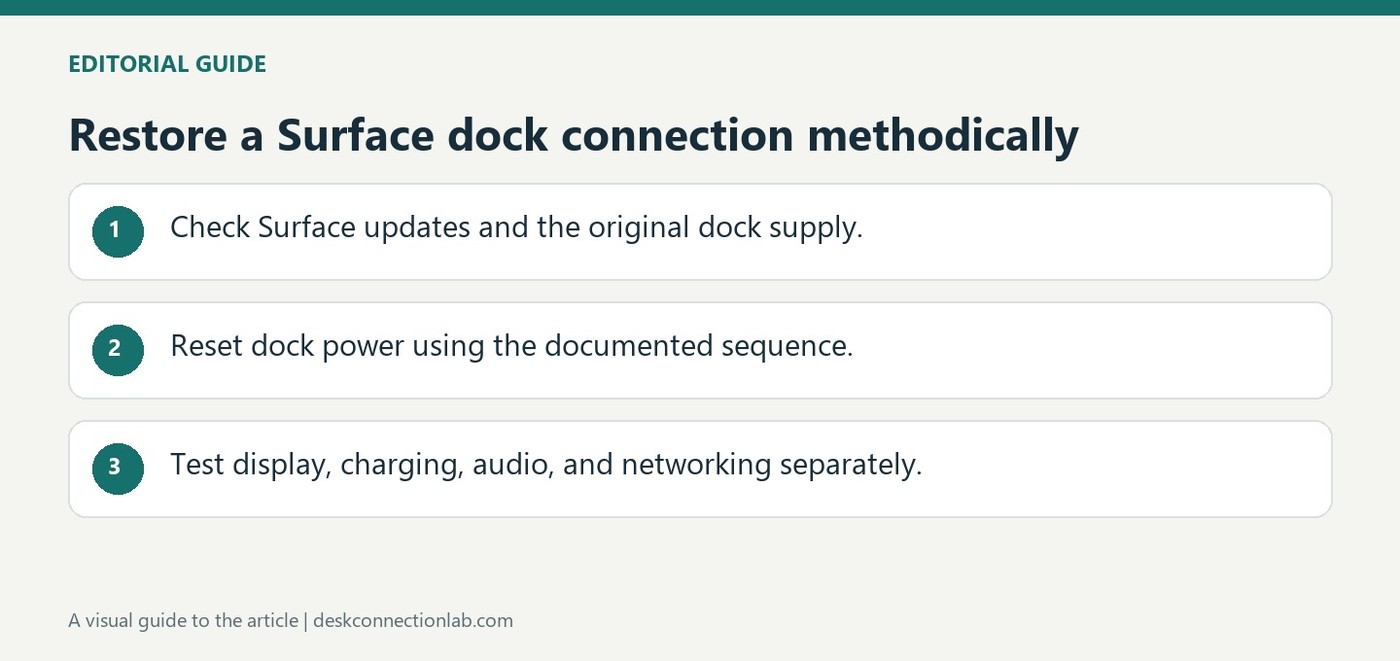
Microsoft recommends checking Surface updates and the connections between the computer, dock and peripherals. A dock power reset involves disconnecting its supply, waiting about five seconds and reconnecting it. Check that the original power supply is in use; a dock with several attached accessories may behave differently when power is insufficient.
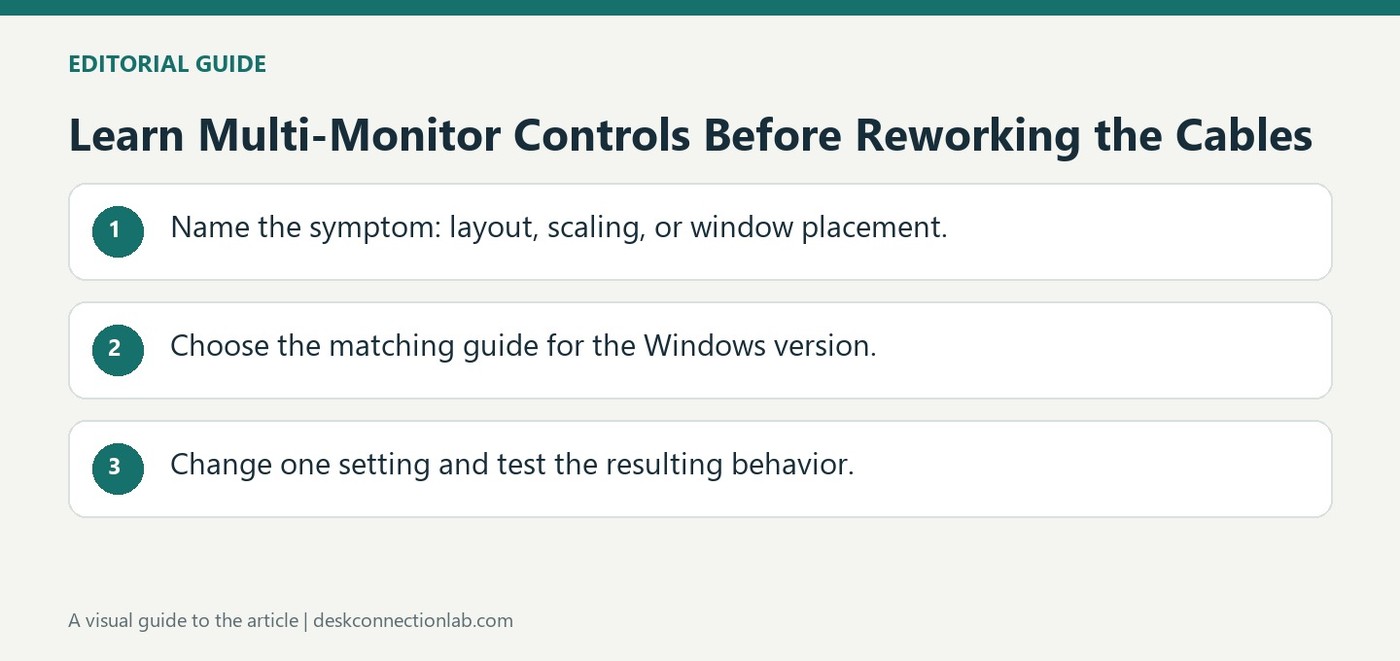
A second screen introduces several independent settings, and changing the wrong one can make a working connection seem broken. Plugable's Windows video library covers spatial orientation, main-display selection, scaling, refresh rates, and phantom displays. These topics address different symptoms rather than one universal multi-monitor switch.
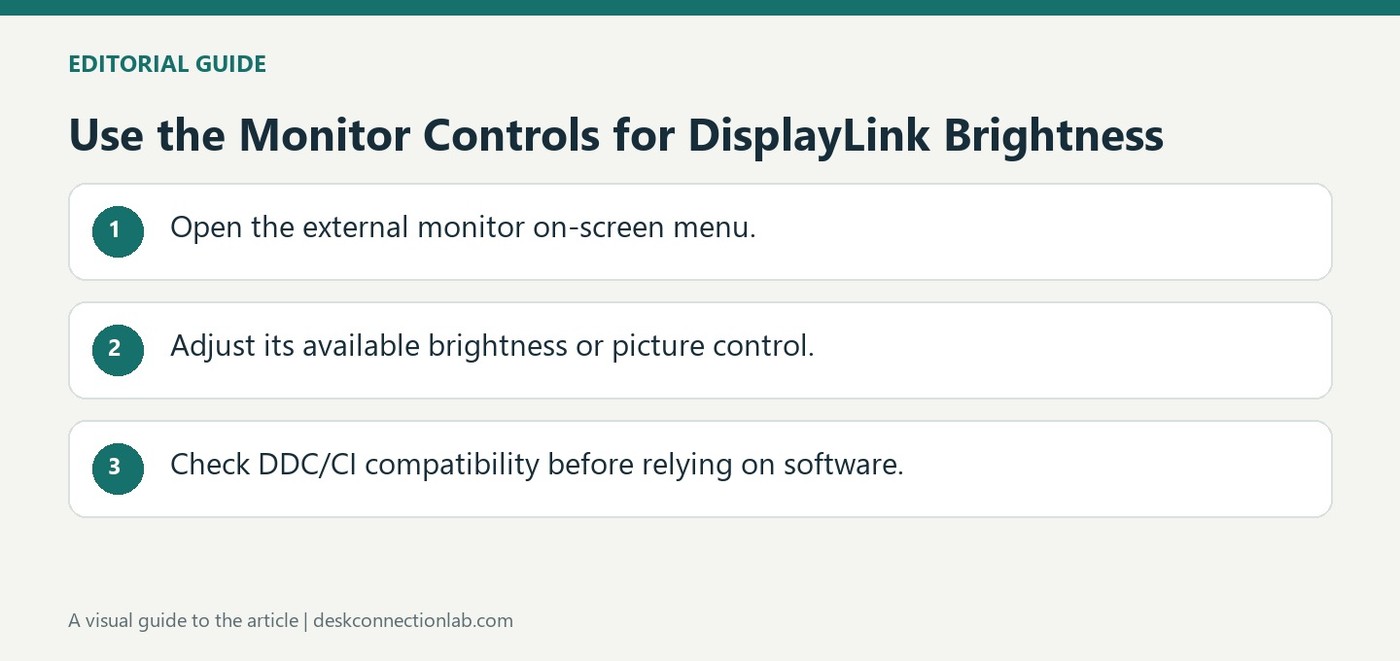
An external monitor connected through a DisplayLink dock may have no brightness slider in Windows Display Settings. Plugable explains that this control is primarily intended for supported built-in displays. The missing slider does not establish that the dock or monitor has malfunctioned.
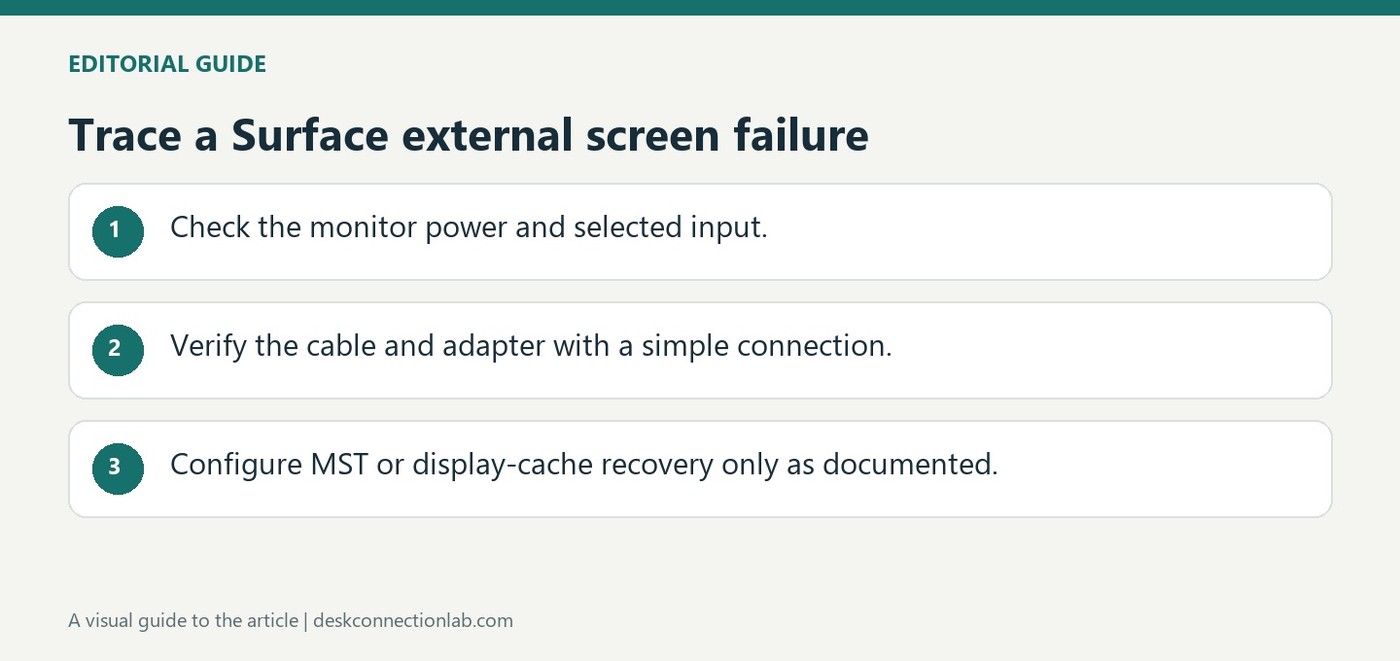
Microsoft's external-display troubleshooting starts with updates, a monitor power reset and the selected video input. A monitor connected by DisplayPort must be listening to that input. Windows plus P then confirms that the intended projection mode is active. Reseating the adapter and testing another screen can identify a faulty conversion device.
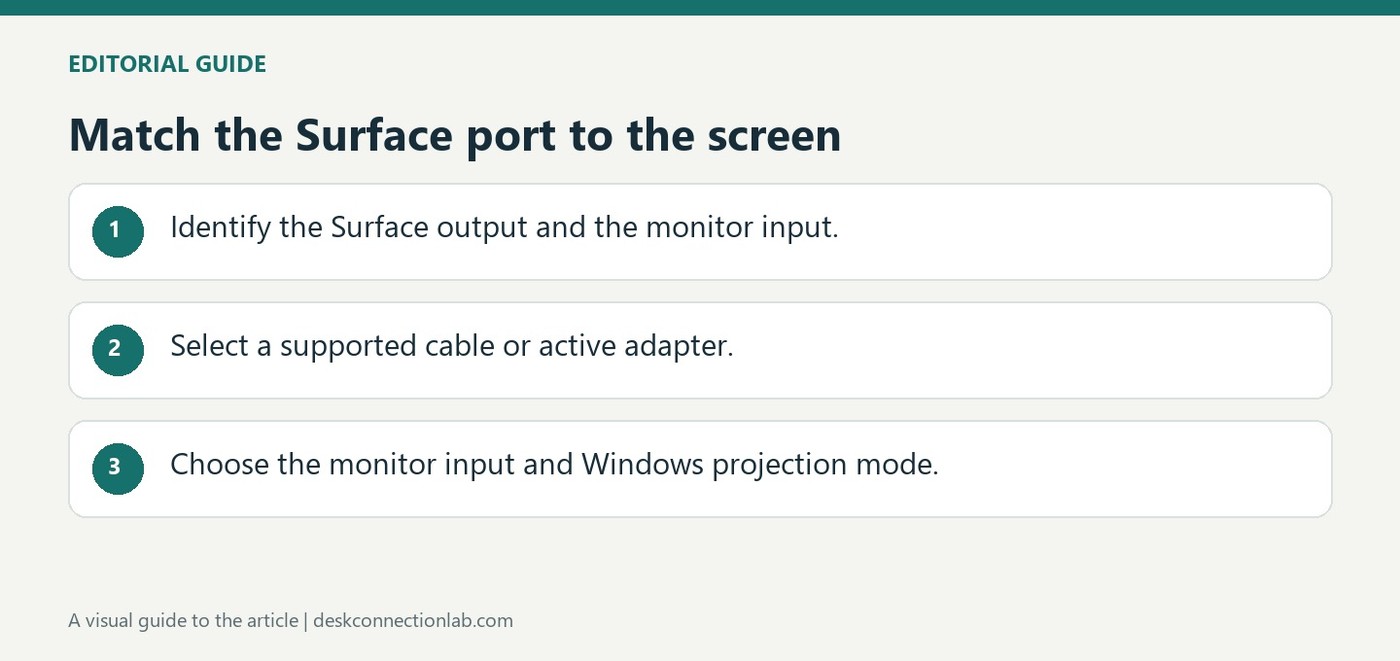
Microsoft's Surface display guide begins with the connectors available on the computer and monitor. A matching cable is the simplest route when both ends provide the same interface. USB-C, HDMI, DisplayPort, Mini DisplayPort, DVI and VGA require different cables or adapters; the connector on one device cannot establish what the other device supports.
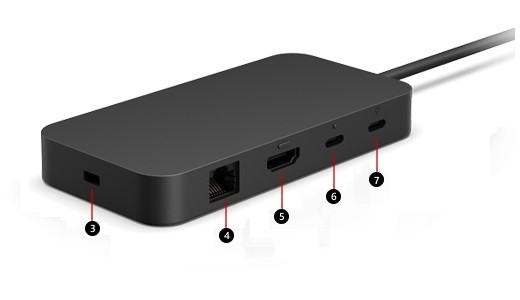
Microsoft's USB4 Dock guide distinguishes its USB-C power input from data and display ports. The power input accepts the supply; it is not an additional monitor connection. Other ports provide USB accessories, USB4 video, HDMI and Ethernet, with the supported arrangement depending on the connected computer.
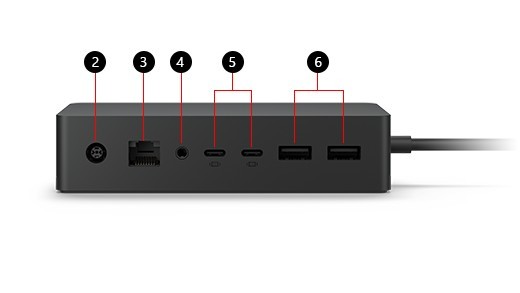
Surface Dock 2 uses Surface Connect to attach to a compatible computer and provides USB-A, USB-C, Ethernet and audio connections. Microsoft's diagram distinguishes the front USB-C accessory ports from the rear USB-C display connections. Plugging a monitor into a connector intended for another role can create a misleading detection problem.
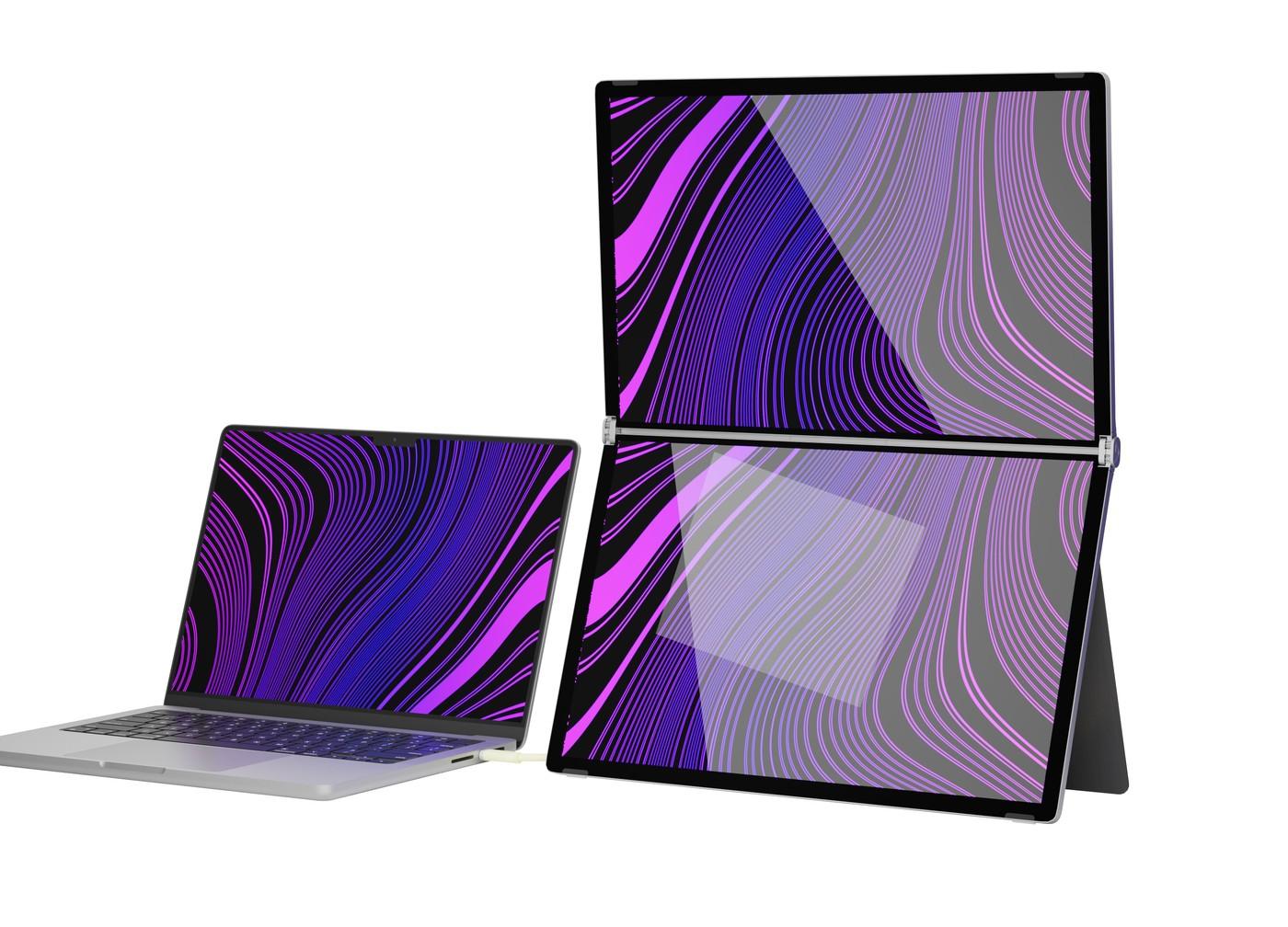
TechRadar reports that Alogic's Folio Duo combines two IPS panels into a folding portable monitor arrangement. Each screen is described as 2560-by-1440 at 60Hz, with a cover stand supporting deployment away from a permanent desk. The product is aimed at users who need more workspace while traveling.
Microsoft advises checking Windows updates and the Extend option, then testing the hardware path. Disconnect docks and other accessories, secure the video cable and try a replacement cable or another computer. If a single display works directly but fails through an adapter, the added connection becomes the next item to investigate.