
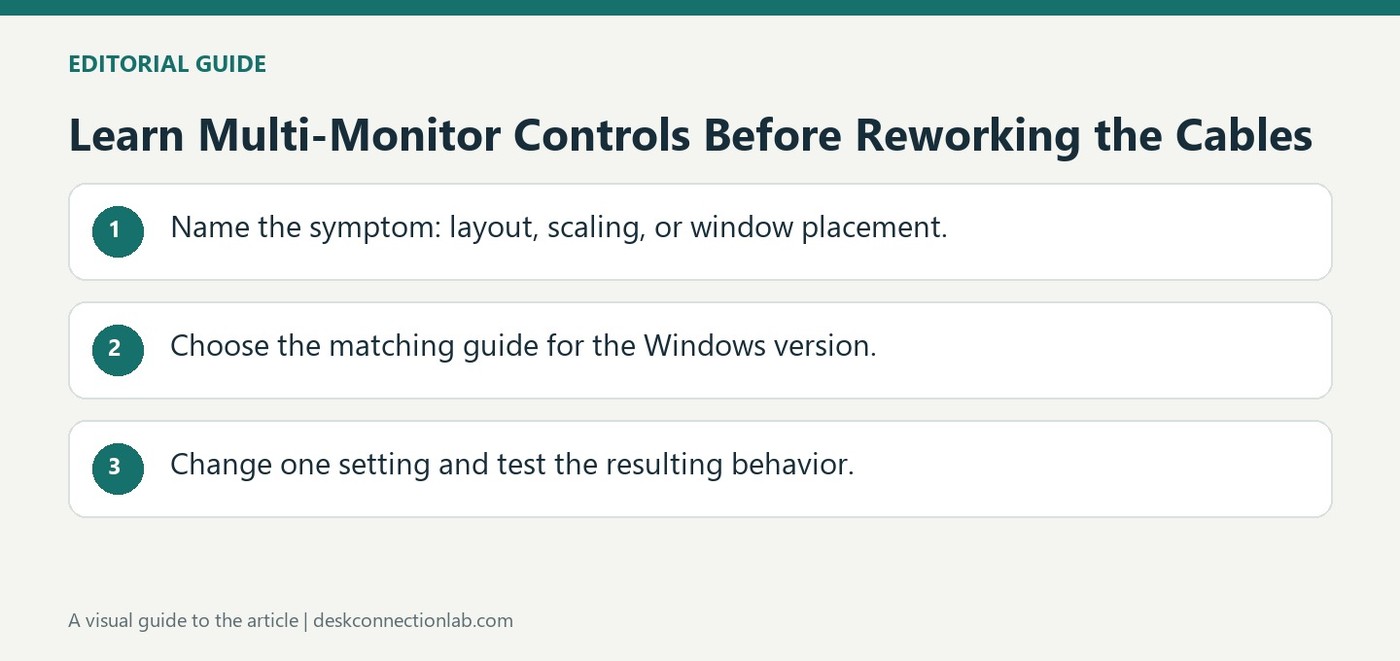
Learn Multi-Monitor Controls Before Reworking the Cables
A second screen introduces several independent settings, and changing the wrong one can make a working connection seem broken. Plugable's Windows video library covers spatial orientation, main-display selection, scaling, refresh rates, and phantom displays. These topics address different symptoms rather than one universal multi-monitor switch.
Start with the symptom: misplaced pointer movement suggests layout, tiny text suggests scaling, and invisible windows may involve main-display selection. The library also includes Windows+P and application-moving shortcuts. Consult the matching guide before physically moving cables that already provide a stable video signal.
Separate the learning task from a hardware fault
The video library is an index of targeted explanations, not one diagnostic procedure that must be completed in order. A display may already have a stable signal while its position, scale, or role is inconvenient. Select the topic matching that inconvenience before unplugging equipment. For example, a pointer leaving the wrong edge concerns spatial orientation, whereas an application opening on another screen may call for main-display selection or window-moving controls.
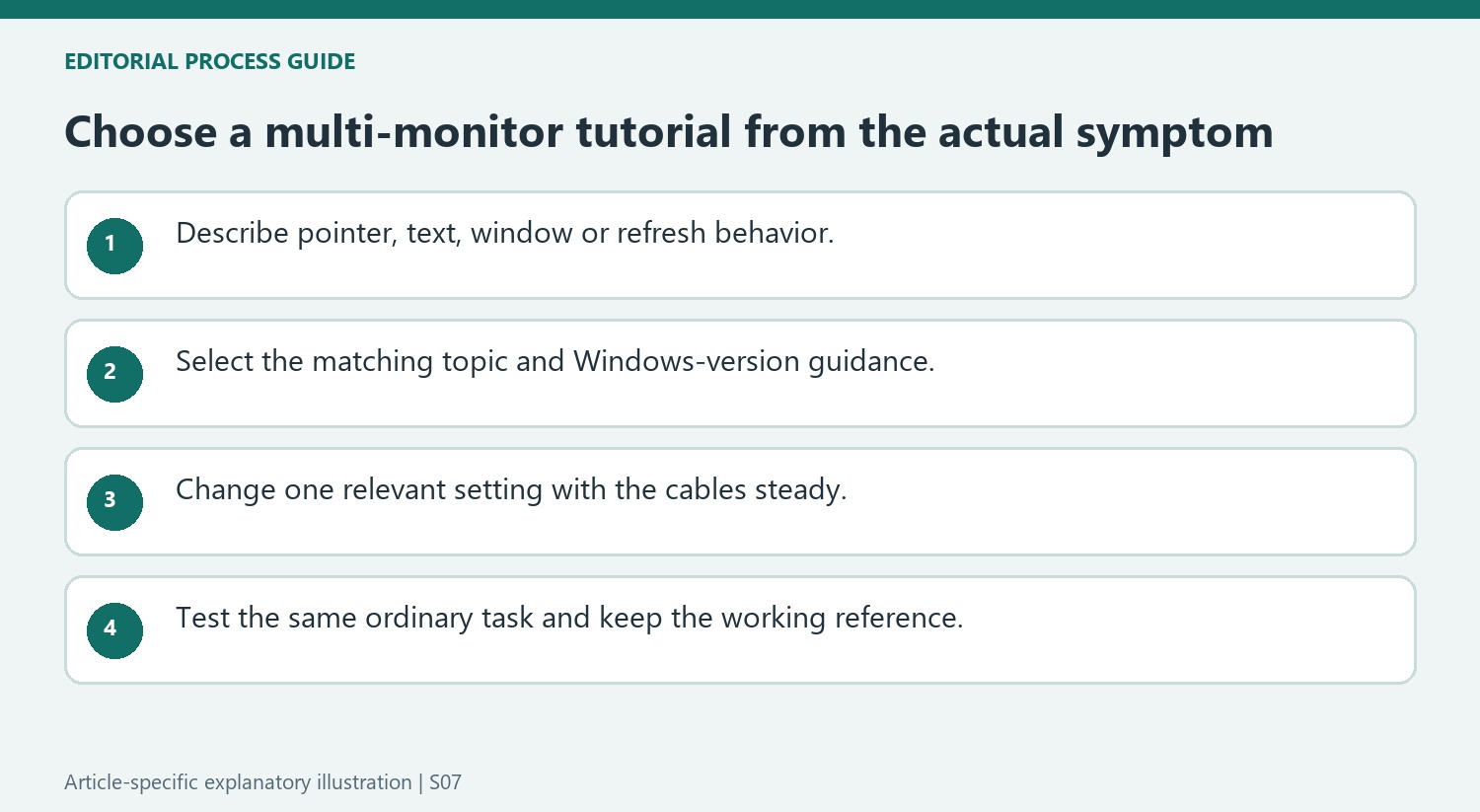
Use the guide matching the Windows version
The library lists separate main-display instructions for Windows 10 and Windows 11, along with introductions to scaling and projection shortcuts. Interface wording can differ, so use the relevant version rather than copying a menu path from an older video. Its refresh-rate and phantom-display topics address still other symptoms. After making one change, test the behavior that prompted it and keep the arrangement stable while evaluating the result. This approach turns the library into a practical reference: identify the symptom, consult the matching explanation, and verify the effect. It also reduces the chance of creating a new cable problem while trying to correct a software setting.
Translate the visible inconvenience into a settings topic
Describe the behavior before choosing a tutorial. A pointer crossing an unexpected edge suggests spatial arrangement, while text that is too small suggests scaling. An application appearing on the wrong screen may involve the main-display role or a window-moving command. These distinctions are central to using the source’s video library efficiently, because it organizes several separate controls rather than presenting one general repair switch.
Confirm that the displays already have a stable image before modifying cables. If the signal works, unplugging equipment can add a detection or connection problem while leaving the original layout issue unresolved. Keep a record of the starting arrangement and change one relevant setting at a time so the effect can be checked against the inconvenience that prompted the change.
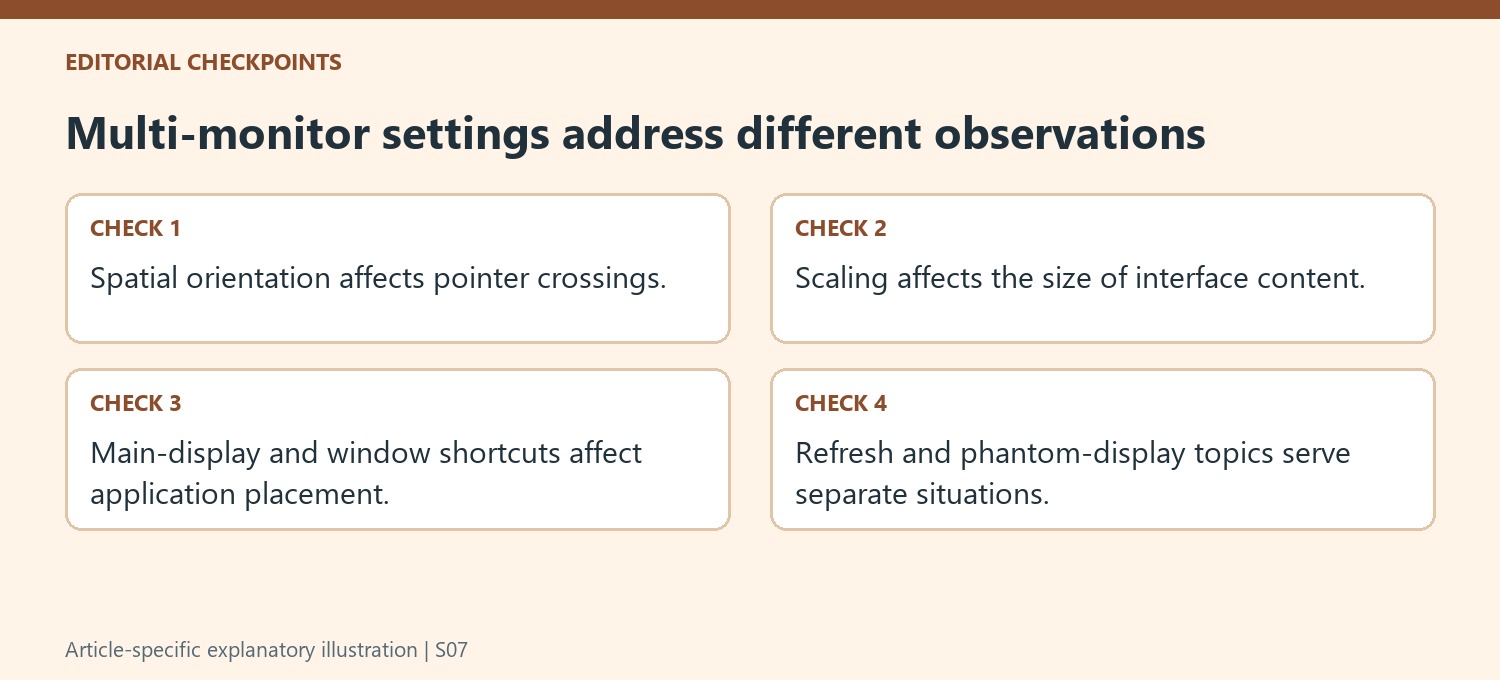
Use the library entry that matches the application context
Select the Windows-version guidance where the library distinguishes it, especially for choosing the main display. A familiar concept can have different menu wording across releases. The source also provides introductions to projection shortcuts and scaling, so a reader new to multi-screen operation can learn the specific control without assuming every other topic must be completed first.
Treat the refresh-rate and phantom-display entries as separate references for those particular symptoms. Their presence in an index does not mean every external-screen problem requires changing refresh rate or removing a remembered screen. Read the matching explanation and establish whether its situation resembles the observed behavior before following the procedure. This preserves the difference between a learning resource and a mandatory troubleshooting sequence.
Verify the outcome with the same ordinary task
After a layout change, move the pointer across the relevant boundary; after a window-role adjustment, open or move the application that caused confusion. Keep the cables and remaining display settings steady while evaluating the result. If the behavior is now correct, retain that working configuration as a reference rather than continuing through unrelated tutorial topics. When a problem persists, the notes can show which specific setting was tried and what happened. This turns a broad library into a focused tool for understanding the workspace, while avoiding unnecessary physical changes to a connection that already carried a stable image.
References
A second screen introduces several independent settings, and changing the wrong one can make a working connection seem broken. Plugable's Windows video library covers spatial orientation, main-display selection, scaling, refresh rates, and phantom displays. These topics address different symptoms rather than one universal multi-monitor switch.


Leave a Comment
Comments (0)