
Match the Link to the Display Mode
Version numbers explain more than connector size
Standard DisplayPort and Mini DisplayPort describe connector formats; they do not by themselves identify the supported protocol version. HP lists 4K at 60 Hz as an example for DisplayPort 1.2, while its DisplayPort 1.3 examples include 4K at 120 Hz and 8K at 30 Hz. Its discussion of DisplayPort 1.4 adds higher resolution and refresh-rate possibilities, including 8K at 60 Hz, and explains the role of Display Stream Compression. These examples should be read as capabilities to verify for a particular setup, rather than promises made by the shape of a socket.
Check compression and every device in the path
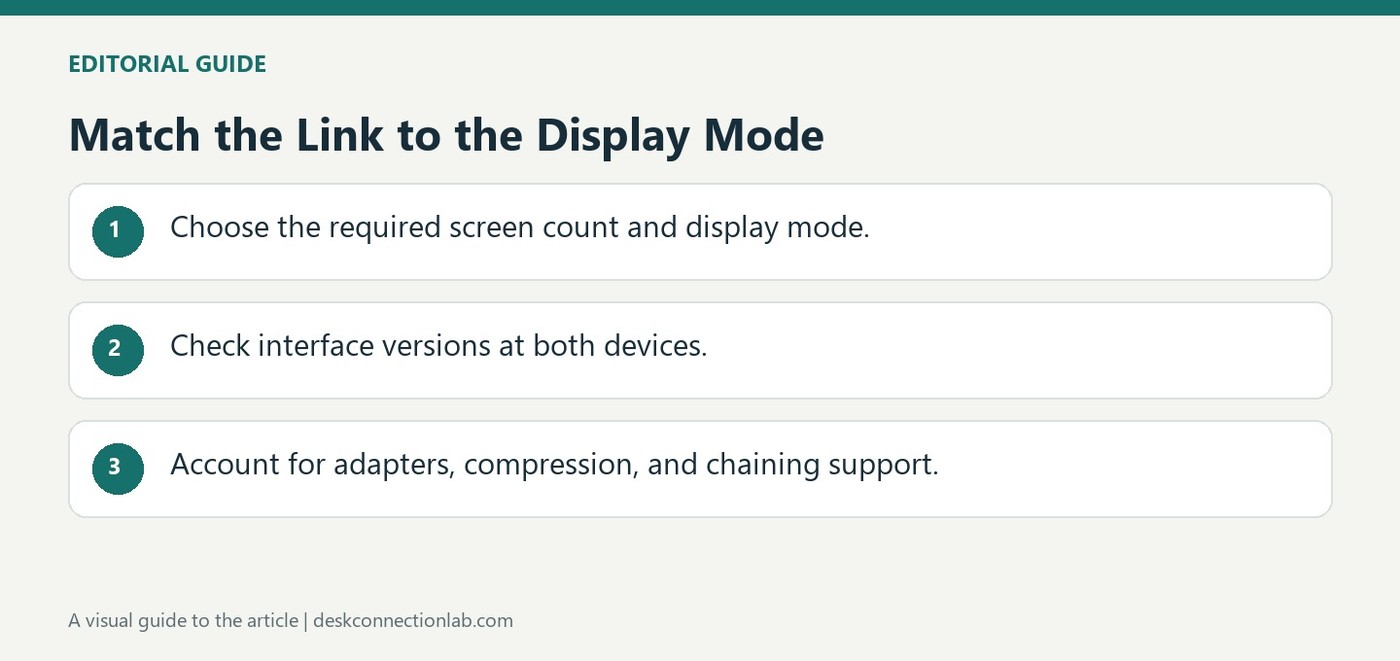
HP identifies Display Stream Compression, or DSC, as a way for DisplayPort 1.4 to handle demanding display modes. A useful compatibility check therefore includes the computer output, display input, cable, and any adapter between them. An adapter may lower the maximum resolution or refresh rate even when both end devices offer DisplayPort connections. Multiple-monitor configurations introduce another question: whether the equipment supports the required arrangement, such as daisy chaining. Start with the resolution, refresh rate, and number of monitors you actually need, then compare those requirements with the documented connection capabilities.
Choose a connection for the actual workload
HP's comparison distinguishes everyday television connections from computer and multi-monitor uses. That can guide an initial choice, but the advertised interface version is only one part of the decision. A display supporting both HDMI and DisplayPort may offer different modes on each input. Compare the supported mode table for the selected screen and graphics output rather than assuming one connector is always superior.
Treat adapter and chaining support as separate questions
A passive adapter can depend on dual-mode output support, while an active converter performs additional signal conversion. Neither should be assumed to preserve every feature available over a native cable. For multiple monitors, verify that the source, intermediate display or dock, and downstream screen support the required independent streams. The useful purchase list therefore includes the target resolution and refresh rate, display count, cable rating, and any conversion requirement. That is more precise than buying a cable on the basis of its socket size or a broad comparison of two interface families.
Begin with the task rather than a universal interface winner
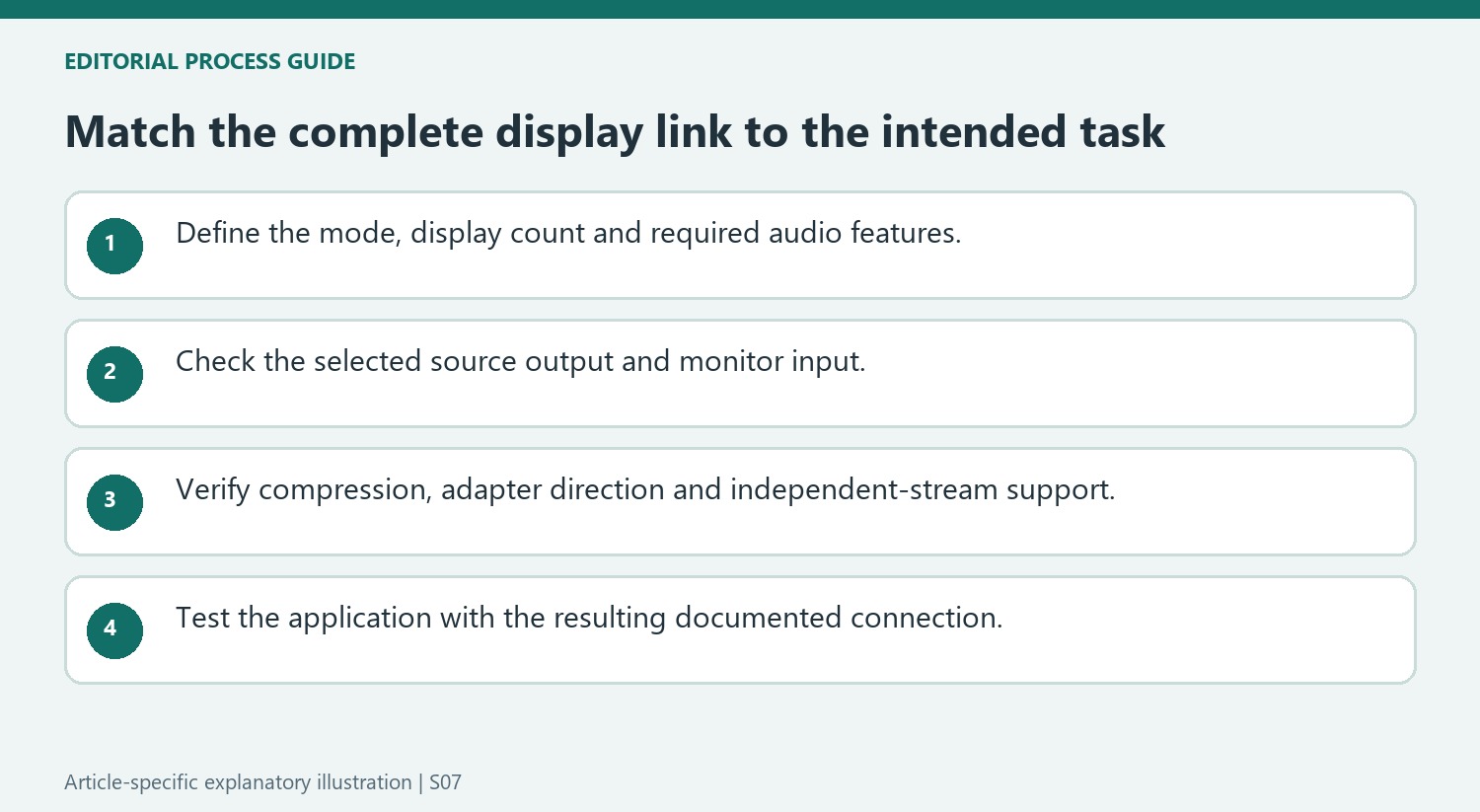
List the screen mode, display count and audio features required for the actual use. HP’s overview compares common applications for HDMI and DisplayPort, but those broad patterns do not decide every product pairing. A television connection, a workstation desk and a high-refresh gaming arrangement can ask different questions of the same two interface families.
Check the selected monitor input and graphics output documentation against the requirement. Similar connectors can belong to different generations, and a single monitor can expose different supported modes through different inputs. Preserve the conditions around any published resolution example rather than reading the pixel count as an unconditional entitlement of every socket with that name.
Include compression, conversion and independent streams in the check
The source discusses Display Stream Compression as part of demanding DisplayPort modes. Establish whether the relevant equipment supports the intended combination instead of assuming the version label alone settles every compression or color requirement. Compare the whole mode, including refresh rate and any stated signal conditions, before buying another cable.
For an adapter, identify its direction, whether it relies on dual-mode output support and what modes it preserves. For a daisy chain or other multi-monitor path, verify the support needed to carry independent streams through the intermediate equipment. A device that repeats one picture does not provide the same workspace as separately driven displays. These distinctions matter more than a broad claim that one connector family is always better.
Verify the result in the intended application
After connecting the supported path, confirm the chosen resolution and refresh setting, then test the task that motivated the connection. Check the required audio or multi-screen behavior separately. The resulting equipment list should explain the source, input, cable and any conversion stage alongside the intended mode. This makes future replacement and troubleshooting more precise, while keeping general interface comparisons in their proper role as an introduction to the questions the actual product documentation must answer.
References
Standard DisplayPort and Mini DisplayPort describe connector formats; they do not by themselves identify the supported protocol version. HP lists 4K at 60 Hz as an example for DisplayPort 1.2, while its DisplayPort 1.3 examples include 4K at 120 Hz and 8K at 30 Hz. Its discussion of DisplayPort 1.4 adds higher resolution and refresh-rate possibilities, including 8K at 60 Hz, and explains the role of Display Stream Compression. These examples should be read as capabilities to verify for a particular setup, rather than promises made by the shape of a socket.


Leave a Comment
Comments (0)