
Restore a Surface dock connection methodically
Begin with power and updates
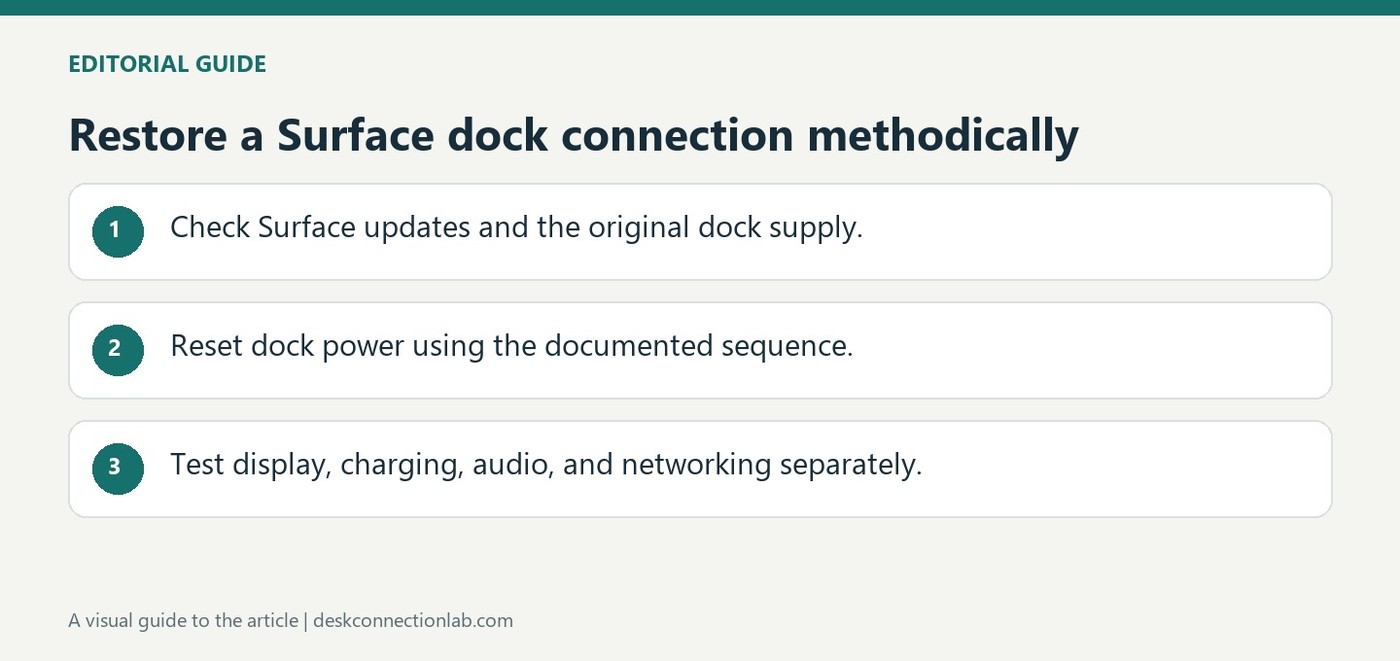
Microsoft recommends checking Surface updates and the connections between the computer, dock and peripherals. A dock power reset involves disconnecting its supply, waiting about five seconds and reconnecting it. Check that the original power supply is in use; a dock with several attached accessories may behave differently when power is insufficient.
Follow the branch for the symptom
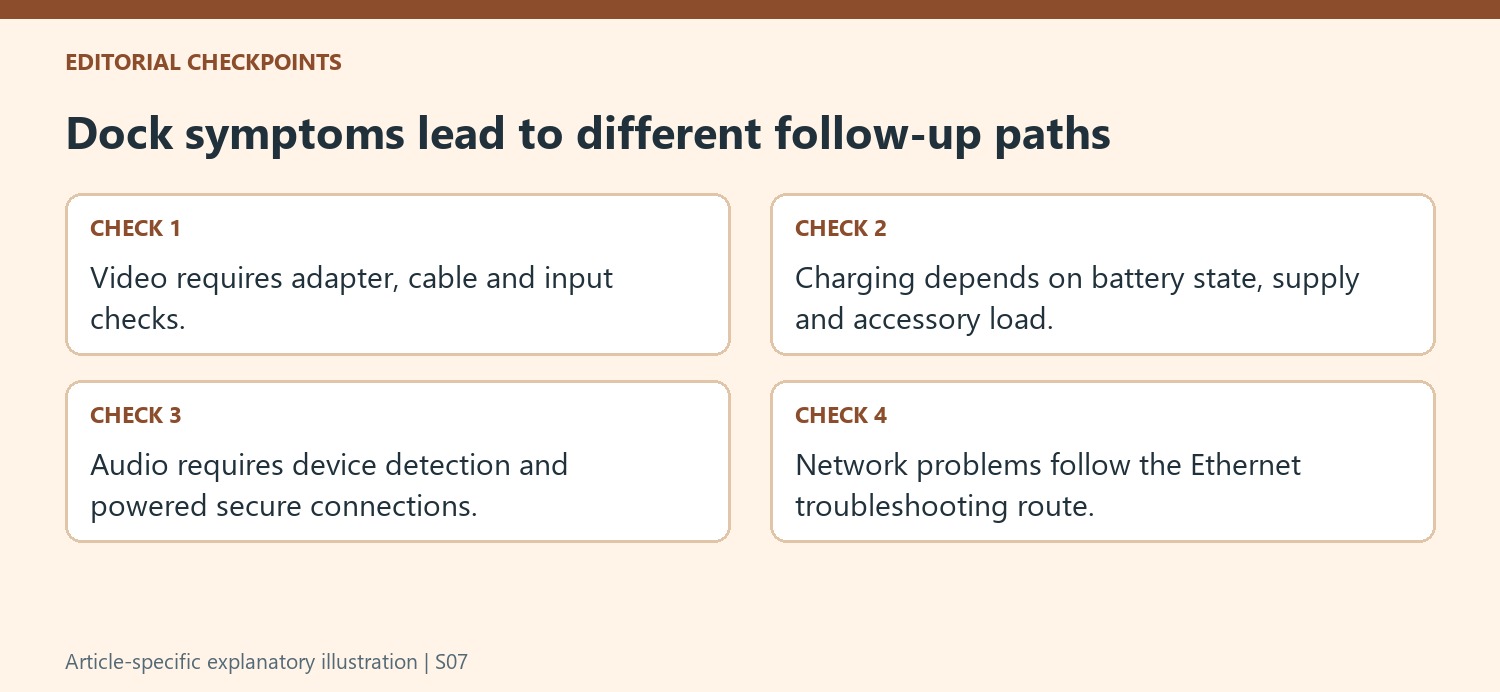
Display failure, charging trouble, audio problems and network faults need different follow-up checks. Disconnect accessories to simplify a charging test, and verify display cables and inputs when screens remain blank. Testing a device directly on the computer helps isolate the dock. Reconnect one accessory at a time after a successful reset so a recurring problem can be associated with a specific connection.
Distinguish a depleted battery from ordinary dock charging
Microsoft notes that an empty Surface battery may first need several minutes on the power supply supplied with the device before dock charging is tried again. That is a different test from checking accessory power at an already running desk. If power-hungry peripherals are attached, remove them and observe whether charging changes. For the performance models mentioned in the guide, the original dock supply and a simplified accessory load are especially important checks.
Follow audio and network symptoms to their own controls
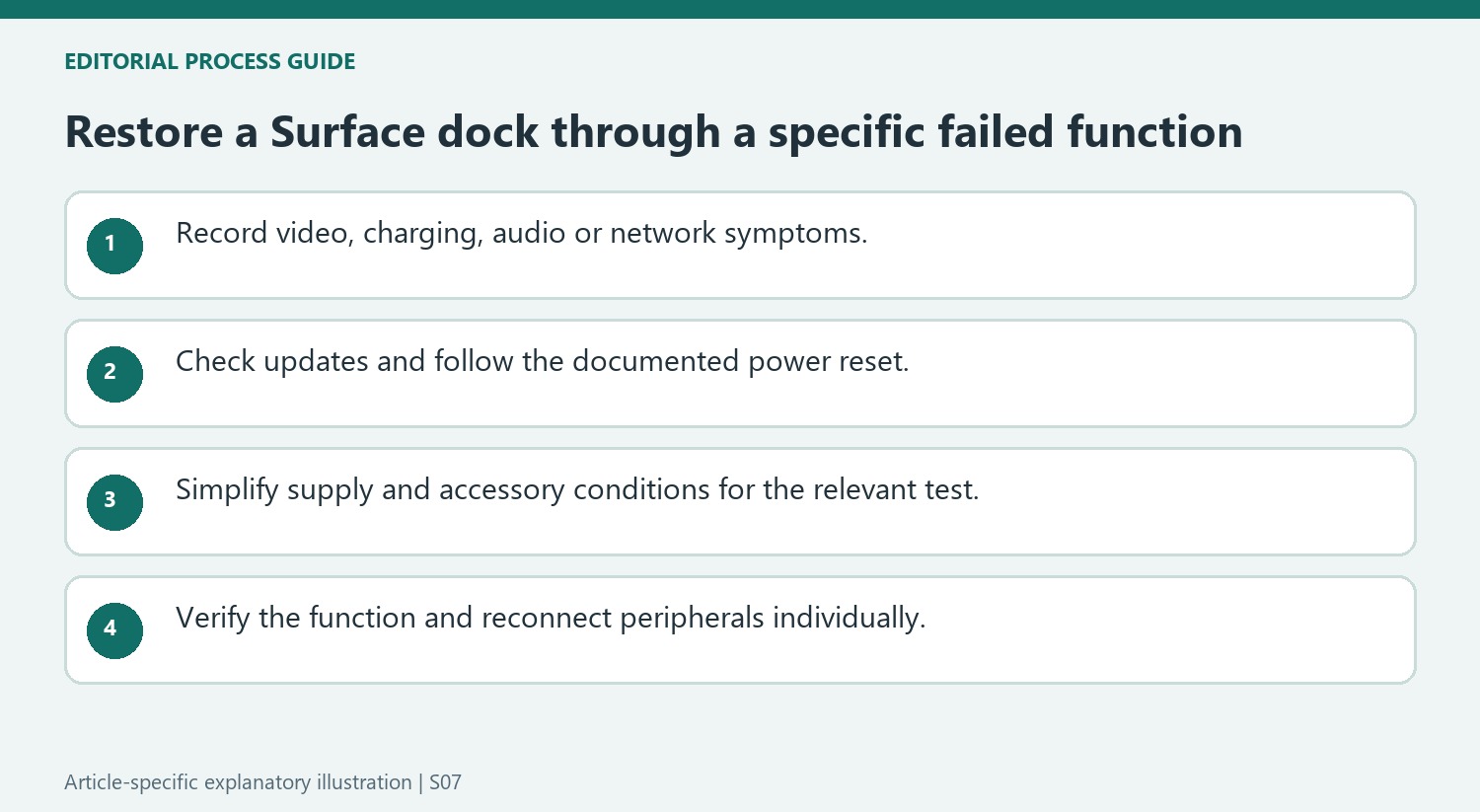
An audio device attached to the dock's 3.5mm socket may need the Surface Connect cable disconnected and reconnected before it is detected. Also confirm that speakers are powered and that their cables are secure. A network failure follows the wired-Ethernet troubleshooting route instead; resetting a display setting would not address it. Record the symptom before resetting the dock and test that same function afterward. Once it works, restore accessories individually so that the device or connection associated with a recurring failure can be identified. A successful reset alone does not explain which earlier condition caused the problem.
Record the symptom before performing a general reset
State whether the dock is failing to show video, charge the Surface, detect an audio device or provide a network connection. Microsoft separates those branches because the follow-up checks address different functions. If several are affected, note that too. A reset that restores operation is useful, but it does not retrospectively prove which part of the previous arrangement caused the trouble.
Check the supported updates and inspect the dock’s supply connection. Follow the described power-reset sequence rather than repeatedly reconnecting random peripherals. Afterward, test the original failed function in a simplified arrangement. Reconnect accessories one at a time once the reference works, observing whether a particular device or added load changes the outcome.
Investigate charging through the applicable power arrangement
For an empty Surface battery, the guide describes first using the power supply supplied with the computer for a few minutes before retrying dock charging. That situation differs from a running computer that charges poorly only when several peripherals are attached. Preserve the distinction when selecting the next test so that battery state and accessory load are not treated as the same condition.
If connected accessories draw power, remove them and observe the charging result. The guide gives particular attention to original dock supplies and simplified accessory loads for named performance models. Check the actual dock and Surface model before generalizing a successful test. The question is whether the documented supply and current load support this arrangement, not simply whether the dock has some visible power indication.
Finish each branch with a functional confirmation
For audio, secure the relevant cables, confirm powered speakers and use the described reconnection route when a 3.5mm device is not detected. For network trouble, follow the Ethernet-specific guidance instead of altering display settings. For video, return to the supported adapter, input and cable checks. Record whether each function works after the change and keep the successful connection map. This produces a more informative support history than a sequence of unexplained resets, while allowing the desk to be rebuilt gradually around a verified dock, supply and set of peripherals.
References
- Troubleshoot Surface Dock or Surface Docking Station. support.microsoft.com.
Microsoft recommends checking Surface updates and the connections between the computer, dock and peripherals. A dock power reset involves disconnecting its supply, waiting about five seconds and reconnecting it. Check that the original power supply is in use; a dock with several attached accessories may behave differently when power is insufficient.


Leave a Comment
Comments (0)