
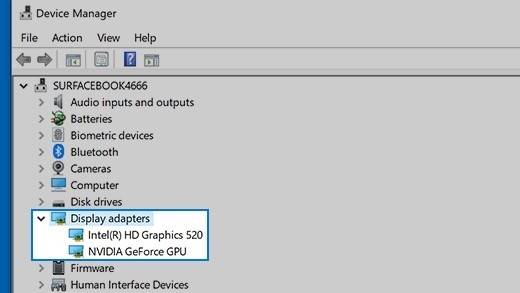
Isolate a missing external monitor
Reduce the connection to one display
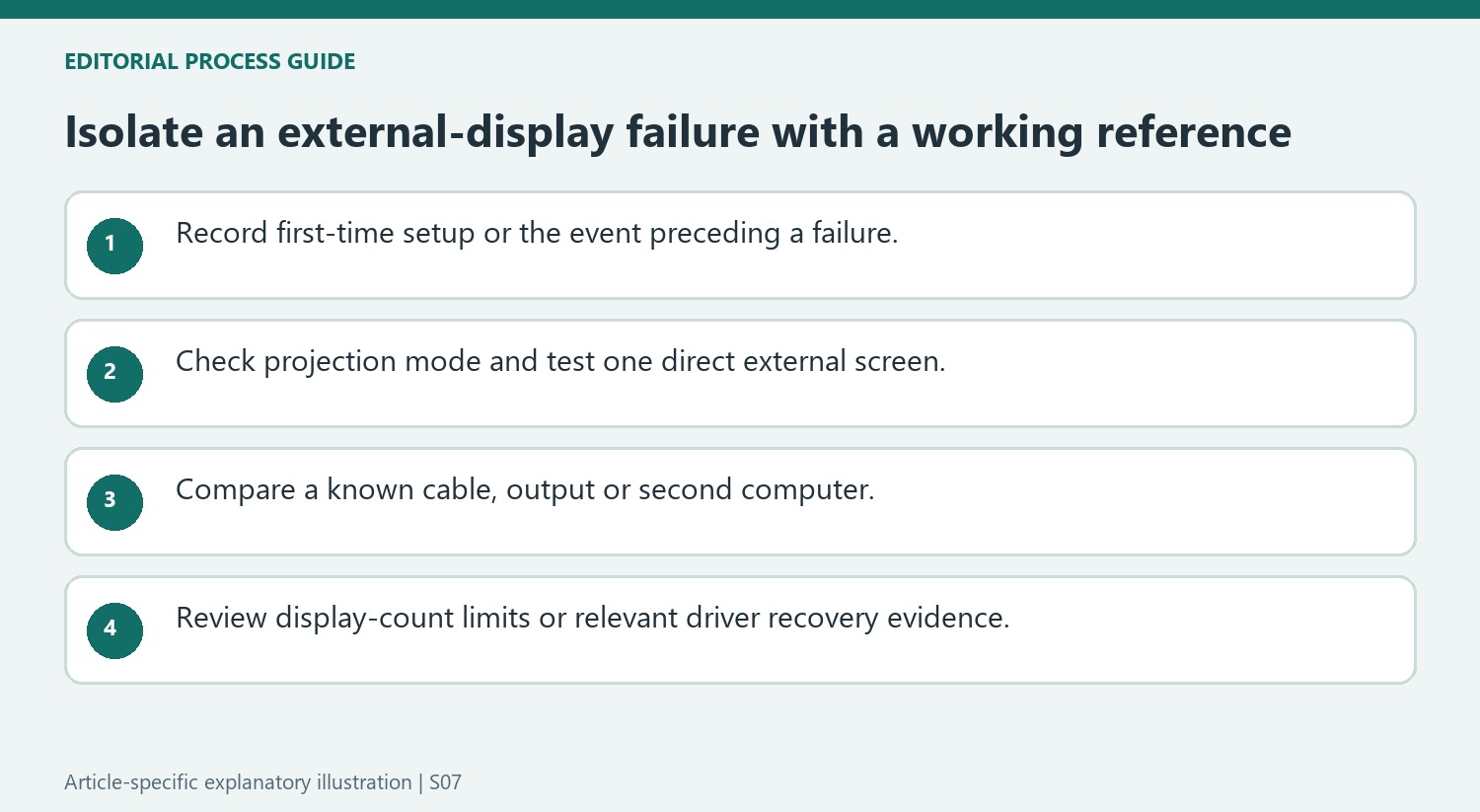
Microsoft advises checking Windows updates and the Extend option, then testing the hardware path. Disconnect docks and other accessories, secure the video cable and try a replacement cable or another computer. If a single display works directly but fails through an adapter, the added connection becomes the next item to investigate.
Distinguish expansion from duplication
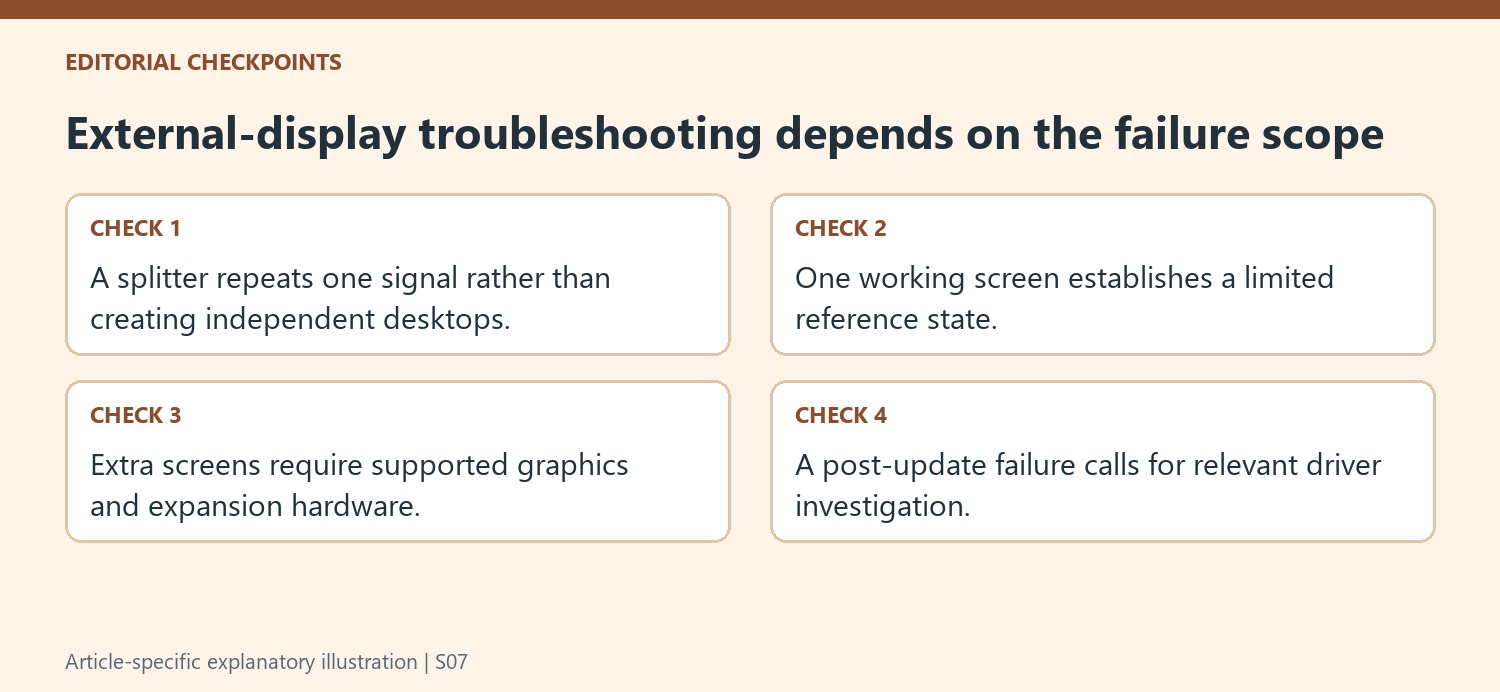
An ordinary display splitter duplicates one signal; it does not create independent extended desktops. Supporting more screens depends on the graphics hardware and a compatible dock or adapter. For a previously working setup, Microsoft also describes restarting the computer, resetting the graphics driver with Windows plus Ctrl plus Shift plus B, and examining driver changes when failure follows an update.
Use a known working screen as the first checkpoint
Before investigating why two or three external screens fail together, establish that one external screen works with the computer on its own. Microsoft's guide recommends trying another cable, another video output where available, or the monitor with a different system. A successful comparison narrows the investigation without proving that every dock or adapter is supported. Write down which exact combination works so that later changes can be evaluated against it.
Reserve driver recovery for the relevant situation
If the arrangement stopped working after an update, the guide describes examining the display driver and, where available, rolling it back. Reinstallation is another documented step, but it should follow the simpler hardware and projection checks. Keep the remaining instructions available before a restart. A newly purchased extra monitor may instead exceed the graphics hardware's supported display count, which a driver reset will not change. If further support is needed, report the computer, graphics adapter, monitor count, working cable test, and the event that preceded the failure rather than saying only that the dock does not work.
Classify a first-time setup separately from a stopped working setup
Record whether the external display has ever worked with this computer and whether a particular event preceded the failure. A new multi-monitor plan can exceed the graphics hardware’s supported arrangement, while a previously working connection may point toward a changed cable, driver or accessory state. That distinction helps select relevant checks instead of treating every blank screen as the same problem.
Confirm Windows projection behavior and reduce the path to one external display. Remove unnecessary docks or adapters where a supported direct test is possible, then secure the cable and compare a known alternative. Keep a note of the exact successful and unsuccessful combinations. A working screen on another computer helps narrow the problem, but it does not establish that every intermediary attached to the original computer is compatible.
Check whether the proposed expansion creates independent signals
An ordinary splitter repeats an existing signal rather than producing separate desktops. If the goal is independent content on additional screens, inspect the graphics hardware and supported expansion method instead of repeatedly changing the projection menu. The source points readers toward compatible docking or adapter options, with the actual supported display count remaining a hardware question.
Establish one usable external screen before testing the larger arrangement. Then add the next stage and observe what changes. A failure that appears only when another monitor is connected can involve configuration limits rather than a broken panel. Review manufacturer guidance for the exact graphics adapter and computer, keeping the dock and connection method in the comparison as well.
Use driver recovery with the relevant evidence preserved
For an arrangement that stopped working, the source includes a graphics-driver reset shortcut, restart and driver recovery steps. If the failure followed an update, investigate that timing and the available rollback option before assuming unrelated hardware damage. Preserve the remaining instructions before a restart or driver change. If support is still needed, report the computer, graphics adapter, display count, direct-cable result and event history. A reproducible description is more useful than a general statement that an external screen is missing, because it distinguishes an unsupported plan from a new fault in a previously verified setup.
References
- Troubleshoot external monitor connections in Windows. support.microsoft.com.
Microsoft advises checking Windows updates and the Extend option, then testing the hardware path. Disconnect docks and other accessories, secure the video cable and try a replacement cable or another computer. If a single display works directly but fails through an adapter, the added connection becomes the next item to investigate.


Leave a Comment
Comments (0)