
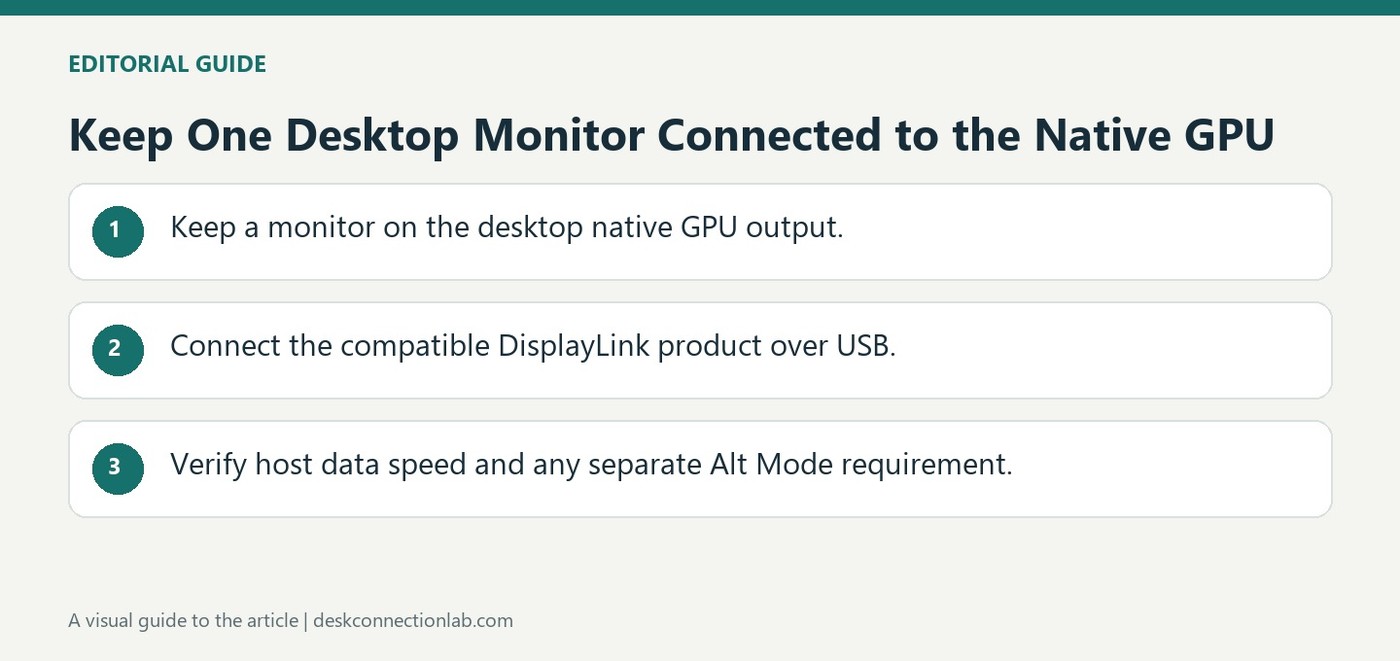
Keep One Desktop Monitor Connected to the Native GPU
A desktop can use a DisplayLink docking station or USB video adapter, but Plugable recommends leaving at least one monitor attached to a native graphics output. Some desktop GPUs may not initialize fully without a directly connected display, which can make additional USB-connected screens unreliable.
Check the host port as well as the display arrangement. A USB-C dock that also uses DisplayPort Alt Mode requires a video-capable USB-C port, while USB 3.0 graphics products need an appropriate data connection. The connector shape alone does not establish either capability or expected performance.
Treat USB graphics as an addition to native video
DisplayLink sends rendered display information through a USB data connection, but it does not remove the desktop's graphics processor from the process. Plugable describes cases where the GPU does not initialize as expected without a directly attached monitor. Keeping a native screen connected provides a useful baseline when a USB-connected screen fails to light reliably. This is a desktop setup recommendation from the manufacturer, rather than a claim that every system will fail without it.
Check the specific dock rather than the USB-C label
Some products combine DisplayLink outputs with a native DisplayPort Alternate Mode output. That native part still needs video support from the host USB-C connection. Other USB graphics adapters rely on the USB data path, with limited performance on older USB 2.0 ports. Identify the dock model and its connection-to-host specification before changing drivers. In a support report, distinguish the directly connected screen from the USB graphics screens and list which one fails. That description is much more informative than simply counting how many monitors are attached to the desktop.
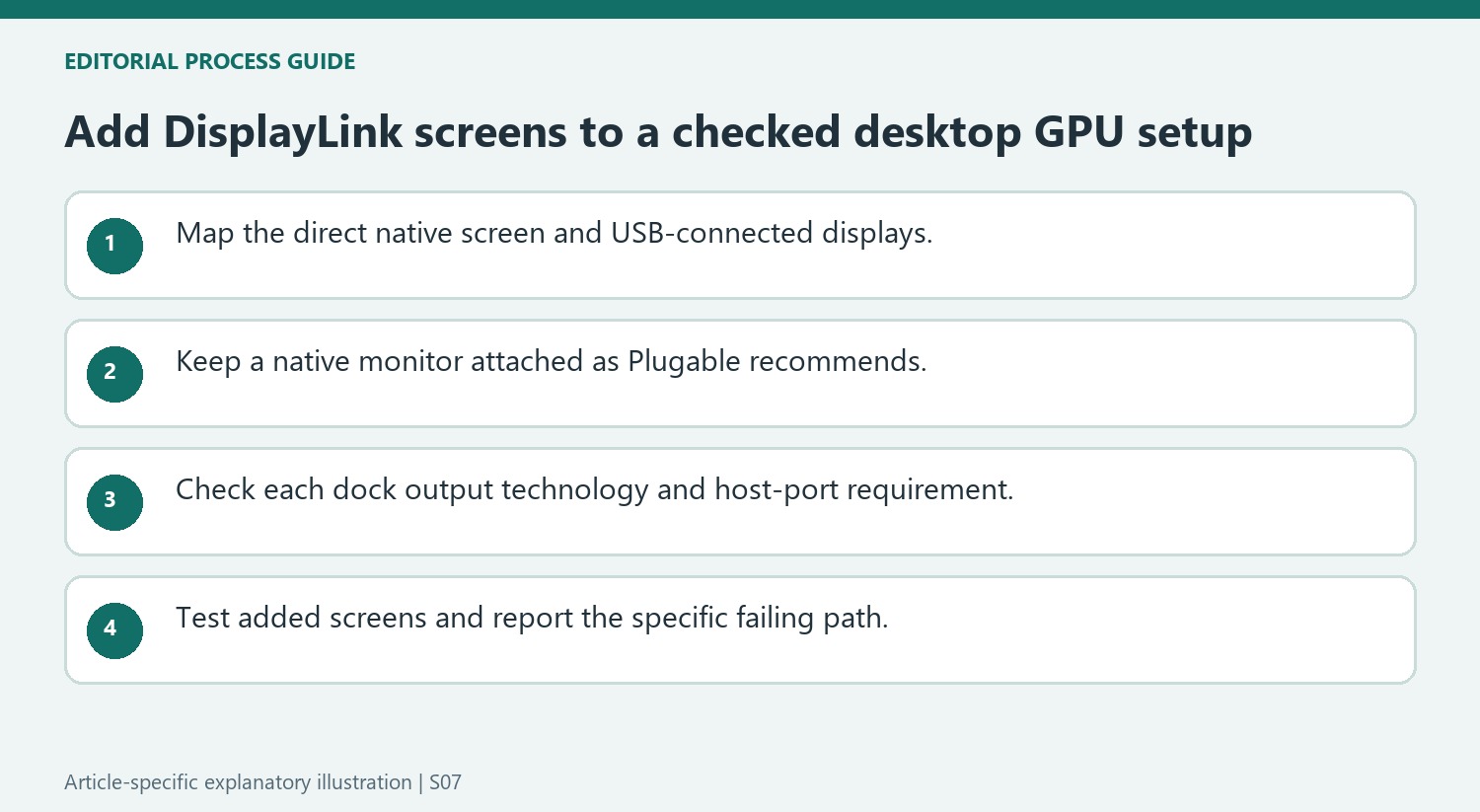
Map native and USB-connected screens separately
List which display attaches directly to the desktop’s graphics output and which displays use the USB graphics product. This makes the arrangement understandable before troubleshooting begins. A count of three monitors says little about how they are driven, while the connection map reveals whether a native screen remains present and whether a particular dock output depends on another host feature.
Plugable explains that DisplayLink uses the system GPU to render content before display information is compressed and transmitted over USB. The recommendation to retain a directly connected monitor addresses cases where a desktop GPU may not fully initialize otherwise. Treat it as the manufacturer’s best-practice setup for reliable operation, without turning the described possibility into a claim that every desktop necessarily fails in the same way.
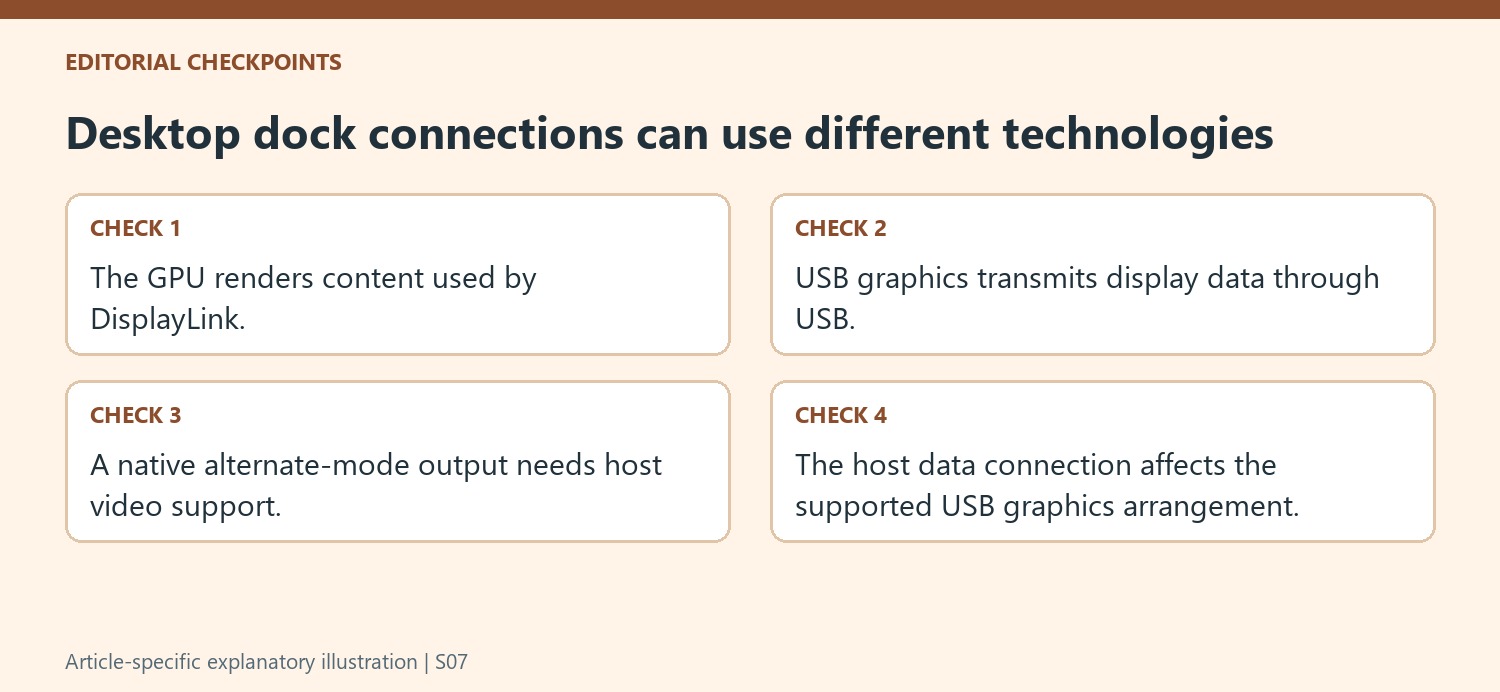
Identify the technology behind each dock output
Some products combine USB graphics with a separate native-video path that requires DisplayPort Alternate Mode. Check the exact dock model and the computer’s port capabilities before concluding that every video socket is driven through DisplayLink. The same dock can contain outputs with different requirements, which matters when only one screen fails or the host’s USB-C connection lacks native video support.
For USB graphics, check the specified data connection as well. The source recommends an appropriate USB 3.0 connection for those products and notes reduced performance through older USB 2.0 ports. A physically attachable cable does not establish equivalent operation. Keep the host connection specification and cable details with the output map so that the supported arrangement can be evaluated as a complete system.
Use a stable native screen as the troubleshooting reference
Begin with the direct display working through the intended native graphics output, then add the USB-connected screens as additional workspace. Observe which output fails and whether the behavior is consistent. If support is needed, report the native display, the USB graphics product, the host port and the affected output rather than simply saying that multiple monitors are unreliable. That evidence preserves the distinction between GPU initialization, native-video support and USB data connectivity. It also keeps driver changes tied to a defined failure instead of treating a software reinstall as a substitute for the hardware and connection conditions the product requires.
References
- Can i use a displaylink based dock or usb graphics adapter with my desktop computer. Plugable Knowledge Base.
A desktop can use a DisplayLink docking station or USB video adapter, but Plugable recommends leaving at least one monitor attached to a native graphics output. Some desktop GPUs may not initialize fully without a directly connected display, which can make additional USB-connected screens unreliable.


Leave a Comment
Comments (0)