
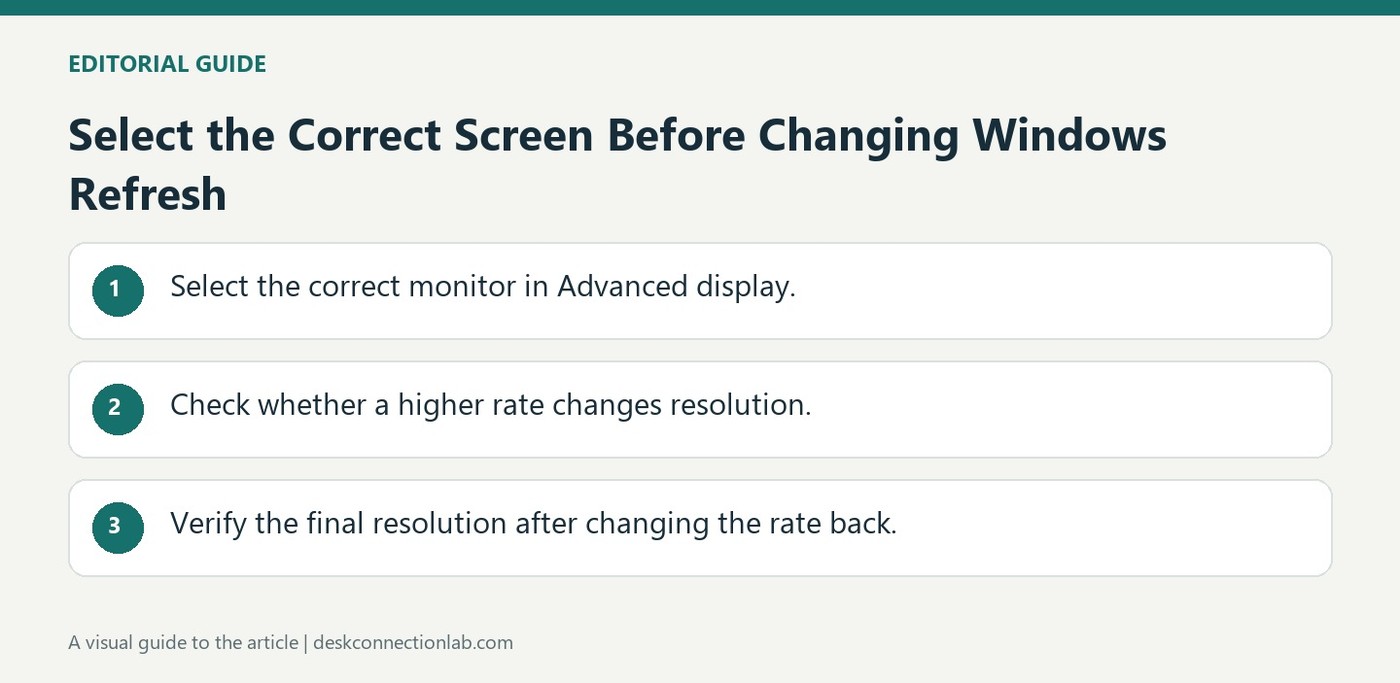
Select the Correct Screen Before Changing Windows Refresh
To change a refresh rate in Windows 11, open Display Settings, then Advanced display. Plugable emphasizes choosing the intended monitor in the display menu before selecting a rate. This matters in a multi-monitor workspace because the available choices can differ from one screen to another.
If a desired option is missing, check the full connection: graphics hardware, dock or adapter, cable, monitor, and resolution. Some higher refresh rates require reducing resolution. The operating system can only offer combinations supported by the connection, so a monitor's advertised maximum does not guarantee that mode through every dock.
Read the asterisk before accepting a higher refresh rate
Windows may mark a refresh-rate choice with an asterisk when that rate is unavailable at the current resolution. Plugable's example changes a 4K-at-60Hz connection to 1440p when 120Hz is selected. The example illustrates a trade-off within that specific hardware path; it does not promise the same modes on another screen. Check the resulting resolution after accepting the change, especially if text suddenly looks less sharp.
Restore the resolution deliberately when changing back
Selecting a lower refresh rate afterward may leave the reduced resolution in place. Return to Display settings and choose the desired resolution if it is not restored automatically. Dynamic Refresh Rate is a separate supported-hardware feature that changes refresh behavior according to activity; its availability should not be inferred from a single high-rate option. If the target combination remains missing, report the display model, graphics hardware, dock or adapter, cable, and desired resolution and rate together. That gives support an actual mode to assess instead of a vague request to enable the monitor's advertised maximum.
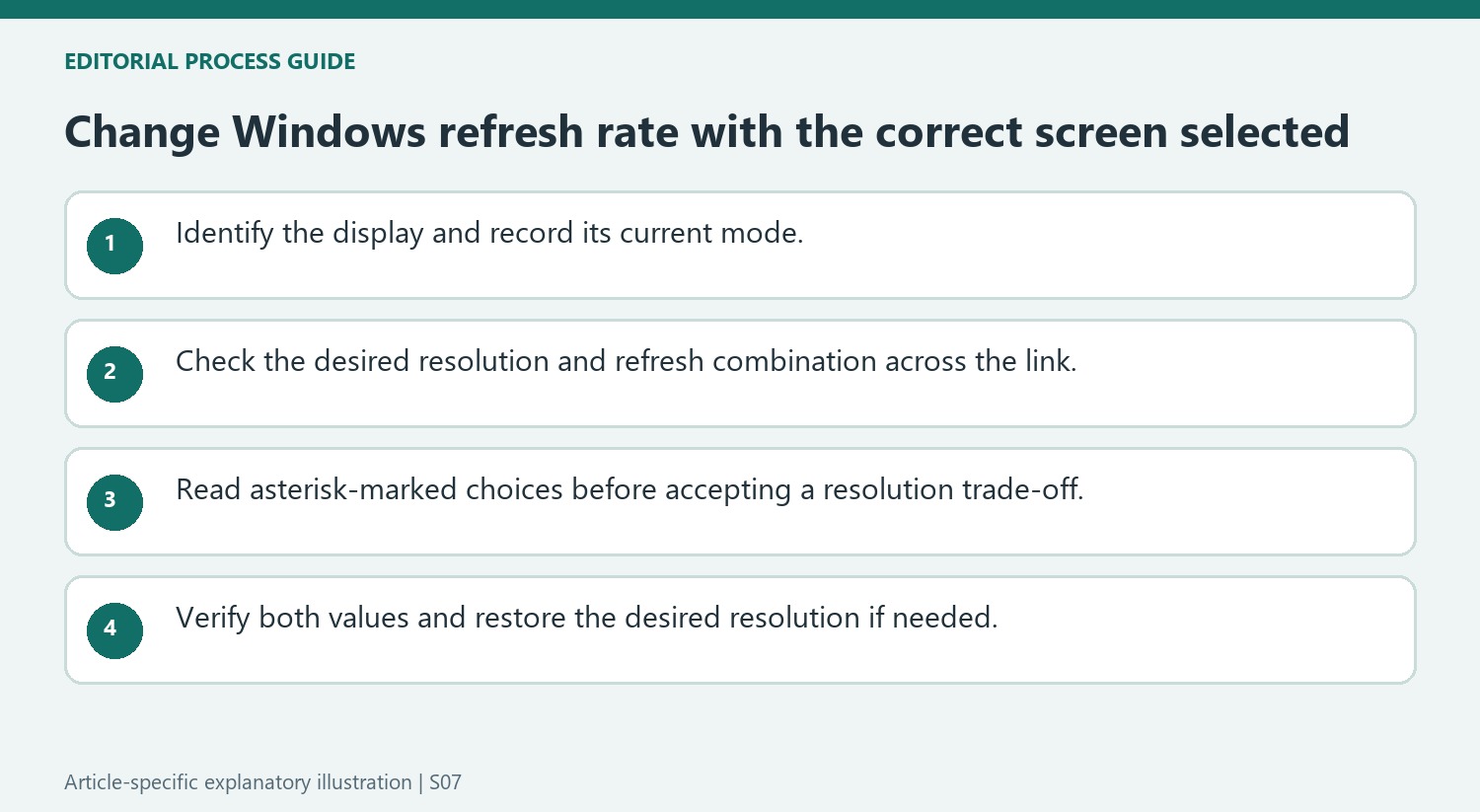
Select the intended display and record the starting mode
Open Advanced display and use the display selector to identify the screen being changed. Multi-monitor systems can expose different refresh choices for different outputs, so the visible list should be interpreted only after the correct screen is selected. Record its current resolution and refresh rate together so that an unexpected change can be compared with a known starting state. Keep the current cable and connection path unchanged during that initial comparison.
Check the target combination against the monitor, graphics hardware, dock or adapter and cable. A monitor’s advertised maximum does not establish that every input or intermediary supports that same mode. If the desired choice is missing, inspect those documented conditions before assuming Windows needs an arbitrary override or that a higher-rated screen must work identically through every connection.
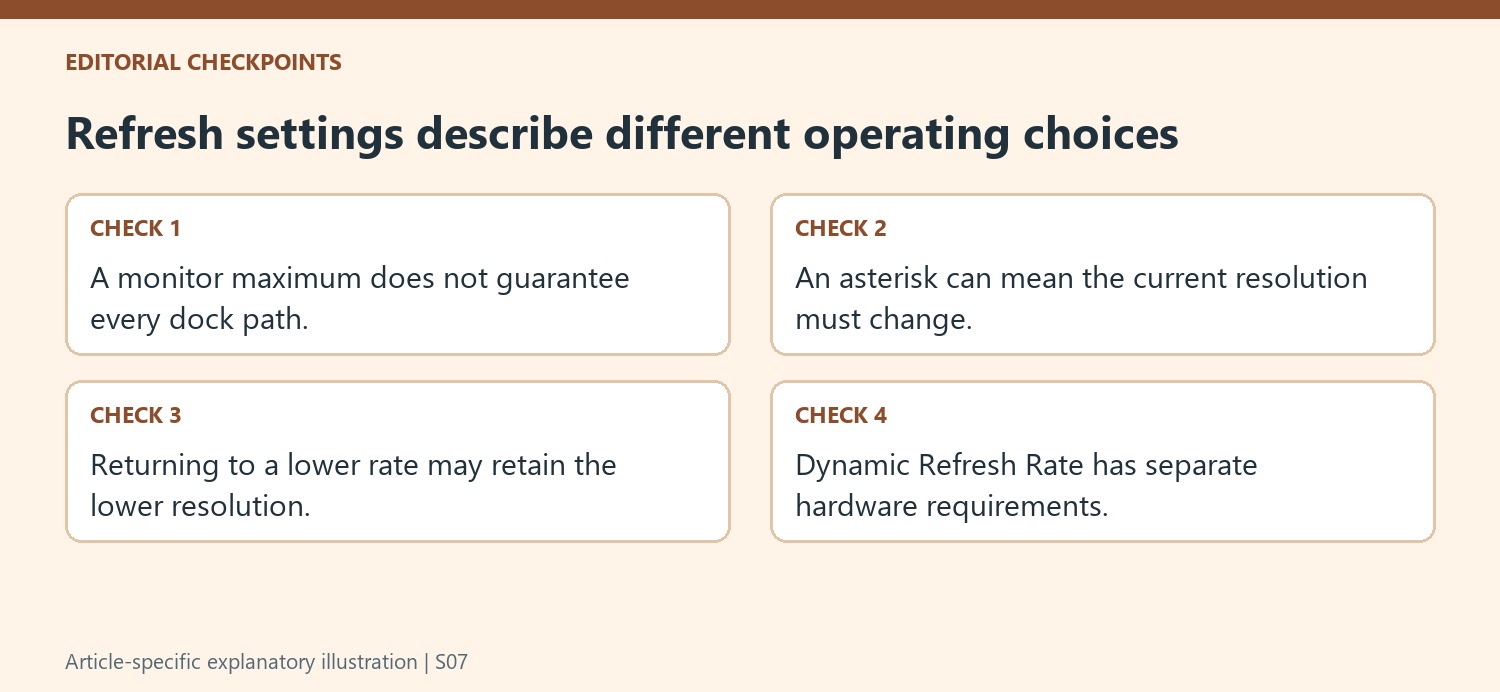
Read an asterisk as a warning about the mode combination
The source explains that an asterisk can identify a refresh rate unavailable at the current resolution. Selecting it allows Windows to change the resolution to achieve the higher rate. The guide’s 4K-to-1440p example illustrates that trade-off for a particular path; it should not be treated as a mode table for unrelated monitors.
After accepting a change, inspect both values and assess the result in the intended task. Smoother motion at a lower resolution can come with less sharp text, so compare the actual operating mode rather than celebrating the refresh number alone. If returning to a lower rate, check whether Windows kept the reduced resolution and restore the desired resolution deliberately where necessary.
Keep dynamic refresh separate from a static mode choice
Dynamic Refresh Rate is a supported-hardware feature with its own conditions, rather than another name for selecting a high fixed rate. Verify the relevant computer and screen support before expecting it to appear. If the required combination remains unavailable, report the exact mode, equipment models and connection path, along with any diagnostic output requested by support. Include both the current mode and the requested mode in that report. This provides a specific compatibility question to answer. It also prevents a change made to the wrong screen, an asterisk-related resolution trade-off or a missing dynamic feature from being misdiagnosed as a general inability of the monitor to operate at its advertised maximum.
References
- How to set the display refresh rate in windows 11. Plugable Knowledge Base.
To change a refresh rate in Windows 11, open Display Settings, then Advanced display. Plugable emphasizes choosing the intended monitor in the display menu before selecting a rate. This matters in a multi-monitor workspace because the available choices can differ from one screen to another.


Leave a Comment
Comments (0)