
Understand Surface USB4 Dock connections
Keep the power input separate
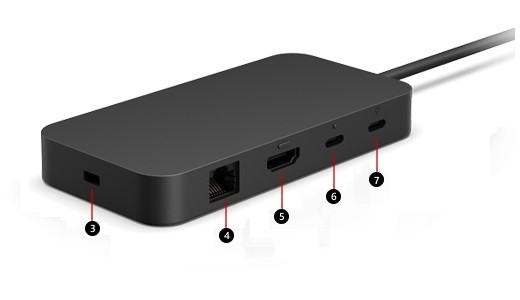
Microsoft's USB4 Dock guide distinguishes its USB-C power input from data and display ports. The power input accepts the supply; it is not an additional monitor connection. Other ports provide USB accessories, USB4 video, HDMI and Ethernet, with the supported arrangement depending on the connected computer.
Check the host charging allowance
The included 100W supply provides up to 65W of host charging. Using a different or insufficient supply can limit operation, so compare power delivered to the laptop rather than just the adapter's headline rating. The guide describes a dual-4K arrangement using USB-C and HDMI, but the compatibility table and the host's capabilities still determine whether that arrangement is available.
Separate the supply rating from laptop charging
The included 100W USB-C power supply supports up to 65W of passthrough to the host, with power also used by the dock and its connections. A replacement supply needs the supported Power Delivery voltage and adequate output; the guide describes reduced or unavailable functions with insufficient power. Even with an appropriate supply, the computer accepts only the power it supports. A wattage printed on the adapter is therefore different from a guaranteed charging rate at the laptop.
Use the model table before planning the video arrangement
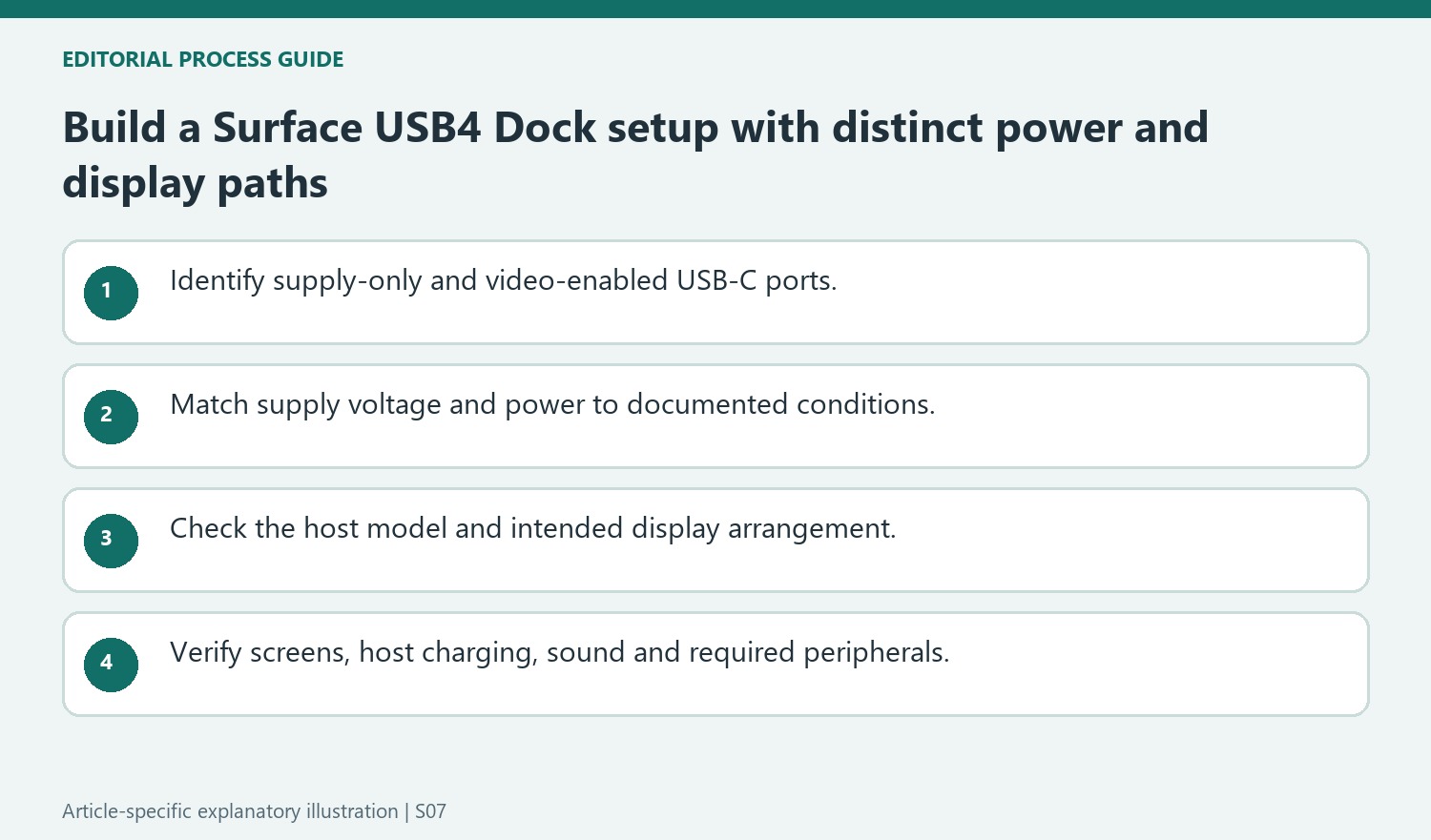
Microsoft lists different USB-C data capabilities across compatible Surface models, so the presence of the same dock does not make all host connections equivalent. Its display guidance describes dual 4K use through USB-C and HDMI and a single-screen option through USB-C, subject to the host's own limits. Check the current model-specific display table for the resolution and refresh rate required. Connect the chosen video outputs, select the monitor inputs, then arrange the screens in Windows. The power-input-only USB-C port remains a supply connection throughout; moving a monitor cable there will not create another display path.
Treat the dock diagram as a map of different functions
The USB4 Dock includes several USB-C-shaped connections, but their assigned purposes differ. Identify the supply-only input before attaching the power adapter, and keep it distinct from the video-enabled ports. A monitor moved to the power input will not gain an extra display path simply because its cable fits the same connector shape.
Use the stated roles for USB-A accessories, Ethernet and HDMI as well. Plan the connections around what each device needs rather than filling sockets in an arbitrary order. If troubleshooting, begin with the essential host and display arrangement and add other peripherals afterward so that an unrelated accessory does not obscure which part of the setup changes the result.
Check power conditions against the host’s actual requirement
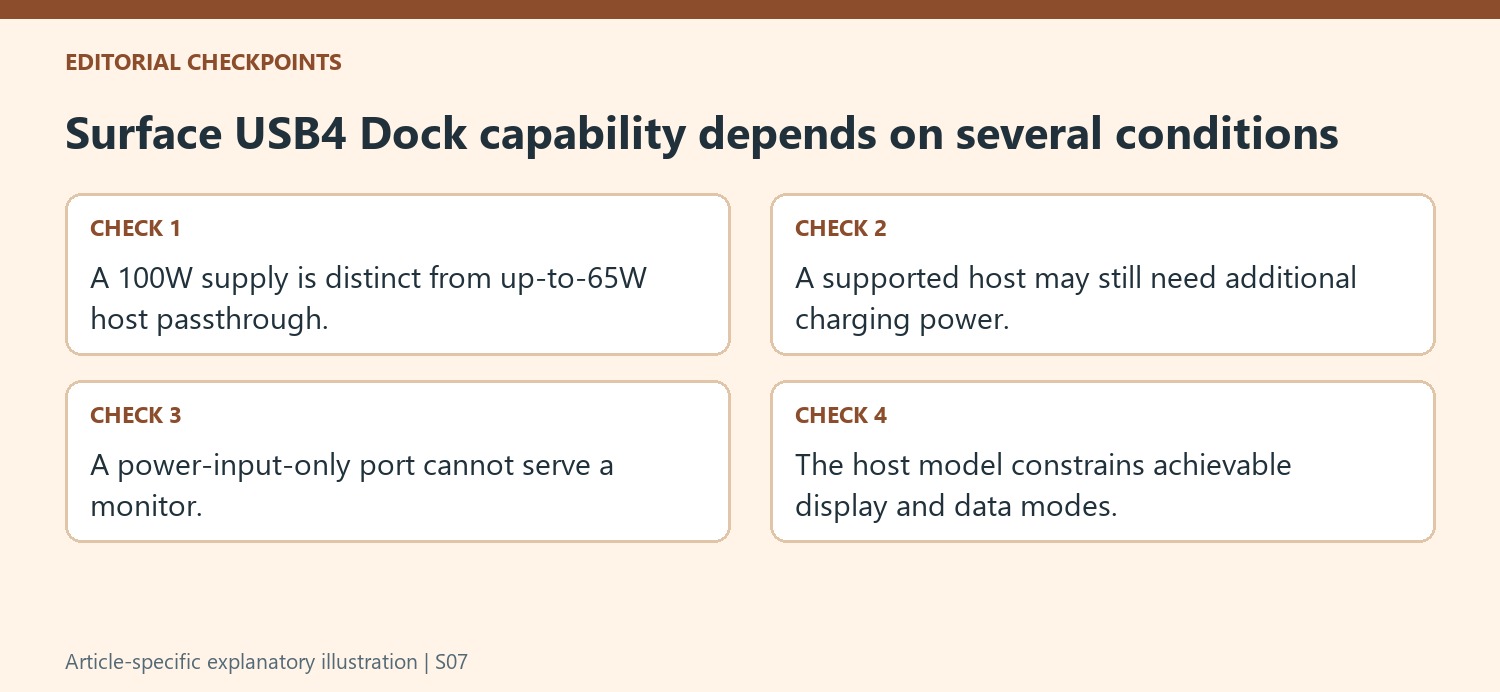
Microsoft lists the included supply as 100W and host passthrough as up to 65W. The computer can accept only the charging power it supports, and a more demanding model may require an additional appropriate supply. The source’s specific exception for a higher-power Surface model illustrates why compatibility and adequate charging are separate questions.
For a third-party Power Delivery supply, review the documented voltage and wattage conditions rather than matching only a large number on its label. The guide describes cases where dock functions operate while the host does not charge, as well as insufficient-power conditions that prevent operation. If charging is unexpected, inspect that power arrangement directly instead of assuming a successful display output establishes sufficient host charging.
Plan display modes with the model table in view
The dock’s overview lists dual-display and single-display possibilities, while the host and actual connection determine what can be used. Check the current model-specific data and display guidance for the required resolution and refresh rate. A shared dock cannot remove differences between its supported computer models. After connecting the intended outputs, select each screen’s input and arrange the detected displays in Windows. Verify audio and required peripherals separately. This produces a usable desk configuration based on distinct supply, host and display requirements, with the power-input-only port remaining clearly identified throughout setup and later cable changes.
References
- Use a Surface USB4 Dock. support.microsoft.com.
Microsoft's USB4 Dock guide distinguishes its USB-C power input from data and display ports. The power input accepts the supply; it is not an additional monitor connection. Other ports provide USB accessories, USB4 video, HDMI and Ethernet, with the supported arrangement depending on the connected computer.


Leave a Comment
Comments (0)