
Match the Surface port to the screen
Start with the physical connection
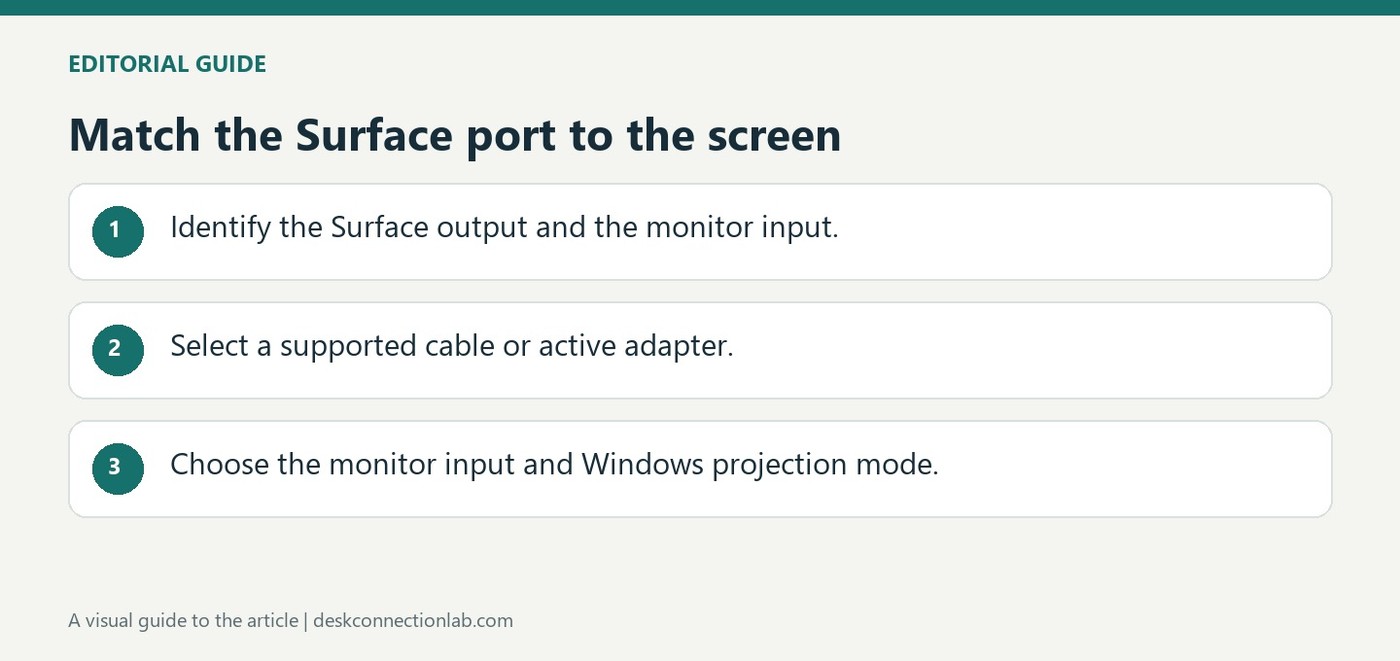
Microsoft's Surface display guide begins with the connectors available on the computer and monitor. A matching cable is the simplest route when both ends provide the same interface. USB-C, HDMI, DisplayPort, Mini DisplayPort, DVI and VGA require different cables or adapters; the connector on one device cannot establish what the other device supports.
Check the complete video path
HDMI and DisplayPort can carry video and sound, while older analog connections have different limits. Microsoft provides model-specific cable recommendations rather than one universal prescription. Check the Surface model, display input, adapter specifications and intended resolution together, then choose Duplicate or Extend with Windows plus P after connecting the equipment.
Identify both connectors before selecting an adapter
DVI deserves particular attention because DVI-I, DVI-D, and DVI-A are different arrangements. A connector that resembles another one does not establish that the available signal will be accepted. Microsoft's guidance also discusses active conversion for some longer or mixed-interface paths. Treat its cable-length and interface examples as recommendations within the Surface setup guide, rather than limits applying to every computer and monitor. An adapter should solve a clearly identified difference between the two devices.
Finish with the display input and Windows projection mode
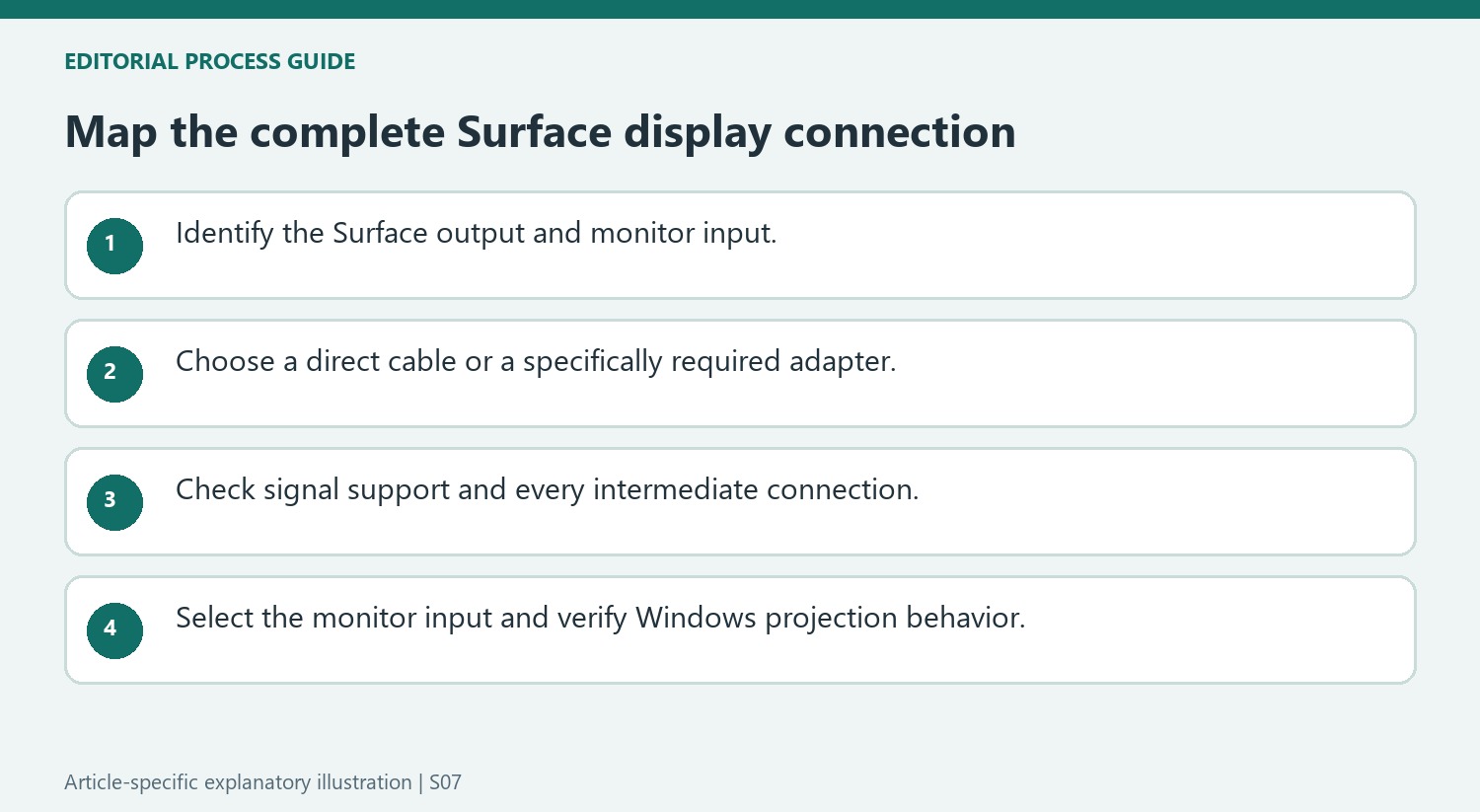
Select the actual input on the monitor after plugging in the cable. A display listening to a different HDMI socket can look like a failed computer output even when the connection is sound. Then use Windows plus P to choose the desired behavior: Duplicate repeats the desktop, while Extend creates additional workspace. PC screen only and Second screen only deliberately leave one screen unused. On a device without a keyboard, open the projection controls through quick settings. Verify a simple direct connection before adding another dock or conversion stage; that makes a later failure easier to locate.
Map every link before purchasing another cable
Write down the Surface model, its available output, the monitor input and any dock already between them. This turns a collection of similar-looking sockets into a defined connection path. If the computer and display share a suitable interface, a direct matching cable avoids an extra conversion stage. Where they differ, choose an adapter for that specific signal relationship rather than for appearance alone.
Check whether sound is part of the requirement. Microsoft describes audio and video together for HDMI and DisplayPort, while the legacy analog options have different capabilities. A picture arriving on a screen therefore does not settle every part of an audiovisual setup. Verify the relevant features for the actual interfaces instead of assuming that every video adapter carries the same functions.
Keep recommendations within their model and product context
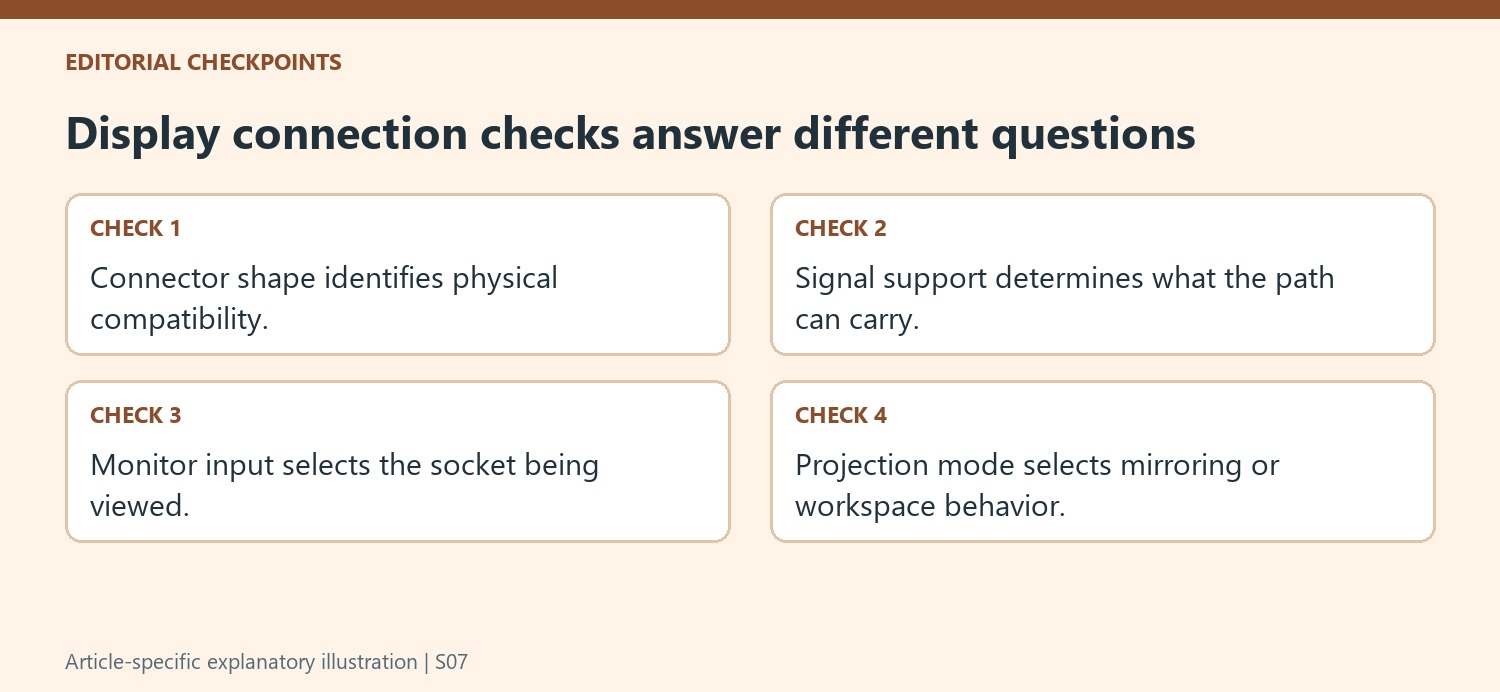
Microsoft recommends suitable Surface accessories and gives guidance about cable ratings, length and active conversion. Apply those recommendations to the documented setup rather than converting them into a universal claim about all cables. The useful question is whether the selected cable and adapter support the intended computer, display and mode over the required distance.
Where a connection uses several stages, inspect each one for secure seating and documented capability. A dock socket, an adapter and the display’s selected input can each affect the result. Avoid adding another converter simply because a cable can be physically attached. Each additional stage should have an understood purpose and an appropriate specification for the signal being carried.
Test a simple display task before expanding the arrangement
Turn on the external display, select its connected input and begin with a straightforward projection mode. Duplicate is useful when both screens should show the same material, while Extend serves a larger workspace. Confirm that the chosen behavior matches the user’s expectation before treating a blank internal or external screen as a fault. If the result is unexpected, simplify the cable path and test a known alternative where available. That staged check helps separate a projection-mode choice from a connection problem and provides a stable reference before adding more equipment to the desk.
References
- Connect Surface to an external display. support.microsoft.com.
Microsoft's Surface display guide begins with the connectors available on the computer and monitor. A matching cable is the simplest route when both ends provide the same interface. USB-C, HDMI, DisplayPort, Mini DisplayPort, DVI and VGA require different cables or adapters; the connector on one device cannot establish what the other device supports.


Leave a Comment
Comments (0)