
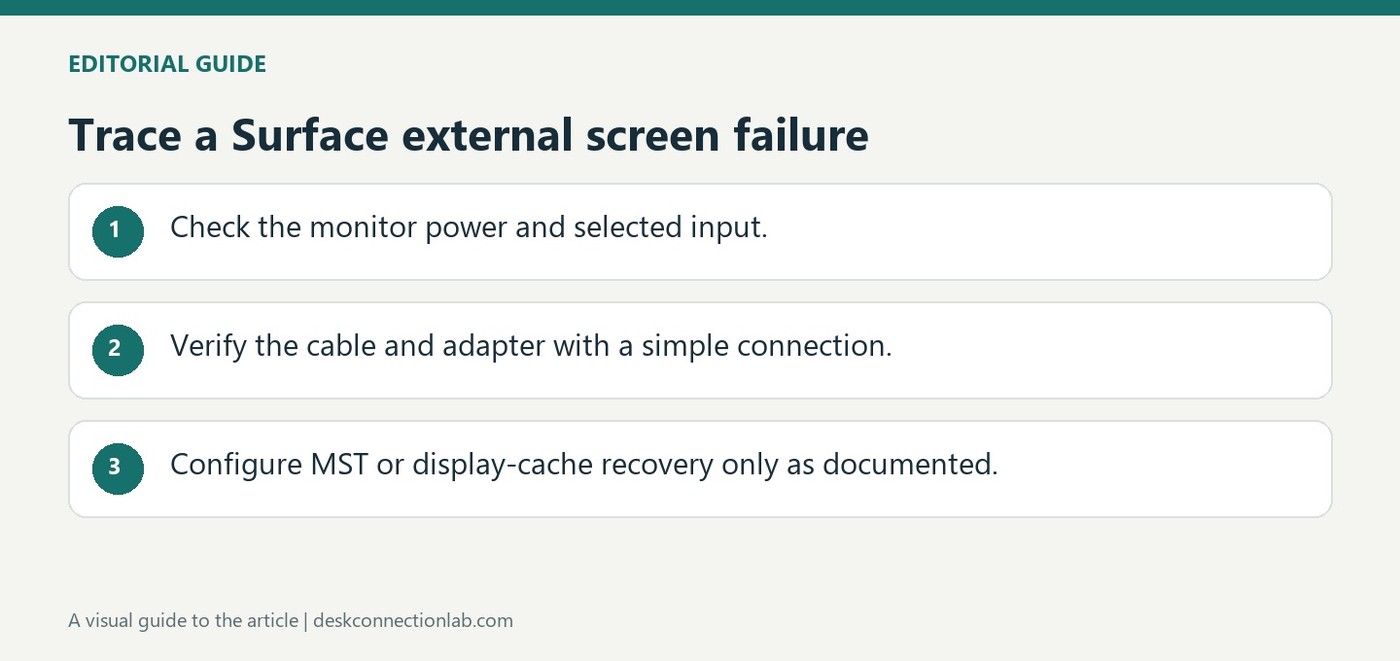
Trace a Surface external screen failure
Check the monitor before changing software
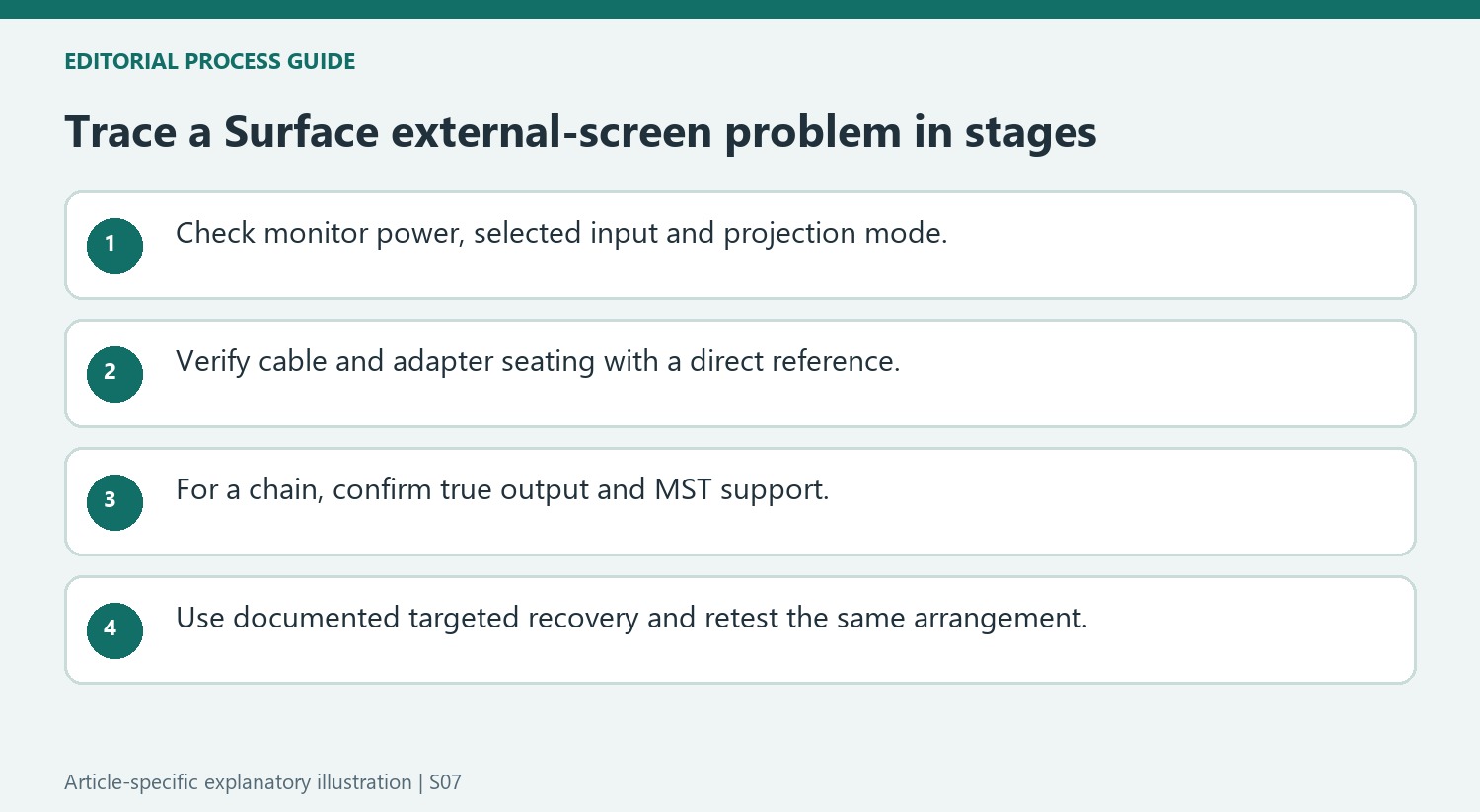
Microsoft's external-display troubleshooting starts with updates, a monitor power reset and the selected video input. A monitor connected by DisplayPort must be listening to that input. Windows plus P then confirms that the intended projection mode is active. Reseating the adapter and testing another screen can identify a faulty conversion device.
Treat daisy chaining as a supported feature
The guide gives a DisplayPort daisy-chain example that uses a first monitor with an output port and compatible displays configured for DisplayPort 1.2 Multi-Stream Transport. This is a specific supported arrangement, not a feature of every DisplayPort screen. Follow the monitor manufacturer's instructions and port-version settings when configuring the chain, and check cable quality before assuming a driver problem.
Read the monitor menu as part of the signal path
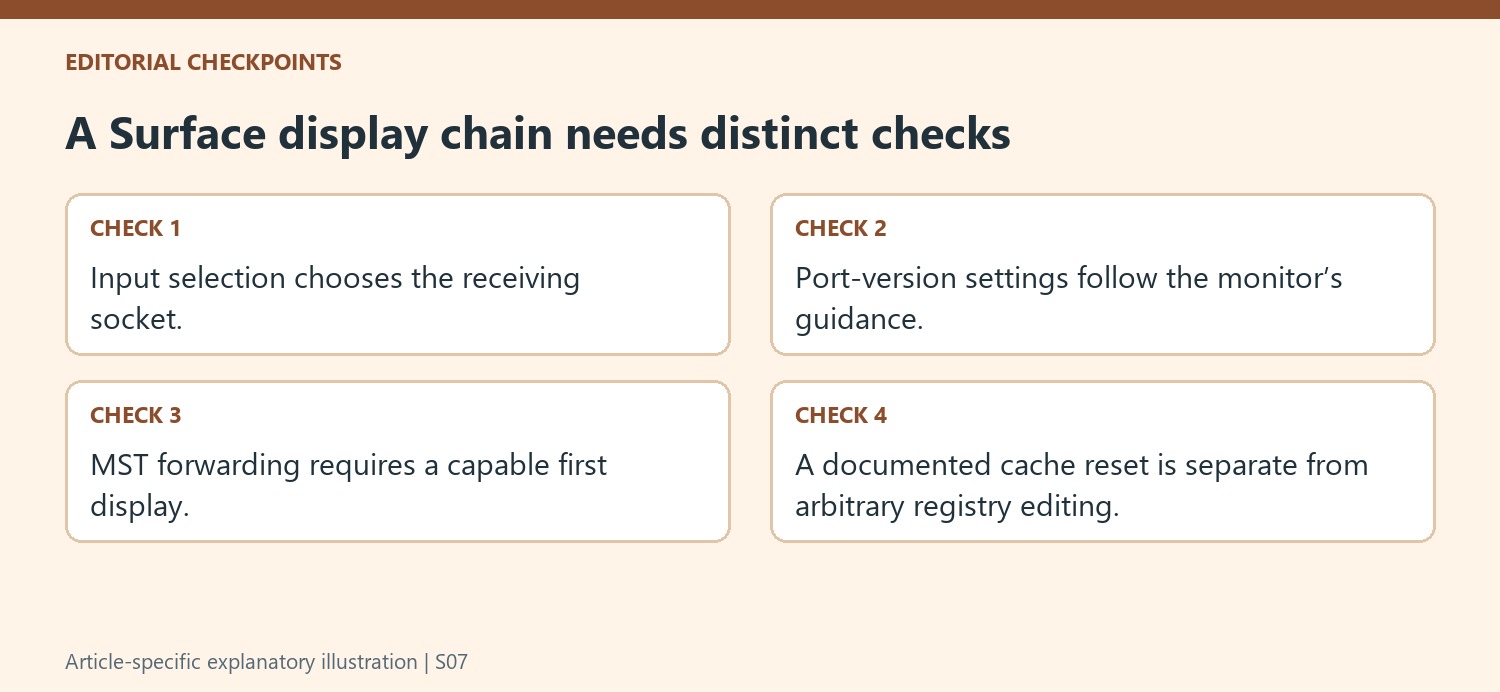
A display can expose an input-version setting as well as an input-selection setting. Microsoft recommends consulting the monitor manual for the appropriate version rather than changing an unfamiliar option blindly. If a direct cable works but a chain does not, inspect the first screen's input, output, and MST configuration. The first screen must be capable of forwarding the signal; a second socket is not necessarily an output.
Use the display-cache procedure only as documented
The Surface guide includes a display-cache reset using Microsoft's supplied Surface Dock registry file. This is a specific recovery step after disconnecting the dock or monitor, followed by a restart and reconnection. It is different from deleting arbitrary registry entries or repeatedly installing unrelated drivers. Retain the monitor and adapter models when asking for help, and describe whether the failure affects a direct connection or a daisy chain. That distinction determines whether to investigate the basic video path, the monitor's forwarding support, or stored display configuration. A working single-screen test remains useful evidence during each stage.
Check the display’s own state before altering the computer
Confirm that the monitor is powered and listening to the port actually connected to the Surface. A screen configured for another input can present the same apparent symptom as a missing computer signal. The source also suggests a monitor power reset, providing a simple check of the receiving device before more involved software recovery is attempted.
Look for an input-version option only with the display manual or manufacturer guidance available. Its meaning is distinct from choosing HDMI or DisplayPort as the current source. An undocumented change can introduce a new variable, while a setting chosen for the supported arrangement helps establish a known configuration. Keep the intended Windows projection mode in view as another separate part of that initial check.
Verify forwarding capability when more than one display is chained
The source’s daisy-chain example relies on a first screen with a genuine output port and suitable DisplayPort MST support. Two similar sockets on a monitor do not automatically provide that forwarding function. Identify the input and output labels, then follow the monitor manufacturer’s configuration guidance for the required version and mode.
Compare a working direct connection with the chained arrangement. If the first works and the second does not, investigate the forwarding path, monitor configuration and documented display limits before assuming the Surface’s basic output has failed. Preserve the exact cable and screen models in the test notes. A successful single-display reference helps narrow the problem but does not establish support for every larger chain.
Use targeted recovery after simpler comparisons
Reseat a required adapter and, where practical, test the Surface and adapter with another suitable display. The result can identify whether the original receiving screen or conversion stage deserves closer investigation. If proceeding to the documented display-cache reset, use Microsoft’s supplied procedure and file for that purpose, with the dock or monitor disconnected as directed. Do not replace that bounded action with arbitrary registry changes. After restarting and reconnecting, test the same known configuration again. This keeps the recovery interpretable and allows support to distinguish a direct-path failure, a forwarding limitation and a stored-configuration issue.
References
- Troubleshoot connecting Surface to an external display. support.microsoft.com.
Microsoft's external-display troubleshooting starts with updates, a monitor power reset and the selected video input. A monitor connected by DisplayPort must be listening to that input. Windows plus P then confirms that the intended projection mode is active. Reseating the adapter and testing another screen can identify a faulty conversion device.


Leave a Comment
Comments (0)