
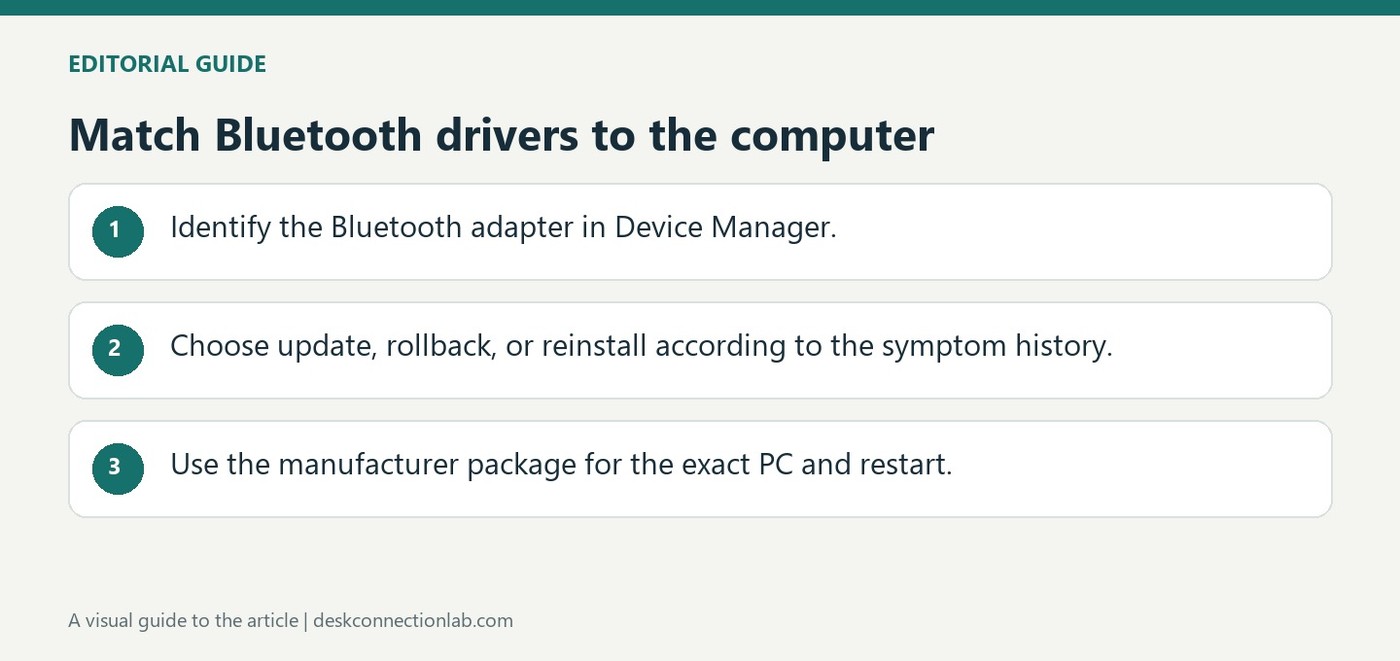
Match Bluetooth drivers to the computer
Use Windows and manufacturer updates
Microsoft recommends Device Manager and Windows Update as starting points for Bluetooth driver updates. Select the Bluetooth adapter, search for an updated driver and restart when the update completes. If Windows reports that the best driver is installed, the PC manufacturer's support page may still provide a newer package for the exact model.
Consider when the failure began
If Bluetooth stopped working immediately after a driver change, an available Roll Back Driver option can help test whether that change caused the problem. Microsoft's guide also describes reinstalling the adapter driver and restarting Windows. Download packages for the correct computer and Windows version; a driver intended for a similarly named wireless adapter is not a reliable substitute for a supported model-specific release.
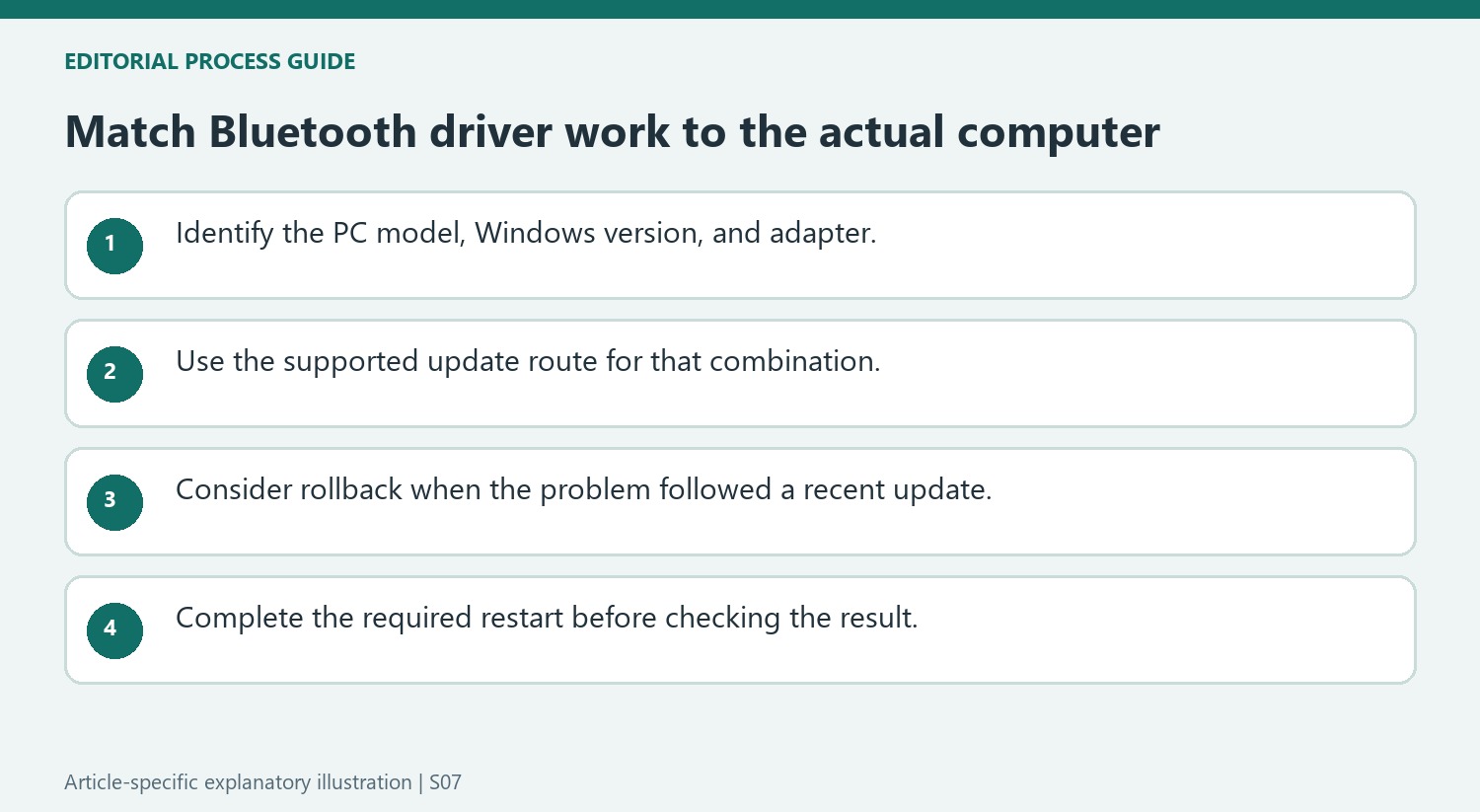
Select the Bluetooth adapter before starting driver work
Device Manager can list several Bluetooth-related entries. The article’s update and reinstall steps target the Bluetooth adapter, so identify that entry before opening Update driver and choosing Search automatically for drivers. Follow the resulting prompts and restart after the update completes. If Windows reports that the best driver is already installed, Microsoft notes that the computer manufacturer may still offer a newer package. Use the PC model number when finding that support page rather than assuming that a similarly named accessory entry or another computer’s driver is the intended target.
Separate rollback from uninstalling and reinstalling
Rollback addresses a connection that worked before a recent driver or Windows change, and it depends on Roll Back Driver being available in the adapter’s Driver tab. Uninstalling the adapter and restarting is a different procedure, with Windows expected to reinstall its driver after restart. The article also describes installing the latest supported package from the PC manufacturer if the issue persists. Choose the route that matches the failure’s timing and supported software, then test after the required restart. Performing several driver changes together obscures which version or installation state produced the result.
Identify the adapter and computer before choosing a download
Bluetooth driver work concerns the computer's Bluetooth adapter, which appears under Bluetooth in Device Manager. It is different from searching for an application for a paired mouse or speaker. Microsoft's manufacturer-download route uses the PC model number to find the correct support page, an important detail when a product family has several hardware versions. Compare the machine and Windows version with the offered package before installation. A newer-looking file from an unrelated model is not an equivalent substitute. The useful starting information is therefore the actual computer identity, installed operating system, and Bluetooth adapter entry, followed by the supported update path for that combination.
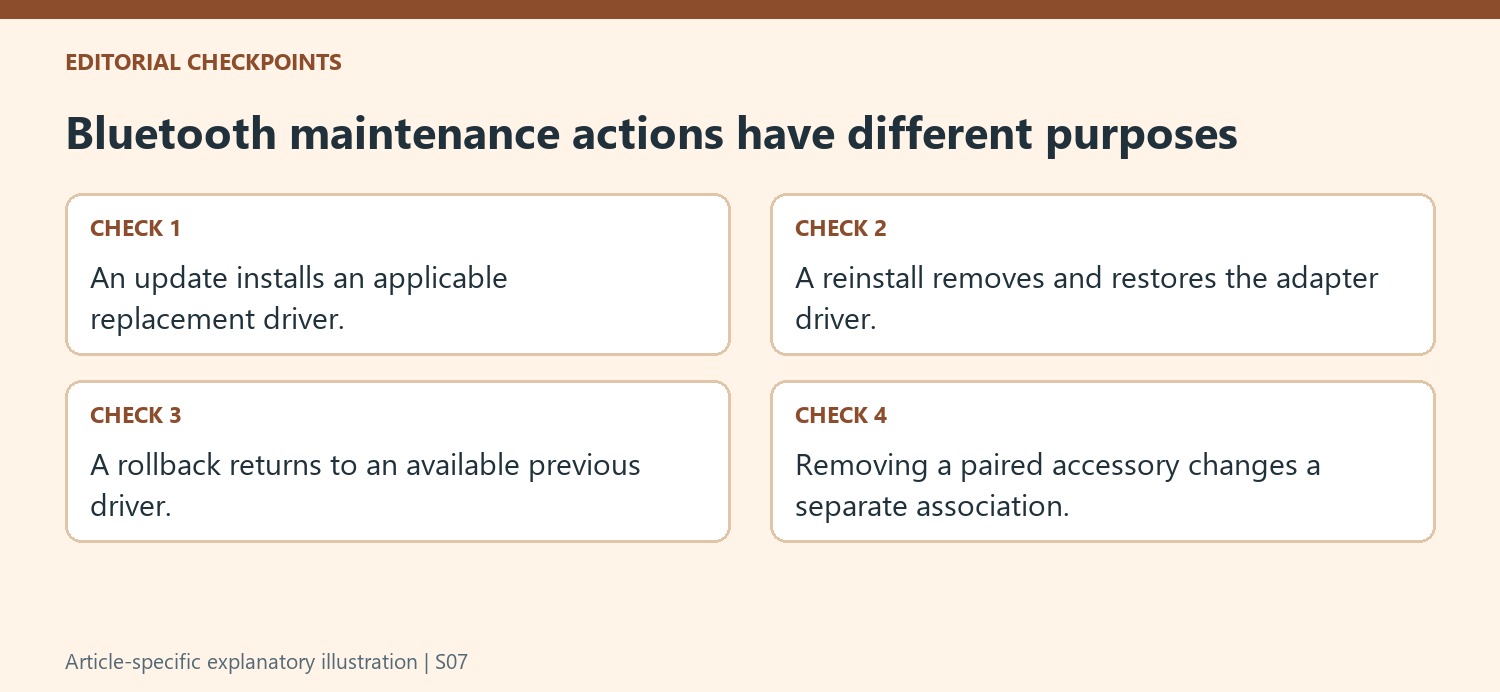
Use an update and a rollback for different situations
Device Manager's automatic search and Windows Update are documented routes for finding applicable updates. Microsoft notes that an automatic search reporting the best driver is installed does not necessarily exclude a newer manufacturer package. A rollback addresses a different history: Bluetooth worked before a recent driver or Windows update and then developed a problem. If available, the rollback control returns to the earlier driver rather than searching for another new one. Choose the action according to what changed on the machine. This preserves the distinction between repairing an old driver, checking available updates, and investigating a newly introduced problem instead of treating every connection symptom as a demand for the newest file.
Allow the restart to complete the selected procedure
The support instructions repeatedly include a restart after updating, reinstalling, or installing a manufacturer-provided driver. That is part of the documented process, so test after it has completed rather than judging the result midway through installation. Reinstallation is presented as another option when updating does not help: the adapter is uninstalled through Device Manager and Windows reinstalls its driver after restart. Keep this operation distinct from deleting a paired accessory, which changes a different part of the setup. If the issue remains, continue with the broader Bluetooth guidance and preserve the symptom history. A record of when the failure began and which driver action was completed gives later troubleshooting a clearer basis than several unexplained changes.
References
- Update Bluetooth drivers in Windows. support.microsoft.com.
Microsoft recommends Device Manager and Windows Update as starting points for Bluetooth driver updates. Select the Bluetooth adapter, search for an updated driver and restart when the update completes. If Windows reports that the best driver is installed, the PC manufacturer's support page may still provide a newer package for the exact model.


Leave a Comment
Comments (0)