
Investigate repeated Bluetooth dropouts
Check power-saving behavior
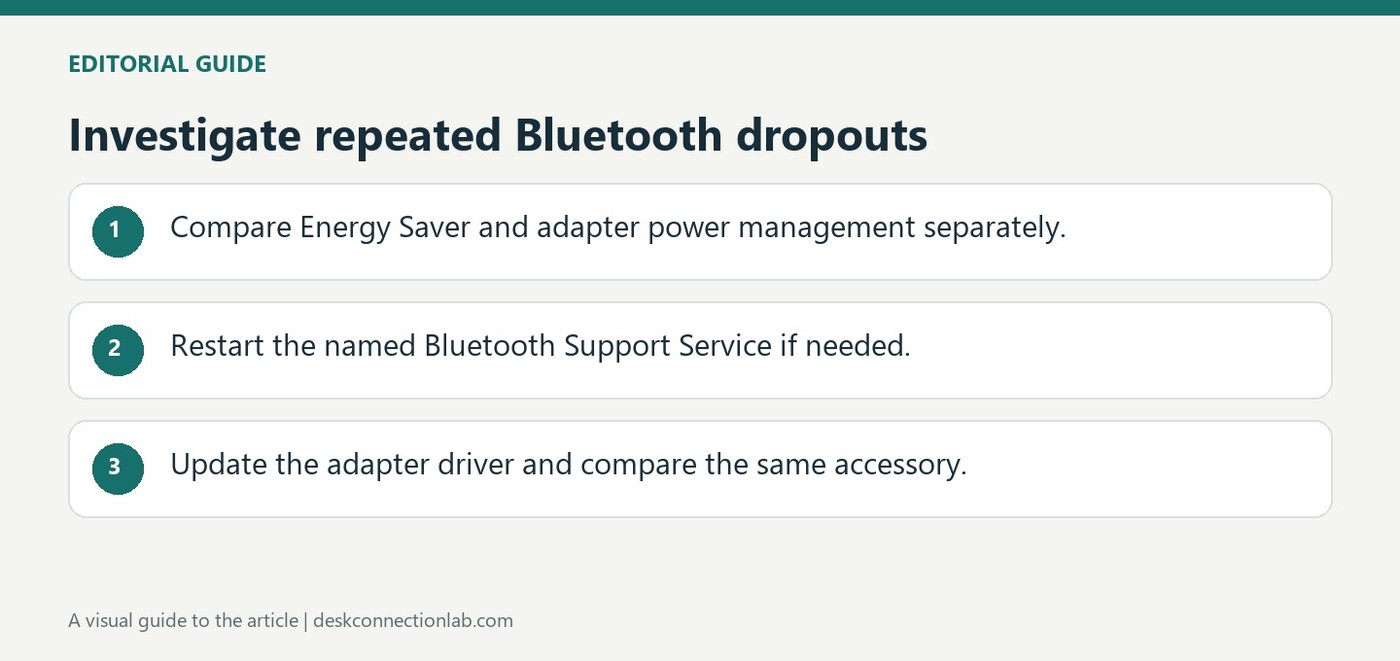
Microsoft identifies power management, outdated drivers and temporary system problems as possible causes of a Bluetooth link that keeps disconnecting. Its guide suggests the Windows 11 Get Help troubleshooter, followed by checks of Energy Saver and the Bluetooth adapter's power-management settings. Those settings can affect an accessory that pairs successfully but will not remain connected.
Review the driver and service
Where the adapter exposes a Power Management tab in Device Manager, the guide describes the option allowing Windows to switch it off to save power. Restarting the Bluetooth Support Service and updating the Bluetooth driver are additional diagnostic steps. These checks address repeated dropouts; an accessory that never enters pairing mode still needs its own power and discovery checks first.
Keep system Energy Saver separate from adapter power management
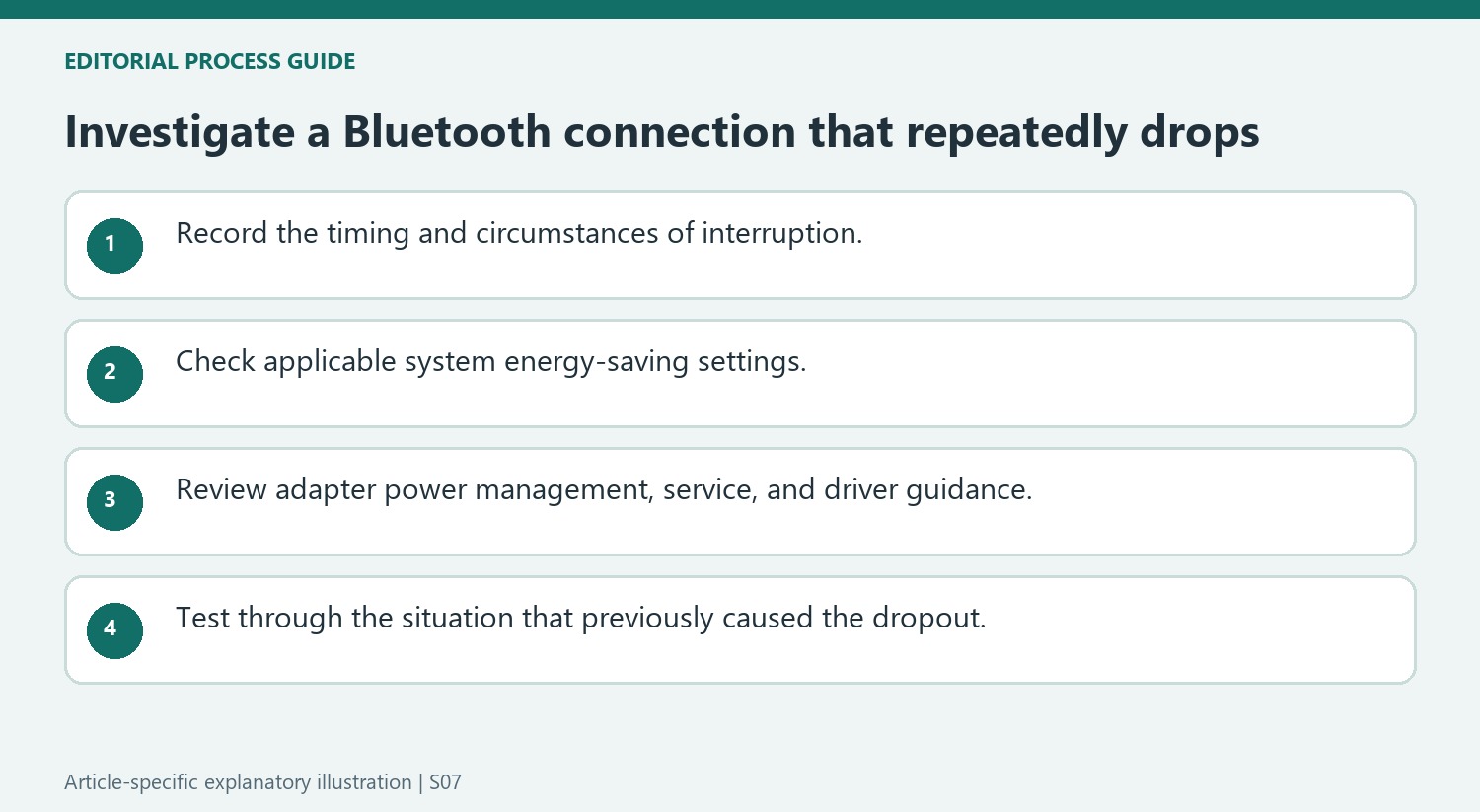
The guide first checks the taskbar battery control for Energy Saver and compares Bluetooth with that mode off. It then provides a distinct Device Manager change: expand Bluetooth, open the affected device’s properties and clear Allow the computer to turn off this device to save power on the Power Management tab. These settings operate at different levels and should be tested separately. Note whether the adapter actually exposes the documented tab instead of assuming that every Windows configuration presents exactly the same property pages.
Restart the named service and evaluate the adapter driver
For another troubleshooting route, open Run, enter services.msc and locate Bluetooth Support Service, then use its Restart action. This is a specific service restart, separate from removing the accessory pairing or restarting the entire PC. The source next points to Update driver for the Bluetooth device in Device Manager. Compare the same accessory after the intervention and record whether the repeated dropouts continue. If the symptom is different, such as Bluetooth being entirely unavailable rather than repeatedly disconnecting, Microsoft directs readers to its broader Bluetooth guide instead of prescribing this dropout sequence for every wireless problem.
Identify a dropout rather than an initial pairing failure
This guidance addresses a connection that repeatedly disappears or needs another pairing attempt after it was working. That pattern differs from an accessory that has never appeared in discovery. Note whether the interruption occurs during ordinary use, after inactivity, or while the computer is using an energy-saving mode. The support article points to power management, drivers, and temporary system problems as possible causes, so the timing of the interruption can help organize the checks. Do not assume that successfully pairing again has resolved the cause if the same dropout immediately returns. Test the connection through the situation that previously exposed the problem before considering the task complete.
Distinguish computer-wide energy saving from adapter power management
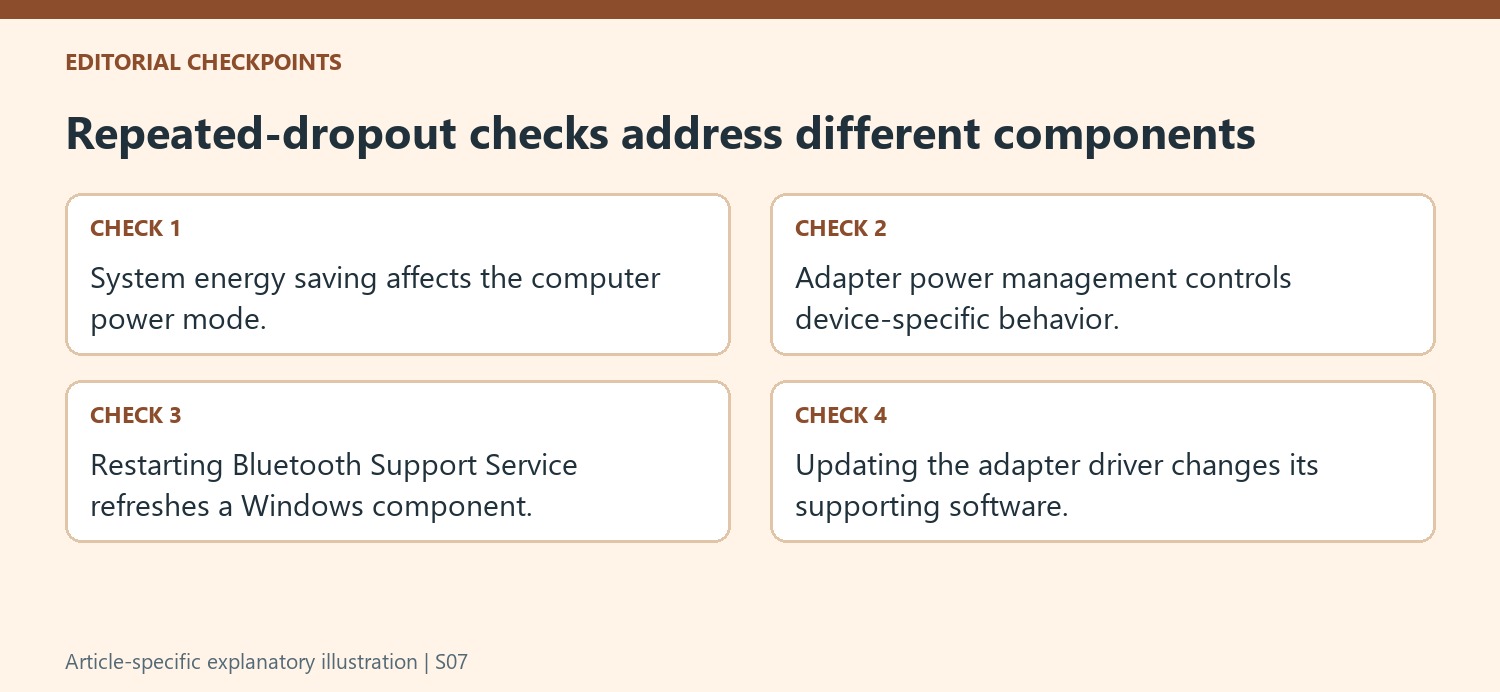
Microsoft lists turning off the system's energy-saving mode and separately changing the Bluetooth device's Power Management option in Device Manager. These are two settings at different levels, not duplicate names for the same switch. The latter concerns allowing the computer to turn off that device to save power. Follow the available controls for the actual adapter and Windows version, and observe whether the change affects the repeated disconnection. This gives a more useful result than changing several settings together and losing track of which mattered. The aim is to investigate the interruption pattern, with the power setting treated as a possible explanation rather than a proven cause for every Bluetooth device.
Use service and driver checks as distinct follow-up steps
The support page also describes restarting Bluetooth Support Service and updating the Bluetooth driver through Device Manager. Restarting a service refreshes a running Windows component, while a driver update concerns the software that enables the adapter to communicate with the system. Neither is the same as removing an accessory from the paired-device list. The automated Get Help troubleshooter is another supported starting point for Windows 11. If the interruption continues after these checks, use the broader Bluetooth troubleshooting guidance for the actual symptom. Keeping a brief record of the changes and the next observed dropout helps avoid a cycle of repeated pairing that restores the connection temporarily but never tests the underlying problem.
References
- Bluetooth keeps disconnecting in Windows. support.microsoft.com.
Microsoft identifies power management, outdated drivers and temporary system problems as possible causes of a Bluetooth link that keeps disconnecting. Its guide suggests the Windows 11 Get Help troubleshooter, followed by checks of Energy Saver and the Bluetooth adapter's power-management settings. Those settings can affect an accessory that pairs successfully but will not remain connected.


Leave a Comment
Comments (0)