
Pair Surface Keyboard with its displayed PIN
Follow the edition-specific instructions
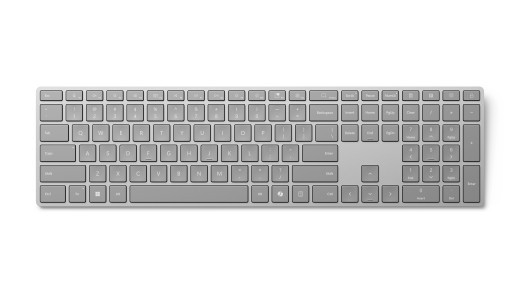
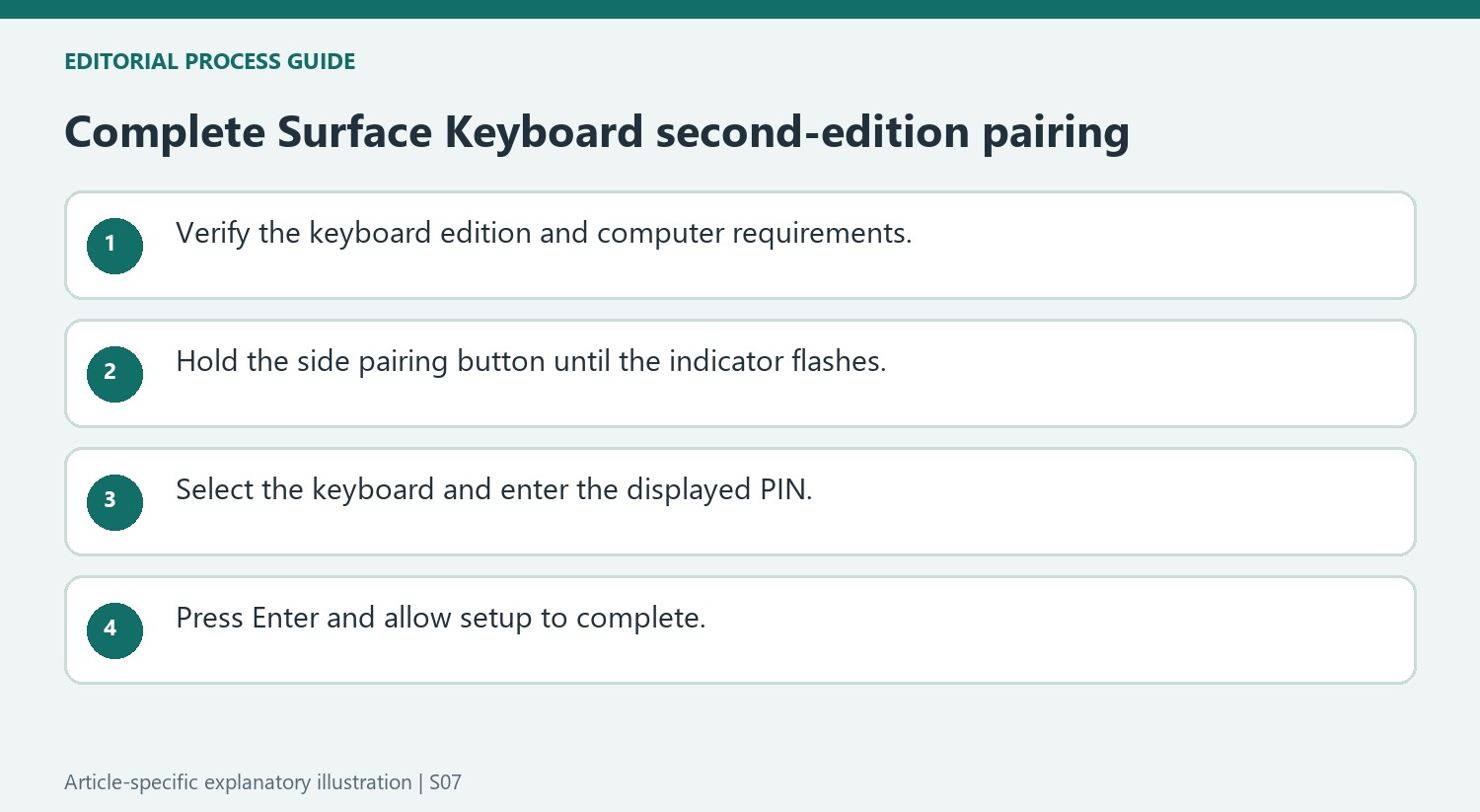
Microsoft's Surface Keyboard guide describes the second-edition model with Bluetooth 4.0 or later and Windows 11. Removing the battery tab powers the keyboard initially. Hold the side pairing button until the indicator above the Up arrow flashes, then choose the keyboard from the Windows notification or Bluetooth device list.
Finish the security prompt
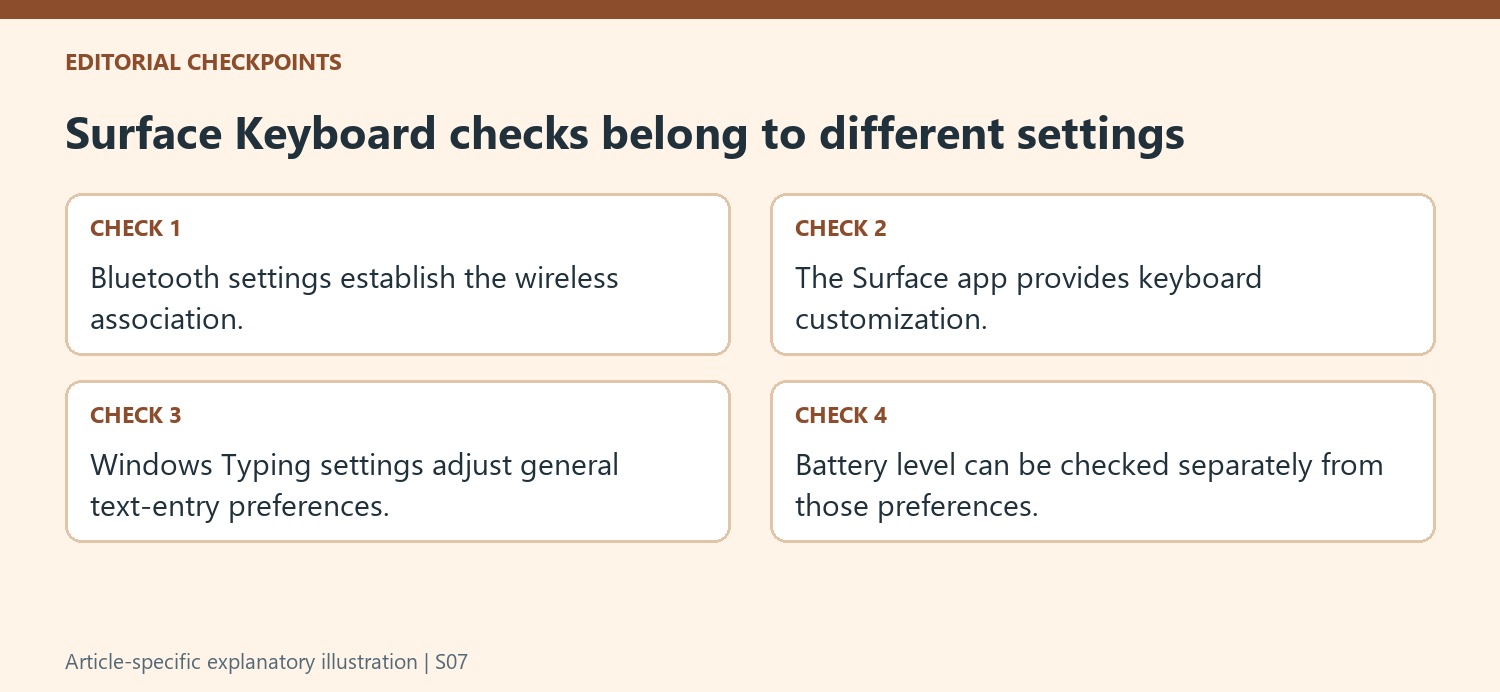
When Windows displays a PIN, type that code on the keyboard and press Enter to complete setup. The light stops flashing after successful pairing. The Surface app provides supported keyboard customization, while Time and language, Typing holds Windows typing preferences. Check the model before applying these steps to another Surface keyboard edition, because buttons and supported features can differ.
Identify the second edition before expecting dedicated features
The source explicitly associates the Copilot key with Surface Keyboard 2nd Edition and lists Windows 11 with Bluetooth 4.0 or later as the setup requirement. It also describes a built-in number pad and dedicated shortcuts, including expressive input and call mute. Those features should be evaluated for the documented model rather than inferred from the Surface name alone. The pairing control is on the side, with the status light above the Up arrow; that location differs from keyboards whose pairing control is underneath or assigned to a numbered device slot.
Check battery level through Windows or the Surface app
Microsoft says the keyboard uses two AAA batteries and automatically enters a low-power mode while unused. To replace the batteries, turn the keyboard over, open the compartment, insert two new cells and replace the cover. Battery level can be checked in Bluetooth and devices or in the Surface app. The app also provides keyboard customization after the keyboard is selected at the bottom of its window. Keep that customization route separate from the PIN entered during pairing: a successful security prompt establishes the connection, while later app choices adjust supported keyboard behavior.
Confirm the edition before interpreting the dedicated keys
The support page identifies the Copilot key with Surface Keyboard 2nd Edition and describes Windows 11 requirements. That qualification matters because the Surface Keyboard name can appear alongside different generations of accessories. Check the exact edition before expecting a particular dedicated key or following an app customization route. The built-in number pad, expressive input access, and other shortcuts describe the physical and functional layout, but they do not replace the initial Bluetooth requirement. A useful setup begins by matching the keyboard edition, computer operating system, and Bluetooth support, then proceeds to pairing. This makes later questions about a shortcut easier to separate from basic connection issues.
Complete the on-screen PIN step when prompted
The keyboard enters discoverable mode after its side pairing control is held until the light above the Up arrow flashes. Microsoft's procedure then asks for the PIN displayed by Windows, followed by Enter. That on-screen number is part of the current pairing exchange, so use the number shown rather than searching for a permanent code printed on the keyboard. If the automatic notification does not appear, the manual Bluetooth Add device route is available. The light stopping its flash is the page's completion cue. Allow setup to finish before moving into customization, and check ordinary text entry first so the initial connection has a clear, observable result.
Use the two settings routes for their intended jobs
The Surface app provides keyboard-specific customization, while Windows Time and language settings contain the general Typing preferences. Those routes may both affect the experience, but they are not interchangeable with the Bluetooth pairing screen. The same separation helps with battery maintenance. Microsoft describes two AAA batteries, battery-level checks through Windows or the Surface app, and automatic low-power behavior during inactivity. A battery-life claim of up to twelve months is not a schedule that fits every user equally, so check the displayed level when investigating power concerns. Confirm the connection, battery state, and selected customization independently, using the current guidance for the exact keyboard edition rather than treating every symptom as a reason to pair it again.
References
- Use Surface Keyboard. support.microsoft.com.
Microsoft's Surface Keyboard guide describes the second-edition model with Bluetooth 4.0 or later and Windows 11. Removing the battery tab powers the keyboard initially. Hold the side pairing button until the indicator above the Up arrow flashes, then choose the keyboard from the Windows notification or Bluetooth device list.


Leave a Comment
Comments (0)