
Connect a Surface USB-C Travel Hub
Verify video support on the host
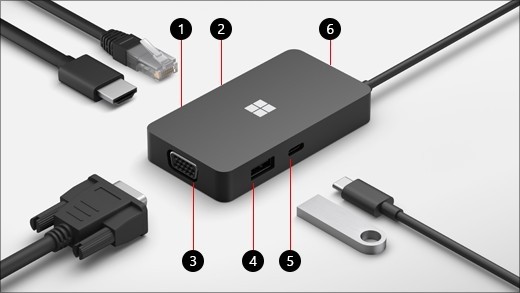
Surface USB-C Travel Hub expands a compatible USB-C connection with HDMI, VGA, Ethernet and USB accessory ports. Microsoft requires a host port with DisplayPort Alternate Mode for its video functions. A laptop with a USB-C socket that only transfers data will not gain native display output merely by attaching this hub.
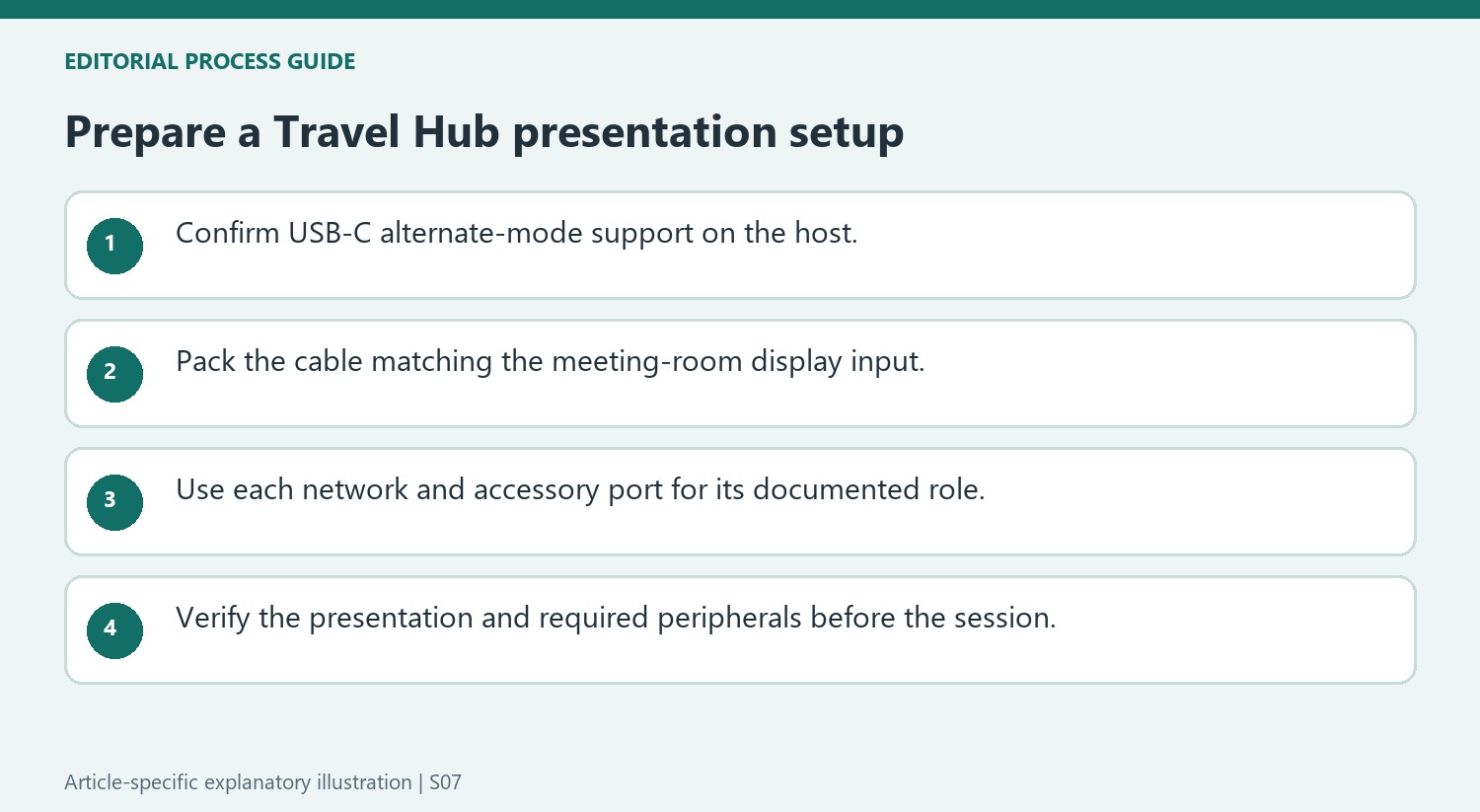
Build the travel setup in order
Connect the hub to the computer and then attach the required peripherals, following the guide's supported port combinations. Check the display input and the hub's documented limits before expecting several video sockets to behave as independent outputs. A compact hub can reduce adapter clutter, but its actual operation remains tied to the host's USB-C features and the requirements of each connected accessory.
Match the output to the presentation screen
Microsoft lists the Travel Hub's HDMI 2.0 connection for up to 3840 by 2160 at 60Hz and its VGA connection for up to 1920 by 1080 at 60Hz. These are different supported output paths, not evidence that every display mode will work through either socket. Find out whether the meeting-room display expects HDMI or VGA before travel and pack the matching cable. Choose that input on the screen during setup.
Treat the remaining ports according to their roles
The Ethernet connection supports a wired network, while USB-A and USB-C provide accessory expansion. The USB-C accessory socket should not be assumed to duplicate the host connection or create another native monitor output. The support page also describes cable storage with a magnetic retention point, useful when packing the hub without leaving its lead loose. Prepare the workspace by attaching only the devices needed for the task. If video fails while a mouse works, return to the host's alternate-mode requirement and the selected display path; successful USB accessory operation does not settle either of those questions.
Prepare for the actual presentation destination
Find out which video input the meeting-room display provides and pack the matching cable. The guide describes HDMI and VGA paths with different maximum modes, so the presence of both ports on the hub does not make them interchangeable for every display setting. A straightforward matching connection is easier to verify than an improvised sequence of adapters discovered on arrival.
Check the computer’s USB-C alternate-mode support before relying on the hub for a presentation. Accessory ports can work while video remains unavailable from an unsuitable host connection. Keep the computer model and intended display path together when confirming compatibility, rather than relying only on the hub’s list of sockets or the fact that its connector fits the laptop.
Assign each port its documented role
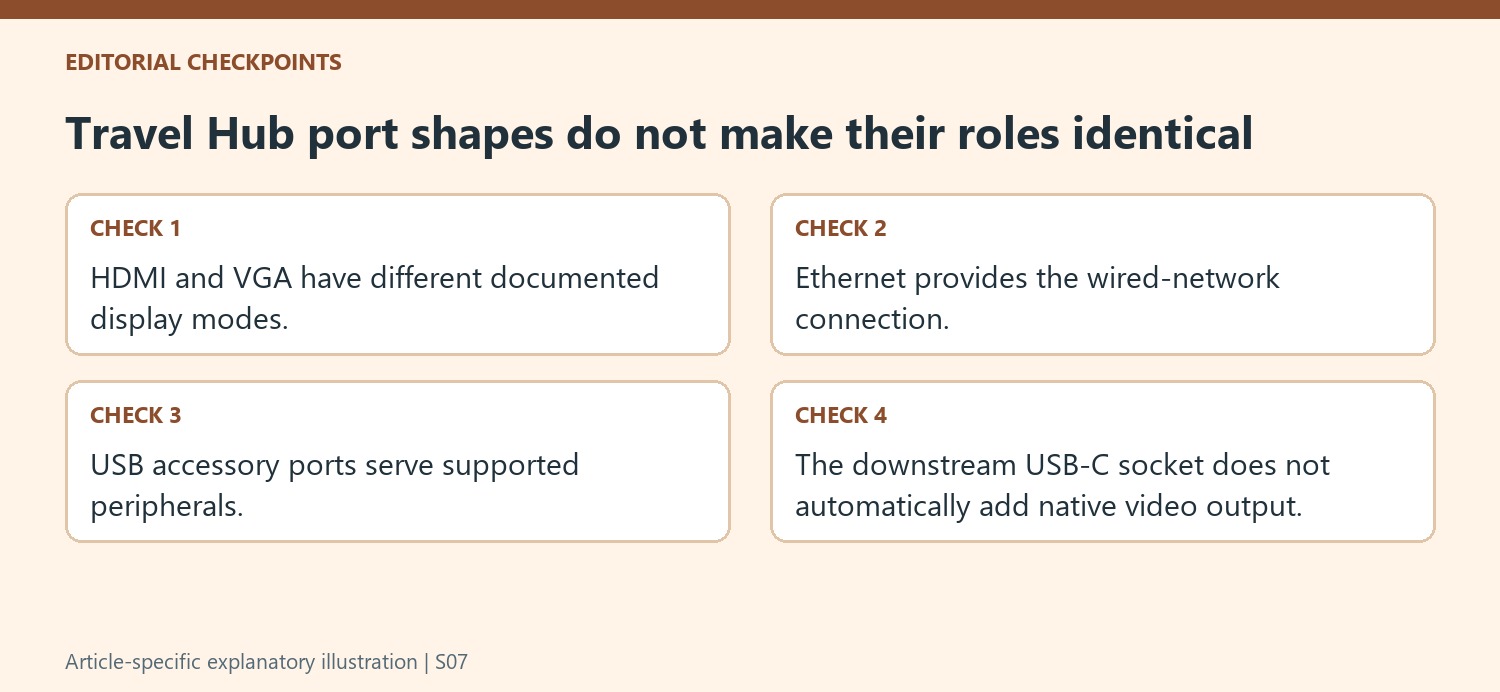
Use Ethernet for the required wired network connection and the USB accessory ports for the peripherals described by the source. Do not treat the downstream USB-C socket as proof of an additional native display path. A port’s physical shape and its assigned role in this hub are different pieces of information, and the product guidance should determine what belongs there.
Read advertised network or USB speeds in the context of the connected equipment and task. A listed port capability is not a promise that every attached device or available network delivers that result. Attach only what is needed during the first setup so that a display problem can be considered separately from an unrelated storage or network issue. Add the remaining peripherals after the core presentation path is verified.
Finish with a checked workspace and an orderly pack-up
After connecting the hub, select the appropriate input on the external screen and confirm that the intended desktop appears. Verify any network or accessory function needed for the session rather than assuming one successful feature proves all the others. When packing, use the described cable-storage arrangement to keep the short lead controlled and retain the separate presentation cable with the travel kit. The hub can reduce the number of loose adapters, while the dependable result still depends on matching the host’s functions, the screen’s input and each peripheral’s role before the equipment is needed in front of an audience.
References
- Use the Surface USB-C Travel Hub. support.microsoft.com.
Surface USB-C Travel Hub expands a compatible USB-C connection with HDMI, VGA, Ethernet and USB accessory ports. Microsoft requires a host port with DisplayPort Alternate Mode for its video functions. A laptop with a USB-C socket that only transfers data will not gain native display output merely by attaching this hub.


Leave a Comment
Comments (0)