
Choose the DisplayLink Manager Guide for Your macOS
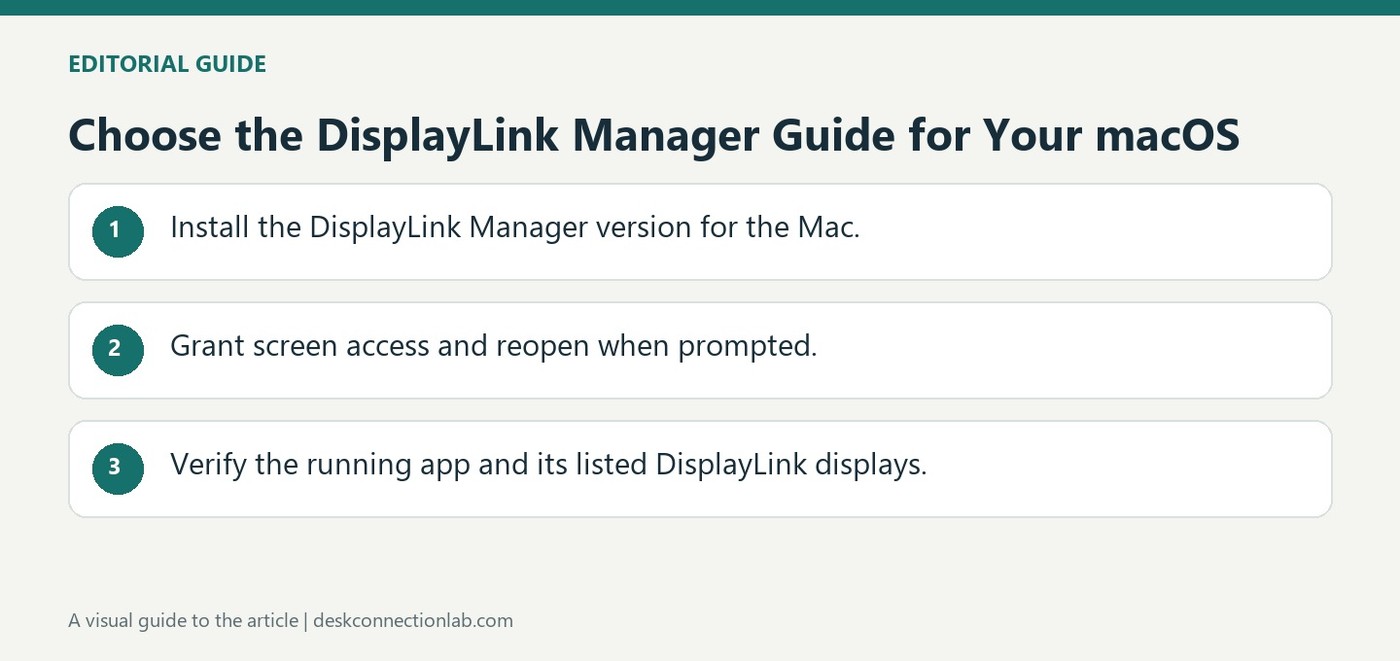
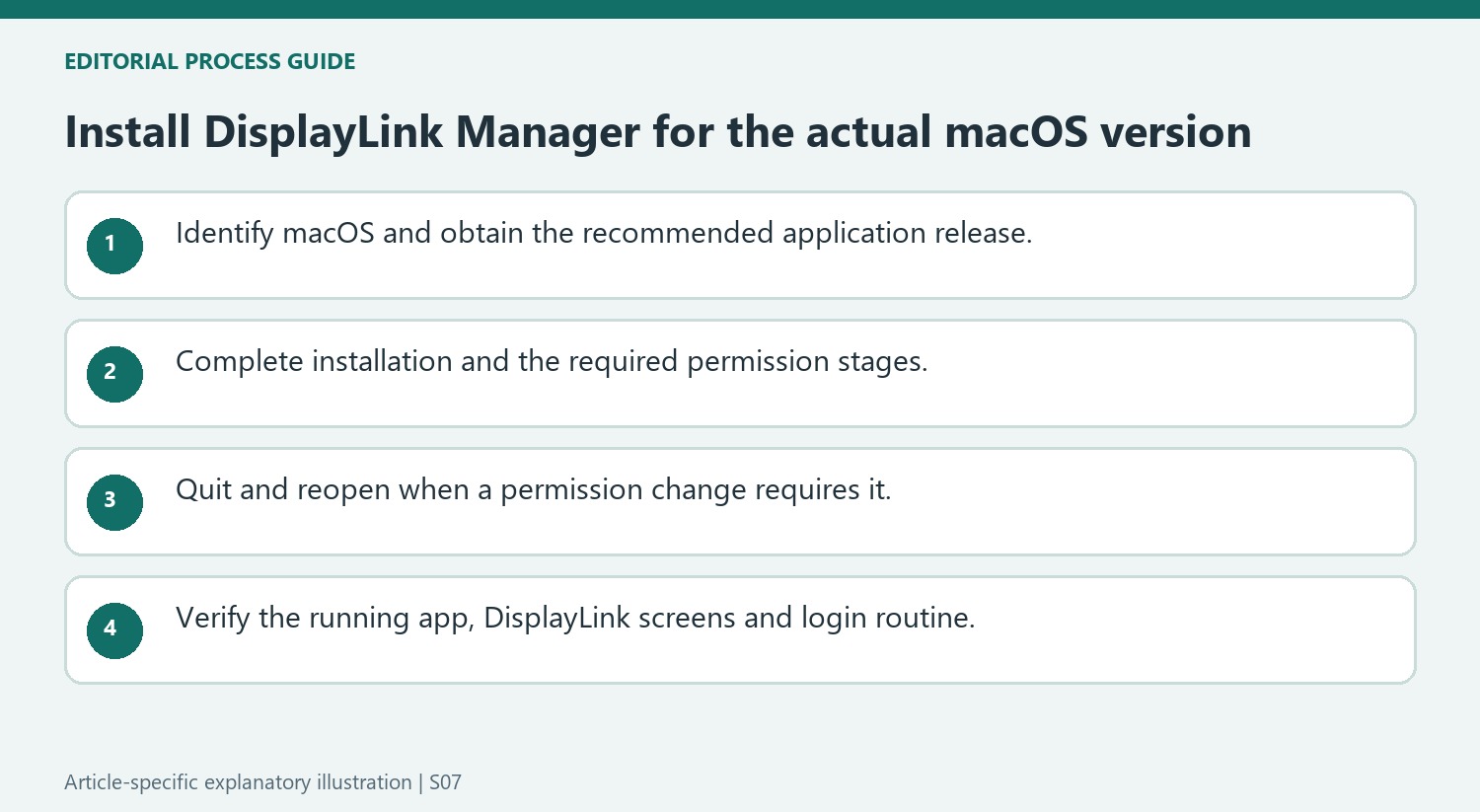
Installing DisplayLink Manager starts with identifying the Mac's operating system version through About This Mac. Plugable's current guide demonstrates macOS Tahoe and notes that Sonoma and Sequoia follow a similar process. Download the matching application version rather than relying on an old installer already stored on the computer.
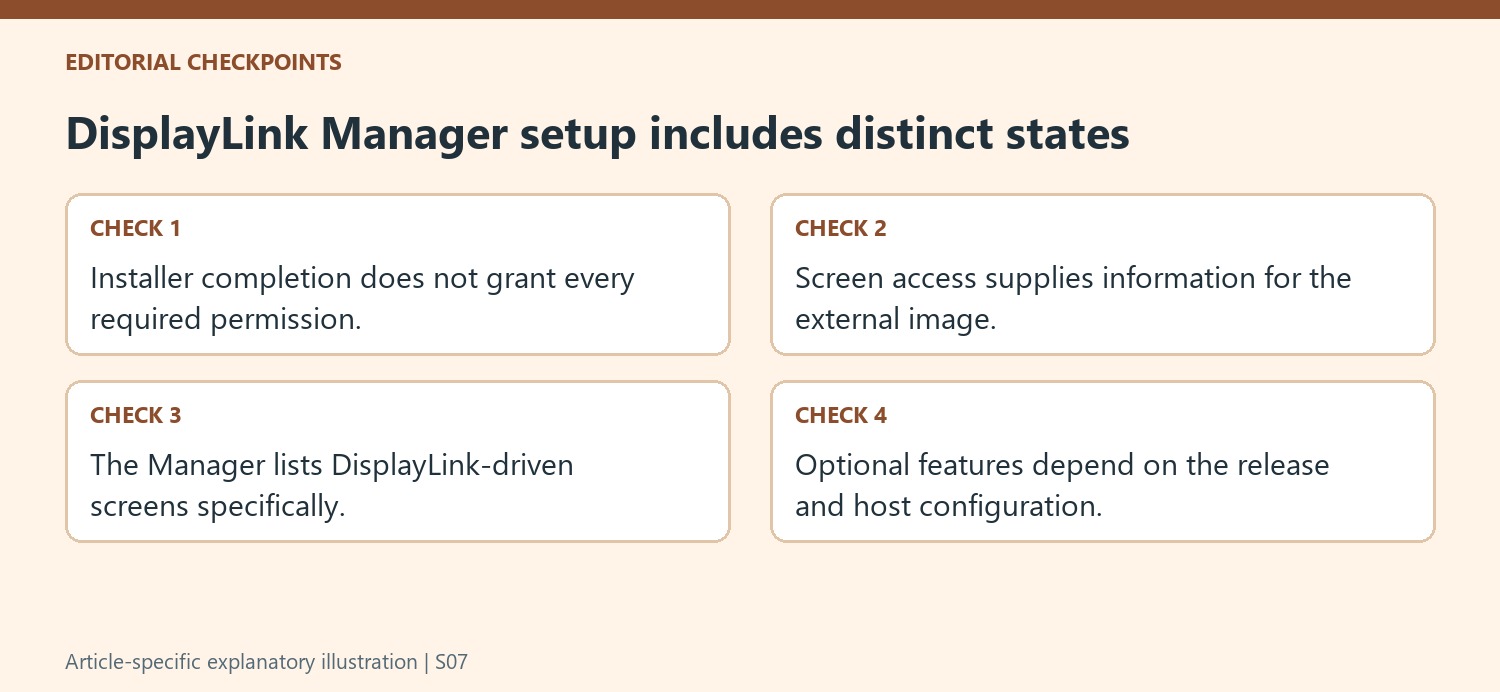
The installer presents introduction, license, and installation steps and may request the system password. Follow the remaining permission instructions for that macOS release after installation. Completing an installer alone does not establish that the application has the screen access required to generate external monitor images.
Complete the permissions wizard after installation
The current guide describes a wizard that checks background activity, the dock connection, and screen access. A portable Mac may also ask whether to allow the accessory to connect. Grant the permission required for the intended device, then enable DisplayLink Manager in the relevant macOS screen-recording privacy section and quit and reopen the app when prompted. Plugable explains that this permission lets the software obtain the display information used to generate the external image; it is not a claim that the app saves a video recording.
Verify the running application and the correct display group
DisplayLink Manager needs to remain running for its connected screens to function. The menu-bar status window lists DisplayLink-driven displays, not every screen attached through a native USB-C or Thunderbolt route. Use that distinction when checking whether setup has completed. Automatic startup can make the application available after login without opening it manually each time. The guide also describes version-dependent HiDPI and closed-display options. Inspect the options available on the installed release rather than expecting every screenshot or feature to match an older Mac exactly.
Match the guide to the software that is actually installed
Check About This Mac and record the operating-system version before selecting the installer. Include the processor type when comparing optional application settings. The source demonstrates a current macOS release and notes similarities to two earlier releases, while still allowing for interface differences. A familiar old installer is not a reliable substitute for the application version recommended for the system in use.
Follow the installation and permission stages as a complete process. The installer’s completion message confirms one stage, while background activity, accessory access and screen-access permission address other requirements. If an external screen remains absent, inspect which of those stages completed instead of repeatedly running the installer without changing the condition that prevents the application from producing the image.
Understand what the permission and status indicators mean
Plugable explains that the screen-recording permission gives DisplayLink Manager access to the information required to generate its external display image. Keep that explanation tied to the application’s documented operation rather than describing the privacy label as proof that a saved video file is being created. The expected macOS capture indicator can remain present while the supported application and device are active.
Use the Manager status window to inspect DisplayLink-driven screens specifically. Native USB-C or Thunderbolt displays do not necessarily appear in that list because they use a different video path. If two screens have matching names, use the documented identification behavior to distinguish them before adjusting a control. This avoids treating an absent native screen in the Manager as evidence that the operating system failed to detect it.
Verify ongoing operation after setup
Keep DisplayLink Manager running and check automatic startup if the screens need to be available after each login. Reopen the application when requested after a permission change so the new setting takes effect. Review optional HiDPI and closed-display features only in the context of the installed version and host processor. A successful first connection should be followed by the ordinary login or desk routine used in practice. That test establishes whether the application, permissions and intended display group remain available together, rather than assuming an installation wizard alone guarantees every future docking behavior on every Mac configuration.
References
- Displaylink manager app installation instructions for macos. Plugable Knowledge Base.
Installing DisplayLink Manager starts with identifying the Mac's operating system version through About This Mac. Plugable's current guide demonstrates macOS Tahoe and notes that Sonoma and Sequoia follow a similar process. Download the matching application version rather than relying on an old installer already stored on the computer.


Leave a Comment
Comments (0)