
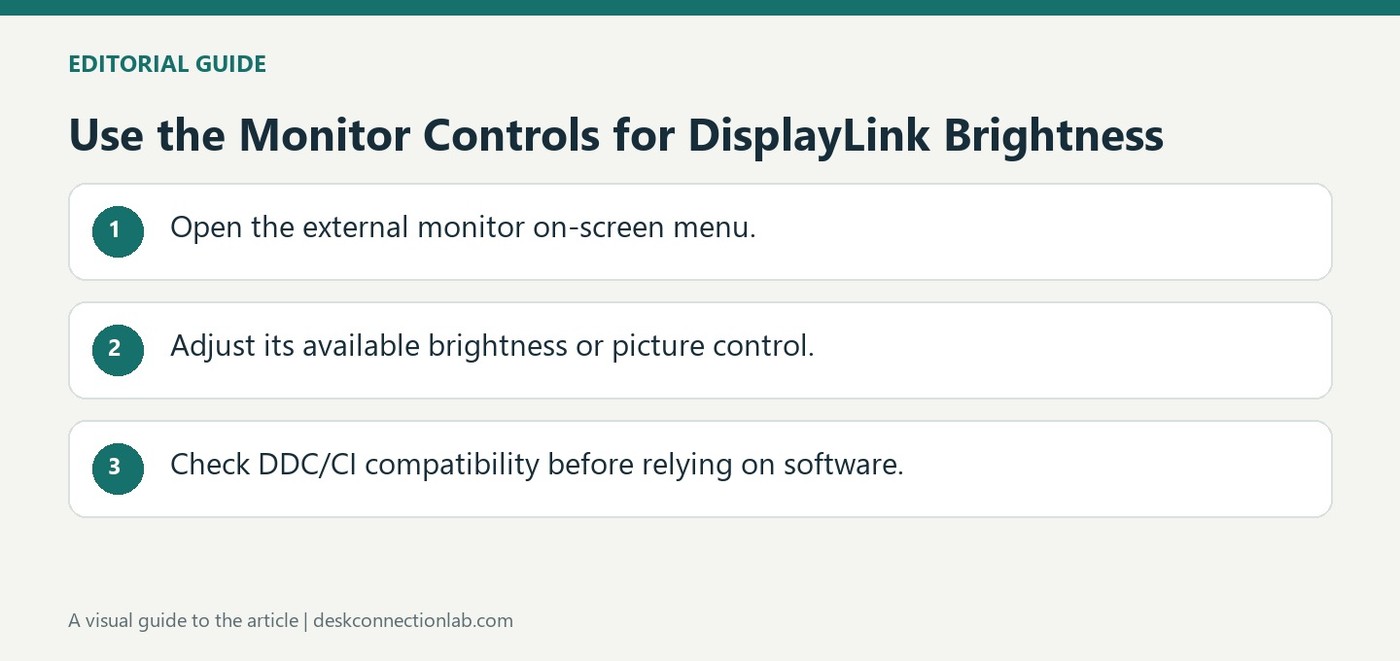
Use the Monitor Controls for DisplayLink Brightness
An external monitor connected through a DisplayLink dock may have no brightness slider in Windows Display Settings. Plugable explains that this control is primarily intended for supported built-in displays. The missing slider does not establish that the dock or monitor has malfunctioned.
Use the monitor's buttons or joystick to open its on-screen display and adjust the brightness or picture settings. Some compatible monitors and software can also communicate through DDC/CI, which DisplayLink supports. Availability depends on the complete combination, so the monitor's own controls remain the recommended starting point.
Use the controls on the affected screen
Locate the monitor's own buttons or joystick, open its menu, and look for Brightness or Picture. If there are several monitors on the desk, confirm that the controls belong to the screen being adjusted. Windows may expose a slider for the laptop panel at the same time, but changing that slider does not establish control of the dock-connected external display. The monitor manual is the appropriate reference when its menu names differ.
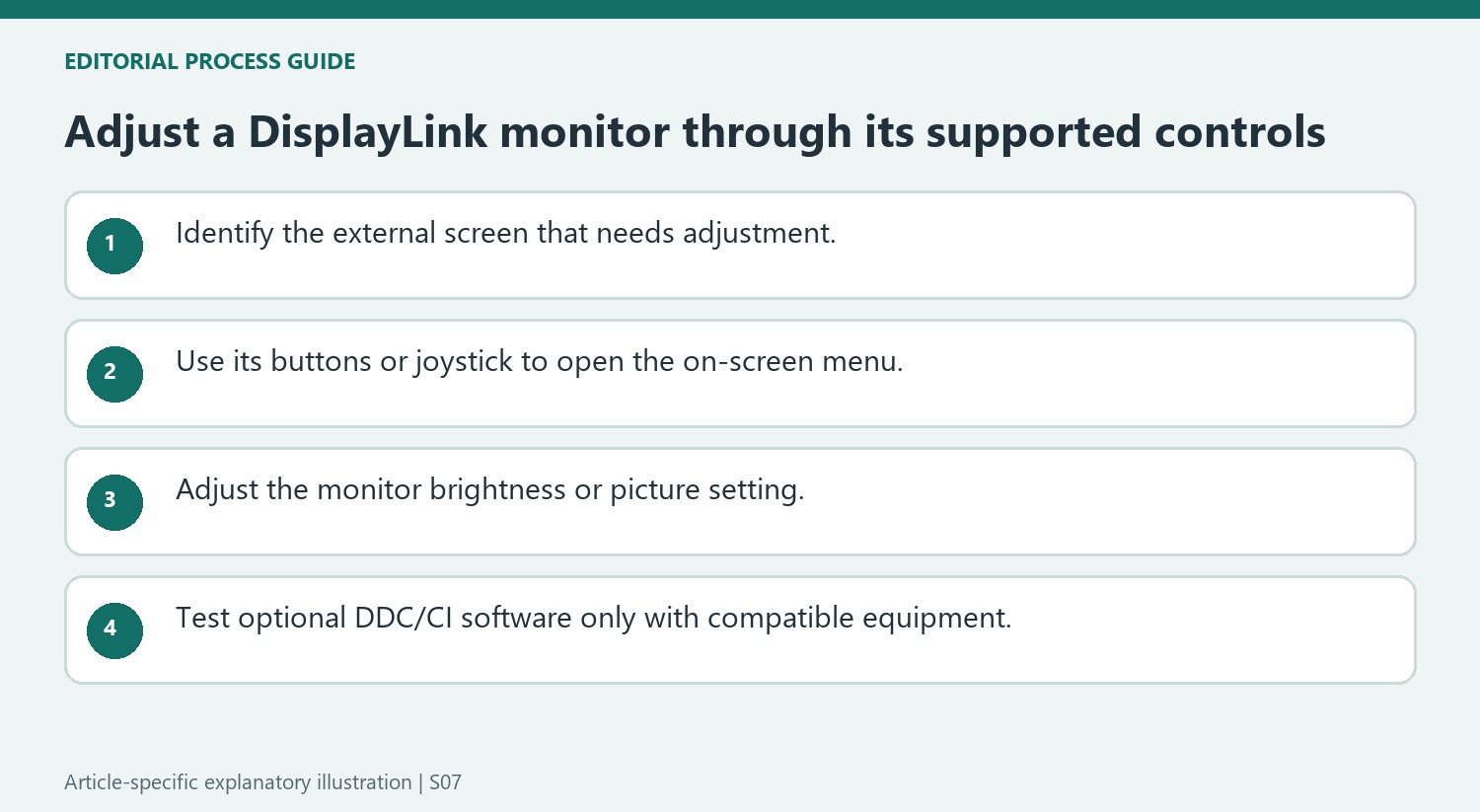
Check DDC/CI support before relying on a utility
A compatible software utility can communicate through DDC/CI only when the monitor and the rest of the setup support the required communication. DisplayLink support for the mechanism does not guarantee every screen or application will implement it. Begin with the physical monitor controls, as Plugable recommends, and test optional software afterward. If neither method behaves as expected, record the Plugable product, computer and monitor models, Windows version, and how the screen is connected. Those details let support distinguish a menu-setting problem from a capability limitation rather than interpreting a missing Windows slider as a hardware fault.
Identify which screen a brightness control actually affects
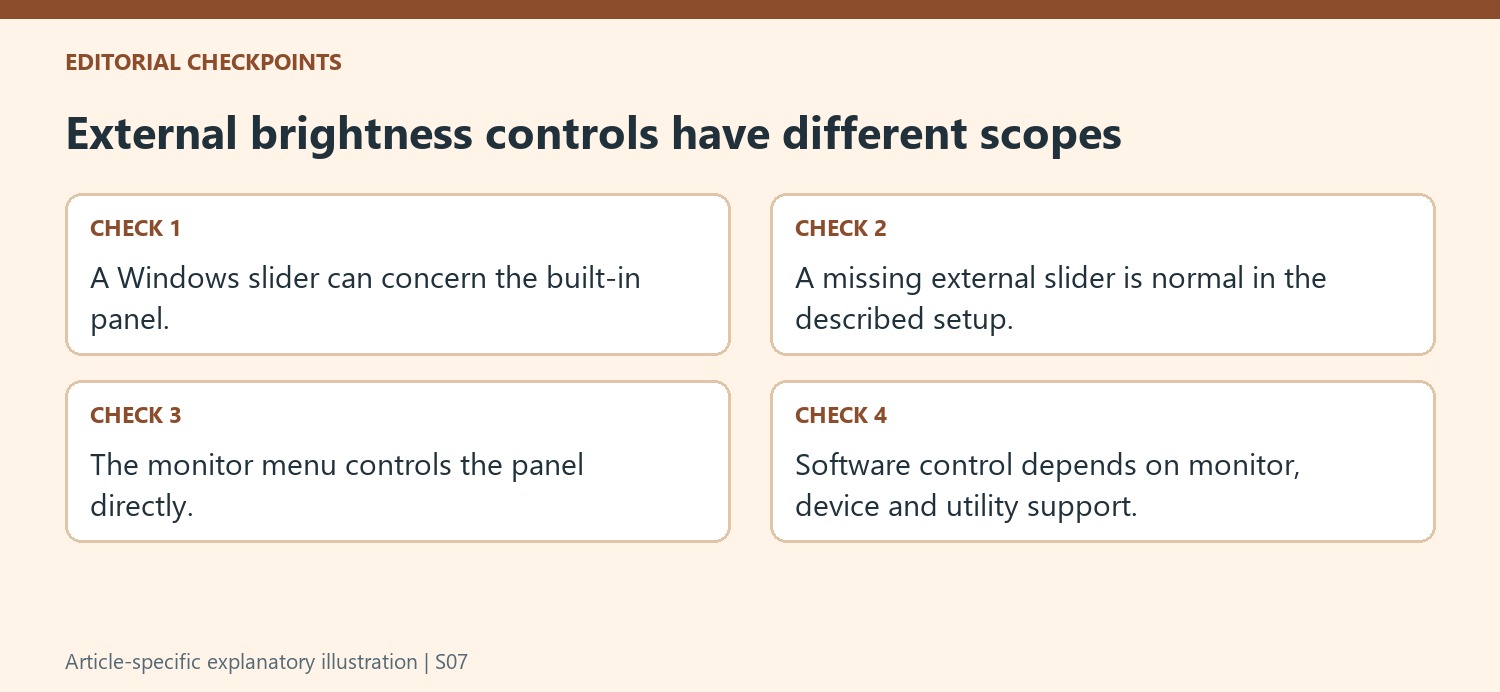
Windows can expose a brightness slider for a supported internal panel while an external DisplayLink-connected monitor has none. Confirm the selected display and observe the screen that changes before treating the visible slider as a system-wide control. The source explains that an absent external slider is normal in the described arrangement, so its absence alone does not diagnose a failed dock or screen.
Use the external monitor’s physical buttons or joystick to open its own menu. Locate the brightness or picture controls using the monitor manual if the labels differ. On a desk with several screens, operate the controls on the affected unit and verify the actual panel response. This establishes a direct, understandable adjustment route independent of assumptions about the Windows interface.
Evaluate optional software as an additional supported path
The source notes that compatible monitors can expose settings through DDC/CI and that DisplayLink supports this communication. Every relevant part of the combination still needs to support the intended use. A utility’s ability to adjust one display does not guarantee that another monitor or connection will expose the same controls, even if both screens use similar video inputs.
Test any optional software after confirming the monitor’s own controls. That provides a reference for whether the panel can be adjusted normally and keeps the investigation focused if software control is unavailable. Avoid interpreting the communication mechanism as a promise that every setting in the monitor’s menu will necessarily appear in a third-party application. The documented support and observed behavior of the actual combination should guide expectations.
Describe an unresolved adjustment problem precisely
If the monitor controls do not behave as expected, record the screen model, the Plugable product, the computer and Windows version, and the complete connection path. State whether the problem is a missing Windows slider, an unavailable software command or a physical menu adjustment that has no visible effect. Those are different observations requiring different follow-up. The source recommends the built-in controls as the starting point because they address the monitor directly. A clear report keeps an ordinary interface limitation separate from a genuine inability to adjust the screen and helps support investigate the part of the arrangement that actually failed.
References
An external monitor connected through a DisplayLink dock may have no brightness slider in Windows Display Settings. Plugable explains that this control is primarily intended for supported built-in displays. The missing slider does not establish that the dock or monitor has malfunctioned.


Leave a Comment
Comments (0)