
Use the correct ports on Surface Dock 2
Connect displays to display-capable sockets
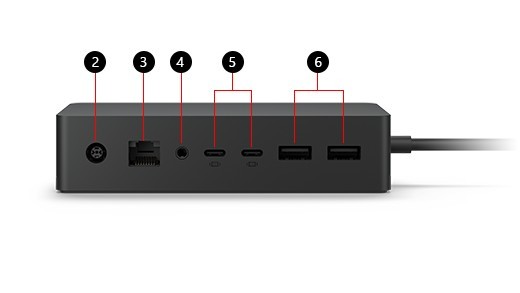
Surface Dock 2 uses Surface Connect to attach to a compatible computer and provides USB-A, USB-C, Ethernet and audio connections. Microsoft's diagram distinguishes the front USB-C accessory ports from the rear USB-C display connections. Plugging a monitor into a connector intended for another role can create a misleading detection problem.
Plan the power and display load
The dock's 199W supply supports up to 120W of host charging, rather than passing its entire rating to the laptop. Connect the supply, network cable, accessories and displays according to the setup guide, then attach the host. Check the compatibility and display tables for the computer in use, especially when attempting two high-resolution monitors while also charging the laptop.
Keep the rear display connections easy to identify
The front USB-C accessory sockets and rear USB-C display sockets can look similar during a hurried desk setup. Labeling the monitor leads or following the port diagram helps avoid plugging a display into the wrong role. The rear ports may also need a suitable video adapter for the monitor's input. Establish one working screen before adding the second, and use Windows Display settings to identify and arrange the detected outputs.
Check audio and updates after the video connection
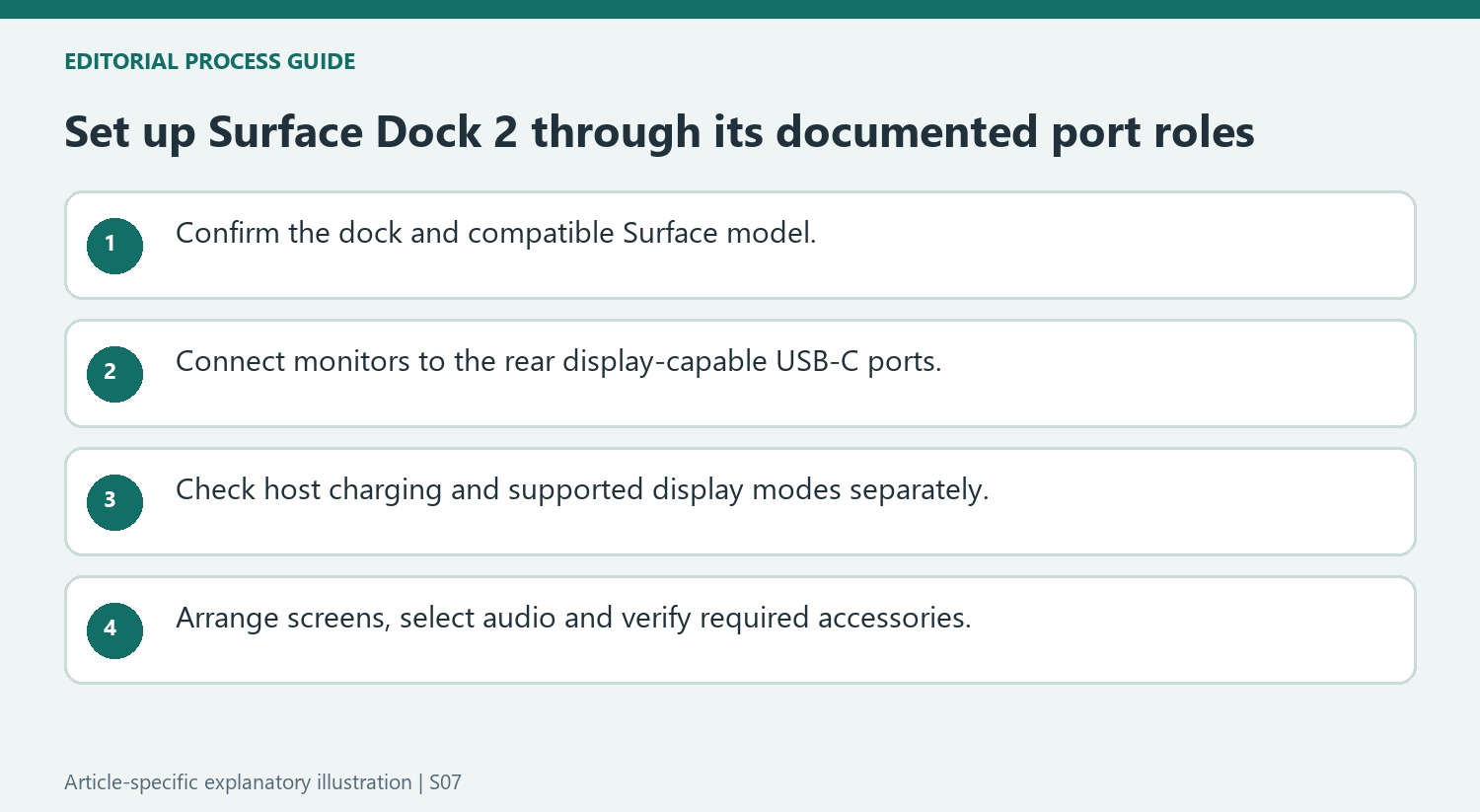
A dock can introduce another audio device as well as video outputs. Microsoft directs users to System, Sound to choose the intended input and output when several are available. A silent laptop after docking may therefore need an audio selection change rather than a display-cable replacement. Keep the Surface connected to the powered dock while applying the recommended Surface and Windows updates. The dock's power-supply rating, host charging allowance, display modes, and accessory data capabilities are separate specifications. Checking each against the compatible Surface model gives a more useful plan than treating the dock's headline wattage as a measure of total functionality.
Identify the dock model before following the port diagram
Confirm that the unit is Surface Dock 2 rather than another similar-looking Surface accessory. Its host link uses Surface Connect, and its port roles belong to that product. Following a diagram for the wrong dock can produce an apparently reasonable cable arrangement that does not match the hardware in front of the user.
Use the labeled diagram to distinguish the front USB-C accessory ports from the rear USB-C display connections. Their shared connector shape makes this easy to overlook during a quick setup. Put monitor leads where the documented display function is available, and use an appropriate adapter if the monitor input requires a different connector. Establishing that physical role is more useful than repeatedly asking Windows to detect a monitor connected to an unsuitable socket.
Budget power and display capability independently
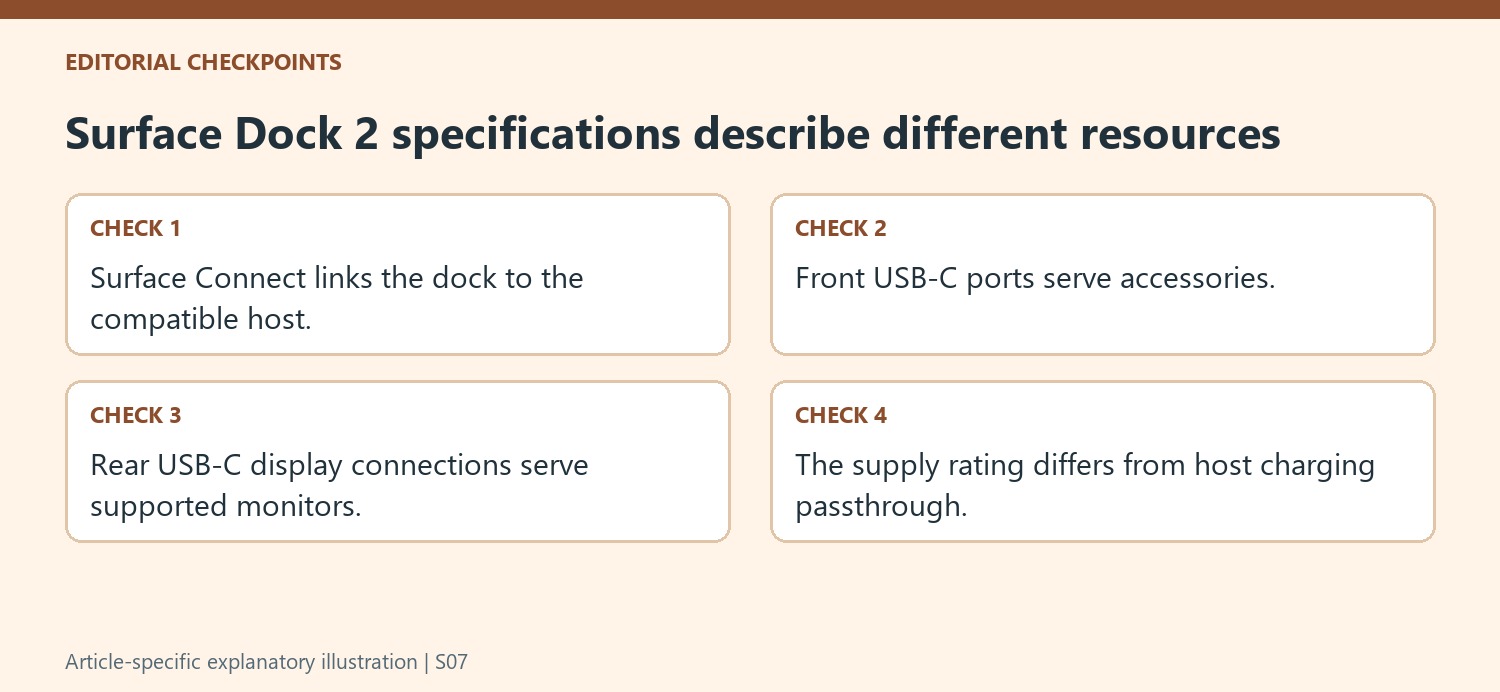
The source distinguishes the 199W power-supply rating from the dock’s up-to-120W passthrough allowance. Keep those figures separate when evaluating charging. The supply powers the overall dock arrangement; its full headline rating is not a promise of that same wattage being delivered to the Surface as host charging power.
Check the compatible Surface model and the relevant display-resolution guidance before attempting a demanding multi-screen arrangement. Two high-resolution displays introduce a configuration question beyond the number of available ports. Start with a supported single screen and add the next one after the first is verified. This provides a working reference and helps identify whether the second connection changes the available mode or creates an unsupported combination.
Finish the desk setup beyond the visible image
After the displays work, identify and arrange them in Windows and check the selected audio input and output. Docking can expose multiple sound devices, so silence may be a selection issue rather than a video-path fault. Confirm the required network and accessory functions as well. Apply supported Surface, Windows and dock updates with the computer connected to the powered dock as directed. The completed desk should have verified display, sound, power and peripheral behavior, with each assessed through its own documented role rather than inferred from a single successful connection.
References
- Use Surface Dock 2. support.microsoft.com.
Surface Dock 2 uses Surface Connect to attach to a compatible computer and provides USB-A, USB-C, Ethernet and audio connections. Microsoft's diagram distinguishes the front USB-C accessory ports from the rear USB-C display connections. Plugging a monitor into a connector intended for another role can create a misleading detection problem.


Leave a Comment
Comments (0)