
Stuck Mac Display Settings Can Survive a Cable Change
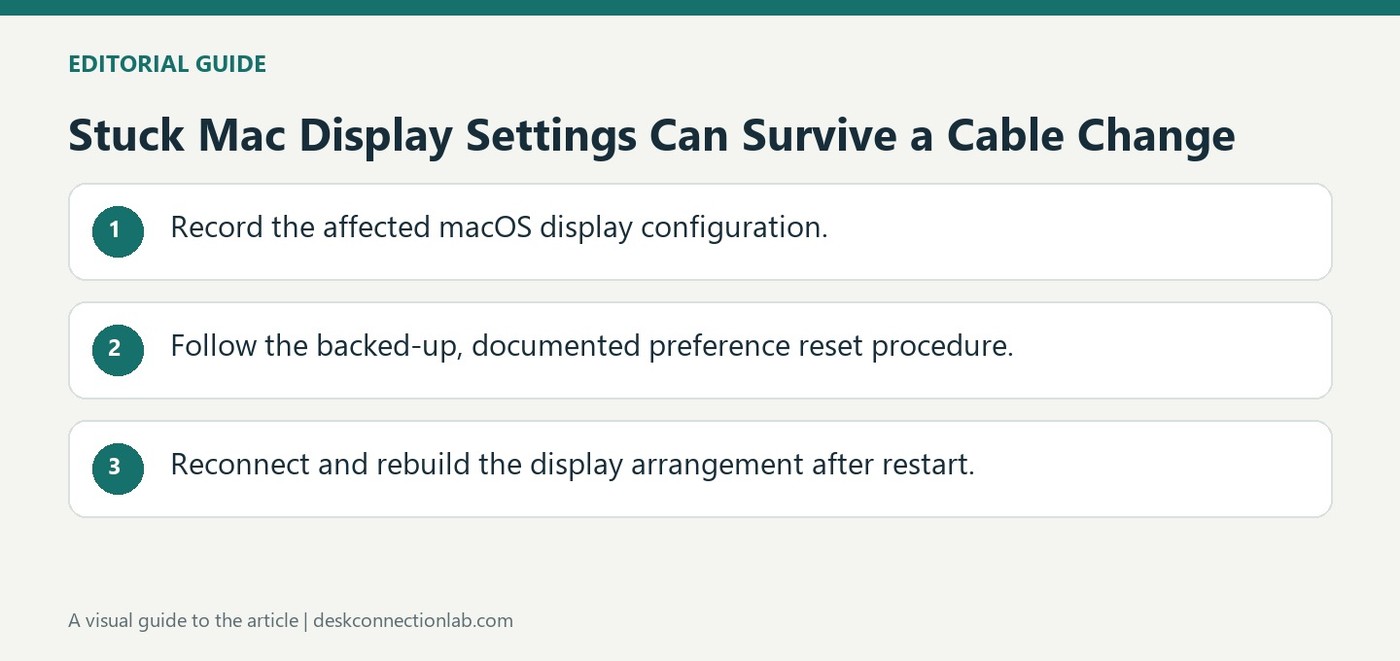
macOS retains external display settings including resolution, position, rotation, and color profiles. Plugable describes cases where an unsuitable saved configuration can leave a screen inaccessible or cause the window manager to return to the login screen. Changing an adapter does not necessarily clear those settings.
Its troubleshooting guide explains how resetting user and system display configuration files lets macOS rebuild the arrangement. Follow the full procedure for the affected system instead of deleting unrelated preferences. Reconnect the display afterward and configure its layout again, since the reset removes previously stored choices.
Distinguish a stored configuration from a broken cable
The example in Plugable's guide concerns a rotated display reconnected through a different port or graphics adapter. macOS may retain a configuration that no longer works for that arrangement, including a layout that strands an extended desktop. Record the rotation, resolution, color profile, and connection before attempting a reset. This helps explain why changing one physical adapter can leave the same software symptom in place.
Plan to rebuild the arrangement after recovery
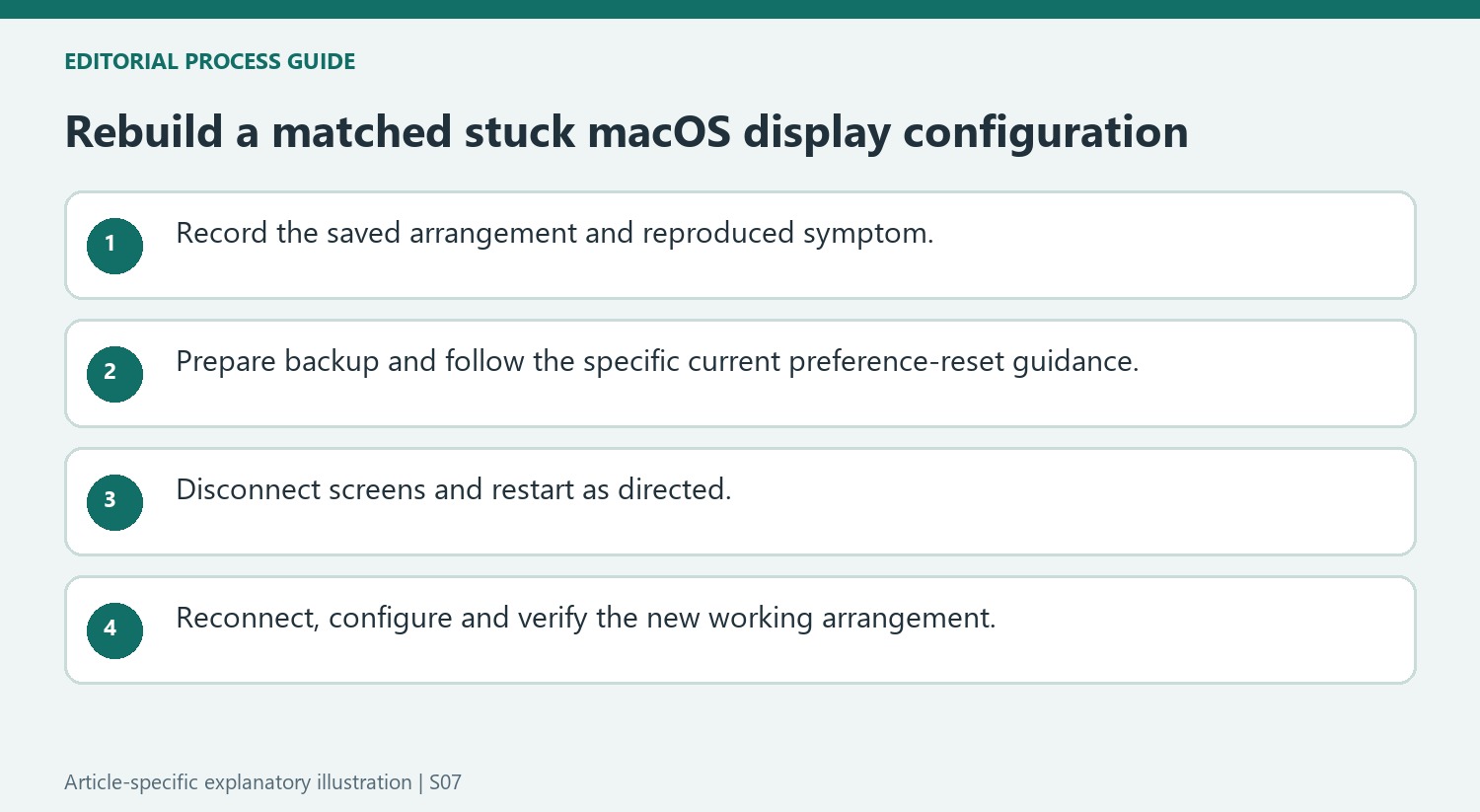
The documented reset affects both user-specific and system-wide display configuration files, and the latter requires administrative permission. The guide recommends a full backup before modifying these files. Follow its procedure for the affected macOS installation rather than deleting preferences with similar names. Disconnect external screens as directed, keeping an appropriate directly connected screen available for a desktop Mac, then restart and reconnect. Expect to configure the display positions and other preferences again because those are the settings being cleared. A fresh layout after the reset is the intended result, not evidence that every previous color or rotation choice was automatically preserved.
Record the saved arrangement before clearing it
Describe the connected screens, their positions and the rotation or mode associated with the failure. Plugable’s example concerns a portrait configuration that becomes problematic after a change of adapter or port. Preserving those details helps explain why a cable replacement may leave the same symptom present and gives a useful comparison after the settings are rebuilt.
A retained configuration is one possible cause of the described symptoms, not proof that every blank Mac display or unexpected login screen has that origin. Check whether the observed situation matches the guidance before using a configuration reset. Keep any known working connection available so the computer remains usable while the external arrangement is disconnected and reviewed.
Treat the reset as a bounded system change
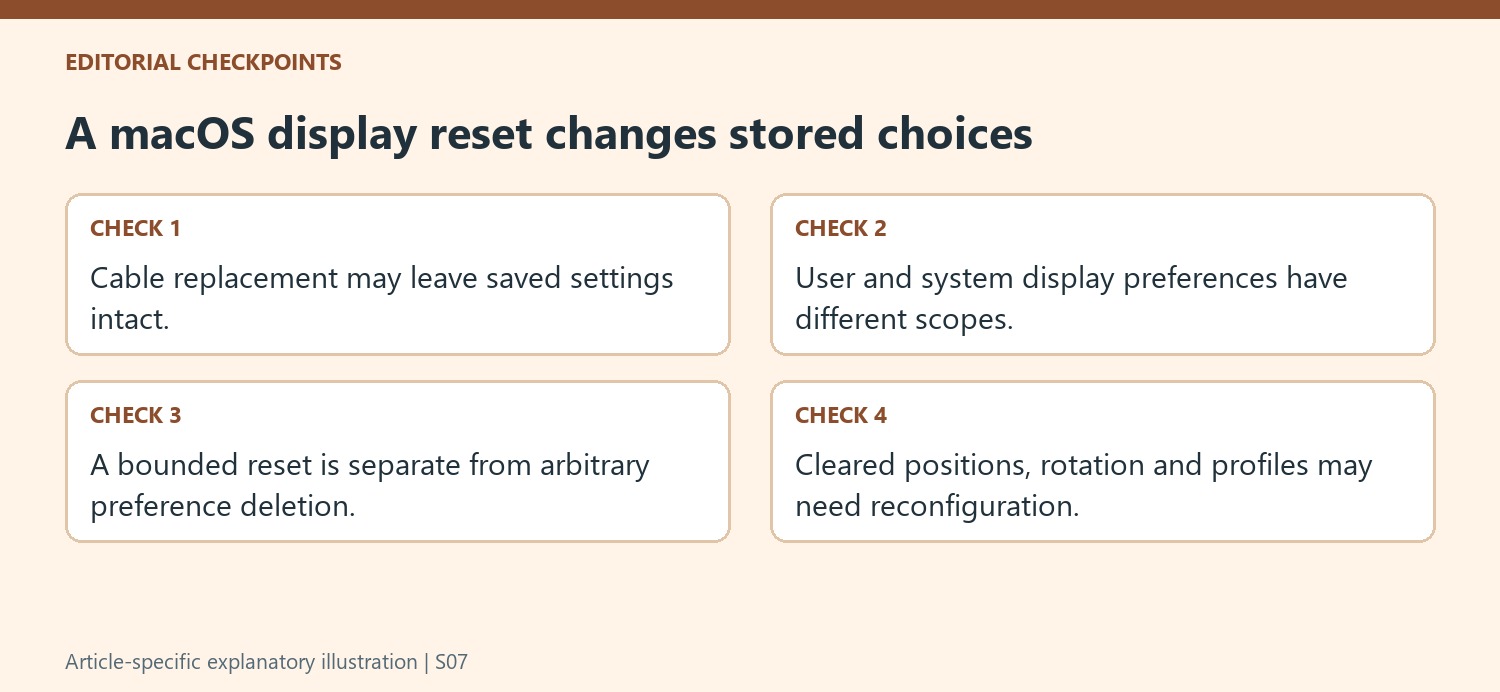
The procedure concerns specific display-configuration preferences in user and system contexts. Follow the full current guidance for the affected installation, including the backup recommendation and administrative requirements. Do not extend the operation to unrelated files because their names also mention windows or displays. The purpose is to let macOS rebuild the intended display settings, not to perform a general cleanup of system preferences.
Disconnect the external displays as directed and account for a desktop Mac’s need for an appropriate directly connected screen. Preserve the instructions needed after the restart before beginning. An administrative prompt and a configuration-file change are different from adjusting one visible menu option, so the scope should remain explicit throughout the recovery rather than being hidden inside a generic suggestion to reset everything.
Verify the new arrangement rather than expect the old one to survive
After restart and reconnection, configure resolution, position and rotation again as required. Check that the pointer and application windows remain accessible and that logging in or reconnecting does not reproduce the original failure. Previously selected color or layout preferences may need to be reestablished because clearing the stored choices is the point of the procedure. Record the resulting working configuration and any remaining issue. Include the port and adapter used for the successful reconnection. This makes the recovery test interpretable: the outcome should show whether rebuilding the display arrangement resolved the matched symptom, without claiming that every earlier preference or every possible hardware problem was automatically preserved or repaired.
References
- How do i remove display configurations or reset display persistence in macos. Plugable Knowledge Base.
macOS retains external display settings including resolution, position, rotation, and color profiles. Plugable describes cases where an unsuitable saved configuration can leave a screen inaccessible or cause the window manager to return to the login screen. Changing an adapter does not necessarily clear those settings.


Leave a Comment
Comments (0)