
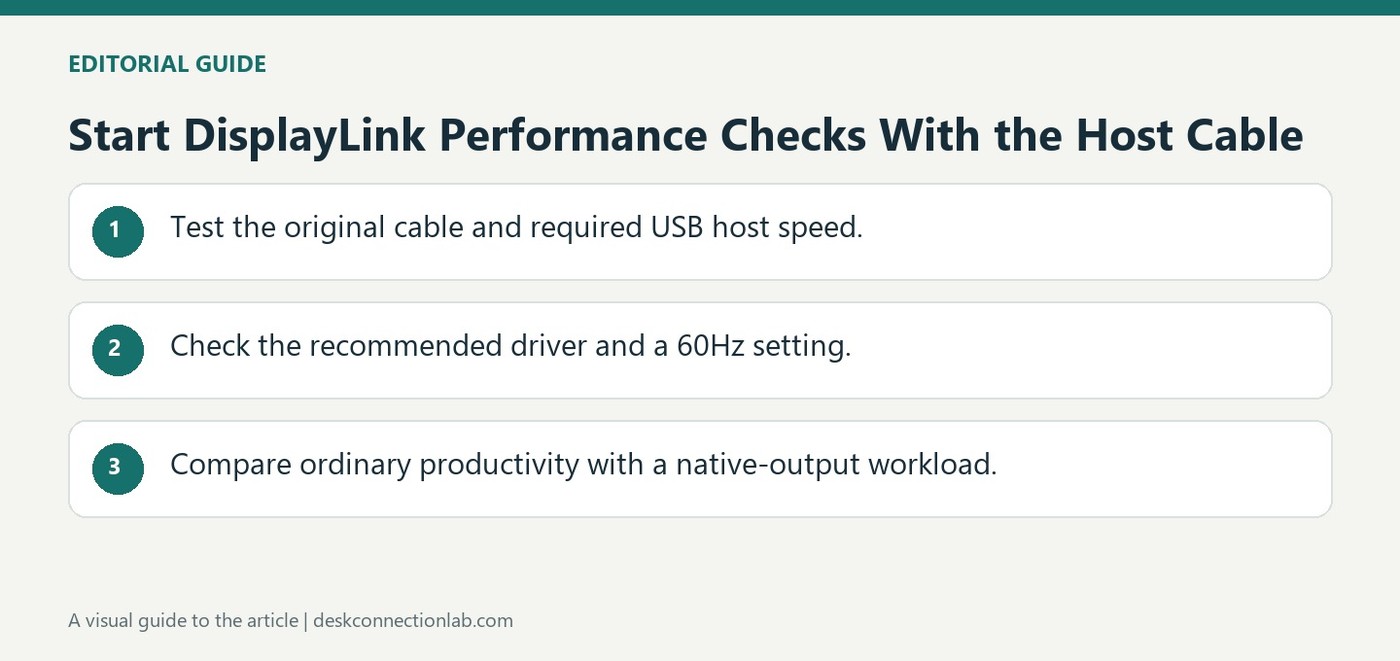
Start DisplayLink Performance Checks With the Host Cable
A slow DisplayLink display does not point to one universal fault. Plugable recommends starting with the original host cable and a computer USB port that meets the product's required connection speed. A cable that fits physically can still offer insufficient data bandwidth for the setup.
Check the recommended DisplayLink driver next; an automatic Windows installation may not be the latest recommended release. Plugable also suggests limiting refresh rates to 60Hz while investigating performance. These checks establish a suitable connection and software baseline before blaming the external monitor or replacing display hardware.
Verify the connection-to-host specification
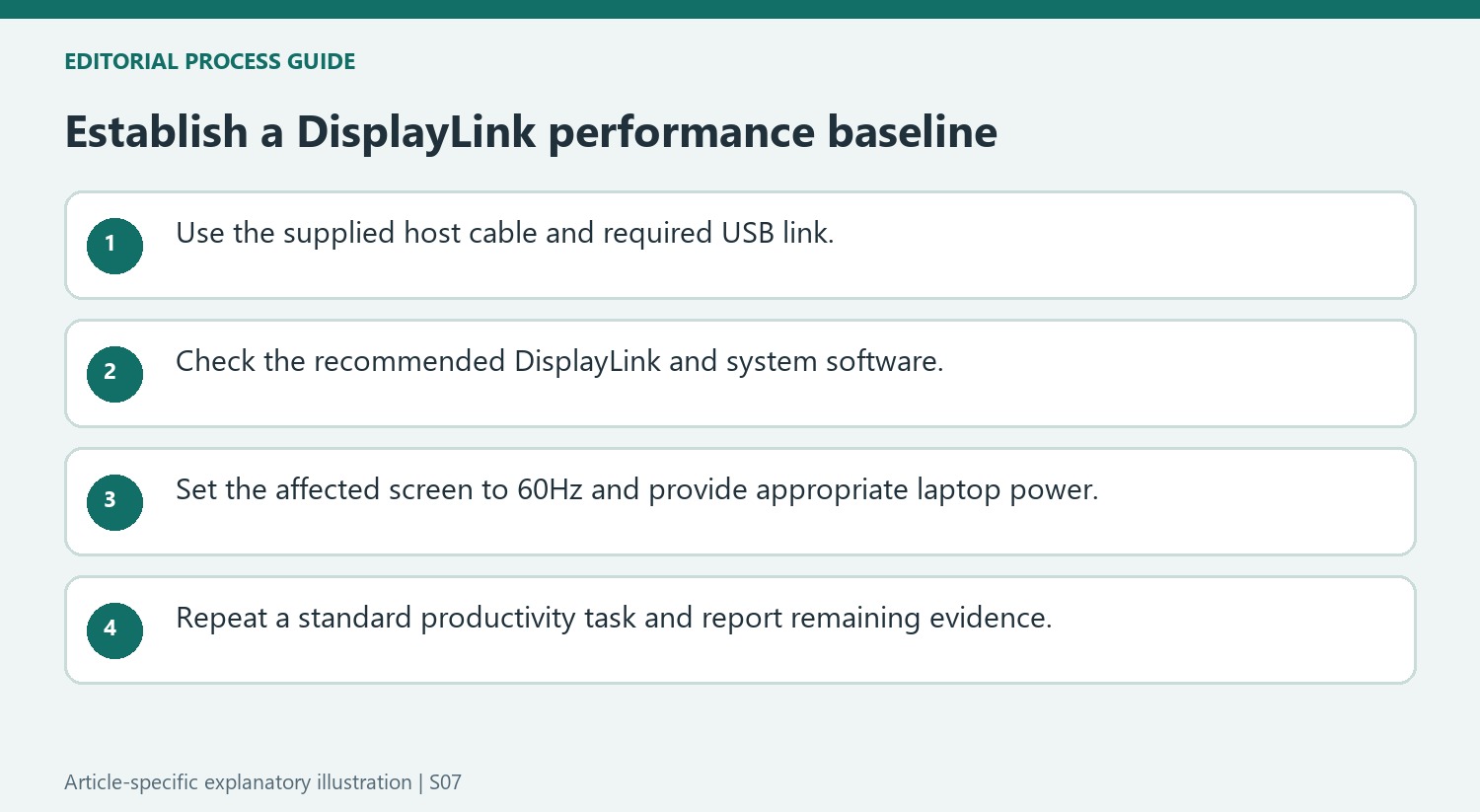
Plugable identifies Version and Link Rate in its product specifications as the relevant host-connection information. Use that rating when selecting the computer port, and retain the supplied detachable host cable as the first comparison. A charging cable or a replacement described only by connector type can be an unsuitable data path. If the computer is running on battery and the dock does not provide charging, connect the laptop's dedicated supply before assessing performance.
Choose a test workload and software baseline
The guidance recommends current manufacturer-provided system software and the appropriate DisplayLink driver, with a clean reinstallation procedure when needed. It also suggests keeping documents and email on USB graphics screens while using native graphics outputs for more demanding dynamic work such as games or CAD. That distinction avoids judging an office expansion setup only by a workload better suited to the native output. After confirming a 60Hz setting, test the same ordinary productivity task again. Report the remaining symptom and the checked cable, host speed, driver, and power arrangement if support is still required.
Establish a host connection that meets the product requirement
Start with the detachable host cable supplied with the product where available. Compare the computer’s selected USB port with the Version and Link Rate stated in the product’s connection-to-host specifications. Those details address the data path used by USB graphics, while the connector shape alone leaves its performance capability unresolved.
A replacement cable may be useful for charging or another USB task without meeting this dock’s host-data requirement. Preserve the original cable as a reference and document the port used during the test. This makes it possible to compare a slower setup with a defined supported baseline instead of changing display hardware before the connection carrying its data has been checked.
Choose a repeatable workload and supported software baseline
Record the observed symptom during a particular task, then repeat that task after each relevant change. The source recommends appropriate system updates and the current DisplayLink driver from the product guidance. Windows may have installed a driver automatically, but that does not establish it is the manufacturer’s latest recommended release. Follow the documented clean-reinstallation procedure where it is needed rather than mixing unrelated driver-removal methods.
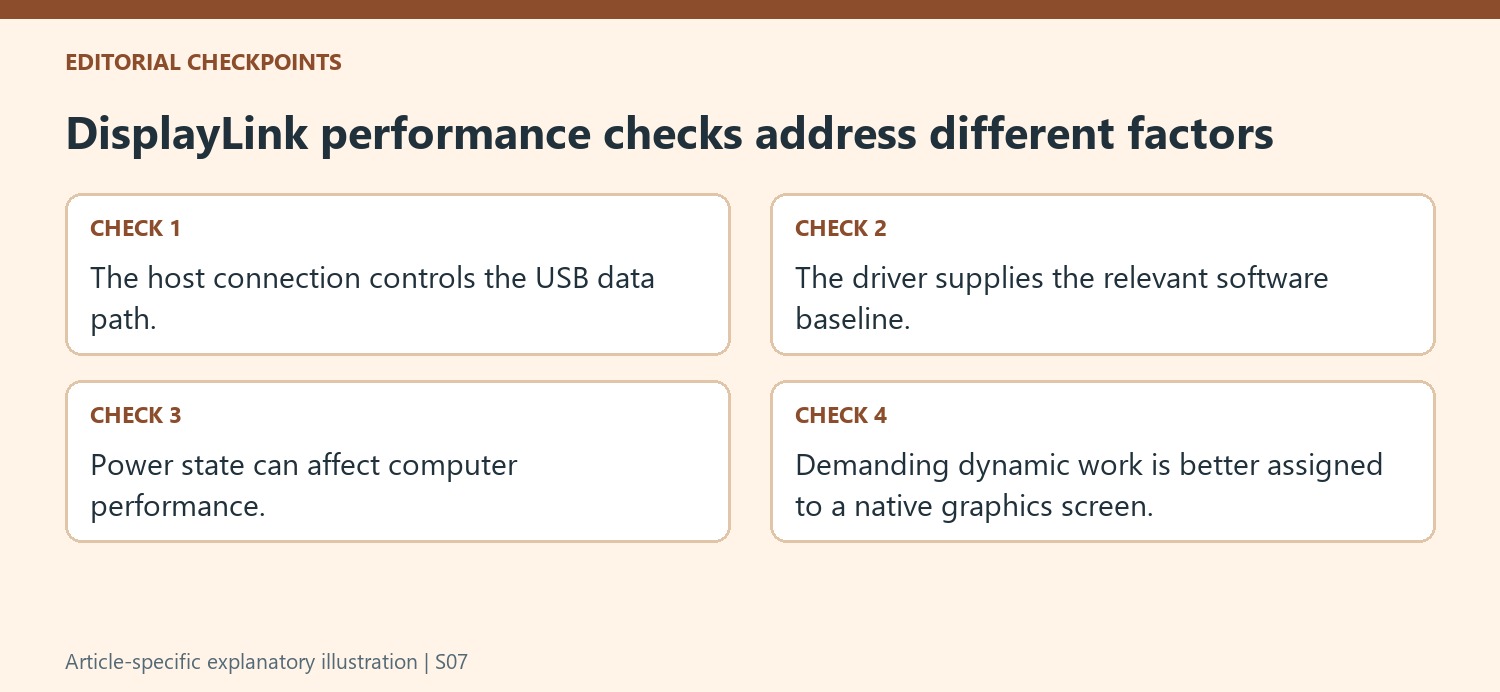
Set the affected display to the recommended 60Hz while evaluating performance and verify that the correct screen was selected. If the dock does not supply laptop charging, connect the computer’s dedicated power supply as directed. These checks address different possible limitations, so note each result. A visible improvement after one change is useful evidence, while multiple simultaneous changes make it harder to explain what helped.
Align the screen’s task with the technology’s intended use
Plugable recommends ordinary static productivity material, such as documents and email, on DisplayLink screens, with demanding dynamic applications assigned to a native graphics output. Use that distinction when assessing whether the arrangement suits the task. The guidance presents starting points rather than an exhaustive diagnosis or a promise of identical results on every system. If performance remains poor, report the workload, exact product, host link, cable, driver, power state and refresh setting already checked. Keep a record of the same task before and after each change. This provides a concrete basis for further support without treating a slow USB graphics screen as automatic evidence of a defective monitor.
References
- Displaylink based displays running slow here’s how to improve performance. Plugable Knowledge Base.
A slow DisplayLink display does not point to one universal fault. Plugable recommends starting with the original host cable and a computer USB port that meets the product's required connection speed. A cable that fits physically can still offer insufficient data bandwidth for the setup.


Leave a Comment
Comments (0)