
Arrange two screens in Windows
Confirm detection before arranging displays
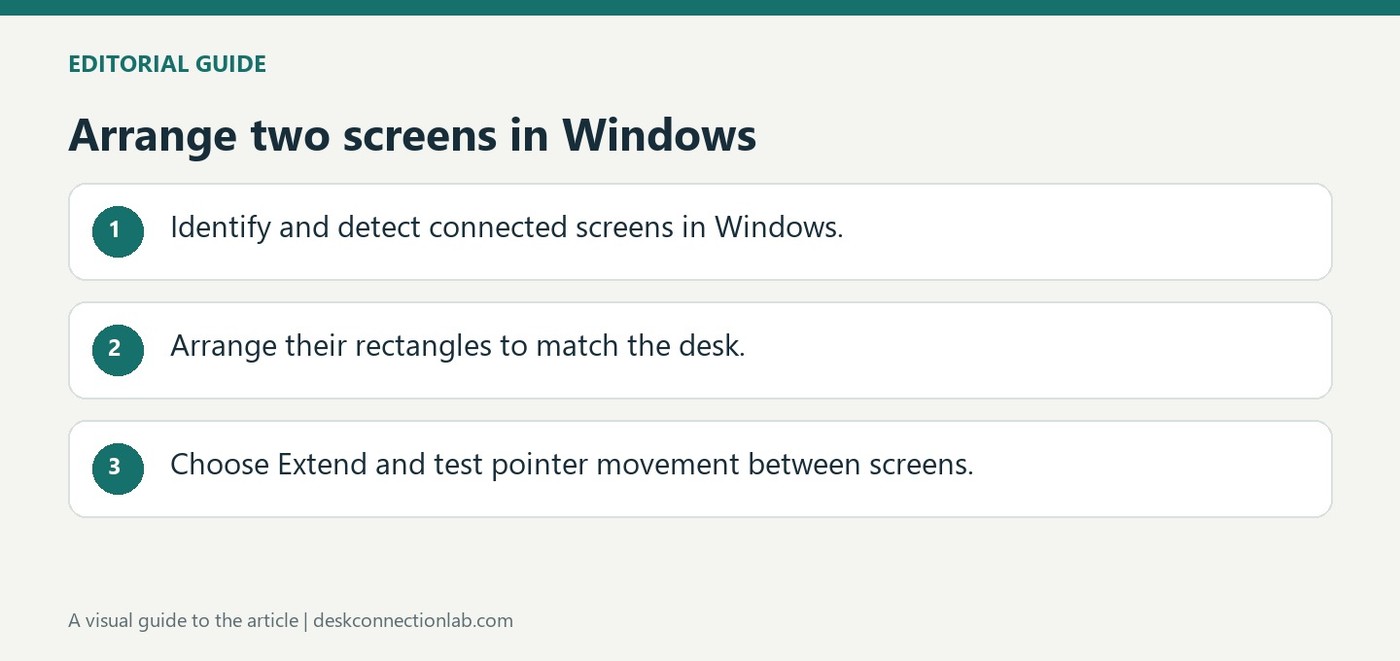
After checking the cables and installing available Windows updates, open Settings, System, Display. Identify displays so the numbers on screen can be matched to the actual monitors. If a connected display is missing, use Detect. These controls help separate a monitor that Windows cannot see from one that is simply arranged incorrectly.
Choose the working layout
Drag the display rectangles to match their positions on the desk. Windows plus P offers Duplicate, Extend and other projection choices; Extend provides the additional desktop space most two-monitor workflows need. Arrange the screens before judging pointer movement between them, and check the selected display when changing scale, resolution or orientation so the adjustment affects the intended monitor.
Test the edge where the pointer crosses screens
After applying a new arrangement, move the pointer across each shared edge. A screen positioned above another in Windows can make the pointer seem to disappear if the physical displays actually sit side by side. Use Identify again when the numbering becomes confusing. Detection, arrangement, scaling, and projection mode are separate settings, so correct the one responsible for the observed behavior instead of changing them all at once.
Choose the docking behavior deliberately
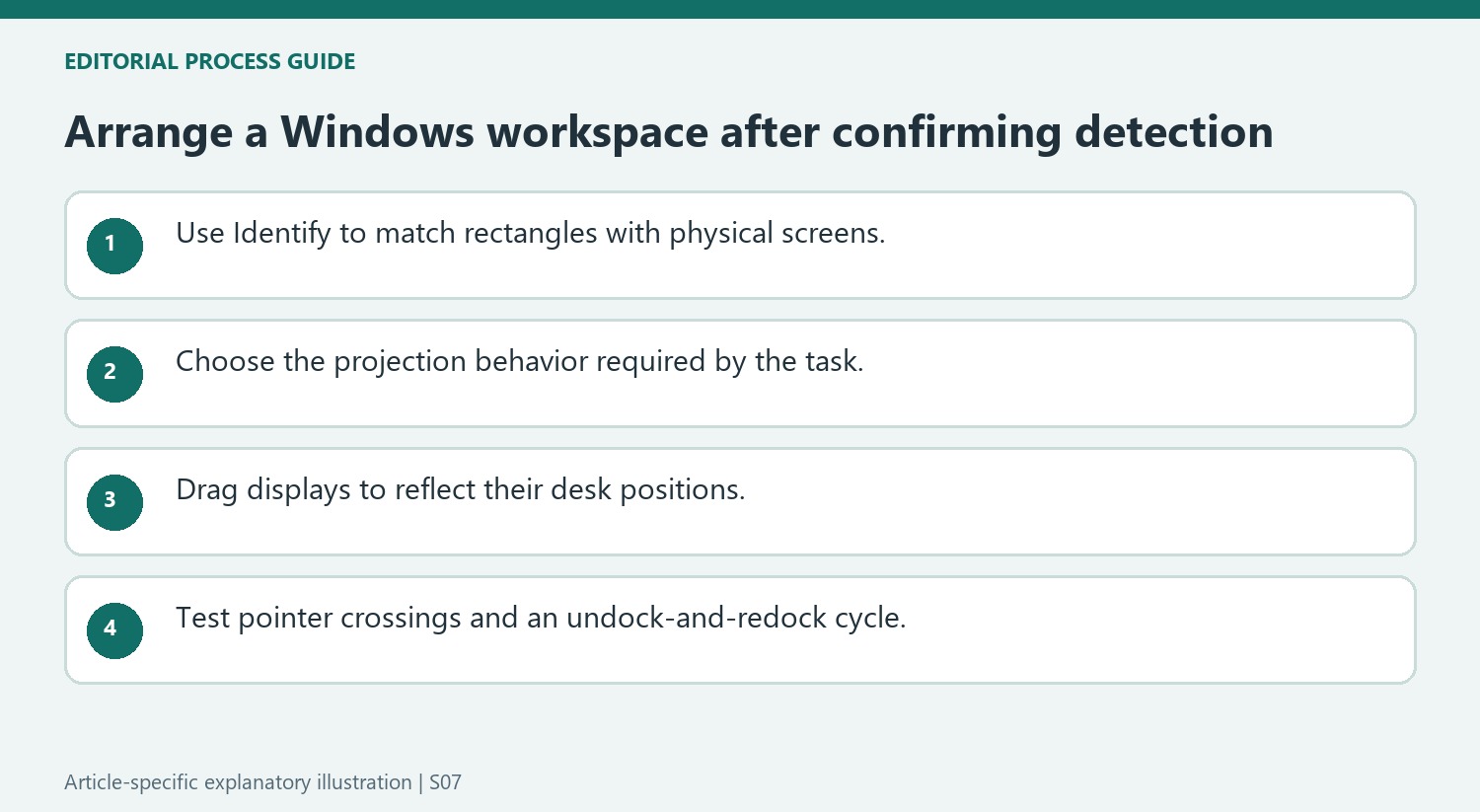
Under Multiple displays, Windows provides options to remember window locations based on the monitor connection and to minimize windows when a monitor is disconnected. These controls influence what happens when a laptop leaves and returns to a desk. Select them according to the way the workspace is used, then try one undock-and-redock cycle. A window moving after disconnection does not automatically indicate a bad video cable. Keep the cables and display order consistent during the test so that Windows can recognize the intended arrangement. Changes to resolution or orientation should still be made with the correct numbered screen selected.
Identify the settings category before changing the desktop
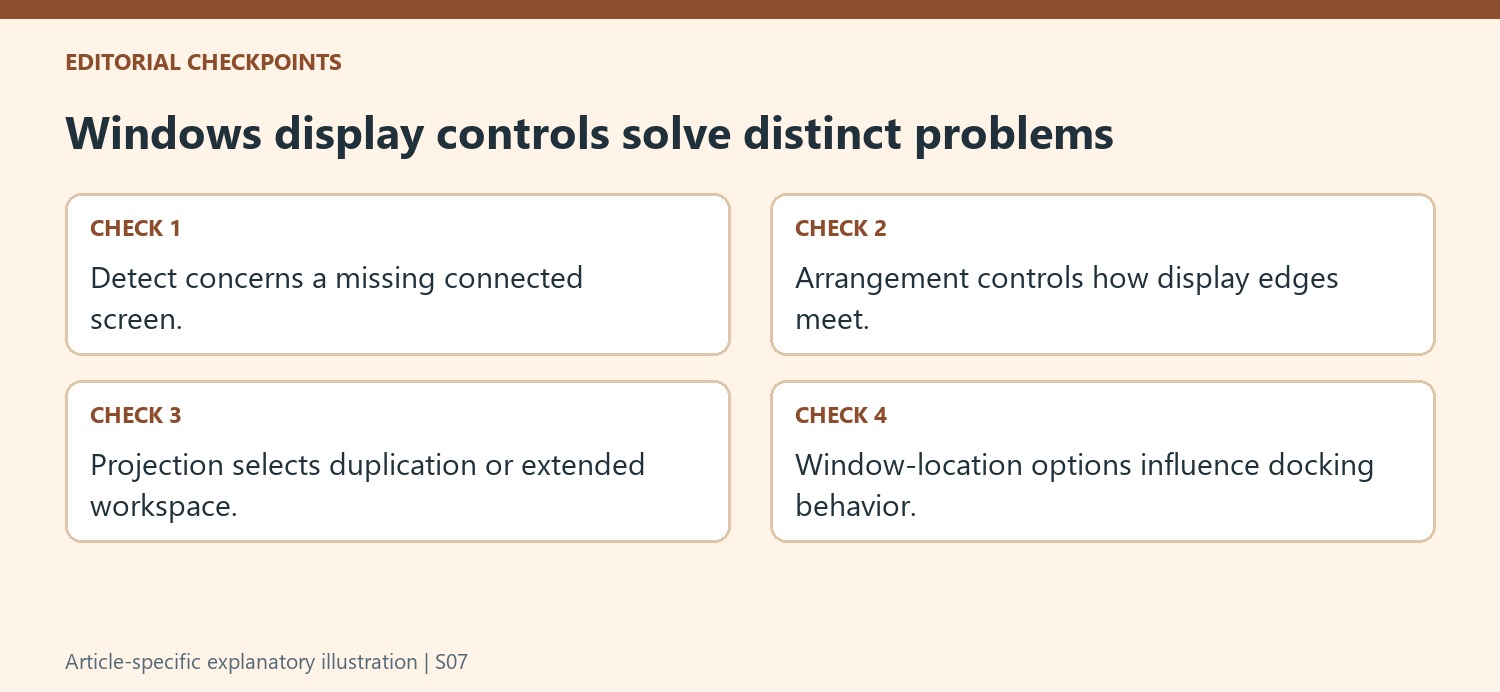
Start with the visible symptom. A monitor absent from Display settings calls for detection and connection checks, while a detected screen on the wrong side calls for arrangement. Mirrored content instead of extra workspace concerns projection mode. Keeping those categories separate avoids an unnecessary change to resolution or scaling when the real problem is simply how Windows interprets the position of the displays.
Use Identify to connect each numbered rectangle to a physical screen. Do not assume that the numbers correspond to left-to-right desk order or to the labels remembered from a previous dock. Select the intended screen before changing its individual settings. This is particularly useful when two similar monitors make it difficult to tell which rectangle represents the display that needs attention.
Match the shared edges to the way the desk is used
Drag the rectangles into a layout that reflects the screens’ actual positions, apply it and move the pointer between them. Test the edges used during normal work rather than only checking that both screens show a desktop. A misplaced rectangle can make the crossing point feel unintuitive even though the video connection and display detection are functioning normally.
If the intended task requires separate applications across screens, choose Extend. If the purpose is showing an audience the same material as the laptop, Duplicate may fit better. The screen-only modes deliberately limit where the image appears. Verify the mode before interpreting a blank panel as a hardware failure, especially after using a projector or moving between desks with different presentation needs.
Check a docking cycle after the initial layout works
The source describes options for remembering window locations and minimizing windows when a monitor disconnects. Choose those according to the working routine, then undock and reconnect once with the same cables and arrangement. Observe whether the windows return as expected. If they do not, record the behavior separately from image loss or screen detection. This creates a useful baseline for future changes and prevents normal consequences of disconnection from being mistaken for a faulty cable. A comfortable multi-monitor desk combines a supported connection with deliberate arrangement and window behavior rather than relying on detection alone.
References
- How to use multiple monitors in Windows. support.microsoft.com.
After checking the cables and installing available Windows updates, open Settings, System, Display. Identify displays so the numbers on screen can be matched to the actual monitors. If a connected display is missing, use Detect. These controls help separate a monitor that Windows cannot see from one that is simply arranged incorrectly.


Leave a Comment
Comments (0)