
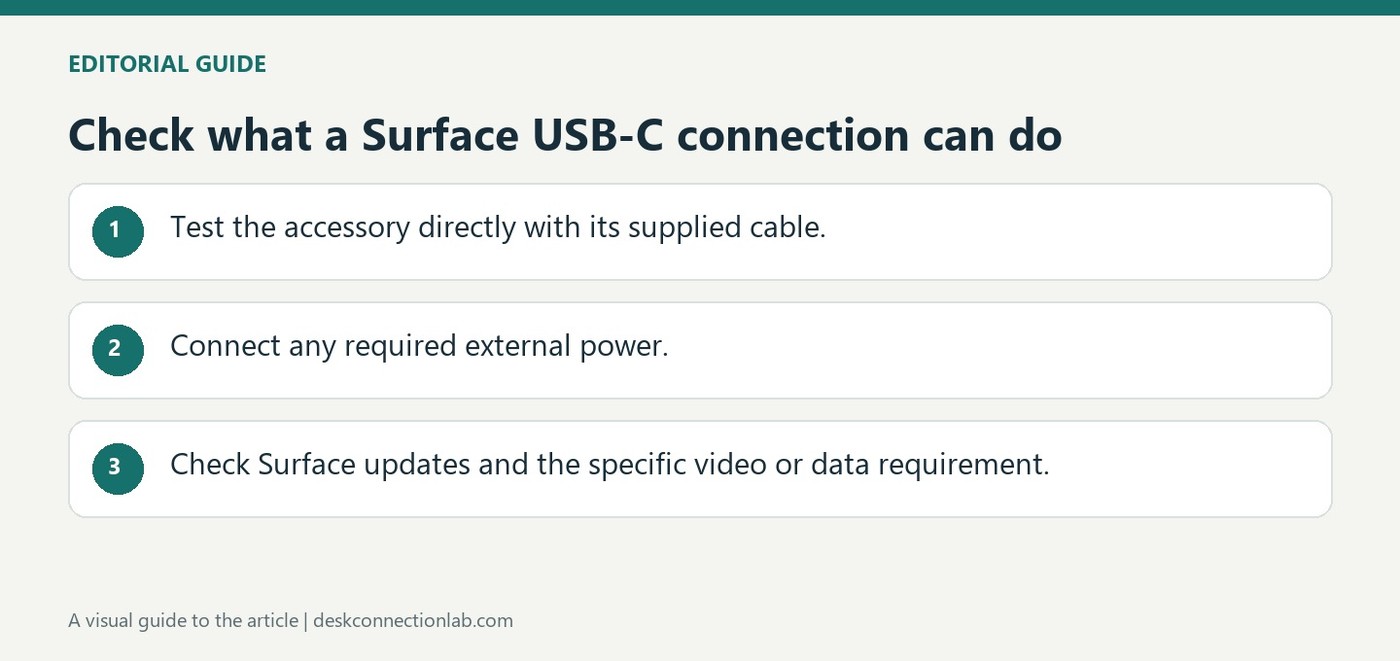
Check what a Surface USB-C connection can do
Use the device cable and test directly
Microsoft notes that USB-C on supported Surface devices can transfer files, operate accessories, send video and supply power, but troubleshooting must follow the missing function. If an accessory is not recognized, reconnect it and try it directly on the Surface instead of through a hub. Use its supplied cable because USB-C cables do not all support identical features.
Supply the required power
An accessory with its own power adapter should have that adapter connected. Charging a Surface also calls for an appropriate USB-C Power Delivery charger and sufficient wattage. The guide states that display adapters need a PC USB-C port configured for video output. A working USB device connection therefore does not by itself confirm that the same port can operate an external monitor.
Use the Surface update tools before a complicated reset
The Surface app exposes driver and firmware update status under Help and support, with a route to Windows Update when updates are available. That is a useful check before treating an intermittent USB-C accessory as permanently incompatible. Microsoft's guide also gives a shutdown and restart procedure for an unresponsive connection. Follow the instructions applicable to the Surface model rather than assuming a generic power-button sequence is appropriate for every Windows computer.
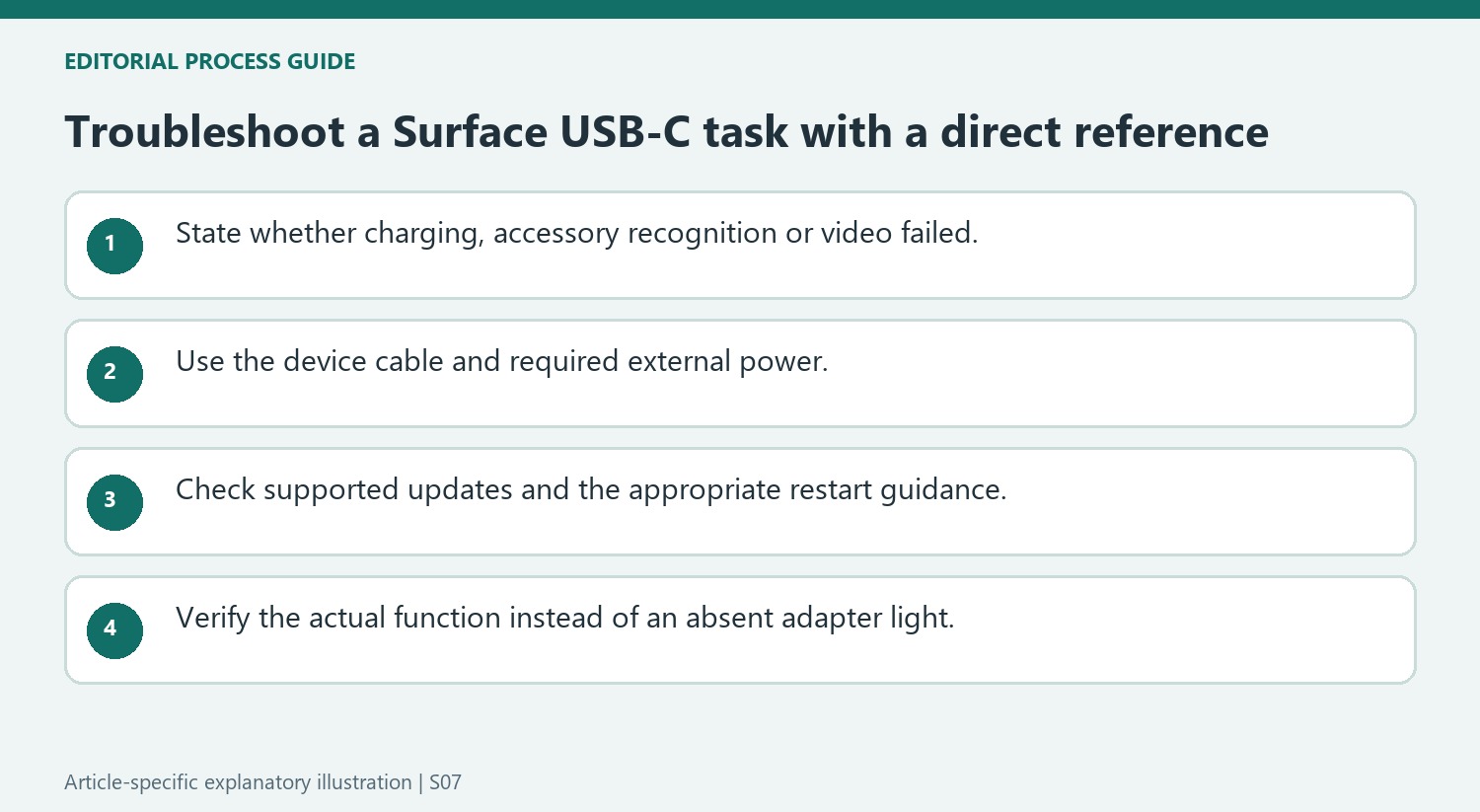
Do not wait for an adapter status light that is absent
The support article notes that the USB-C adapters described do not have a power switch or an LED indicating activity or errors. Their appearance therefore cannot confirm whether the host is sending video. If an adapter is unresponsive, remove it, restart the computer as directed, and try again. For a display problem, also consult the external-screen troubleshooting guidance instead of repeatedly testing unrelated storage accessories. This keeps the investigation tied to the missing function and avoids buying a powered hub merely because the adapter has no visible light. A direct, correctly specified connection remains the most useful comparison.
Choose the troubleshooting branch from the failed task
Start by stating whether the problem concerns recognizing an accessory, powering it, charging the Surface or displaying video. The support guide lists several USB-C uses, but their coexistence on supported devices does not make their failure conditions identical. A successful storage connection should not end a display investigation, and a visible picture should not establish that the Surface is charging adequately.
For an accessory-recognition problem, reconnect the device directly rather than through a hub and use the supplied cable where available. If the accessory includes a power supply, connect it as designed. These steps establish a simpler reference configuration. They do not require assuming that a hub is defective; they help determine whether an additional stage changes the observed result.
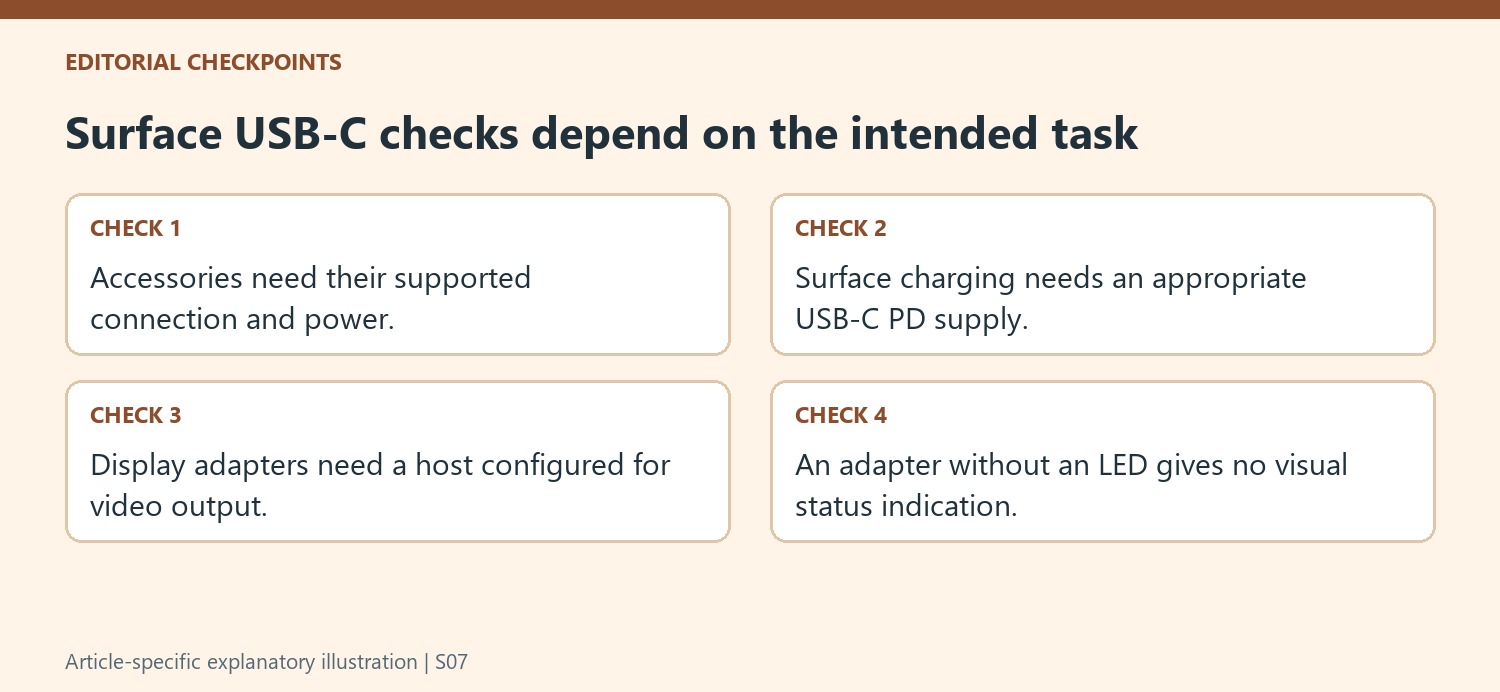
Use the documented update and restart routes deliberately
The Surface app can expose driver and firmware status and lead to Windows Update when relevant updates are available. Check that supported route before building a complicated explanation for intermittent behavior. Note what was updated and whether the same direct connection works afterward so that the outcome can be compared with the initial observation.
Microsoft also describes a particular shutdown and power-button procedure in the Surface guidance. Apply instructions suitable for the actual device and keep the affected accessory disconnected during the relevant steps. A reset is a troubleshooting action to evaluate, not evidence that a capability absent from the hardware has been enabled. Continue to check the specifications for the function required by the connected adapter or display.
Verify the result through function rather than appearance
The adapters described lack a power switch or status LED, so their unlit appearance cannot distinguish normal operation from a fault. Test the required output or accessory task directly. For charging, compare the USB-C Power Delivery supply with the power requirement of the Surface; for video, follow the external-display checks and verify the selected input. Retain the exact device and cable details if support is needed. This keeps the final conclusion tied to an observed function and a documented setup rather than to an indicator the adapter was never designed to provide.
References
- Troubleshoot problems with USB-C on Surface. support.microsoft.com.
Microsoft notes that USB-C on supported Surface devices can transfer files, operate accessories, send video and supply power, but troubleshooting must follow the missing function. If an accessory is not recognized, reconnect it and try it directly on the Surface instead of through a hub. Use its supplied cable because USB-C cables do not all support identical features.


Leave a Comment
Comments (0)