
Calculate a realistic external display setup
Resolution depends on the whole configuration
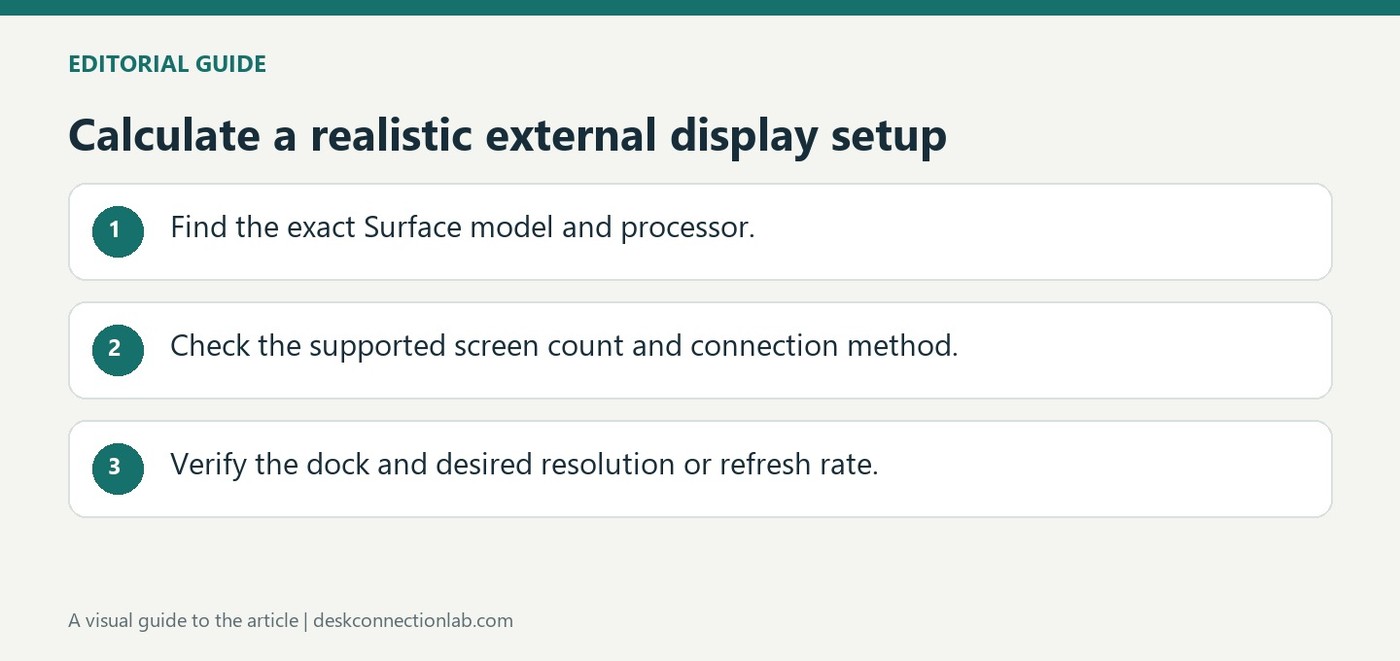
Microsoft's Surface display tables relate maximum external resolution and refresh rate to the particular computer, processor and connection. The number of connected displays also matters. A headline capability for one Surface model is therefore not a promise that every laptop or every docking arrangement can drive the same screens.
Account for adapters and the built-in screen
The guide explains that docks, adapters and travel hubs can impose additional limits. Some configurations also depend on whether the internal display remains active. Compare the exact configuration with the relevant table before buying a cable. If a second screen lowers the available refresh rate, test one external monitor first and review the documented limits of each link.
Find the model before interpreting a display table
The Surface app can help identify the computer so that the relevant model entry can be selected in Microsoft's display guidance. Similar-looking devices can have different processors and display capabilities. The number of attached monitors and whether the built-in screen remains active can also affect the supported arrangement. Record those details before comparing a friend's setup or a dock's advertising with what the particular computer can deliver.
Treat the dock as another part of the specification
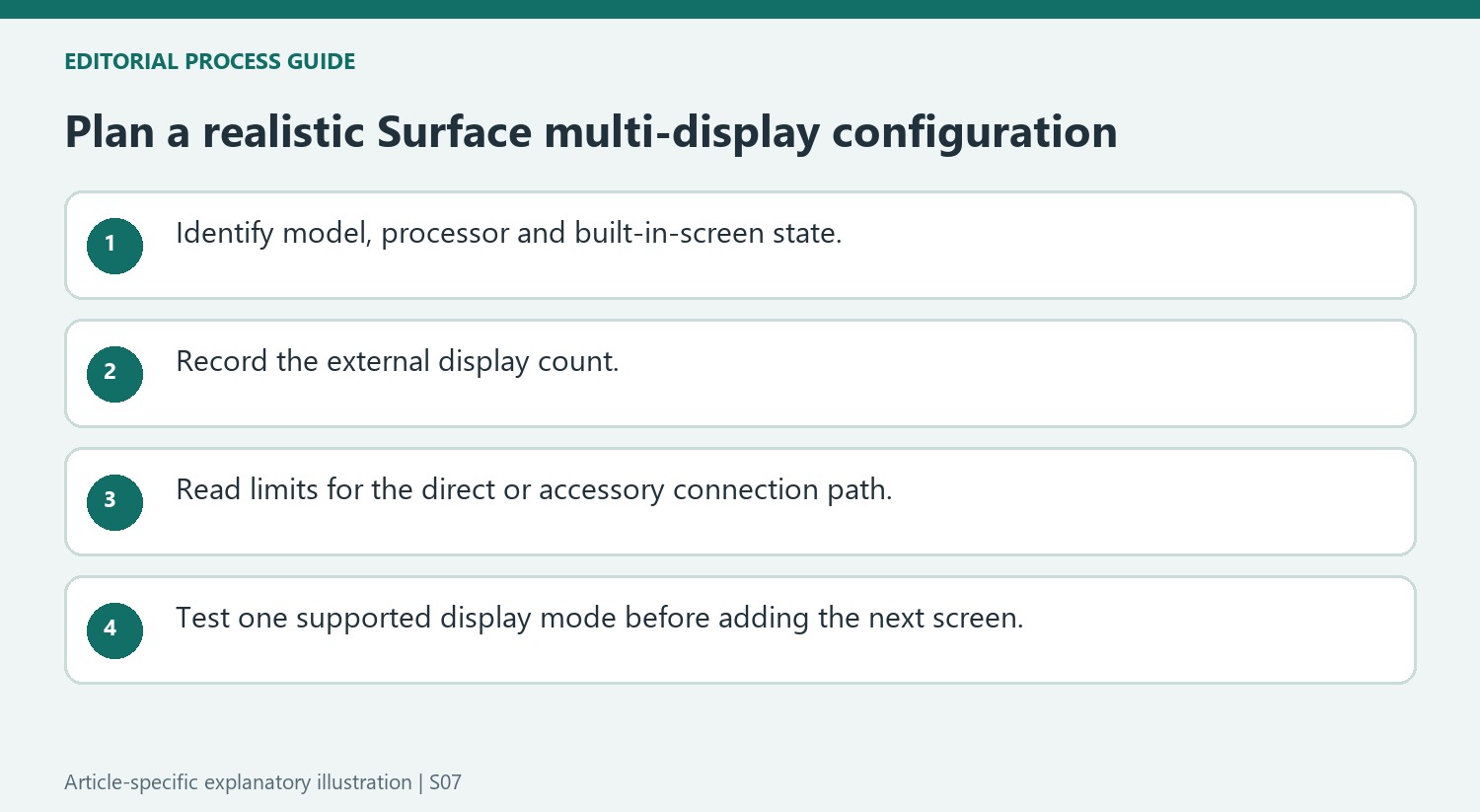
A direct video connection and a connection through a Surface Dock, Travel Hub, or separate adapter are different configurations. Check the guidance for that accessory as well as the computer. Start with one display at a supported mode, verify the result, and then add the next screen. This staged approach separates an unsupported combination from a cable or detection problem. Avoid inventing a resolution or refresh-rate ceiling from an unexpanded model table: use the entry for the actual machine, connection method, and display count. When comparing options, note whether a quoted figure concerns one external screen or the entire multi-monitor arrangement.
Describe the complete arrangement before reading a maximum
Record the exact Surface model and processor, the number of external displays and the state of the built-in screen. Microsoft identifies those details as factors in the available resolution and refresh rate. A quoted limit without them can describe a different arrangement from the one being planned, even when the devices belong to the same product family.
Identify whether the video path is direct or passes through an adapter, Dock or Travel Hub. Those accessories have their own relevant guidance and can impose additional limits. Keep the proposed path explicit when comparing tables or asking for support. This makes it possible to distinguish a computer capability from a limit introduced by the way the display is connected.
Compare like-for-like modes rather than isolated headline numbers
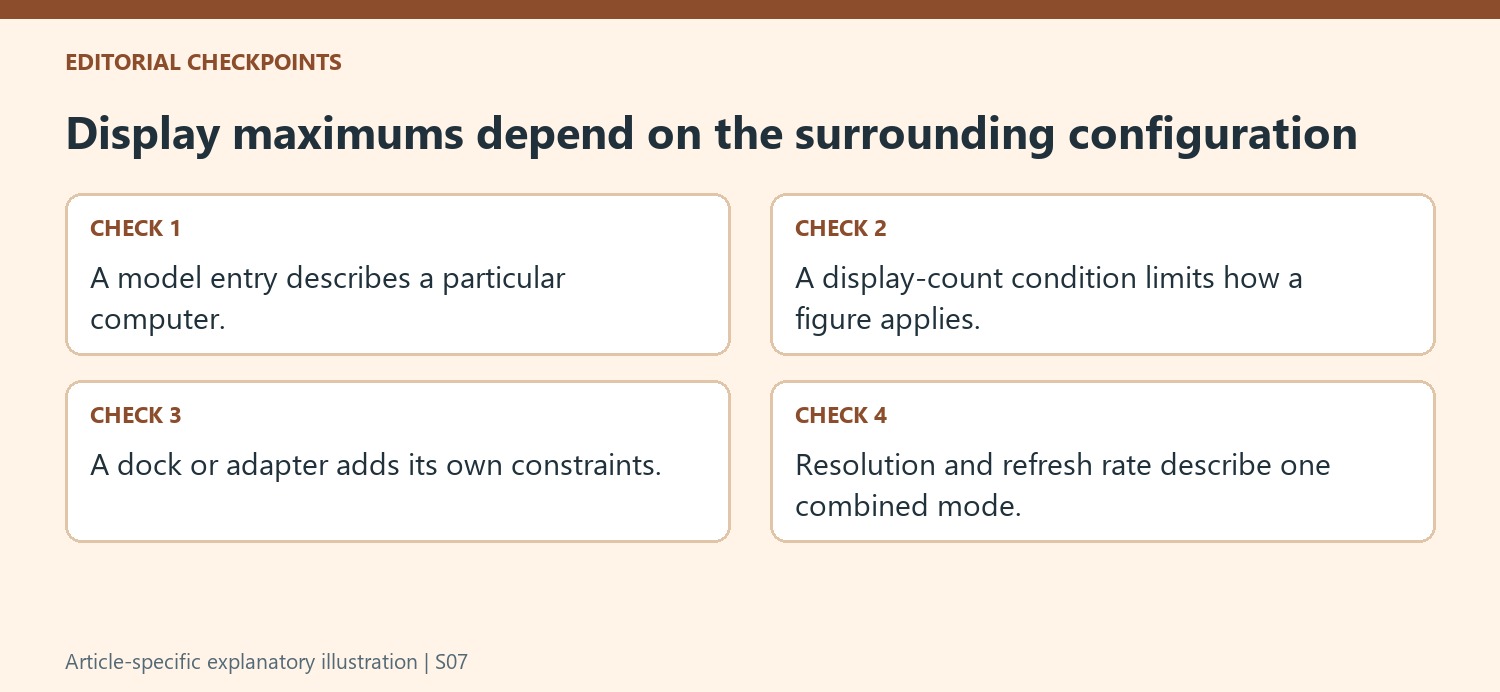
Read resolution and refresh rate together, then check how the figure relates to the stated display count. A mode documented for one external screen should not be silently applied to two. Similarly, a configuration with the Surface screen disabled may not describe an arrangement that keeps it active for another workspace. The useful comparison preserves all the conditions surrounding the number.
Do not fill gaps in a collapsed or unavailable model table with an estimate from a nearby entry. Use the Surface app to identify the device and consult the relevant information for that actual model. A friend’s successful setup can suggest a test, but it does not replace the specifications of a different processor, accessory or display arrangement.
Build the configuration in observable stages
Begin with a single external monitor at a documented mode and check that it is detected and usable. Add the next display only after that reference state works, then compare the available settings with the planned configuration. If the options change, review the display count and accessory limits before assuming a defective screen. This staged process does not manufacture support for an undocumented combination; it helps reveal which part of the arrangement changes the outcome. A successful purchase decision combines the correct model guidance with a connection path and screen count that have been considered together from the start.
References
- Supported external display resolution and refresh rates for Surface. support.microsoft.com.
Microsoft's Surface display tables relate maximum external resolution and refresh rate to the particular computer, processor and connection. The number of connected displays also matters. A headline capability for one Surface model is therefore not a promise that every laptop or every docking arrangement can drive the same screens.


Leave a Comment
Comments (0)