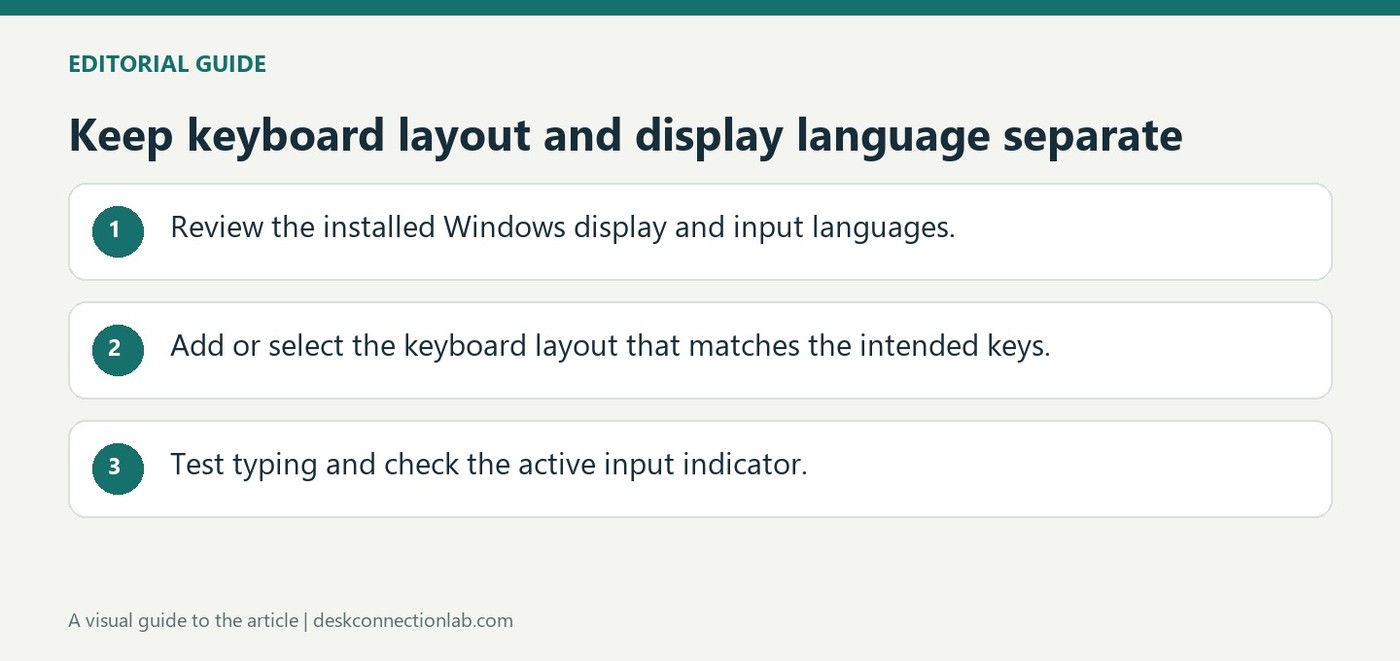
Windows language settings control several different things, including the interface language, installed language packs and keyboard layouts. Microsoft's guide explains that changing the keyboard layout does not change the Windows display language. If a physical keyboard produces unexpected punctuation or letters, inspect the active input layout before reinstalling the device.
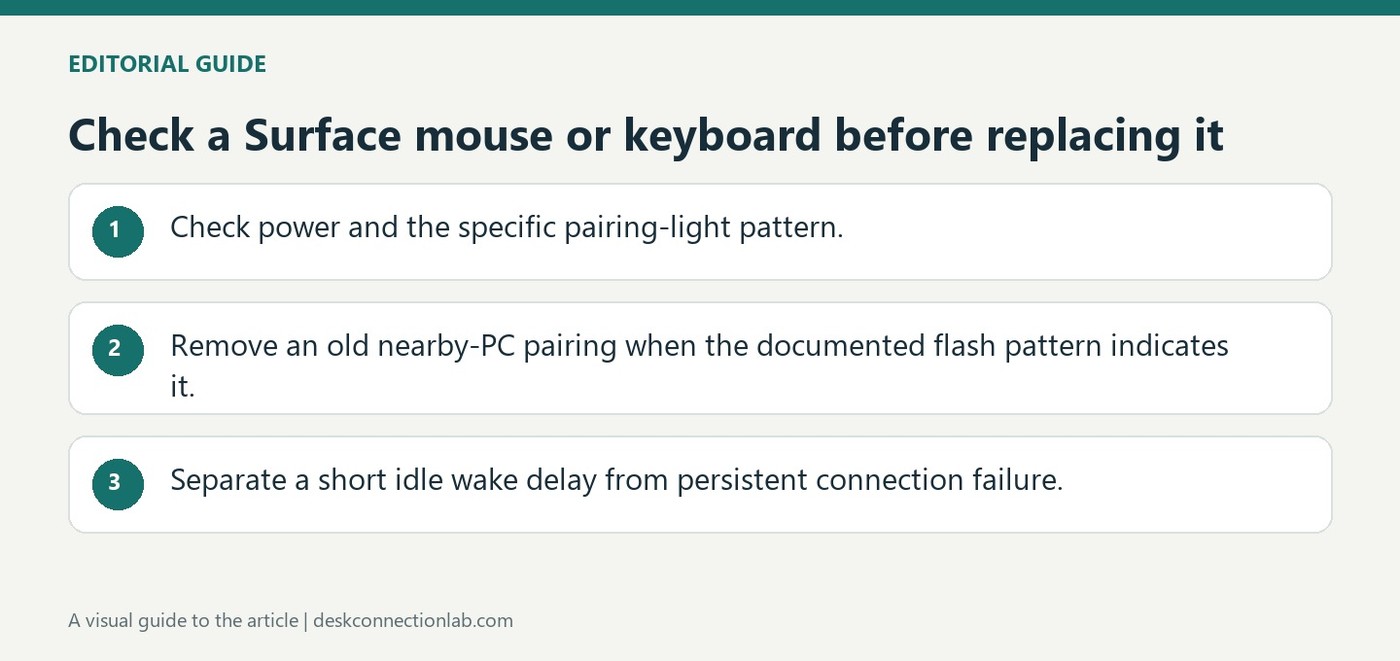
Microsoft's troubleshooting guide starts with correctly positioned batteries and fresh replacements where necessary. Rechargeable devices should use their supplied charging cable. Hold the pairing button long enough to make the light blink; that indicator helps distinguish a powered but unpaired device from one that is not receiving power at all.
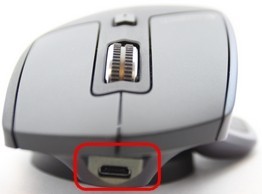
The original MX Master can be used while its rechargeable battery is charging, but the supplied Micro USB cable provides charging only. Mouse input still travels through Bluetooth or the Unifying receiver, so attaching the cable does not convert it into a wired mouse.
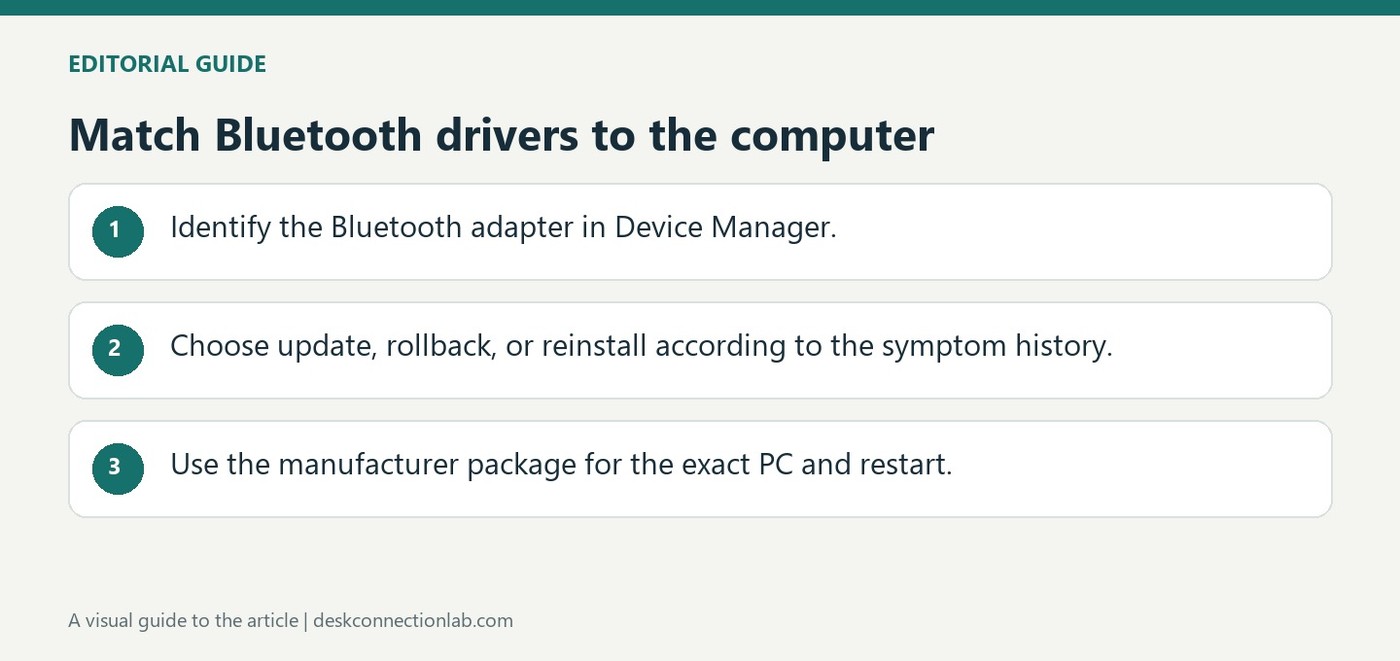
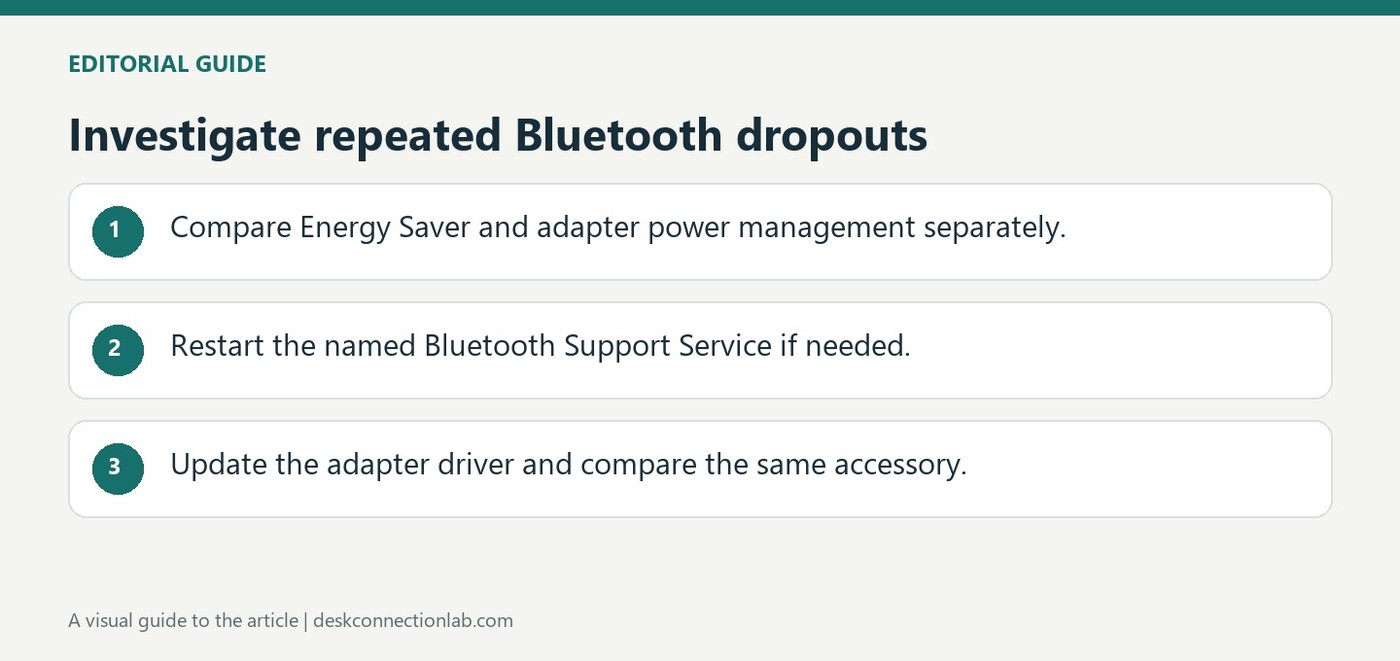
Microsoft recommends Device Manager and Windows Update as starting points for Bluetooth driver updates. Select the Bluetooth adapter, search for an updated driver and restart when the update completes. If Windows reports that the best driver is installed, the PC manufacturer's support page may still provide a newer package for the exact model.
Microsoft identifies power management, outdated drivers and temporary system problems as possible causes of a Bluetooth link that keeps disconnecting. Its guide suggests the Windows 11 Get Help troubleshooter, followed by checks of Energy Saver and the Bluetooth adapter's power-management settings. Those settings can affect an accessory that pairs successfully but will not remain connected.
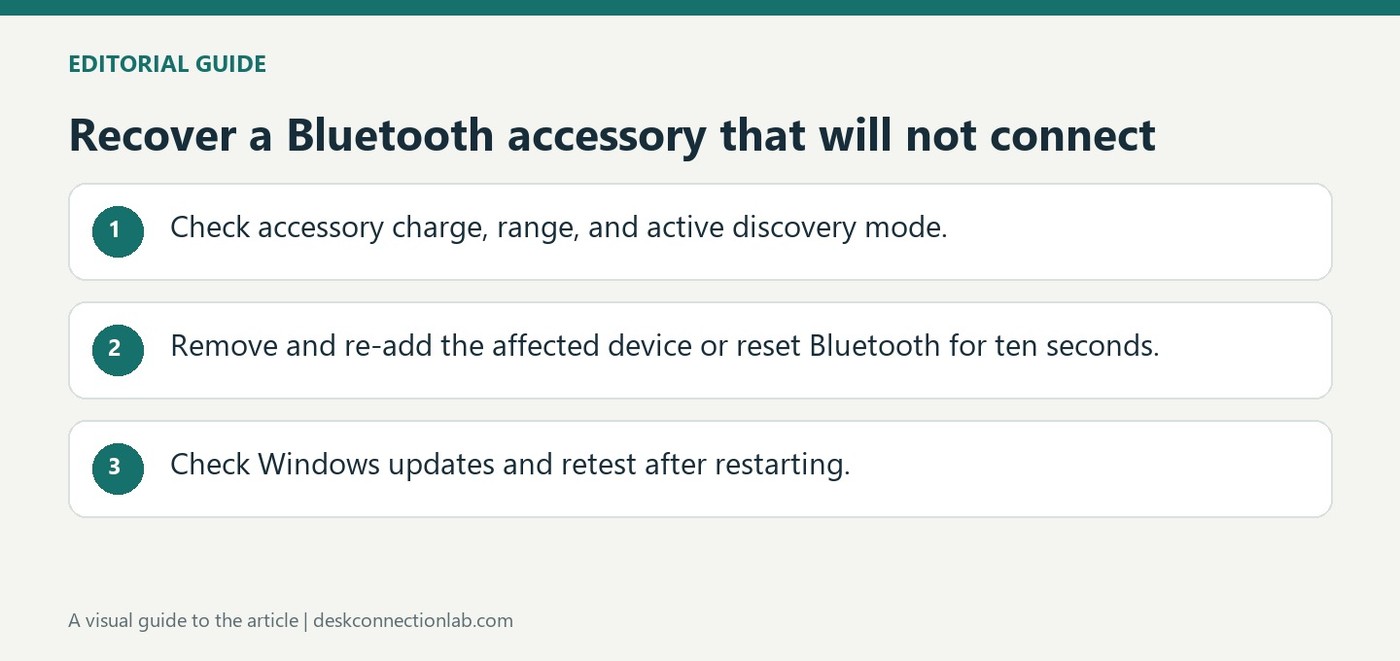
Microsoft distinguishes a visible Bluetooth adapter from a successful accessory connection. Confirm that Bluetooth is on, place the accessory in pairing mode and move it close to the computer. A weak battery may prevent either discovery or a stable link, so charge or replace batteries before concluding that the Windows adapter has failed.
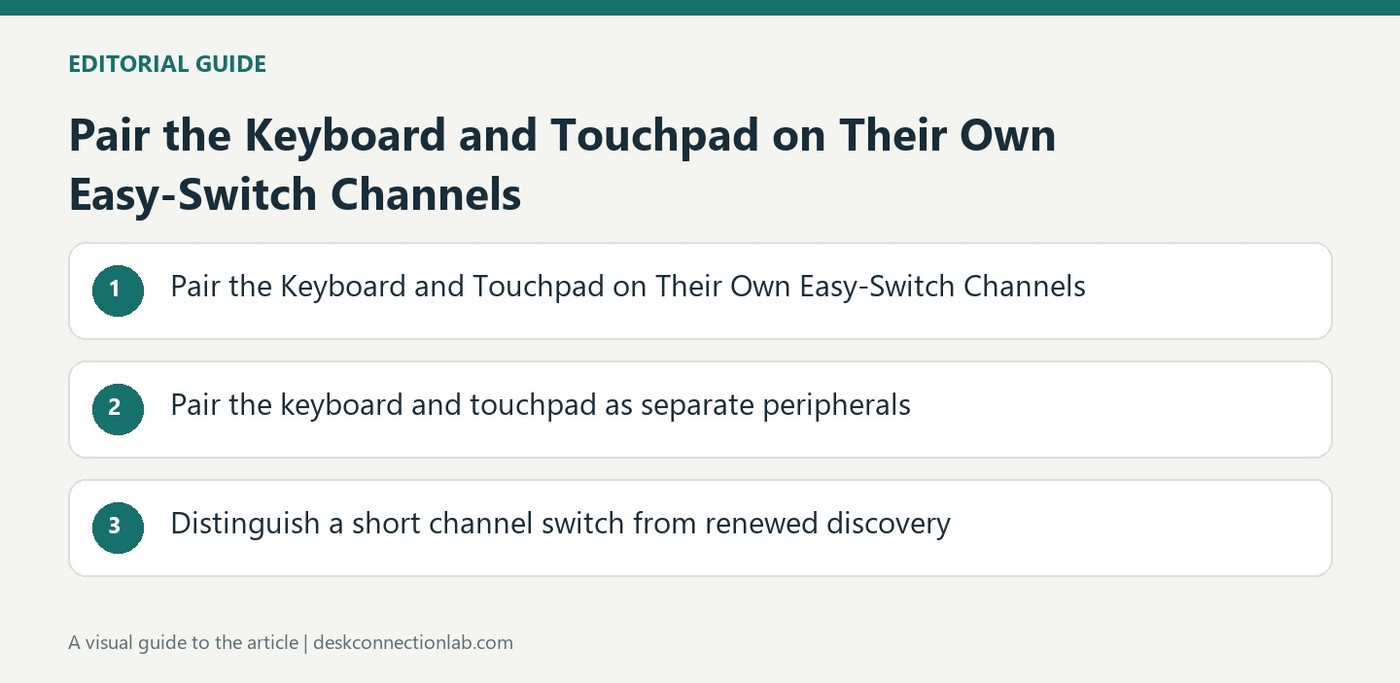
Logitech's multi-device guide gives the keyboard and touchpad separate Easy-Switch controls. The keyboard uses F1, F2, and F3, while the touchpad's button is on its back. Each device can pair with up to three computers, so setting up one peripheral does not automatically establish the other's connection.
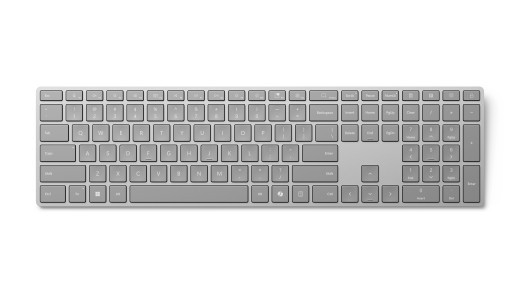
Microsoft's Surface Keyboard guide describes the second-edition model with Bluetooth 4.0 or later and Windows 11. Removing the battery tab powers the keyboard initially. Hold the side pairing button until the indicator above the Up arrow flashes, then choose the keyboard from the Windows notification or Bluetooth device list.
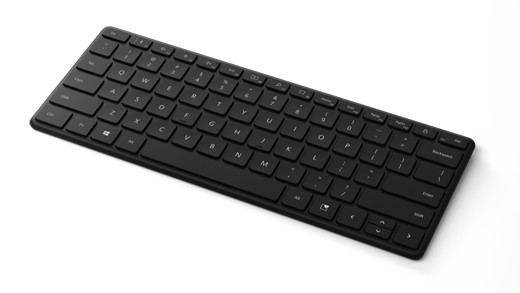
Microsoft Designer Compact Keyboard supports three paired devices, making it a concrete example of a keyboard designed for switching between computers. Turn it on and watch for the flashing pairing light. If necessary, hold its pairing button for about five seconds, then accept the Windows notification or select it in Bluetooth settings.
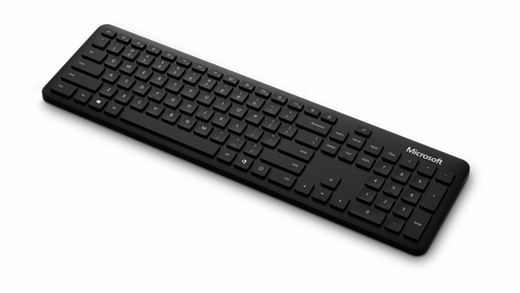
Microsoft's Bluetooth Keyboard requires Bluetooth 4.0 or later on a supported Windows computer. Hold the button underneath for about five seconds until the light flashes. Accept the Swift Pair notification if it appears, or open Bluetooth and devices, add a Bluetooth device and choose the keyboard from the list.