
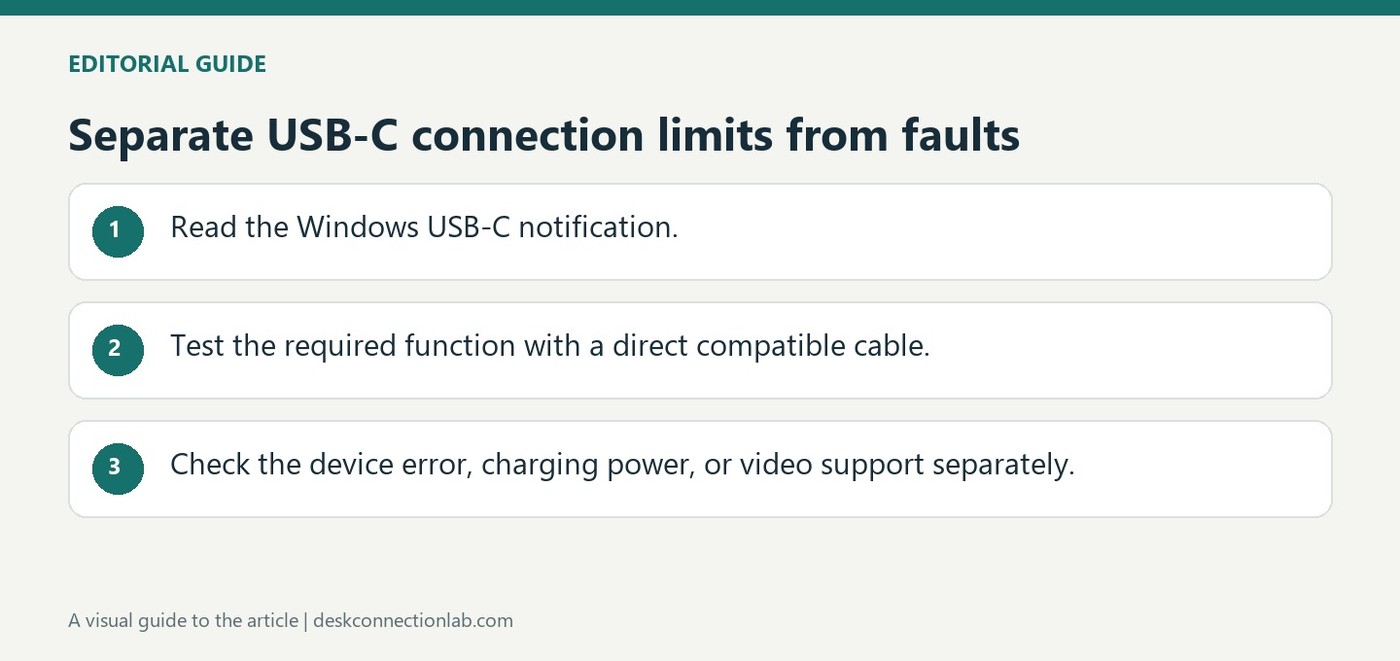
Separate USB-C connection limits from faults
Identify the missing function
A USB-C plug can fit even when the requested feature is unavailable. Microsoft's Windows troubleshooting guide links limited USB4 functionality to the capabilities of the computer, cable and intermediate device. A dock or adapter can therefore be the limiting part of a connection that otherwise appears physically correct.
Test power and data independently
Slow charging may reflect an insufficient charger, an unsuitable cable or the wrong charging port. Try the manufacturer-supplied cable and the appropriate computer port, then simplify the connection before replacing equipment. Device Manager error information can help distinguish an unrecognized accessory from an unsupported connection mode; charging success alone does not prove that video or fast data will work.
Read the notification before replacing hardware
Windows distinguishes limited USB4 functionality, a display connection limit, an unrecognized USB device, and insufficient charging power. Those messages point to different checks. A USB4 accessory attached through a non-USB4 port or intermediary may operate with fewer features, while a display adapter can require an alternate mode that the host lacks. Start by connecting the accessory directly with its supplied or suitably certified cable. That removes one intermediate limitation from the test.
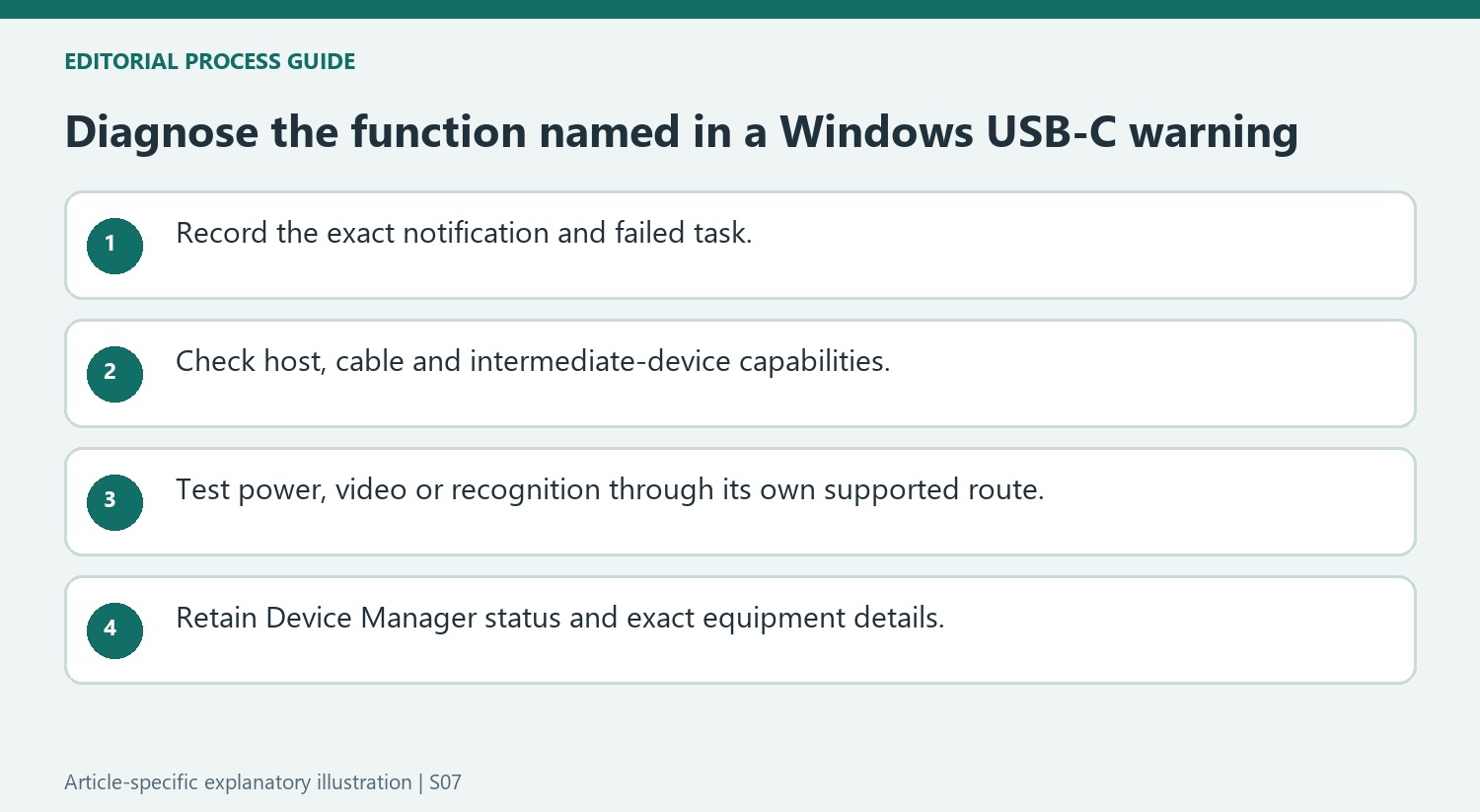
Record errors and isolate the missing function
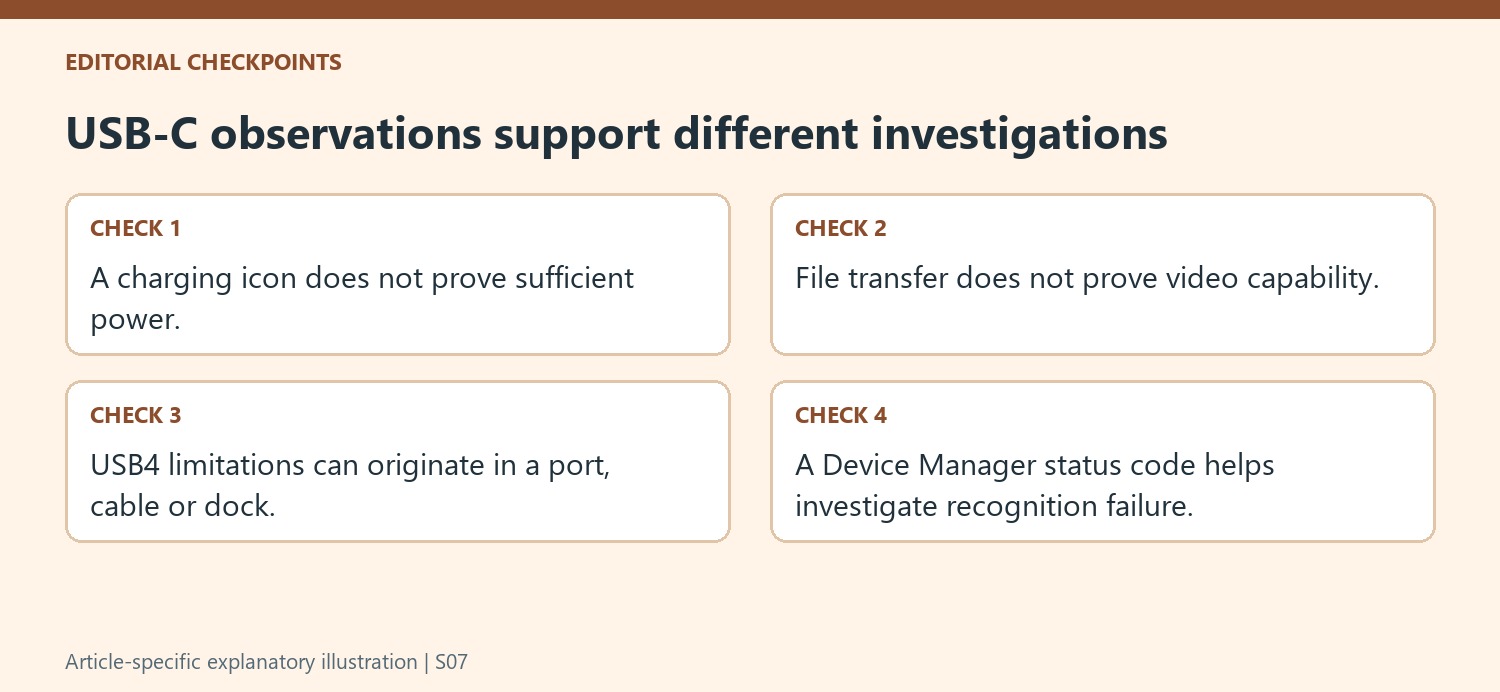
For an unrecognized device, open Device Manager, locate the marked item, and read Device status in its properties. The reported error gives more useful evidence than the appearance of the connector. If the failure concerns charging instead, compare the charger and cable with the computer's documented power requirements. For a video failure, check video support at the host, cable, adapter, and monitor. Do not infer that file transfer proves display capability, or that a charging icon proves adequate power under load. Test the specific function that failed, and retain the notification wording when asking for support.
Use the notification to choose the next investigation
Record the exact Windows message and the function that failed before disconnecting everything. Limited USB4 operation, an unrecognized device and slow charging describe different observations. The source supplies separate checks because those observations can arise from different capability, driver or power conditions. A generic conclusion that USB-C is broken loses the information needed to select a useful test.
For USB4 limitations, inspect support at the computer, cable and any intermediate dock. For display limitations, inspect the video mode required by the connected adapter and the actual host port. A direct connection with the supplied or suitably certified cable reduces the number of uncertain stages. It can reveal an intermediary limitation without proving that every function on the accessory will then be available.
Treat power delivery as a separate compatibility question
Compare the computer’s requirements with the charger and cable rather than judging charging adequacy from the connector alone. Microsoft describes insufficient power, an inappropriate port and an unsuitable cable among possible causes. A charging indication can coexist with slow or inadequate replenishment under the current conditions, so check the relevant warning and the documented power arrangement.
A connected accessory may also need its own power supply or may request more power than the computer can provide in its present state. Follow the device’s supported setup and simplify unused attachments when testing. This is distinct from video bandwidth or file-transfer compatibility. Success in one category should not be treated as evidence that a missing function in another category is necessarily a software fault.
Preserve concrete evidence for the next support step
If Windows reports an unrecognized device, inspect its marked Device Manager entry and record the Device status information. Use the relevant guidance for that code rather than interpreting the yellow marker alone. Keep the computer model, port, cable and accessory details with the error wording. Those details allow a later comparison between a documented limitation and a reproducible failure. The aim is to isolate the missing function through specific evidence, avoiding repeated purchases or resets based only on the shared shape of USB-C equipment.
References
- Fix USB-C problems in Windows. support.microsoft.com.
A USB-C plug can fit even when the requested feature is unavailable. Microsoft's Windows troubleshooting guide links limited USB4 functionality to the capabilities of the computer, cable and intermediate device. A dock or adapter can therefore be the limiting part of a connection that otherwise appears physically correct.


Leave a Comment
Comments (0)