
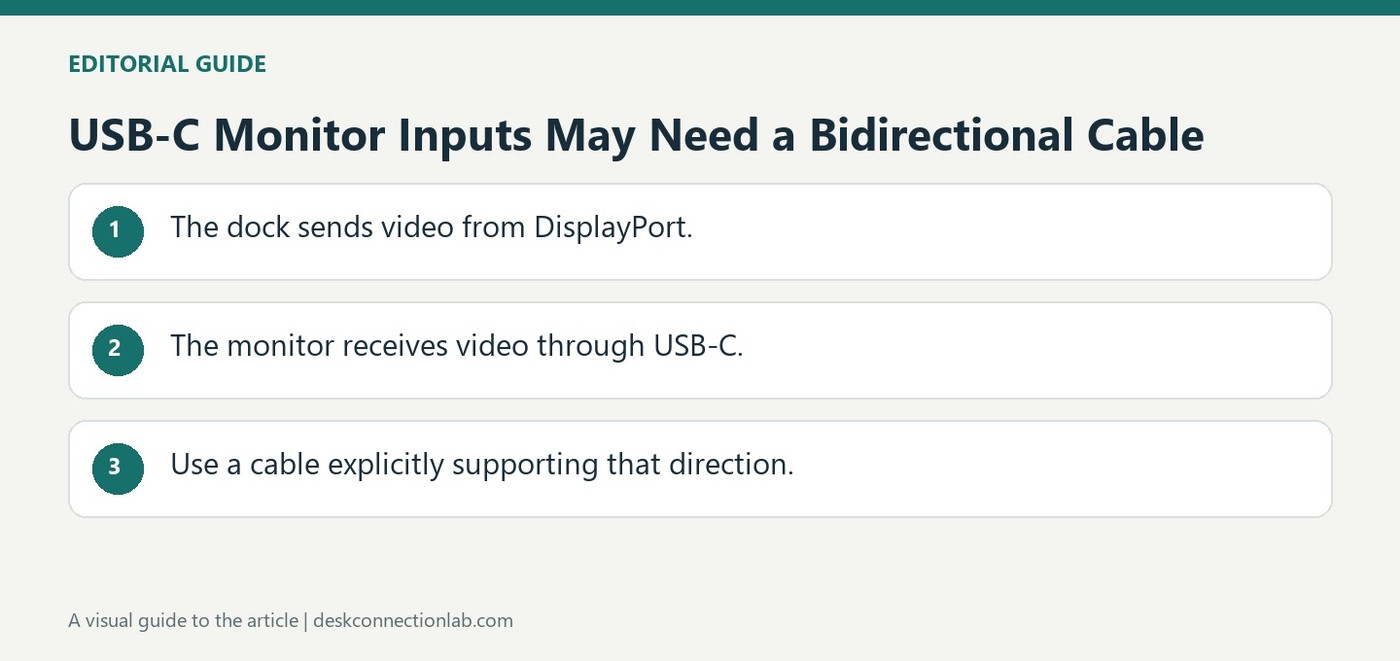
USB-C Monitor Inputs May Need a Bidirectional Cable
Many USB-C-to-DisplayPort cables carry video only from a USB-C source to a monitor's DisplayPort input. Plugable explains that connecting a dock's DisplayPort output to a monitor's USB-C input requires a cable designed for that direction, such as a suitable bidirectional DisplayPort-to-USB-C cable.
The guide specifies DisplayPort 1.2 or later support and recommends no more than 1.8 meters for this arrangement. Check the direction explicitly before purchase. Correct connectors at both ends do not establish that the cable can accept the dock's output and feed the monitor's chosen input.
Label the output and input ends of the connection
Write down which device sends video and which receives it before ordering a replacement. In this example the dock is the DisplayPort source, while the screen receives video through USB-C. A cable advertised for sending video from a laptop's USB-C port to a DisplayPort monitor describes the opposite route. Even when the two plugs fit, that description does not establish support for this arrangement. Look for explicit direction support in the cable specification.
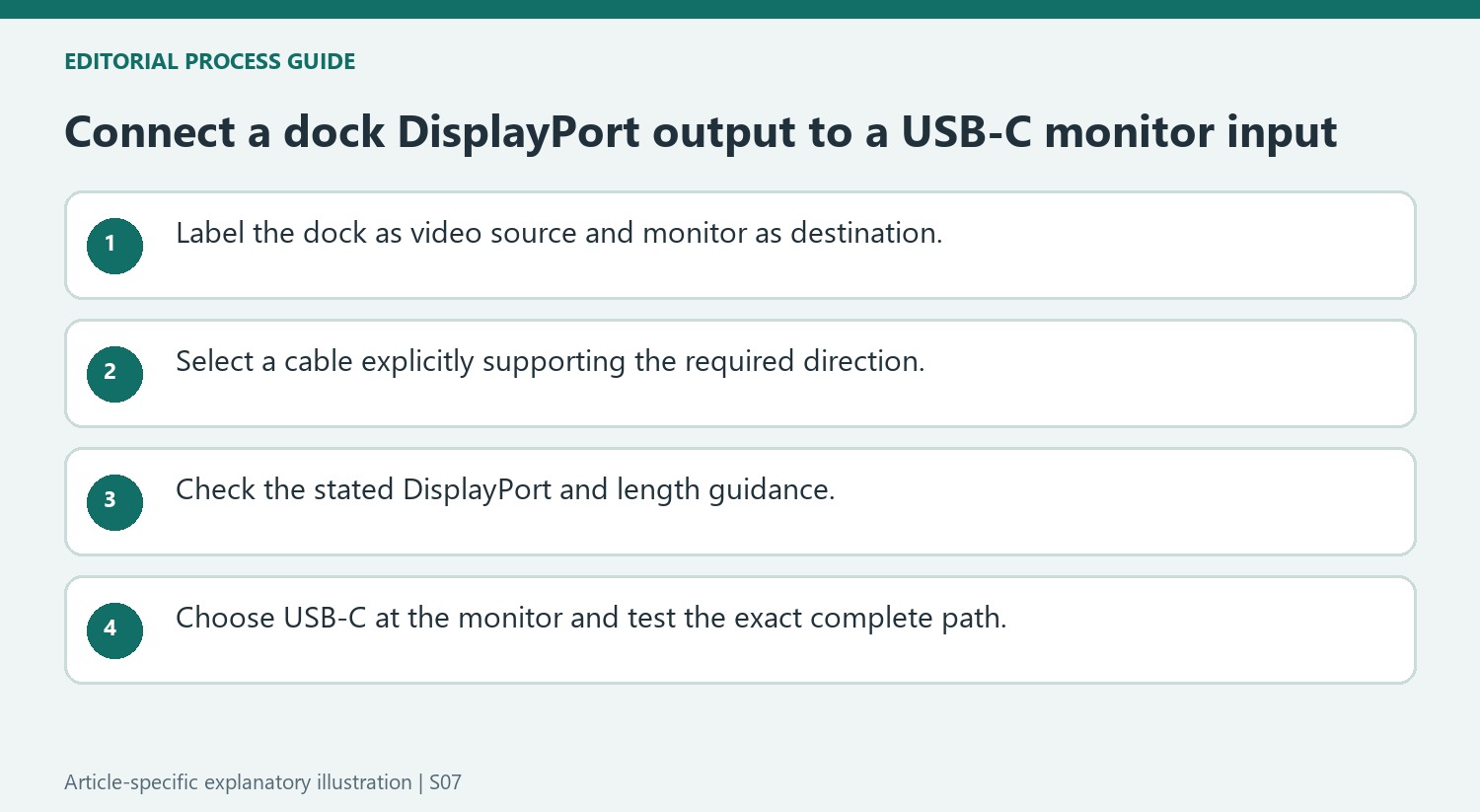
Use the recommendation within its stated scope
Plugable names several of its docking stations in this guidance, including the UD-6950 family and TBT3 models. The DisplayPort version and length advice belong to the connection described in that support article. They should not be treated as a general guarantee for an arbitrary USB-C monitor, resolution, or adapter chain. After connecting a suitable cable, select USB-C as the display input and verify the screen's behavior before adding further adapters. Keep the exact dock, cable model, and monitor model together in any support request; the phrase USB-C-to-DisplayPort alone leaves out the direction that is central to this problem.
Describe the signal direction without relying on the cable name
Identify the device producing the image and the port on the screen receiving it. In the support example, video leaves a docking station through DisplayPort and enters the monitor through USB-C. Describing the route in that order makes the requirement clearer than a product listing that merely places two connector names next to each other.
A common USB-C-to-DisplayPort cable is intended for a USB-C source and a DisplayPort monitor input. Reversing its plugs between different equipment does not necessarily reverse its operation. Look for explicit support for the required direction, including a documented bidirectional design where appropriate. The fact that both connectors fit securely answers a physical question, while the specification answers whether the cable can perform this particular conversion.
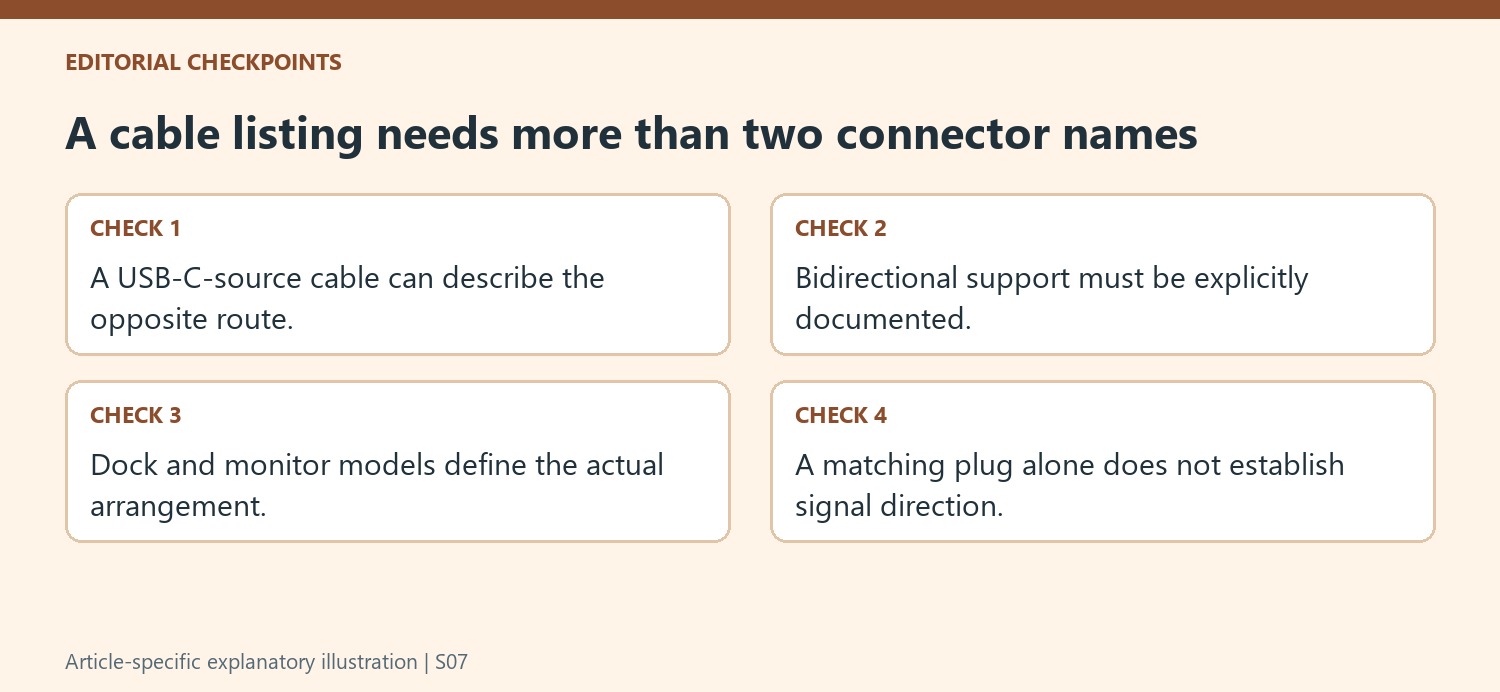
Keep the support recommendation attached to the described equipment
Plugable names particular docking-station families when explaining the arrangement. Keep the exact dock model in the compatibility check rather than assuming that every product with a DisplayPort output behaves identically. Include the monitor model and the selected input so that a support request describes a complete video path instead of a generic connector pairing.
The article also recommends DisplayPort 1.2 or later support and a cable no longer than 1.8 meters for its stated setup. Use those details as selection criteria within that guidance. They do not guarantee an arbitrary resolution, refresh rate or multi-adapter arrangement. If another intermediate device is necessary, review its supported direction and capabilities independently before adding it to a connection that already requires careful matching.
Test the intended route as a single understood connection
After choosing an appropriate cable, select USB-C as the display input and check the resulting picture through the documented dock configuration. If the result is blank, recheck the source and destination labels, the precise cable product and the monitor input before replacing unrelated equipment. Keep a record of what was connected and what changed during each test. This prevents several similar cables from becoming indistinguishable during troubleshooting. A successful setup depends on the cable accepting the dock’s output and serving the monitor’s input in the required direction, not merely on having the right-looking plug at either end of a convenient length.
References
- Why do i not see any video when using a usb c to displayport cable. Plugable Knowledge Base.
Many USB-C-to-DisplayPort cables carry video only from a USB-C source to a monitor's DisplayPort input. Plugable explains that connecting a dock's DisplayPort output to a monitor's USB-C input requires a cable designed for that direction, such as a suitable bidirectional DisplayPort-to-USB-C cable.


Leave a Comment
Comments (0)