
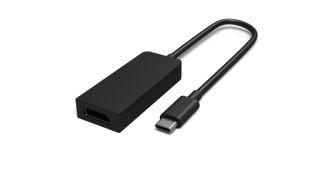
Select a Surface USB-C display adapter
Match the adapter to the monitor input
Microsoft documents USB-C adapters for HDMI, DisplayPort and VGA. Choose the version that matches the screen's input instead of adding unnecessary conversion steps. Connect the display cable to the adapter and the adapter to the Surface, then use Windows plus P to select the projection mode.
Use the adapter's own specification
The guide gives 4K at 60Hz examples for supported HDMI and DisplayPort adapters and a lower maximum for VGA. Those figures belong to the documented products and require a compatible host and display. They should not be treated as a guarantee for every adapter with the same connector. If the screen remains blank, confirm its selected input and the computer port's video capability.
Read the ratings as product-specific capabilities
Microsoft lists its Surface USB-C-to-HDMI and USB-C-to-DisplayPort adapters for up to 3840 by 2160 at 60Hz, while the VGA adapter is listed for up to 1920 by 1200 at 60Hz. Those figures describe the named adapters in an appropriate setup. They do not promise the same behavior from every adapter with a matching plug, nor do they override the computer's own display limitations. Confirm the exact product when comparing replacements.
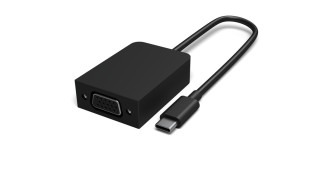
Make the connections in a useful order
Prepare a separate video cable that matches the monitor input and the adapter output. Connect that cable to the screen and adapter, then plug the USB-C end into the Surface. Choose the intended input at the monitor and use Windows plus P to select duplication or extension. If nothing appears, recheck the host specification before assuming that another USB-C socket will work identically. The essential compatibility question is whether the computer port supports the video function the adapter needs. Keeping the original cable available also gives you a known reference when diagnosing a new replacement.
Start with the input the display actually provides
Inspect the monitor’s available sockets and identify the one intended for this connection. The Microsoft guide pairs a display cable with the corresponding Surface adapter, so the monitor input determines which output the adapter needs. A DisplayPort cable should lead to an appropriate DisplayPort adapter; choosing HDMI instead simply because it is familiar can add an unnecessary conversion problem.
Confirm the exact adapter product and the relevant Surface model. A USB-C plug identifies a physical connection, while the required video capability depends on the host port and supported equipment. Keep the manufacturer’s product-specific ratings attached to that product. This avoids treating a figure from one documented adapter as an entitlement for every inexpensive replacement with a similar casing.
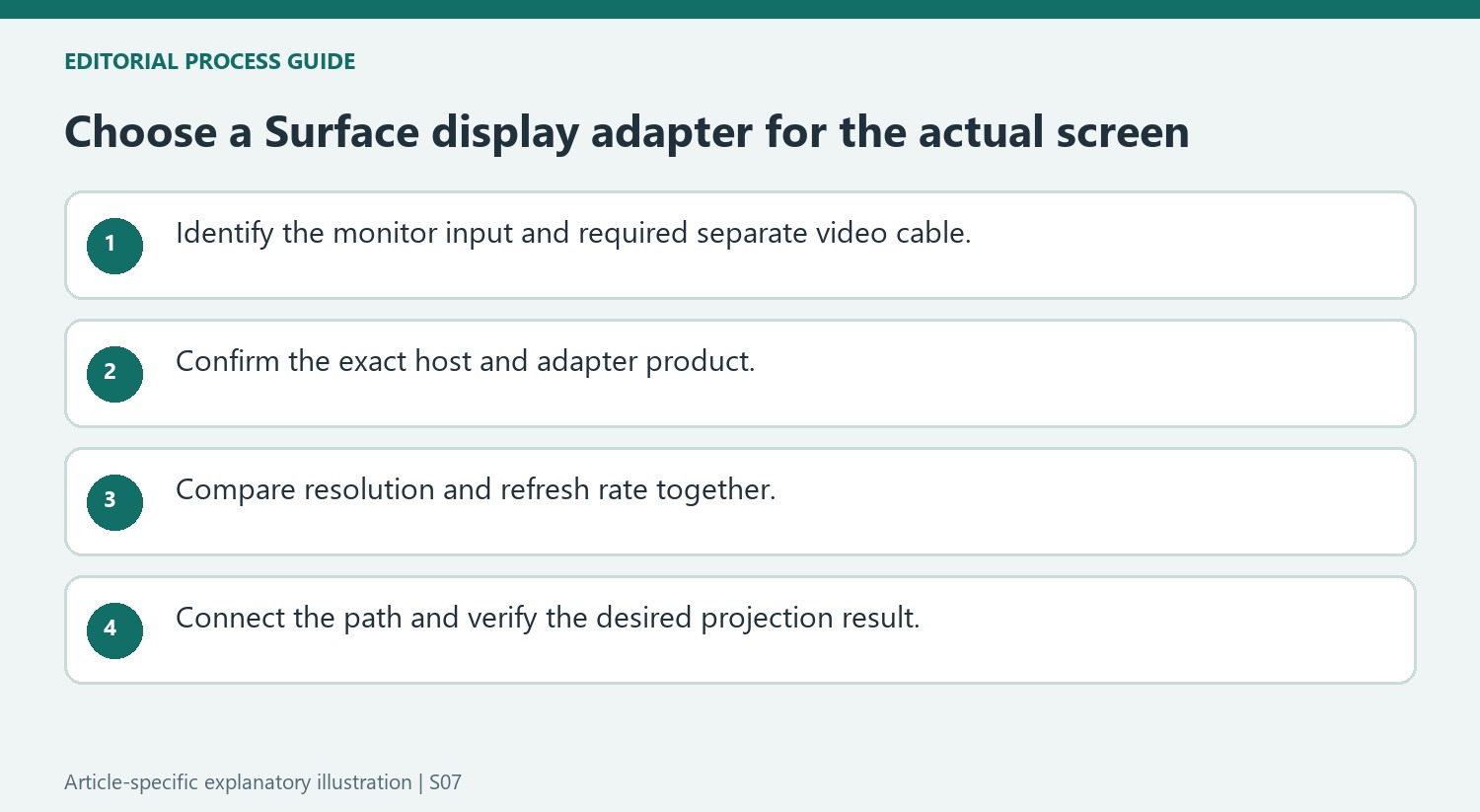
Read resolution and refresh rate as one operating mode
The listed maximums combine pixel dimensions with a refresh rate. Comparing only the resolution can hide an important difference between products or operating modes. Check the desired combination against the computer, adapter and screen together, and remember that the documented VGA example has a different ceiling from the HDMI and DisplayPort examples.
Use the specification to decide whether the proposed setup is appropriate before troubleshooting. If one component does not support the intended mode, a correctly connected cable cannot create that missing capability. Conversely, a supported mode that fails still calls for inspecting the selected input and secure physical connections. Separating compatibility from connection state keeps the diagnosis focused on the evidence available.
Confirm the projection result after making the connection
Connect the separate video cable to the display and adapter, attach the USB-C end to the Surface, and select the desired behavior through Windows projection controls. Verify both the image and the working arrangement: mirrored content and an extended desktop solve different tasks. If the screen remains blank, check the documented host function and display input before buying another accessory. Retain a known working cable or setup when testing replacements so that a new failure can be compared with a stable reference. The adapter’s job is to bridge a supported connection, while the final check establishes whether the complete arrangement serves the intended use.
References
- Use a Surface USB-C to display adapter. support.microsoft.com.
Microsoft documents USB-C adapters for HDMI, DisplayPort and VGA. Choose the version that matches the screen's input instead of adding unnecessary conversion steps. Connect the display cable to the adapter and the adapter to the Surface, then use Windows plus P to select the projection mode.


Leave a Comment
Comments (0)