
Switch Surface audio accessories deliberately
Choose an output after connecting equipment
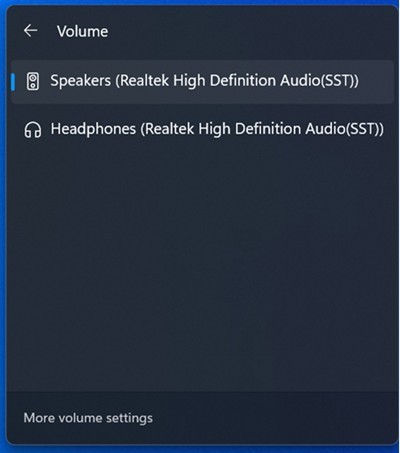
Microsoft's Surface audio guide supports USB and Bluetooth accessories alongside the built-in speakers and microphones. Use the taskbar speaker control to select the desired playback device. This is especially useful after attaching a dock, headset or external speaker, when the newly available output may not be the one Windows is currently using.
Check independent volume and microphone controls
Surface volume buttons and the desktop control interact, but an app or accessory can maintain its own separate level. The guide also directs users to recording-device settings for microphone adjustments. Test both directions when setting up a headset: successful playback does not establish which microphone is active. Check hardware controls, app preferences and system selection together before judging audio quality or connection reliability.
Distinguish default devices from communications choices
The guide sets ordinary playback and recording defaults in the Output and Input sections of Sound settings. It separately describes a default communications device under More sound settings, using the Playback or Recording tab. Those choices matter when a calling application and ordinary media playback appear to use different equipment. Identify both directions before troubleshooting: a headset may be the intended communications output while another microphone remains selected for recording. Document the device names rather than assuming an accessory’s presence means every application automatically uses both of its audio functions.
Adjust microphone levels and compare the source recording
Microphone Properties includes a Levels tab for microphone volume and, where supported, Microphone Boost. Microsoft notes that Boost is unavailable on some Surface models, so a missing control is not automatically an installation problem. Choose levels according to the microphone and background conditions, then listen to a sample instead of treating a suggested starting value as universal. If playback itself sounds poor, the source recommends trying the same recording on another device. That comparison can reveal a poor-quality original recording before unnecessary changes are made to speakers, Bluetooth pairing or microphone input settings.
Select recording and playback devices as separate decisions
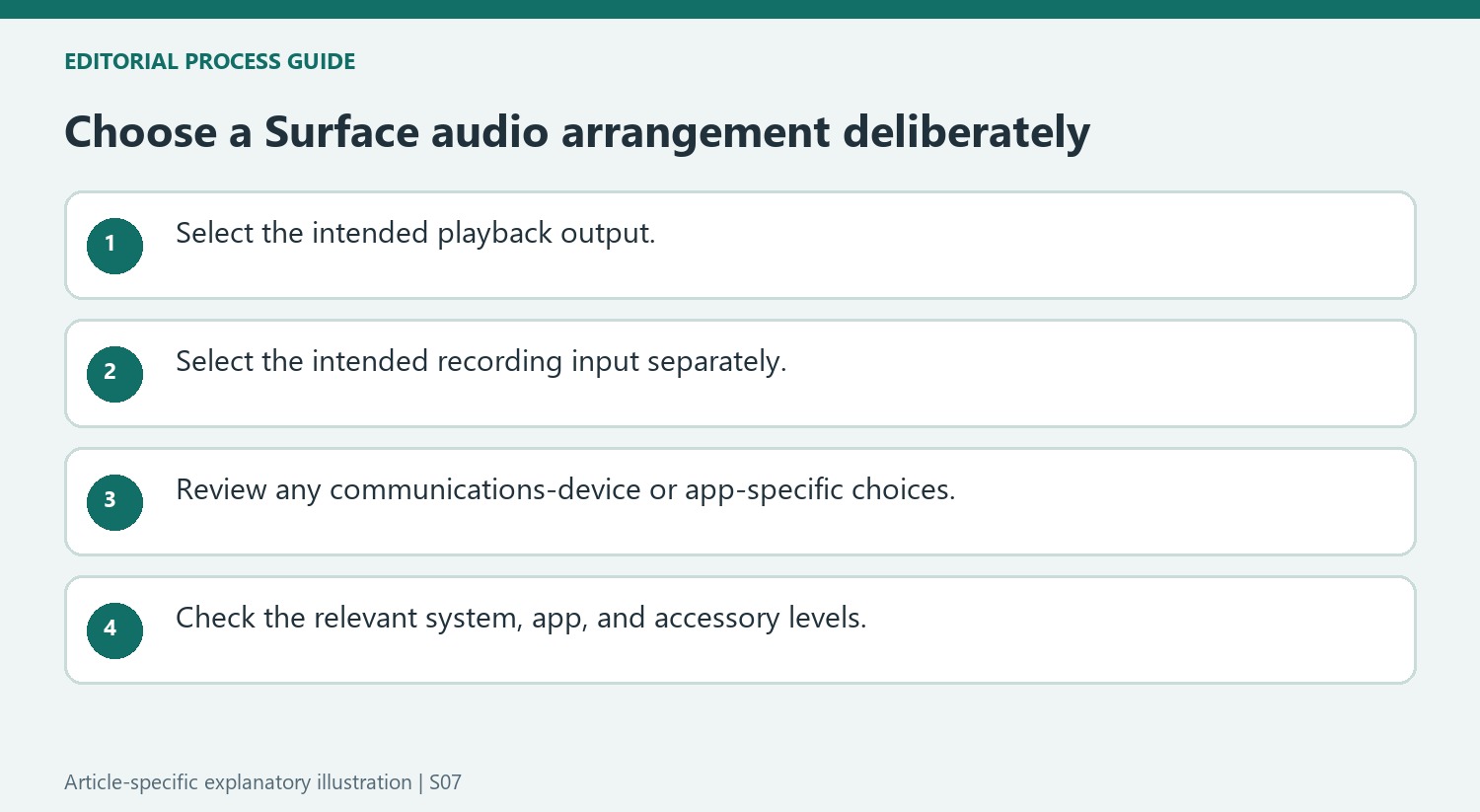
A Surface can use its built-in speakers and microphone or attached USB and Bluetooth equipment. Microsoft's guidance therefore makes separate selections in the Output and Input sections of Sound settings. Choosing headphones for playback does not by itself prove that the headset microphone is the selected recording input. Read both names when building a call arrangement. The page also distinguishes ordinary default devices from communication-device selections in the additional sound controls. That distinction can explain why a media player and a calling application appear to use different equipment. Verify the actual program's choices instead of assuming every app follows one universal output and input selection.
Check all relevant level controls without assuming they are linked
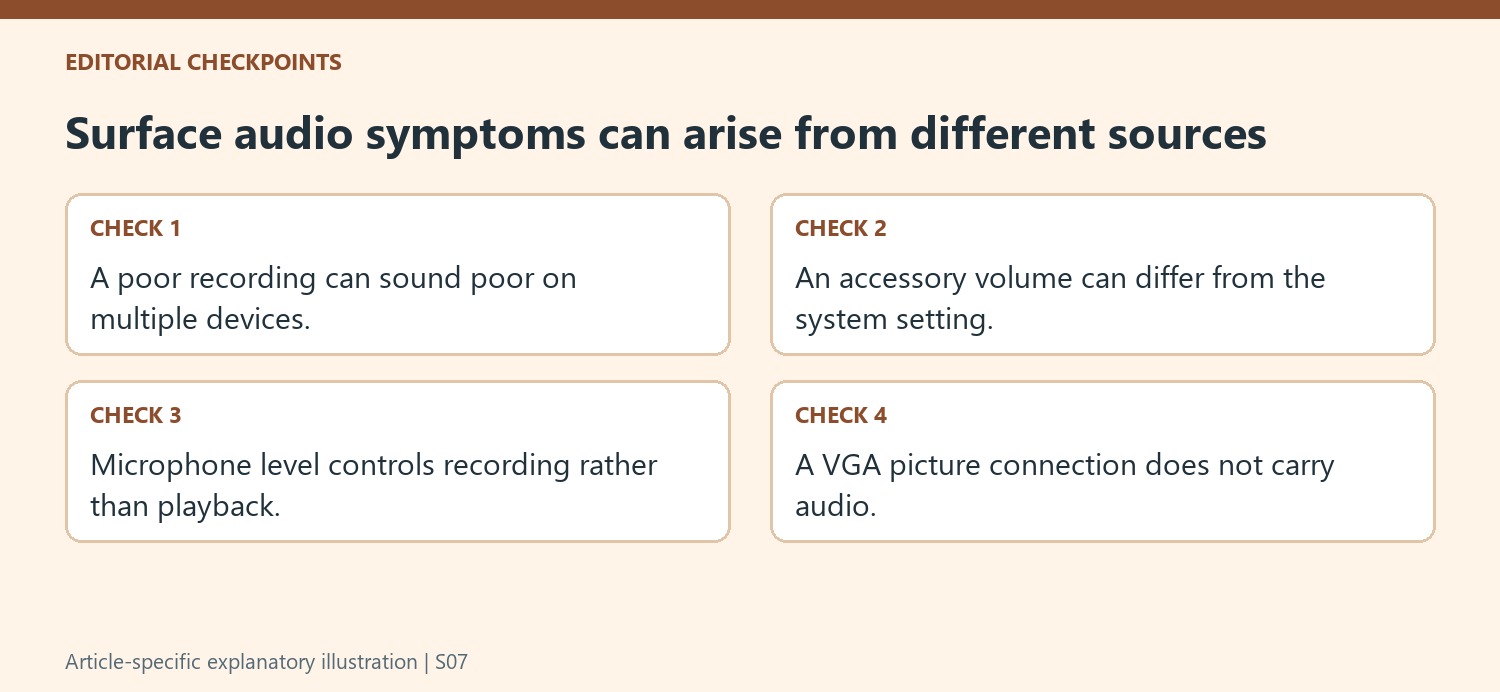
The Surface's physical volume control and its taskbar volume setting work together, while an accessory or application can have a separate level control. A low setting at another point can therefore remain relevant after the main slider is raised. The support page explains that more than one adjustment may be necessary. Identify whether the problem concerns playback loudness or microphone level before changing controls, since the microphone's input and boost settings serve a different purpose. Boost is also not available on every Surface. The numerical starting point in the article is guidance to test, not a fixed ideal for all rooms or microphones. Listen to a sample and adjust for the actual input and background conditions.
Use a known recording when comparing sound quality
Microsoft suggests trying the same recording on another device when playback sounds poor. That comparison helps distinguish a weak source recording from a problem unique to the current speaker or accessory. Keep the selected output and volume understandable while comparing. The page also notes that VGA carries no audio, an important qualification when an external screen is connected through that path and the user expects sound to follow the picture. USB and Bluetooth accessories have their own connection requirements. A useful troubleshooting description states the recording, selected output, connection path, and controls already checked. This is more informative than changing notification sounds or pointer-related settings when the actual problem is a muted accessory or an expectation about an audio-free video connection.
References
- Surface sound, volume, and audio accessories. support.microsoft.com.
Microsoft's Surface audio guide supports USB and Bluetooth accessories alongside the built-in speakers and microphones. Use the taskbar speaker control to select the desired playback device. This is especially useful after attaching a dock, headset or external speaker, when the newly available output may not be the one Windows is currently using.


Leave a Comment
Comments (0)