
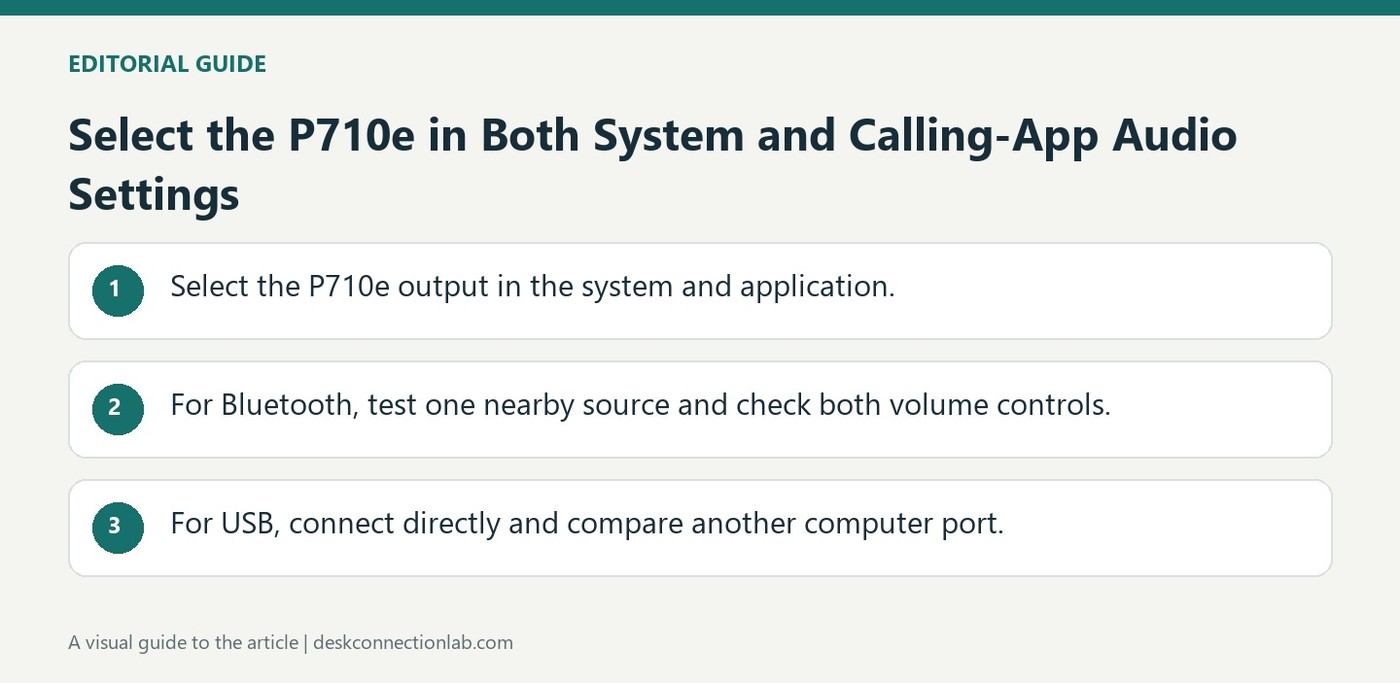
Select the P710e in Both System and Calling-App Audio Settings
If a P710e produces no sound, verify the source device and the playback selection in both the operating system and calling application. Logitech recommends adjusting volume on the speakerphone and source, because either side can make an otherwise functioning connection seem silent.
For Bluetooth, disconnect a second paired source while testing and move the active device closer. For USB, attach the speakerphone directly to the computer and try another port. Restarting both devices provides another comparison after confirming that audio is actually being routed to the P710e.
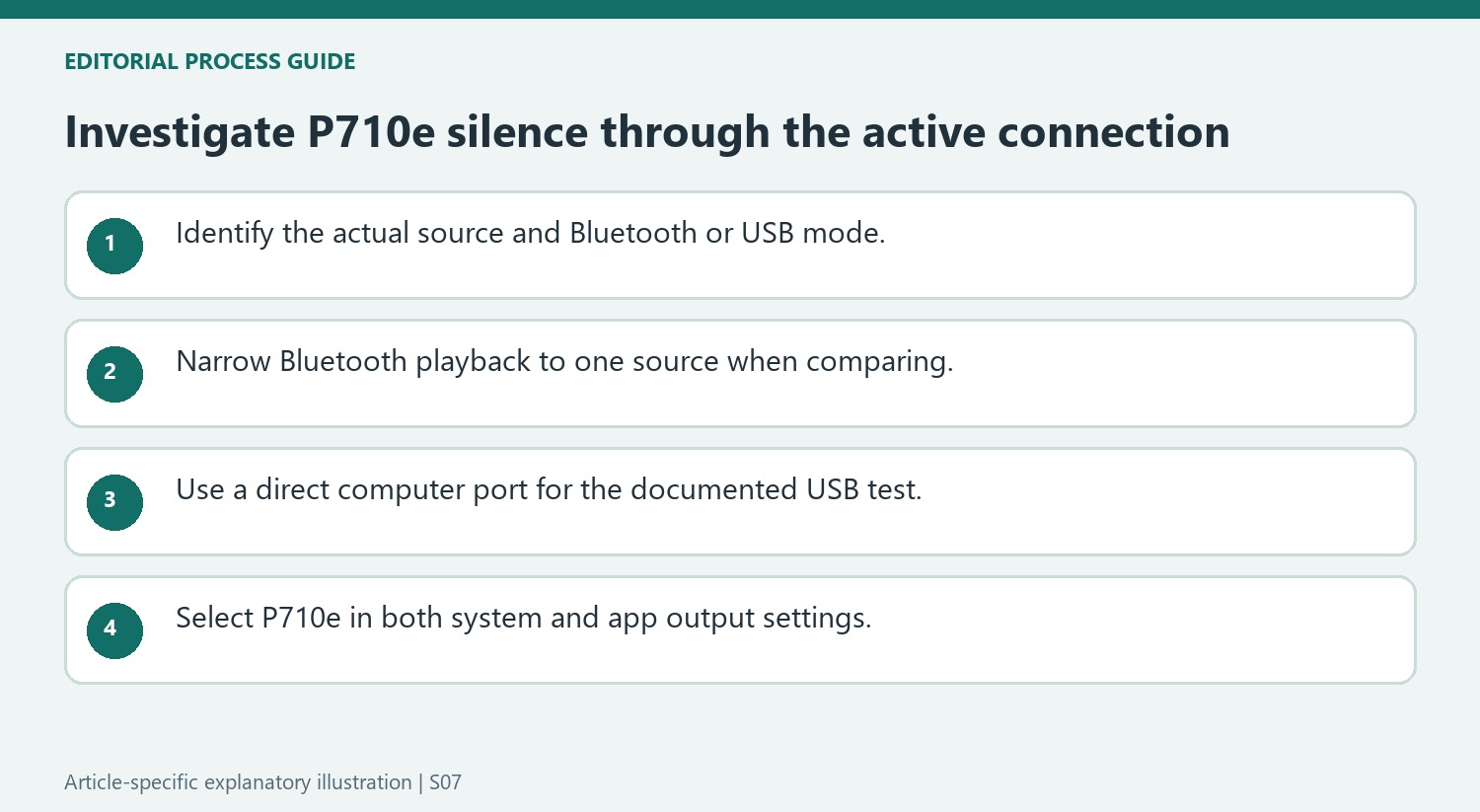
Isolate the active Bluetooth source and its surroundings
The P710e can have two Bluetooth devices connected, but Logitech recommends testing with only one when sound is missing. Confirm that the remaining device is actually playing the desired audio, then bring it closer to the speakerphone. The guide also suggests moving other wireless signal sources away as an interference check. These comparisons narrow the connection conditions without immediately assuming a speaker failure. If the problem continues after checking volume and restarting both devices, follow the linked pairing instructions to create the connection again rather than confusing a stored pairing with current audio playback.
Use a direct USB comparison for the wired path
For USB troubleshooting, Logitech specifically asks for a connection directly to a computer port, without a hub or extension. Try another computer USB port and then verify the P710e as the default output in both the operating system and the softphone or media application. A working USB connection can still be silent if the application is sending sound elsewhere. Restart the speakerphone and computer after those checks if needed. Keep the Bluetooth and USB results separate when describing the fault, because the source provides different remedies for wireless conditions and the direct wired connection.
Separate a wrong source from a silent speakerphone
The P710e guidance begins by checking whether audio is playing from the intended source device. With two Bluetooth devices connected, the source recommends temporarily disconnecting the other and playing from only one. That narrows the question before treating the speakerphone as defective. A paired phone or computer can be present without being the source of the sound the user expects to hear. Check the actual playback device, selected application output, and source activity. The article's capacity of two Bluetooth connections is a model-specific detail, not a statement about every speakerphone. Use it to understand this arrangement rather than assuming multiple connected devices will mix or switch audio in an unspecified way.
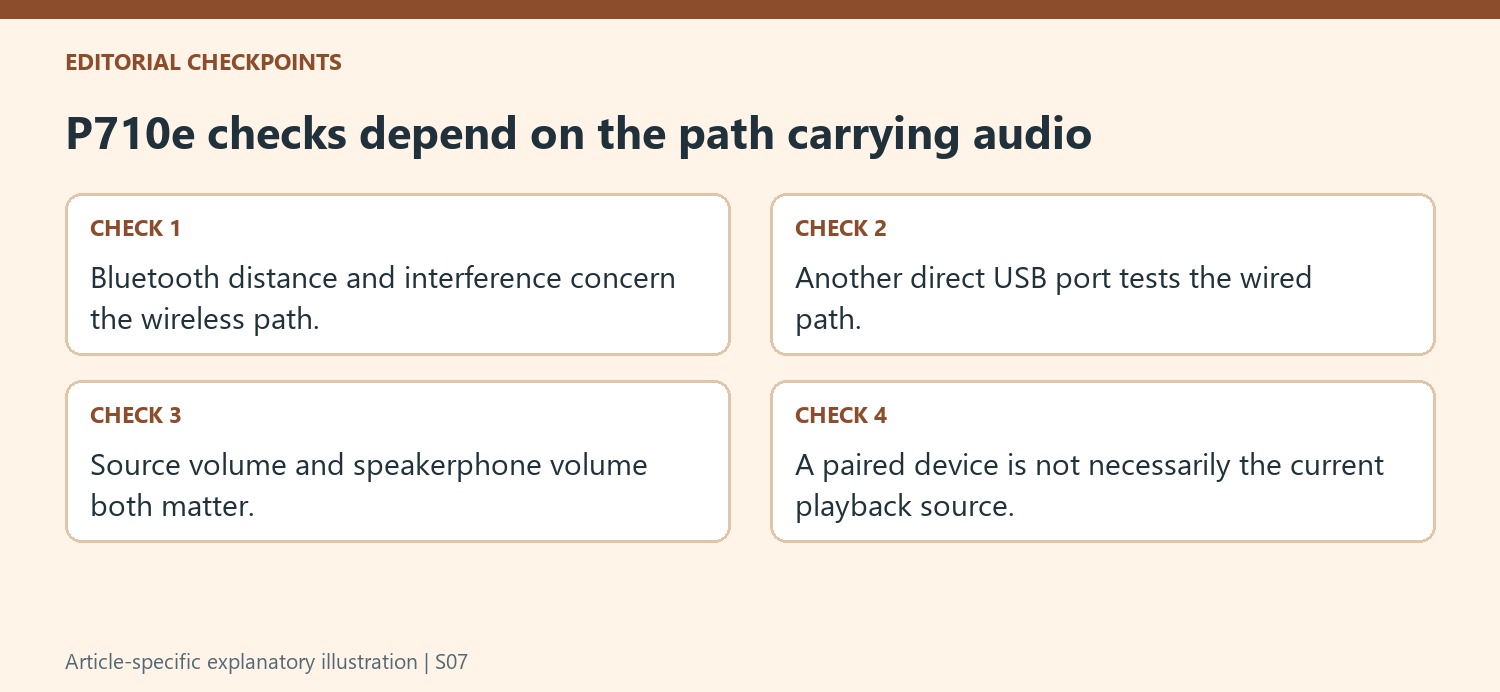
Compare the Bluetooth and USB paths according to their own checks
For Bluetooth, Logitech lists distance, interference, levels, restarting, and re-pairing among the possible checks. The USB instructions instead begin with a direct computer connection rather than a hub or extension, followed by another port if needed. These are different physical and wireless paths, so moving the phone closer cannot diagnose a USB cable arrangement, and changing USB ports does not address a distant Bluetooth source. Identify which mode is actually in use before proceeding. A controlled comparison with only the intended source and connection gives the result a clearer meaning than changing the radio pairing and USB setup together without knowing which carried the audio.
Choose the speakerphone in the operating system and the app
Both connection sections emphasize selecting the speakerphone as the default output in the operating system and in the softphone or media application. That repeated point matters because a working system choice can coexist with an app set to another output. Check both before concluding that a connected P710e cannot play sound. Adjust source and speakerphone volume as appropriate, then test a known sound from the intended program. If the issue continues, preserve the mode, source identity, direct-connection result, and selected output names when seeking further help. That record gives the next step a more useful basis than a general claim that the speakerphone is connected but silent, without identifying where playback was directed.
References
- I get no audio from the P710e speakerphone?. Logitech Support.
If a P710e produces no sound, verify the source device and the playback selection in both the operating system and calling application. Logitech recommends adjusting volume on the speakerphone and source, because either side can make an otherwise functioning connection seem silent.


Leave a Comment
Comments (0)