
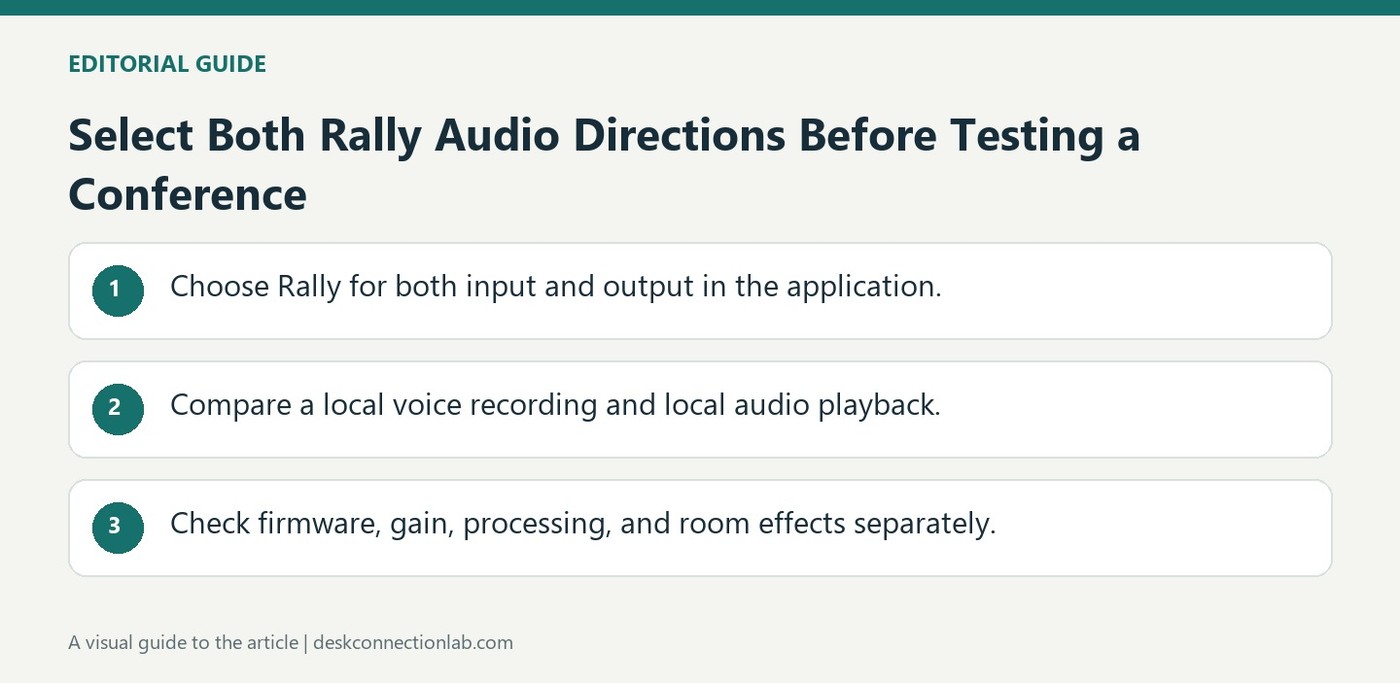
Select Both Rally Audio Directions Before Testing a Conference
Rally should be selected for both recording and playback in the conferencing application's audio settings. Logitech recommends verifying those choices before evaluating sound quality, since the host may be using one Rally component while routing the other direction through a different device.
Make a local voice recording and play a stored audio file through Rally to compare its input and speaker performance outside the call. Firmware, driver state and volume can then be checked with that baseline. A network problem should not be diagnosed solely from the room system's brand appearing in one menu.
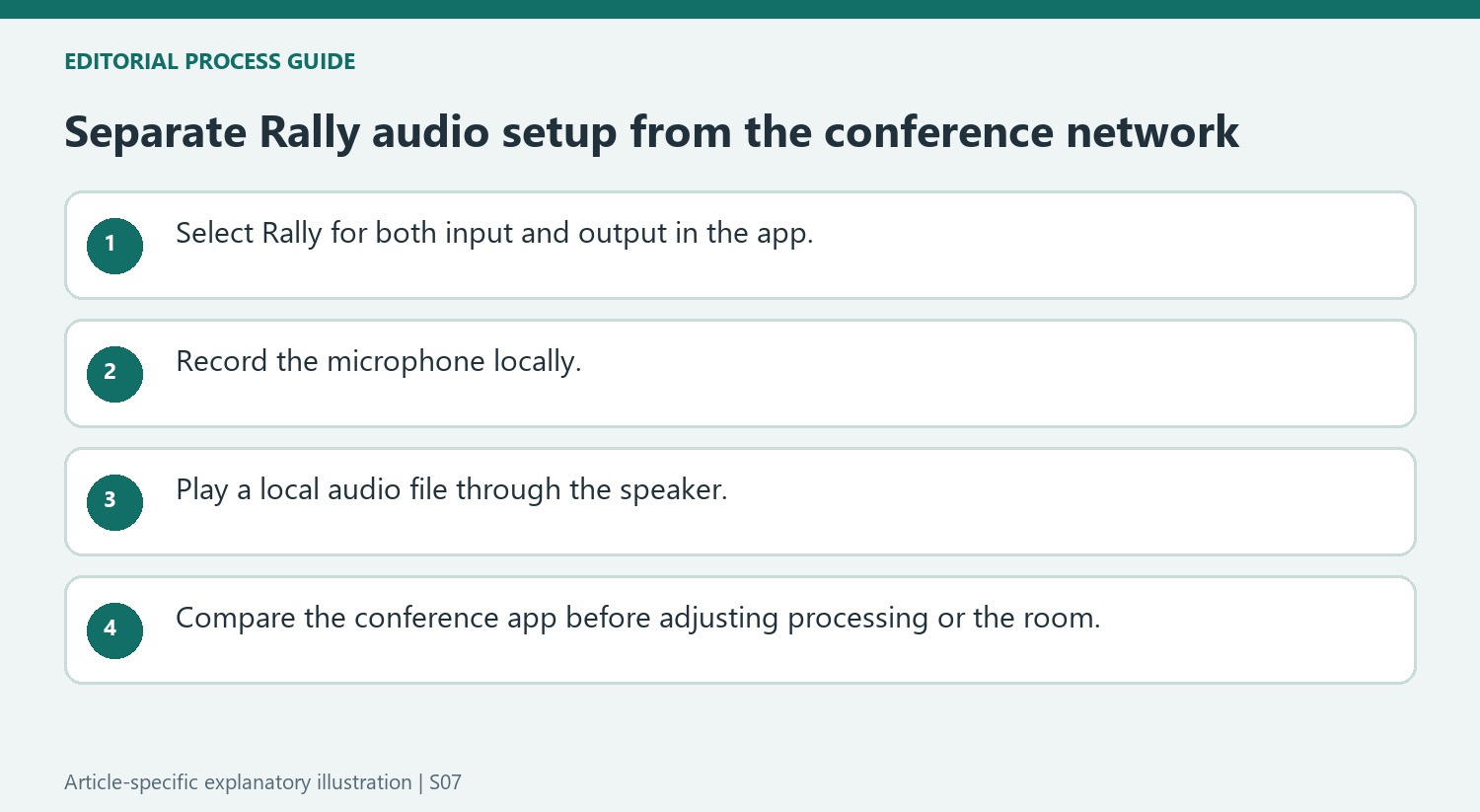
Compare gain and application processing separately
Logitech’s advanced Windows steps open the Rally microphone’s Properties and Levels from the recording-device controls. Adjusting the Mic array slider changes microphone gain, which is separate from speaker loudness. The article also notes that a conferencing application’s own audio processing can interact with speakerphone performance. Where the app exposes a processing switch, compare its enabled and disabled states using the same speech test. Change one control at a time so a better result can be associated with the setting actually tested, rather than with several simultaneous adjustments.
Use another application and room as diagnostic comparisons
A second conferencing or audio application can reveal whether poor sound follows one service or the Rally setup generally. The source also suggests a different room, particularly because glass walls and hard floors can affect reverberation. A better result elsewhere does not fix the original meeting room, but it helps explain the conditions behind the problem. Check firmware with Logitech’s supported tool, which can report whether the installed release is current. If support is needed, include the local microphone test, local playback result and room comparison rather than reporting only that a remote participant heard poor audio.
Check the selected microphone and speaker independently
Logitech's Rally guidance begins by confirming that the conferencing application uses Rally for both microphone input and speaker output. That is more precise than checking whether the device appears somewhere in the app. A call can play through one output while recording from another input, producing an apparently inconsistent result. Read both selections and identify the actual devices being tested. The support page also points to Device Manager checks for the appropriate audio entries, which address detection and driver identity rather than the quality of a network call. Keep those questions separate so a configuration mismatch is corrected before treating the room system itself as defective.
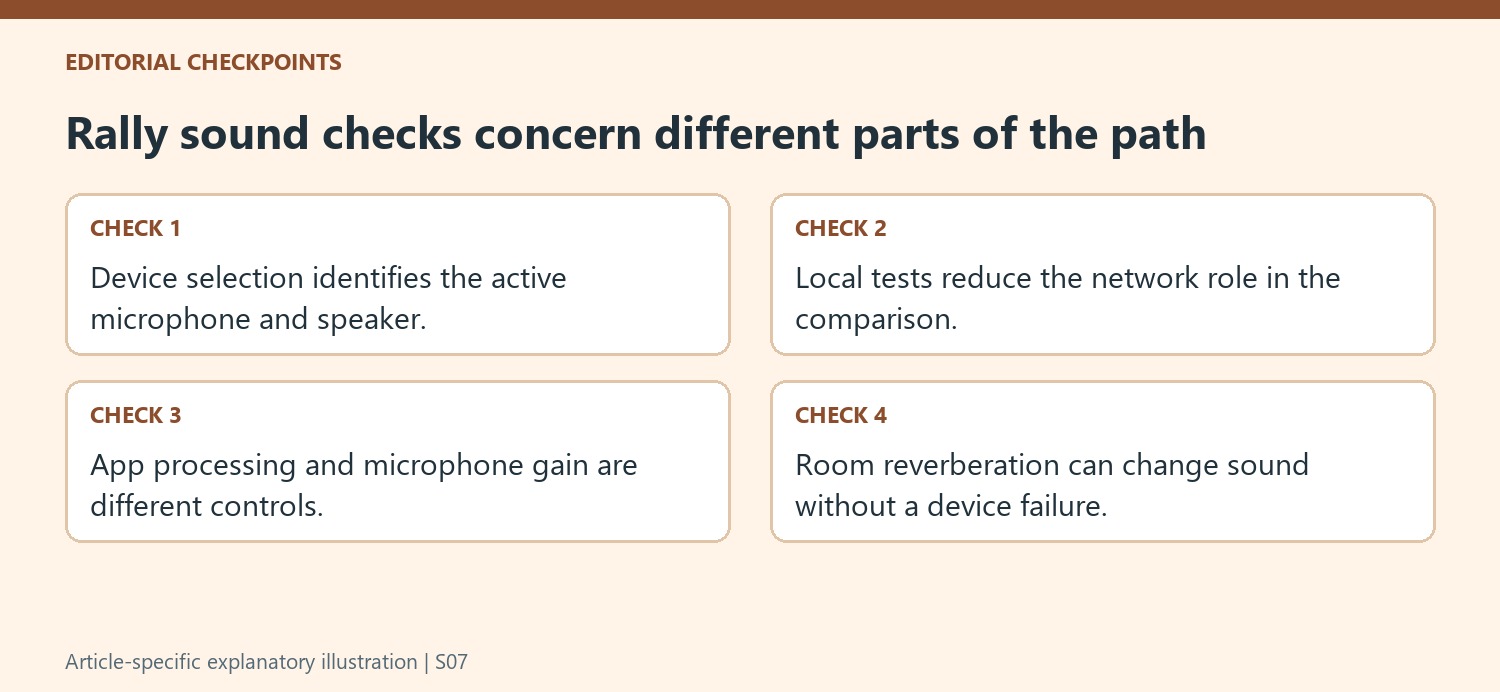
Use local recording and playback to isolate the call path
The article recommends a local microphone recording and a separate local audio file played through Rally. Those tests remove the conferencing service and network from part of the comparison. A clean local recording paired with a poor remote call directs attention toward the application or connection path; poor local sound gives a different starting point. The result is evidence about the tested arrangement, not proof that every component has been ruled out permanently. Use the same input and output selections consistently when comparing. An application's own test mode or another conferencing program can then provide another useful comparison without immediately changing the whole room's hardware arrangement.
Adjust processing, level, and room conditions as distinct factors
The advanced suggestions include microphone gain, application audio processing, firmware status, and a comparison in a different room. Those changes affect different parts of the sound path. Make one deliberate adjustment and listen to a comparable sample instead of changing several controls simultaneously. The source notes that rooms with different reverberant surfaces can change the result, so moving the system is a diagnostic comparison rather than an automatic remedy for the original space. Firmware should also be checked through the appropriate current Rally support tool. Preserve the local-test results, selected devices, and completed adjustments if support is needed. That makes the remaining problem easier to describe than a general statement that conference audio sounds wrong.
References
- My audio doesn’t sound right. Logitech Support.
Rally should be selected for both recording and playback in the conferencing application's audio settings. Logitech recommends verifying those choices before evaluating sound quality, since the host may be using one Rally component while routing the other direction through a different device.


Leave a Comment
Comments (0)