
Trace a general Windows audio problem
Begin with output and physical checks
Microsoft's broad audio troubleshooting guide starts with the selected speaker device, secure cables and the appropriate jack. Systems with several audio outputs can route sound somewhere unexpected, particularly after connecting a monitor or USB headset. Hardware volume and mute controls should be checked alongside the Windows sound level.
Move to software after basic tests
The guide also covers the automated audio troubleshooter and driver-related checks. A change following an update may require different investigation from a loose plug or a muted application. Keep track of which playback device is being tested, and try a known working accessory where possible. This gives driver changes a clear purpose instead of using them as the first response to every silent speaker.
Inspect mixer mute and disabled-device states
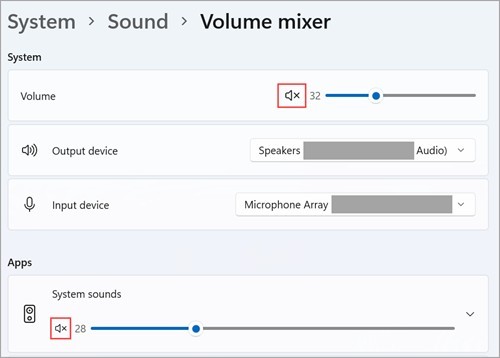
The broader guide goes beyond the taskbar’s main level. Volume mixer can reveal separate muted controls, with an x indicating mute, while device Properties in More sound settings shows whether the device is enabled. Check Playback for output and Recording for input rather than changing the opposite direction. A monitor connected through HDMI can also become the selected output even when it has no speakers. In that case, choose an actual playback device instead of raising the monitor’s audio level and expecting sound from the computer’s built-in speakers.
Use update and processing checks in the recommended order
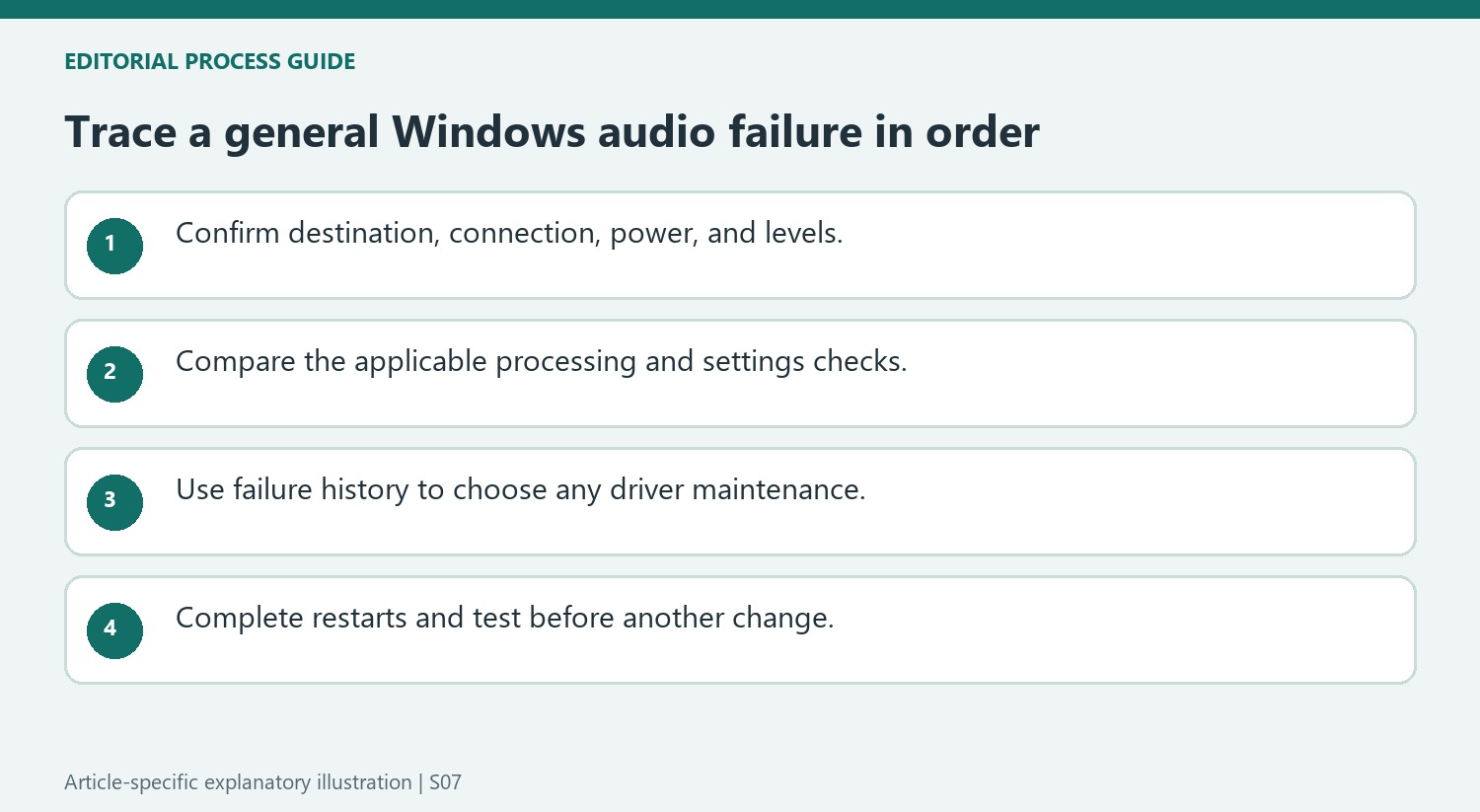
The source asks readers to follow its troubleshooting sequence, testing the result before continuing. Turning Audio enhancements Off on the chosen output provides one software comparison, and the Audio troubleshooter offers another supported route. Windows Update may supply relevant changes, but some updates require a real restart before their effect can be judged. Save work before restarting and test the same audio output afterward. Keep a simple record of the selected device, enhancement state and restart result so later driver investigation is based on an unresolved symptom rather than on an earlier condition that has already changed.
Follow the audio path from the chosen output to the physical accessory
The general Windows guide starts with the output selection and then checks connections, power, mute, and levels. Those steps belong together because sound can be routed to one device while the user listens to another. An HDMI-connected display without speakers is one example in the source: selecting it as the output can produce silence even though Windows has an active audio path. Check the exact destination and the physical cable or radio arrangement before proceeding. Also inspect app and accessory volume, since those controls can be separate from the system setting. A known test sound and a clearly named output make each comparison easier to interpret.
Let the failure history guide software maintenance
Microsoft includes updates, restarts, automatic driver searches, manufacturer packages, reinstallation, generic drivers, and rollback as possible later steps. These are distinct actions, with rollback particularly relevant when sound stopped after an update. Record when the failure began and what changed before selecting the appropriate procedure. A pending Windows restart also matters: waking the computer is not equivalent to finishing an update-related restart. Complete the chosen action and retest before starting another. This preserves a relationship between a change and its result. Changing drivers, processing options, and device selection simultaneously may restore sound, but it leaves little understanding of which part of the path was responsible.
Distinguish playback, recording, and specialized hardware cases
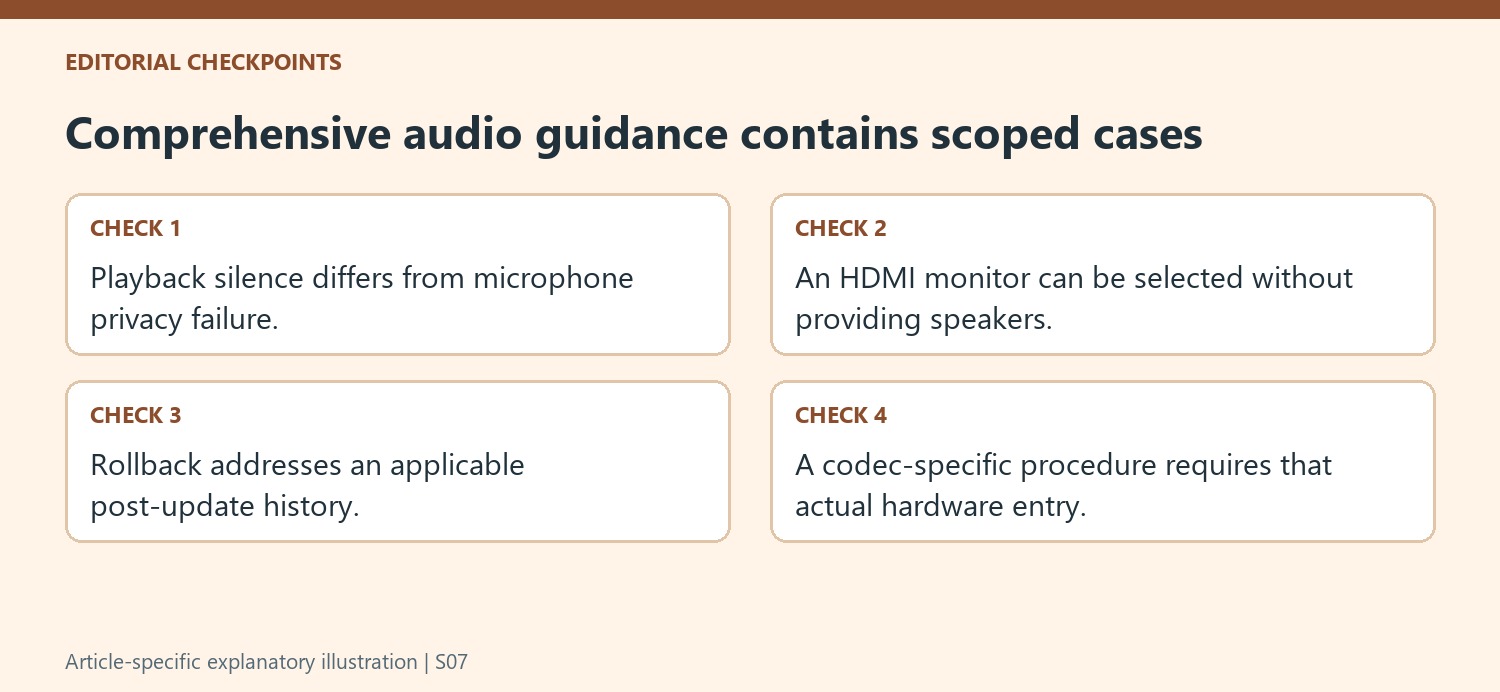
The guide contains microphone privacy checks as well as speaker troubleshooting, and it includes an IDT-specific driver case that does not apply to every computer. Read the scope before following an individual section. A silent application may concern its recording permission rather than speaker output, while a particular codec entry must actually exist before its specialized instructions are relevant. The same principle applies to audio-format and service checks later in the sequence. Start with the observed symptom and the applicable device, then use the documented next step. Keeping these distinctions avoids treating a comprehensive support page as a checklist of changes every computer needs, while retaining its useful ordered approach to narrowing a sound problem.
References
- Fix sound or audio problems in Windows. support.microsoft.com.
Microsoft's broad audio troubleshooting guide starts with the selected speaker device, secure cables and the appropriate jack. Systems with several audio outputs can route sound somewhere unexpected, particularly after connecting a monitor or USB headset. Hardware volume and mute controls should be checked alongside the Windows sound level.


Leave a Comment
Comments (0)