
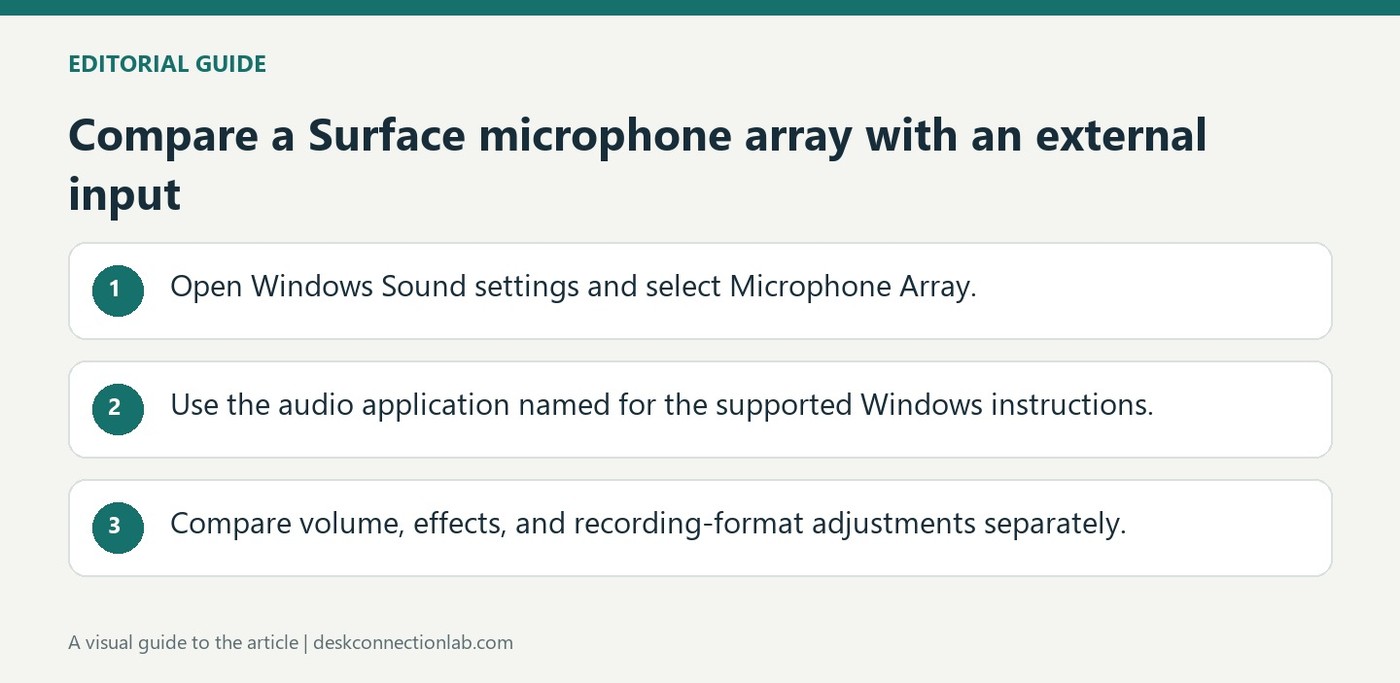
Compare a Surface microphone array with an external input
Identify the built-in recording device
Microsoft's Studio Mics guide identifies the built-in Surface input as Microphone Array in Settings, System, Sound. That name matters when a USB microphone or headset is attached alongside the internal microphones. Selecting the wrong input can make a working external accessory seem ineffective because the computer is still recording from the laptop.
Use the controls for the supported model
The guide describes volume, effects and default-format adjustments through the appropriate audio software, including Dolby Access for supported configurations. Older Windows instructions reference a different control application, so do not assume every Surface exposes identical effects. Start by selecting the desired input and checking its level, then use only the controls documented for the device and Windows version in use.
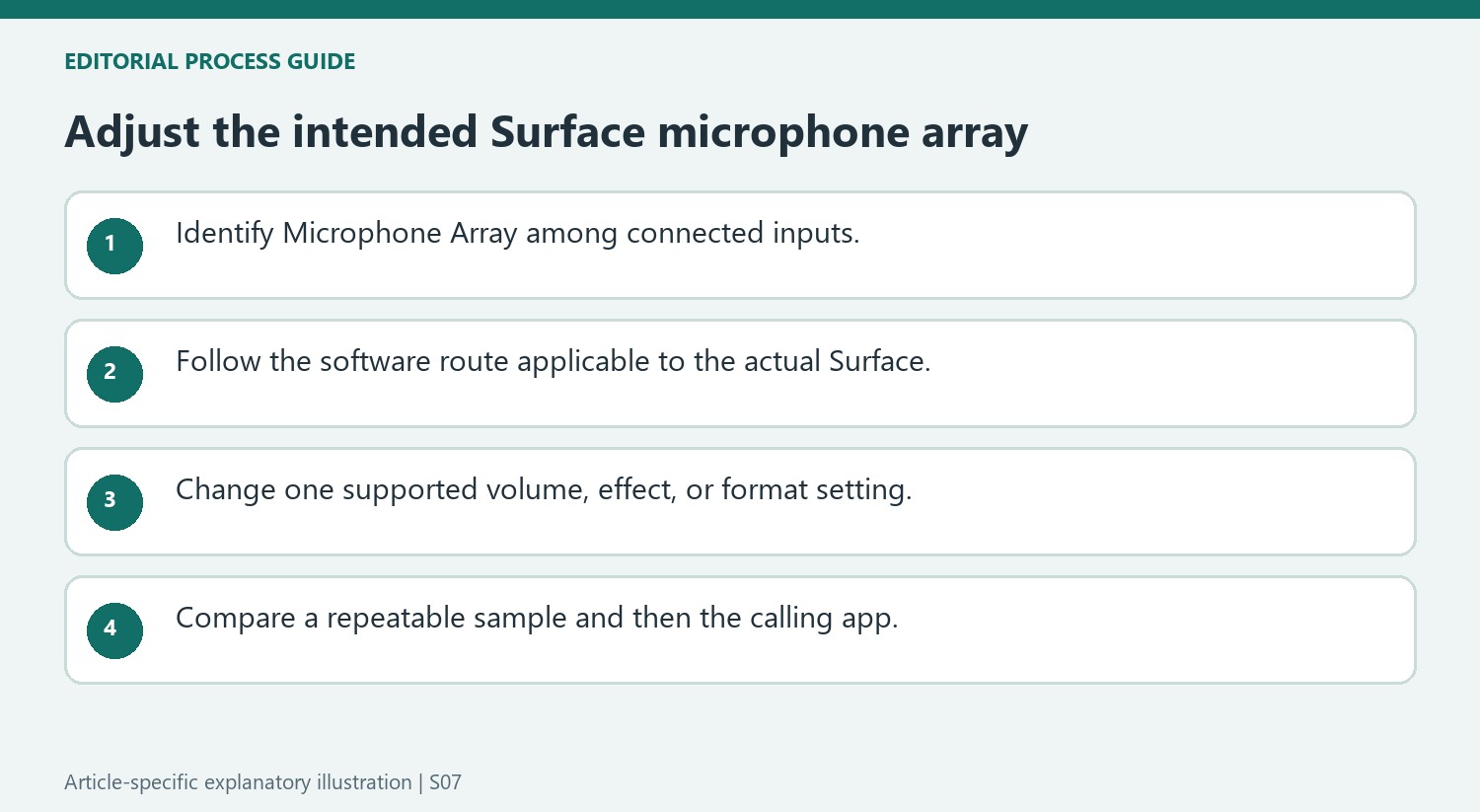
Separate recording adjustments from playback loudness
Microsoft’s instructions concern the dual built-in microphones, so the first decision is the input named Microphone Array. Raising speaker volume elsewhere in Sound settings would change what the listener hears rather than the microphone setting described in this guide. The source identifies default recording volume, microphone effects and default sound format as separate kinds of adjustment. Select the intended array before evaluating those choices. If the goal is to use an external accessory instead, do not interpret controls for the internal array as controls for that other microphone.
Use the software named for the relevant Windows instructions
The current section points to Dolby Access from the Microsoft Store, whereas the Windows 10 section describes Realtek Audio Control and its Recording devices list. This difference is part of the guide, not a requirement to install both applications or expect identical screens in every configuration. Establish which operating-system instructions match the Surface before following a download link. Note the existing setting before changing an effect or format, then compare the recording result. The short source describes available configuration routes; its broad praise for the microphones should not be treated as a measured guarantee for every room or accessory combination.
Confirm that Microphone Array is the input under adjustment
Microsoft's Studio Mics guidance points to the built-in Microphone Array in Sound settings. That identity matters when an external headset, USB microphone, or webcam microphone is also connected. Adjusting the array while an application records from another input will not produce the expected change in the call. Select the intended input first and keep its name visible while testing. Conversely, a good external recording does not establish the performance of the built-in microphones. Make a comparison using the same spoken phrase and similar speaking conditions, with one selected input at a time, so the result belongs to the device whose settings are actually being evaluated.
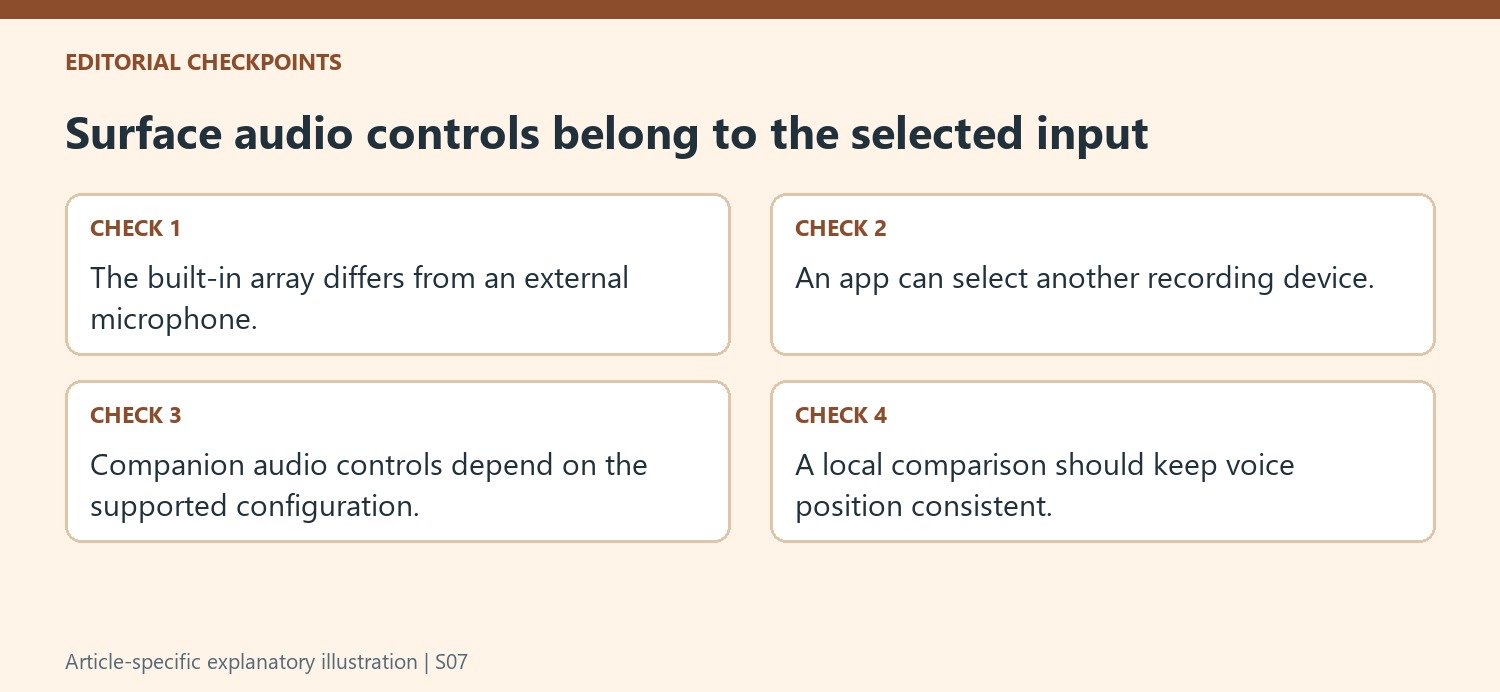
Use the settings route appropriate to the Surface configuration
The support page presents different software routes in its Windows sections, including Dolby Access and Realtek Audio Control. Those names should not be treated as interchangeable requirements that every Surface must have installed together. Follow the current guidance for the actual model and operating system, then inspect the controls it exposes. The Windows input page establishes the chosen recording device, while a companion audio tool can provide supported volume, effects, or format adjustments. If a listed control is not present, confirm applicability rather than downloading unrelated audio utilities in the hope of producing the same screen. The goal is a supported configuration for the identified device, not a visual match to another generation's interface.
Compare changes using a short repeatable recording
Volume, microphone effects, and the recording format affect different aspects of the input arrangement. A useful test changes one intended control and compares a short sample rather than adjusting several options and relying on memory of a previous call. Keep the microphone identity and speaking position consistent so a difference is not caused by accidentally switching to an external input. The source introduces the array for calls, but its broad performance language should not be interpreted as a guarantee that room noise or placement never matters. Check the result in the actual application after the local input is working. That preserves a clear distinction between the built-in microphone configuration and the calling program's own choice of recording device.
References
- How to adjust settings for Studio Mics on Surface. support.microsoft.com.
Microsoft's Studio Mics guide identifies the built-in Surface input as Microphone Array in Settings, System, Sound. That name matters when a USB microphone or headset is attached alongside the internal microphones. Selecting the wrong input can make a working external accessory seem ineffective because the computer is still recording from the laptop.


Leave a Comment
Comments (0)