
Manage connected cameras and available stream settings
Locate the camera-specific controls
Windows 11 camera management is under Settings, Bluetooth and devices, Cameras. Microsoft explains that connected cameras have individual pages with supported image controls and enable or disable options. Some specialized, infrared or proprietary cameras do not appear here, so absence from this list does not always mean that every application is unable to use the hardware.
Check managed-mode limitations
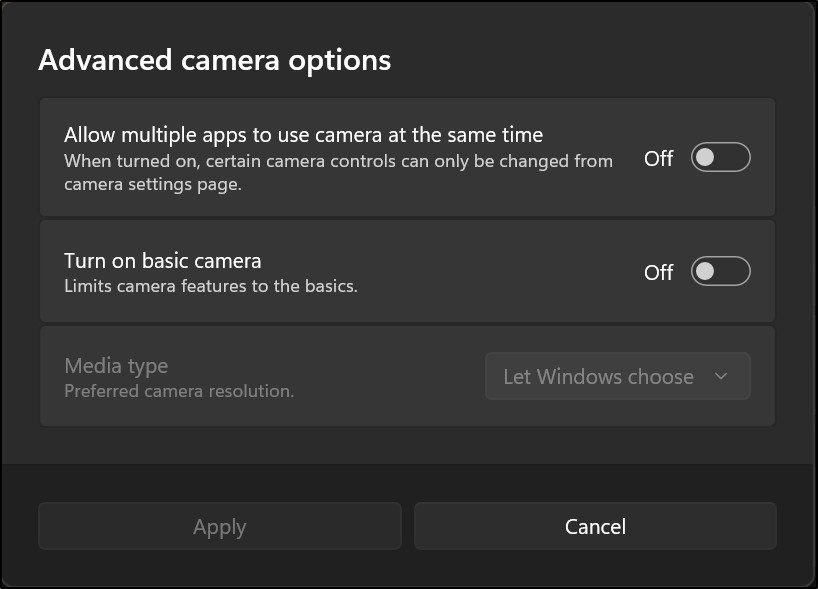
The guide describes multi-app and basic managed modes with resolution and frame-rate choices on supported systems. Available formats may be a subset of the camera's full capabilities. Basic mode is intended for troubleshooting and disables features such as hardware acceleration and Windows Studio Effects. Check the mode and supported settings rather than assuming every camera exposes the same resolution menu on every Windows installation.
Treat saved image settings as local preferences
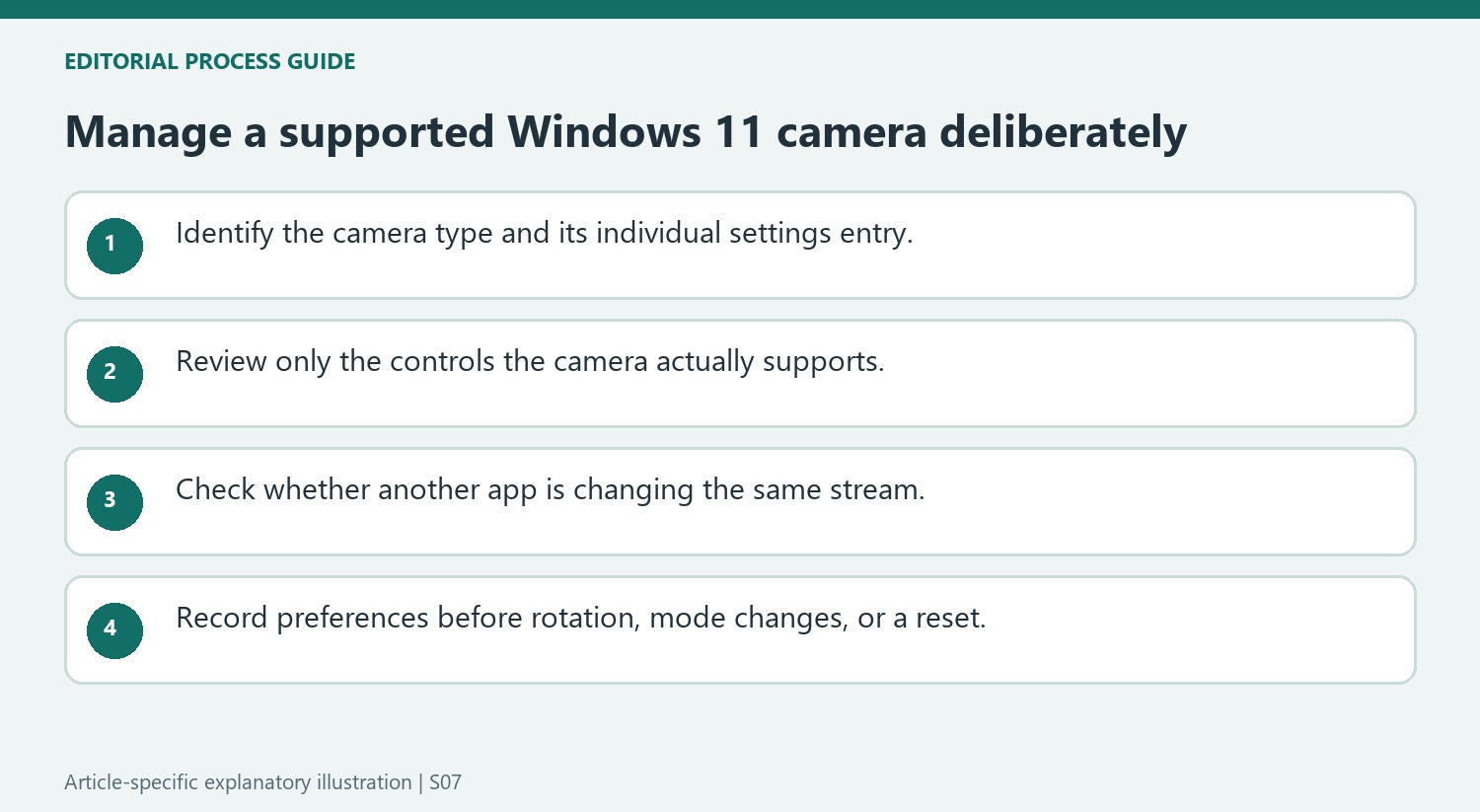
The per-camera page can expose a preview and supported controls such as brightness, contrast, zoom or saturation. Microsoft emphasizes that these controls are optional; a missing slider does not prove a fault. Defaults are saved for each camera and user account, without synchronizing between Windows devices or being restored after an operating-system reinstallation. Some manufacturers provide additional controls through a companion app linked under Related settings. Keep a note of meaningful adjustments if the same appearance is needed after changing computers rather than expecting the account to reproduce every camera preference automatically.
Read disable and network-camera actions carefully
The same settings page can discover supported ONVIF network cameras, request credentials where necessary and remove a connected network camera. Disabling an ordinary connected camera is a different action that requires administrator access and may need a restart. On systems sharing camera-processing hardware, disabling one camera can disable others as a group; Windows presents a warning in that situation. A disabled-camera section offers an Enable control, but a camera disabled through another utility may not appear there. Match the action to the intended device so a privacy or troubleshooting change does not unexpectedly affect a second camera.
Use the camera list with awareness of what it omits
Windows 11's Camera settings page manages connected cameras, but Microsoft's guidance lists exceptions such as some infrared, DirectShow-based, and proprietary devices. A camera missing from this page is therefore not automatically proof that no application can use it. The article also notes that missing drivers, a nonfunctional state, or disabling through another utility can affect visibility. Identify the type and management path before selecting a remedy. For supported cameras, opening the individual entry provides a preview and available defaults. Those defaults are saved per camera and user account, without being synchronized to other Windows devices or restored automatically after a new operating-system installation. Expect to review them on a newly configured computer.
Keep optional image controls and concurrent use in view
Brightness, contrast, pan, tilt, zoom, and the other listed controls appear only when supported by the camera. Their absence does not alone indicate a broken settings page. Microsoft also explains that an application using the camera can adjust the same properties while the Settings preview is open, creating an apparent mismatch or a setting that changes back. Test with an understandable active-app arrangement rather than assuming the slider failed to save. External-camera rotation has another qualification: selecting rotation removes compressed formats from the available stream types, which can affect older applications. A visually useful setting can therefore have a compatibility consequence beyond the preview shown in Settings.
Read advanced modes as specifically scoped options
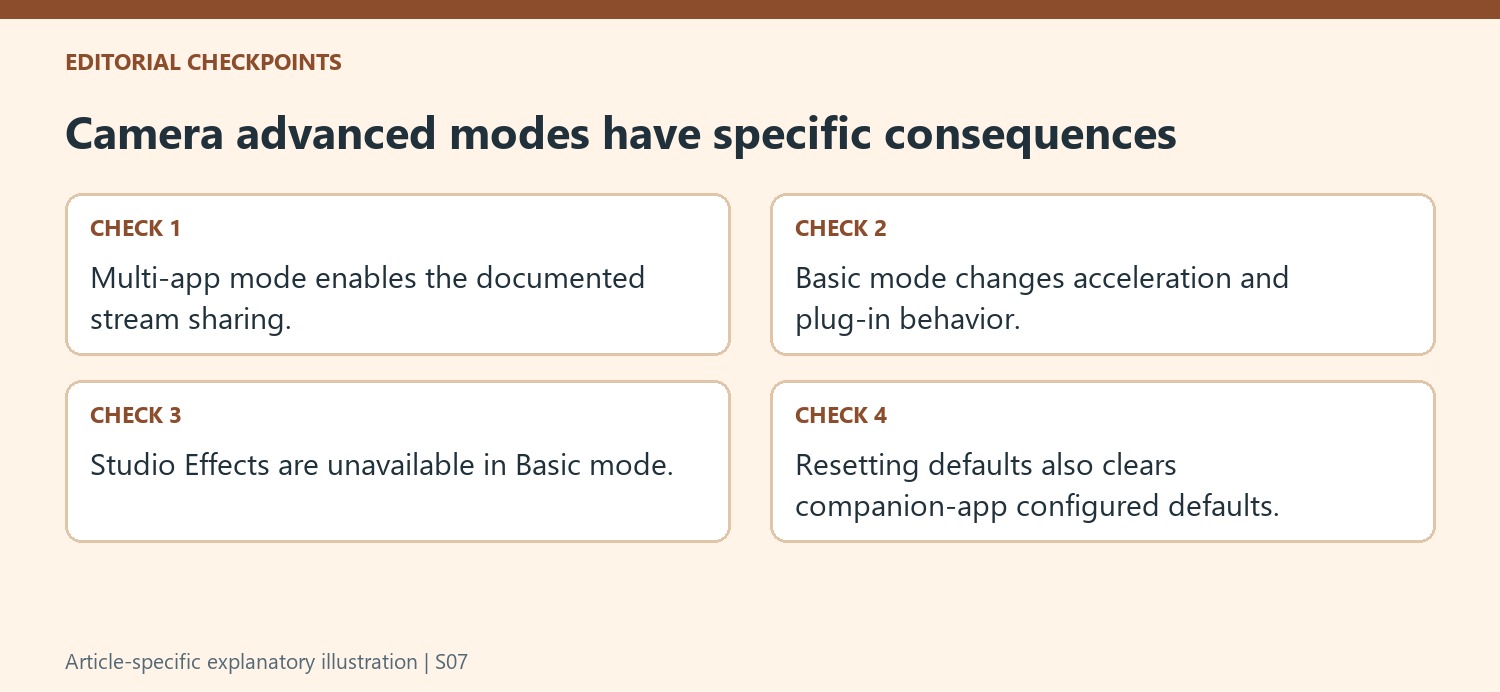
Multi-app camera and Basic camera appear in the advanced options on supported Windows 11 versions, and organizational management may affect them. Multi-app mode permits supported stream sharing between applications, while Basic mode is a troubleshooting arrangement that changes acceleration and manufacturer-plug-in behavior. The source explicitly notes that Studio Effects do not work in Basic mode and describes special Windows Hello behavior. These are not simply higher-quality switches to enable indiscriminately. Check the intended app combination and the available controls before changing them. If resetting settings is needed, remember that the documented reset also clears defaults configured through a manufacturer's companion app. Record the desired setup first so a deliberate reset does not become an unexplained loss of custom preferences.
References
- Manage cameras with Camera settings in Windows 11. support.microsoft.com.
Windows 11 camera management is under Settings, Bluetooth and devices, Cameras. Microsoft explains that connected cameras have individual pages with supported image controls and enable or disable options. Some specialized, infrared or proprietary cameras do not appear here, so absence from this list does not always mean that every application is unable to use the hardware.


Leave a Comment
Comments (0)