
Troubleshoot a Surface camera with model awareness
Check privacy and Surface updates
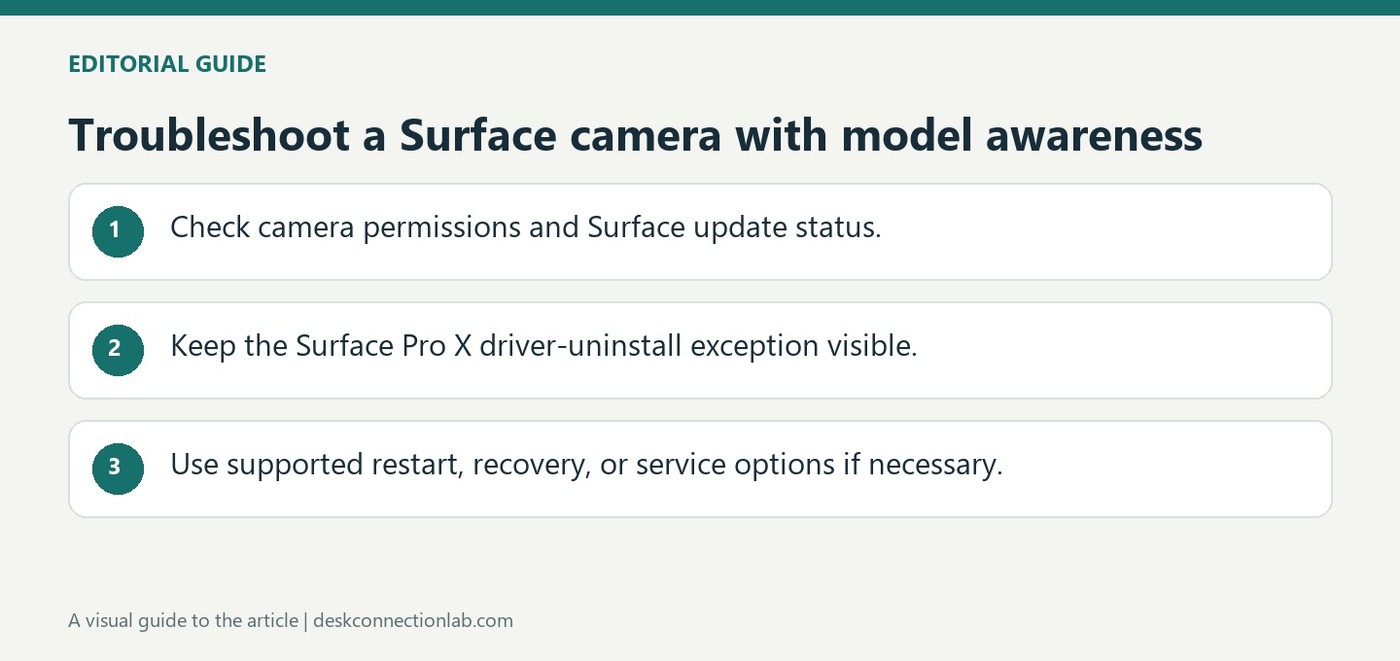
Microsoft's Surface-specific guide recommends the Camera troubleshooter, followed by confirmation that camera access and app access are enabled under Privacy and security. The Surface app can report update status and direct users to Windows Update. These checks address common reasons a built-in camera stops appearing or works in one app but not another.
Keep the driver exception visible
The guide includes a warning against its driver-uninstall procedure on Surface Pro X, where restoring those drivers requires a full system reset. That limitation makes exact model identification essential before following repair instructions. Use the supported troubleshooting path for the device rather than applying a generic driver-removal recipe to every Surface, especially when a permission or app configuration issue has not yet been ruled out.
Use the device-specific restart sequence only when needed
The Surface article includes a forced restart after its initial permission, update and driver checks. Its documented sequence begins with Shut down and a short wait, followed by holding the power button for twenty seconds. A logo appearing earlier is not the endpoint; the source says to continue for the full interval until the logo appears again. This is a specific troubleshooting action, distinct from closing the affected application. Consult the linked model guidance if the device’s behavior or controls do not match the described procedure.
Keep recovery and service as later choices
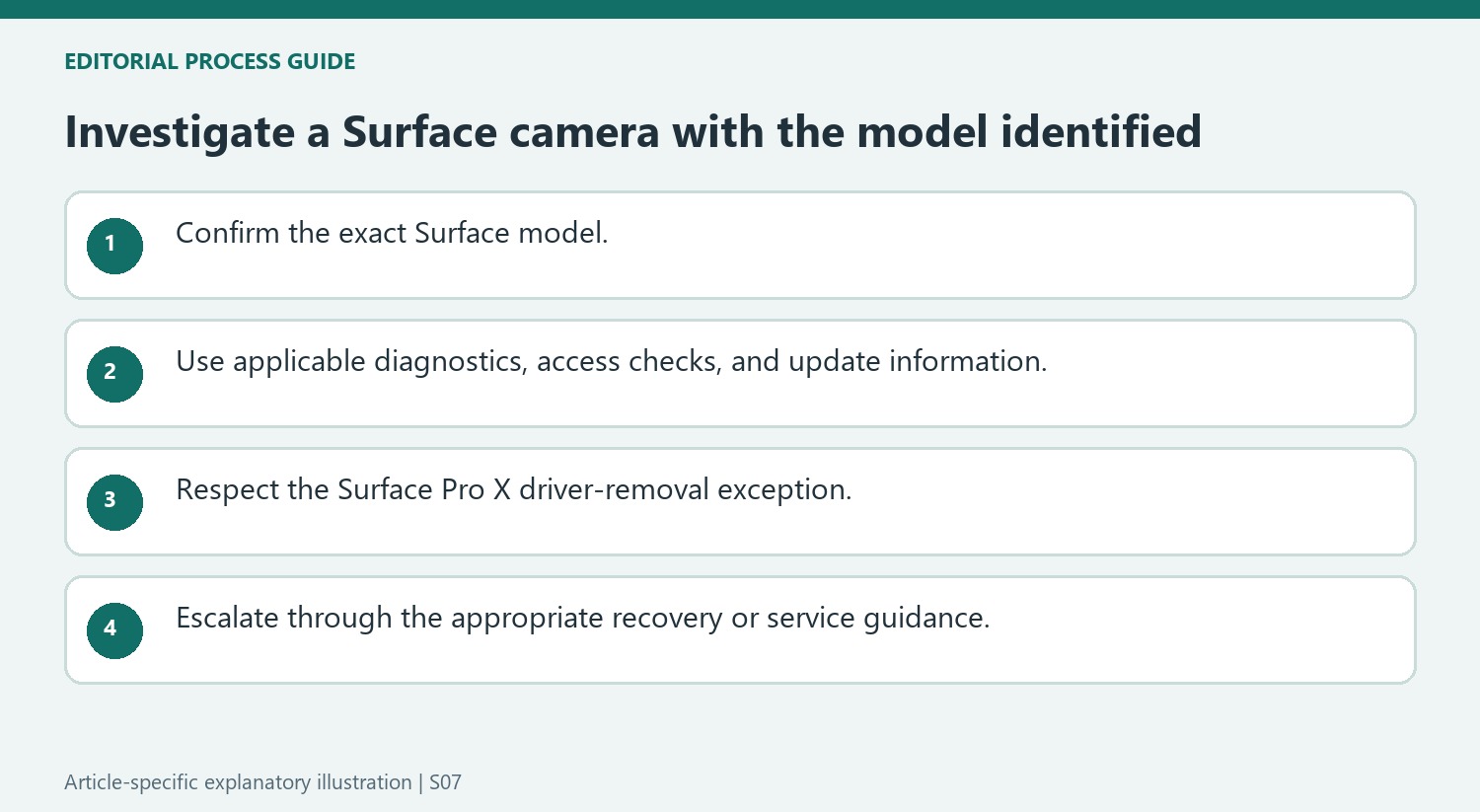
Microsoft presents restoration or reset after the earlier camera remedies, followed by repair and support options if the issue persists. Those options include service orders, authorized in-person providers in some regions and self-repair for appropriately equipped, experienced users. Organization-owned devices have a separate business and education support route. A useful support report identifies the exact Surface model, whether the camera preview works, and which recommended checks changed the result. Keep the Surface Pro X driver warning attached to that report so a generic camera repair suggestion does not override the source’s explicit restriction.
Identify the Surface model before considering driver removal
The most consequential qualification in the support page is the instruction not to perform its driver-uninstallation step on Surface Pro X. Microsoft says restoring those drivers on that device requires a full system reset. The model check therefore belongs before the procedure, not after a failed attempt. The listed Intel camera adapter names also limit what the removal instructions describe. A similar symptom does not make every Surface camera use the same recovery path. Confirm the machine's identity and follow the current guidance for it. This preserves the distinction between a general camera investigation and a model-specific maintenance action with a much larger consequence on another device.
Use the Surface app and access checks as separate information sources
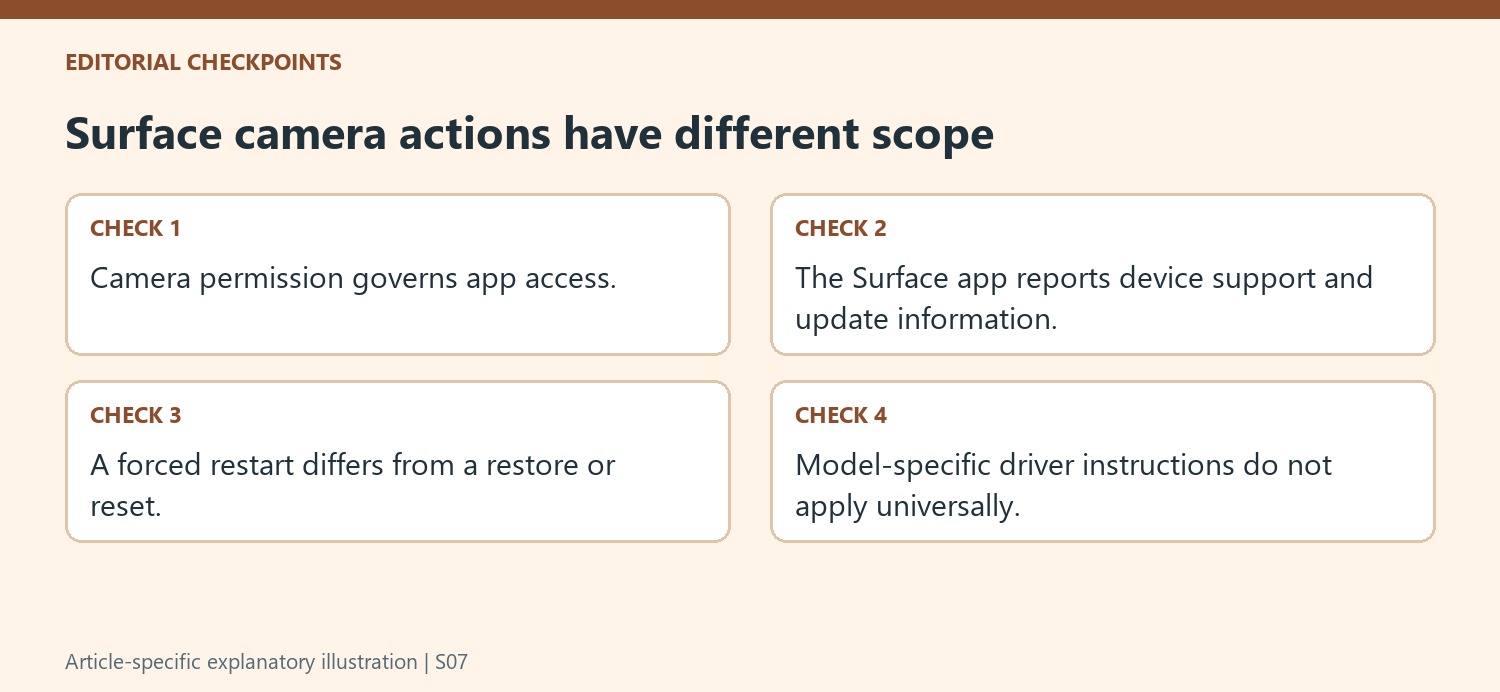
The article starts with Get Help diagnostics and includes camera privacy controls before the driver-removal section. It also uses the Surface app to review device health and update status, with available updates leading to Windows Update. Those checks can reveal different things: an app-access setting concerns permission, while the Surface app's support information concerns the device and available software maintenance. A camera absent from one app does not automatically justify removing its driver. Record whether camera access is enabled, whether another app can use it, and whether an update or restart is pending. That gives the next support step a clearer basis than treating the entire camera path as one undifferentiated failure.
Keep a restart, reset, and service decision distinct
Microsoft provides a forced-restart sequence and then points to restore or reset guidance if camera problems continue. Those operations have different scope and should not be treated as interchangeable ways of refreshing a preview. Follow the complete applicable instructions, preserve needed information before broader recovery work, and use the support options appropriate to a personal or organization-owned device. The page also identifies professional inspection and service routes when the software steps do not resolve the issue. Keep the exact error, model, and completed checks available for that conversation. A model-aware sequence makes it easier to continue troubleshooting while avoiding an unsupported shortcut from an ordinary access problem to a full system recovery.
References
- Surface camera not working. support.microsoft.com.
Microsoft's Surface-specific guide recommends the Camera troubleshooter, followed by confirmation that camera access and app access are enabled under Privacy and security. The Surface app can report update status and direct users to Windows Update. These checks address common reasons a built-in camera stops appearing or works in one app but not another.


Leave a Comment
Comments (0)