
Connect a USB microphone with a clear recording pattern
A plug-in example from the QuadCast 2
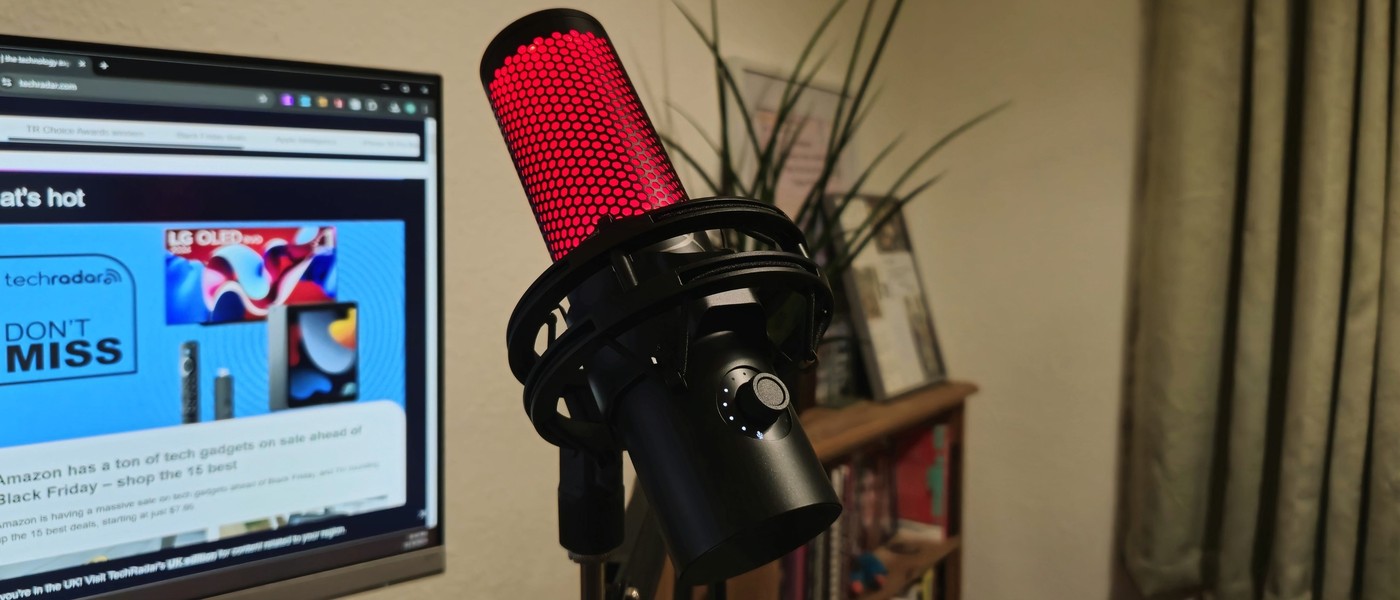
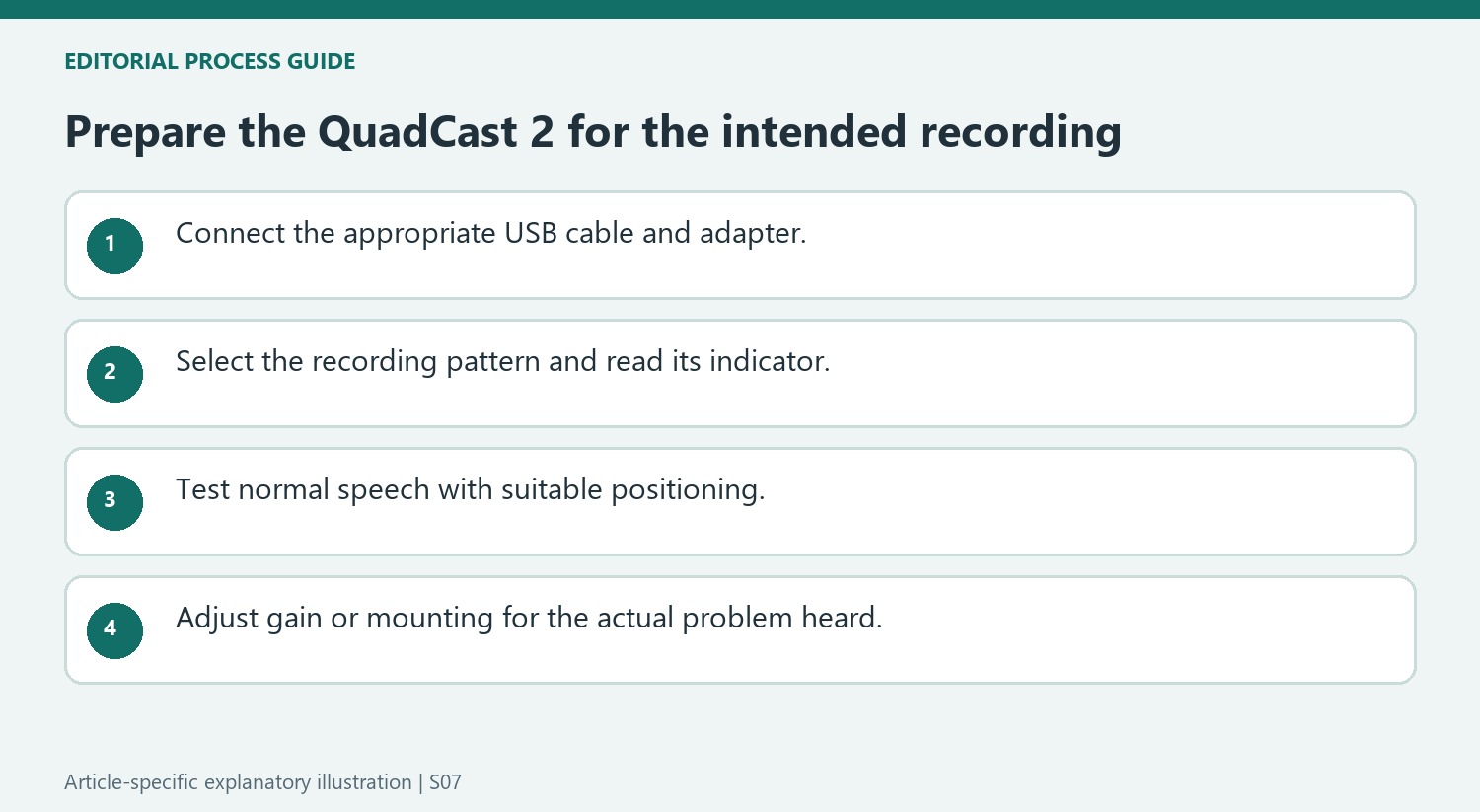
TechRadar's HyperX QuadCast 2 review describes a USB microphone aimed at straightforward recording. Its cable includes an adapter for USB-A or USB-C computer connections, and the supplied stand incorporates a shock mount. The reviewer praised the simple setup while noting that the companion app offers fewer audio adjustments than some alternatives.
Choose a pattern for the recording task
The review describes cardioid, stereo, omnidirectional and bidirectional patterns, with lighting that indicates the chosen mode and microphone status. Those options affect what is captured around the microphone; they are separate from choosing the microphone in Windows or a recording app. Check both the active input and the selected pattern before judging the result of a test recording.
Use the light to verify mute status
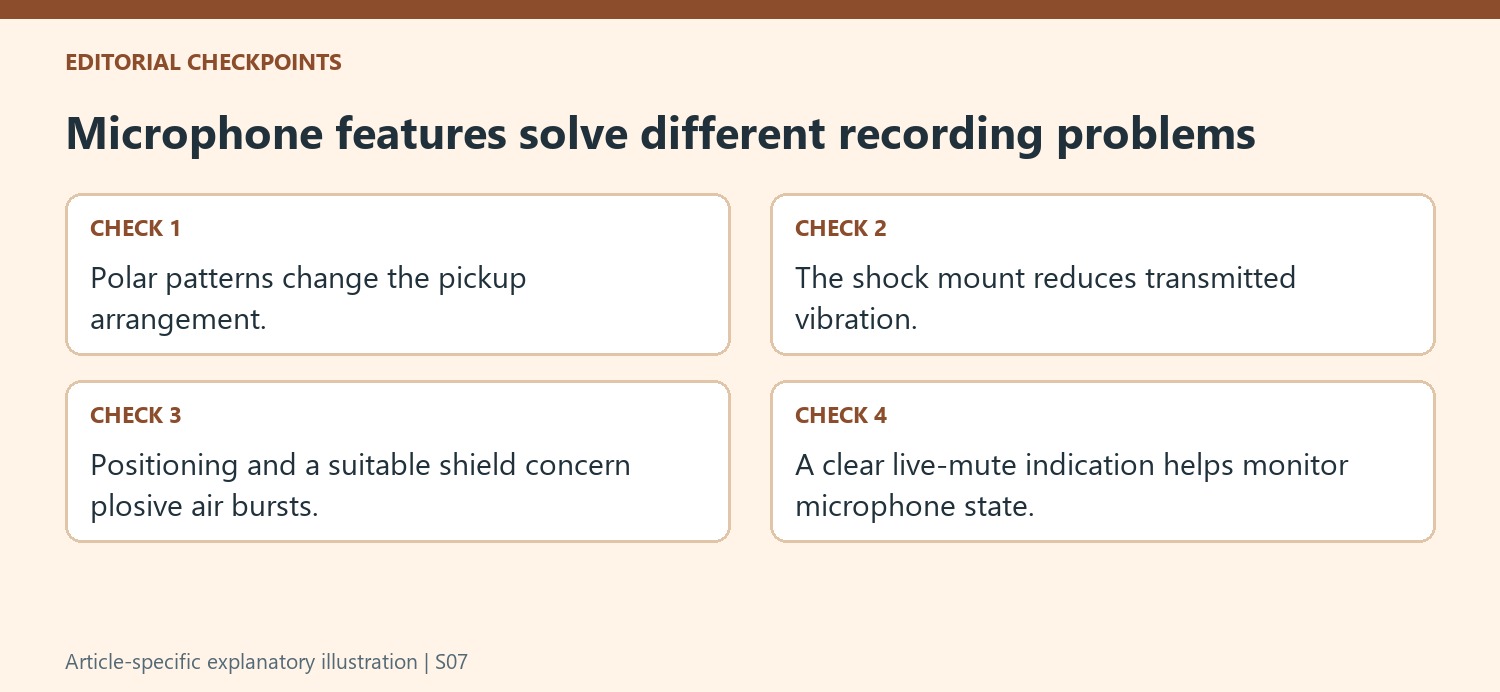
The reviewer highlights the microphone’s lighting as a practical recording indicator. Tapping the top toggles mute, and the light switches off when muted. The pattern indicator also helps identify the selected recording mode, with different ring segments for cardioid, stereo and bidirectional use and a full ring for omnidirectional capture. The base QuadCast 2 has red lighting, whereas the more expensive 2 S offers full color. That distinction matters when comparing models, but checking the active input and mute state remains more useful than assuming illumination alone proves the recording app is configured correctly.
Weigh simple controls against recording technique
The review describes gain, a high-pass filter and pattern selection in Ngenuity, rather than a large collection of sound-processing controls. That simplicity suited the reviewer’s plug-and-record use, while someone seeking extensive adjustment may prefer another workflow. The integrated shock mount addresses vibration, but the writer found the internal material less effective against strong plosive sounds. Their suggested technique was to angle the microphone and speak slightly over it in cardioid mode. Compare a short recording after a position change before attributing every unwanted sound to the USB connection or adding processing that the supplied app does not provide.
Read the pattern indicator before recording
The QuadCast 2 offers cardioid, stereo, omnidirectional, and bidirectional choices, with the source describing different illuminated sections for each. Selecting the pattern is a separate decision from simply connecting the USB cable. For a solo voice, the reviewer favored cardioid and reported poorer background-noise handling in the other modes. That is useful context when deciding what to test, not a guarantee that every room or arrangement will sound identical. Confirm the chosen mode through the indicator and make a short recording in the intended position. An accidental pattern change can alter what is captured even though the computer still detects the same microphone and the cable has not moved.
Distinguish gain, mounting, and plosive control
The app offers gain adjustment and a high-pass option, while the included shock mount addresses vibrations transmitted through the mounting arrangement. Those tools affect different problems. A mount designed to reduce vibration does not automatically eliminate bursts of air from speech, and increasing gain does not repair poor placement. The reviewer describes an angled solo-voice arrangement as a useful comparison for reducing plosive sounds, alongside optional shields. Test position and normal speaking level with the selected pattern before buying another accessory. This keeps the simple plug-and-record appeal while giving each adjustment a specific purpose. Listen to the recorded result rather than assuming that more input level always means a better voice recording.
Identify the base model before comparing the lights and price
The review distinguishes the QuadCast 2's red lighting from the broader color options of the 2 S. It also gives separate audio-format capabilities, so the two names should not be treated as interchangeable versions of one listing. Check the current model, supplied cable and adapter, and actual price before comparing packages. The source's lighting comments have a practical element as well: the reviewer valued an obvious live-versus-muted indication and used the top touch control to change mute. Confirm that indication in the chosen lighting mode before a meeting or stream. The overall purchase decision should connect the desired recording pattern, available controls, mounting arrangement, and current package rather than relying on the product's illuminated appearance alone.
References
- HyperX Quadcast 2 review: great audio with zero hassle. TechRadar; Hamish Hector.
TechRadar's HyperX QuadCast 2 review describes a USB microphone aimed at straightforward recording. Its cable includes an adapter for USB-A or USB-C computer connections, and the supplied stand incorporates a shock mount. The reviewer praised the simple setup while noting that the companion app offers fewer audio adjustments than some alternatives.


Leave a Comment
Comments (0)