
Set up a USB-C speakerphone for calls
Connect the integrated USB-C cable
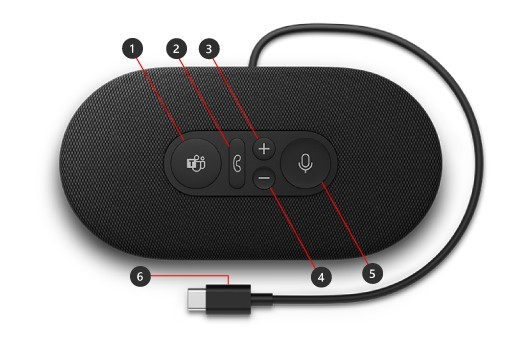
Microsoft Modern USB-C Speaker combines a speaker and microphone for a supported Windows PC. Its guide explains how to unwind the cable stored underneath and connect it to the computer. The accessory can play music as well as provide meeting audio, so it adds both a recording device and a playback device.
Select it in the meeting application
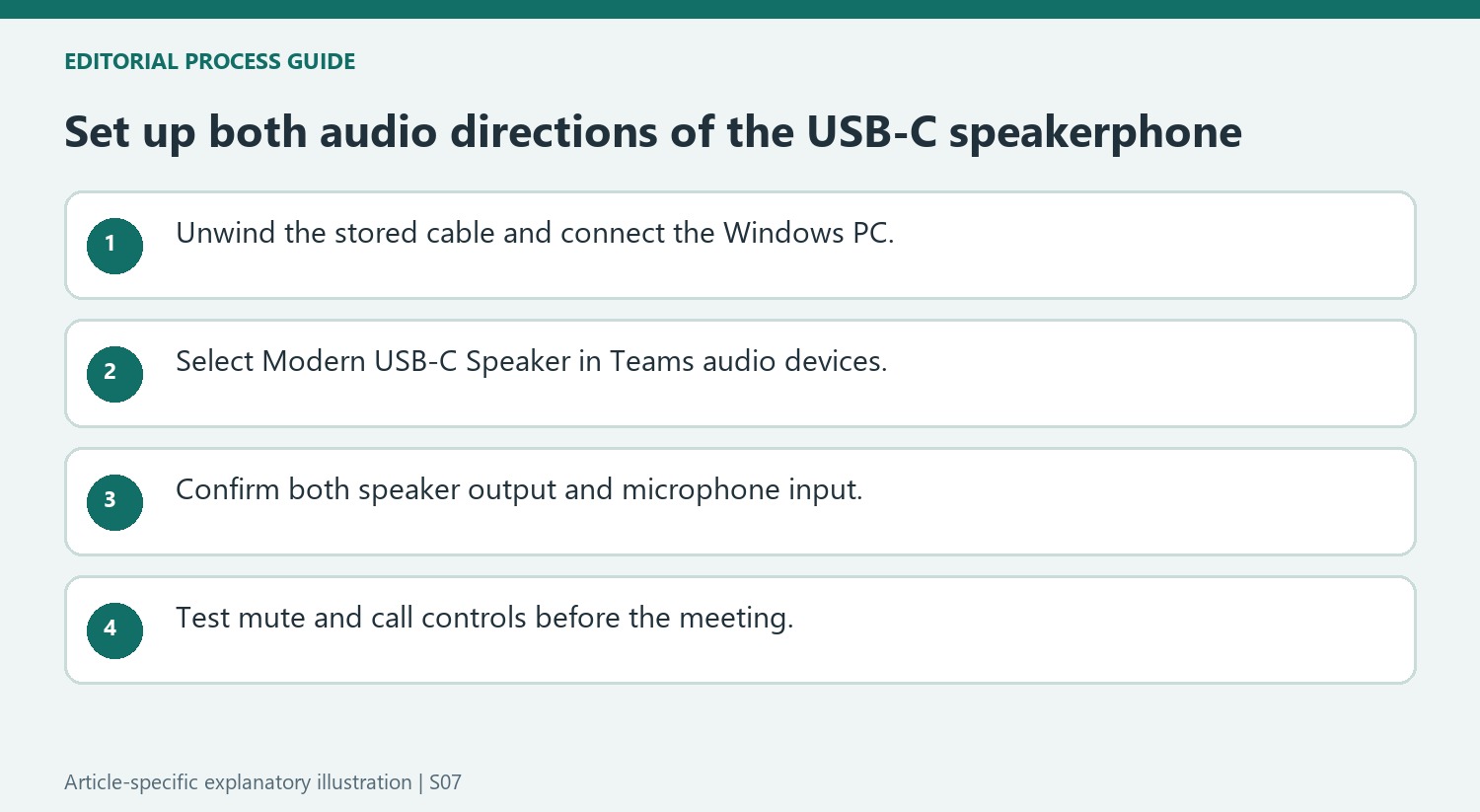
In the Teams desktop application's Devices settings, choose Modern USB-C Speaker and confirm that it is selected for both Speaker and Microphone. The hardware offers mute, volume, call and Teams controls. Test the selected microphone as well as playback before a call, because sound from the speaker alone does not establish that Teams is using the speakerphone's integrated recording input.
Read the call and mute indicators
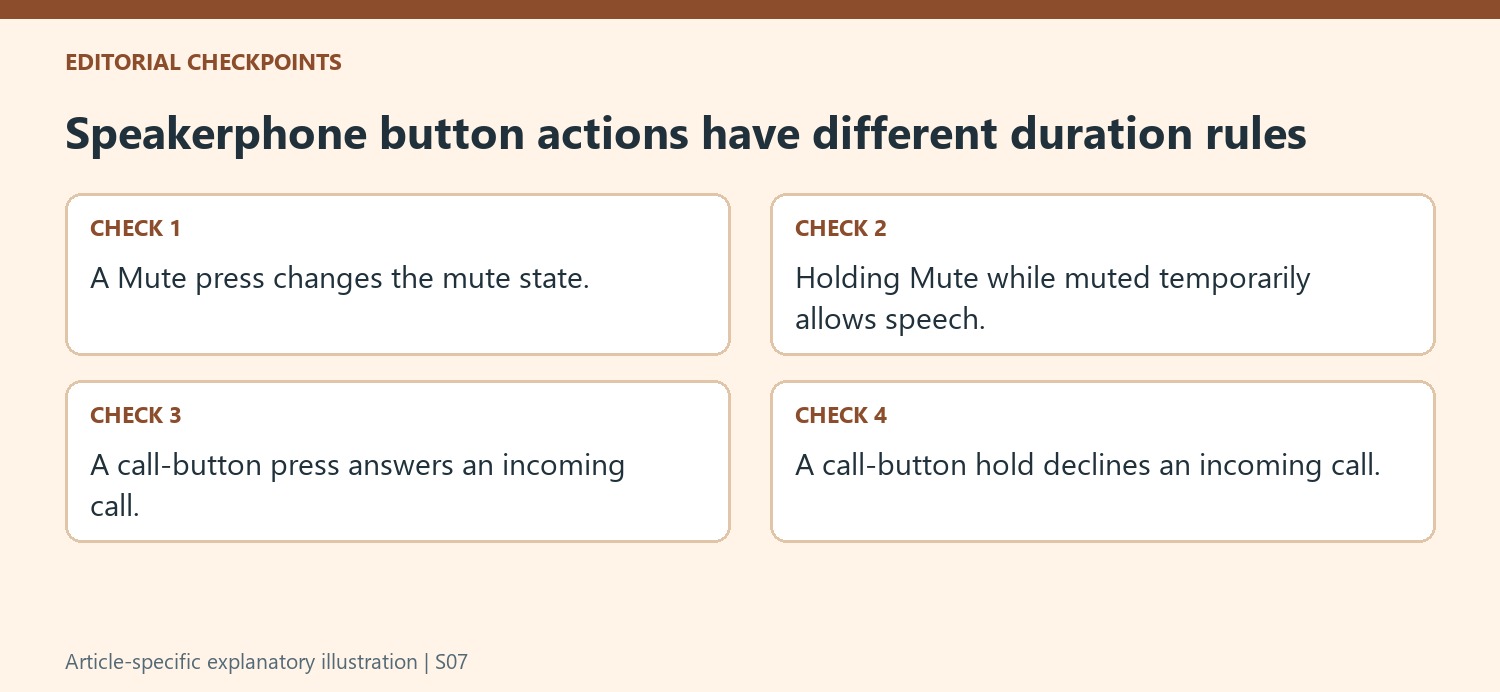
The Answer/End button flashes white for an incoming call and stays white during a call. A press answers or ends the call, while holding it declines an incoming call. The Mute button turns red when the microphone is muted; another press restores ordinary speech. Microsoft also documents a temporary speaking action: hold Mute while already muted, speak, and release it to return to mute. These distinct actions make the indicator useful for checking what the speakerphone will do before relying on it during a meeting.
Use Teams integration and the supported accessory app
The Teams button opens the Teams window, where Calls or Calendar provides the next action. The source describes a fading white Teams indicator when a meeting-start notification arrives, and a solid white state when the accessory is connected to Teams. Volume buttons change listening level independently of microphone mute. For additional device settings, Microsoft points to Microsoft Accessory Center from the Microsoft Store on a supported Windows PC. The guide explicitly says that application is unavailable for macOS, so its customization instructions should not be transferred to a Mac setup.
Select the speakerphone for both sides of a Teams call
The Modern USB-C Speaker includes microphone input as well as speaker output. Microsoft's setup therefore selects the device in Teams' Audio devices section and checks that it is used for both Speaker and Microphone. Hearing a call through the speaker does not alone prove that speech is being captured by its microphone; another computer input may still be selected. Confirm both entries after connecting the cable. The source identifies a solid white Teams button as the connected-to-Teams state. That gives a useful setup cue, while a short call or audio check confirms the complete arrangement under the conditions in which it will actually be used.
Learn the difference between toggled mute and brief speech
The device's Mute control has two documented behaviors during a call. A press changes the mute state, with red showing that the user is muted. Holding the control while already muted provides a temporary opportunity to speak, returning to mute after release. Those actions are easy to confuse if the user only knows that the button controls the microphone. Practice the intended behavior before a meeting and observe the indicator rather than assuming a previous state persists. The Answer/End control also distinguishes a press from a hold for accepting versus declining an incoming call. Learning these differences makes the physical controls useful instead of introducing uncertainty during a live conversation.
Separate the USB connection from optional customization
The initial physical setup unwinds the stored cable from underneath the speaker and connects it to a suitable USB-C port on the Windows PC. Microsoft Accessory Center then provides supported settings customization, with the source noting that it is not available for macOS. Do not treat that software qualification as an instruction to use the Windows procedures on every platform. The hardware controls and Teams settings should be understood within the documented Windows environment. Once the call arrangement works, adjust supported preferences deliberately and check the result. Between meetings, the speaker can also play PC audio, but music playback alone is a different test from verifying the microphone and call-control behavior that matter for conferencing.
References
- Use Microsoft Modern USB-C Speaker (with microphone) in Microsoft Teams. support.microsoft.com.
Microsoft Modern USB-C Speaker combines a speaker and microphone for a supported Windows PC. Its guide explains how to unwind the cable stored underneath and connect it to the computer. The accessory can play music as well as provide meeting audio, so it adds both a recording device and a playback device.


Leave a Comment
Comments (0)