
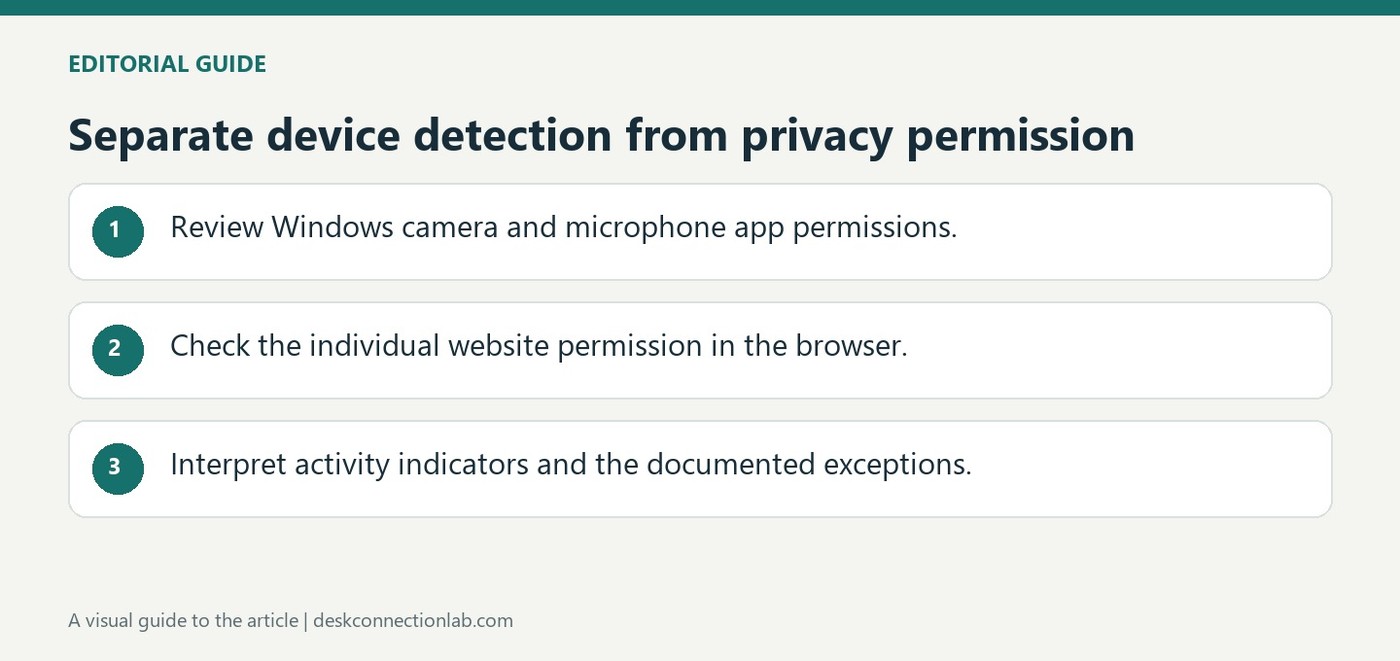
Separate device detection from privacy permission
Windows controls app access
Microsoft explains that camera and microphone access is governed by Windows privacy settings as well as by the application. Under Privacy and security, enable the relevant device access and app controls. Microsoft Store apps can have individual switches, while desktop applications use a broader access control rather than appearing with identical per-app toggles.
Watch the activity indicators
A camera light or Windows notification indicates camera use, and a microphone icon appears in the taskbar notification area while an app records audio. Websites may also need permission in the browser. These layers explain why hardware can appear in Windows but remain unavailable inside a call: confirm the selected device, Windows permission and browser or application permission before assuming a USB connection has failed.
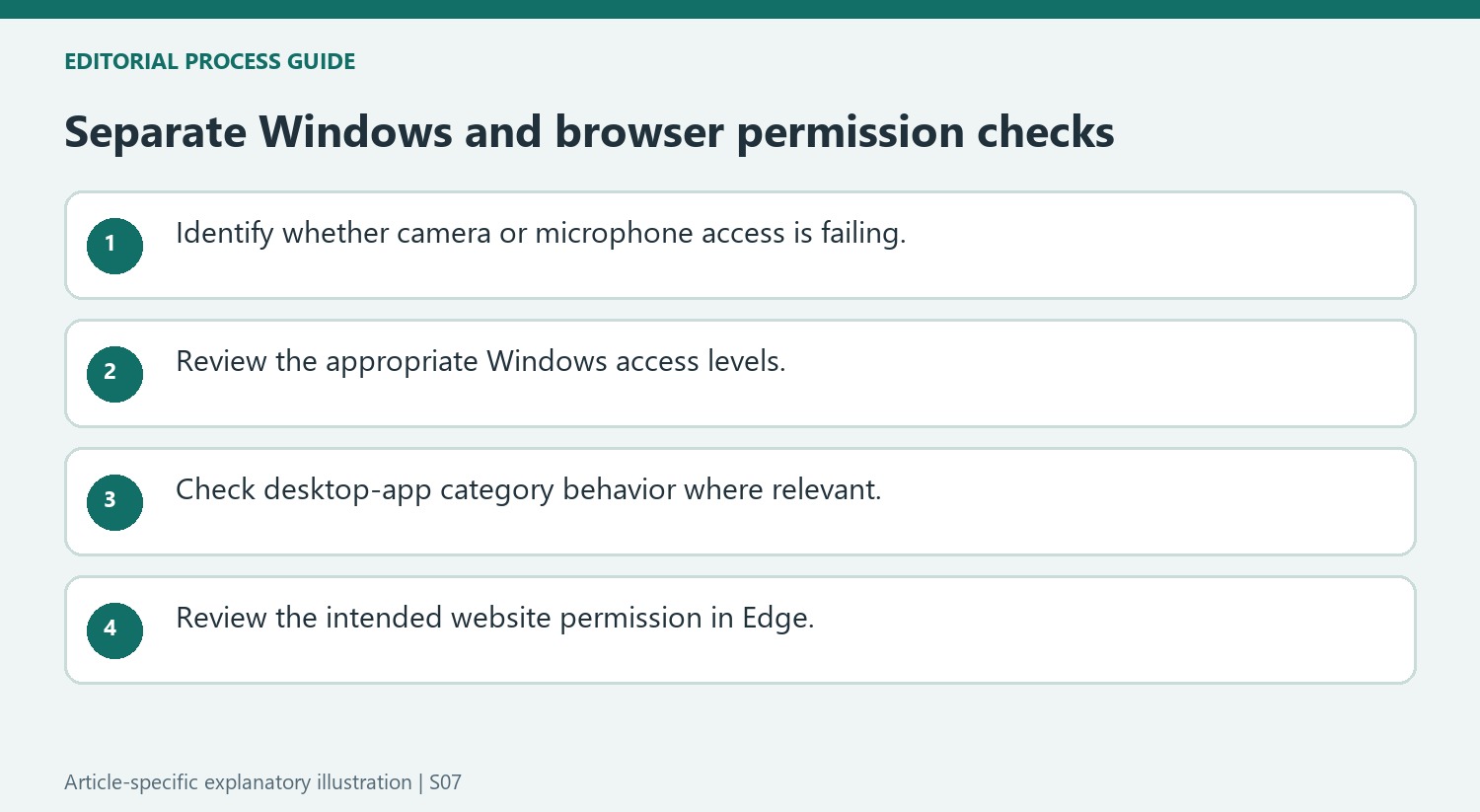
Review website permission separately in Edge
Allowing Microsoft Edge to use a camera or microphone in Windows does not automatically authorize every website. A site can display its own access request, where Allow permits use and Block prevents it. To revisit a decision, Microsoft describes Edge settings under Privacy, search, and services, then Site Permissions and All sites. Select the relevant website and review its Camera or Microphone setting. Blocking access can prevent functions such as joining a video conference, so relate the permission to the particular service you intend to use.
Understand exceptions and indirect activity records
The access controls have limits described in Microsoft’s guide. Windows Hello can use the camera for sign-in even when app camera access is disabled, if Windows Hello itself remains enabled. Desktop applications may use methods outside the supported controls and may not always appear in the displayed list. An application using a Windows component indirectly can also appear under that component’s name, such as Speech Runtime Executable. Read the activity details in context rather than treating every unfamiliar entry as a separate application or assuming a single switch guarantees that all hardware access has stopped.
Treat camera and microphone access as two related permissions
A video call commonly uses both devices, but Windows provides separate privacy controls for each. Allowing a camera does not by itself establish that the microphone can be used, and a working microphone does not confirm a video permission. Microsoft's guide describes device access, app access, and individual supported app controls as separate levels. Check the feature that is actually failing before changing the other one. The camera activity light or Windows notification and the microphone taskbar icon can show when those features are in use, but they are indicators of activity rather than a complete explanation of which permission or input selection needs attention.
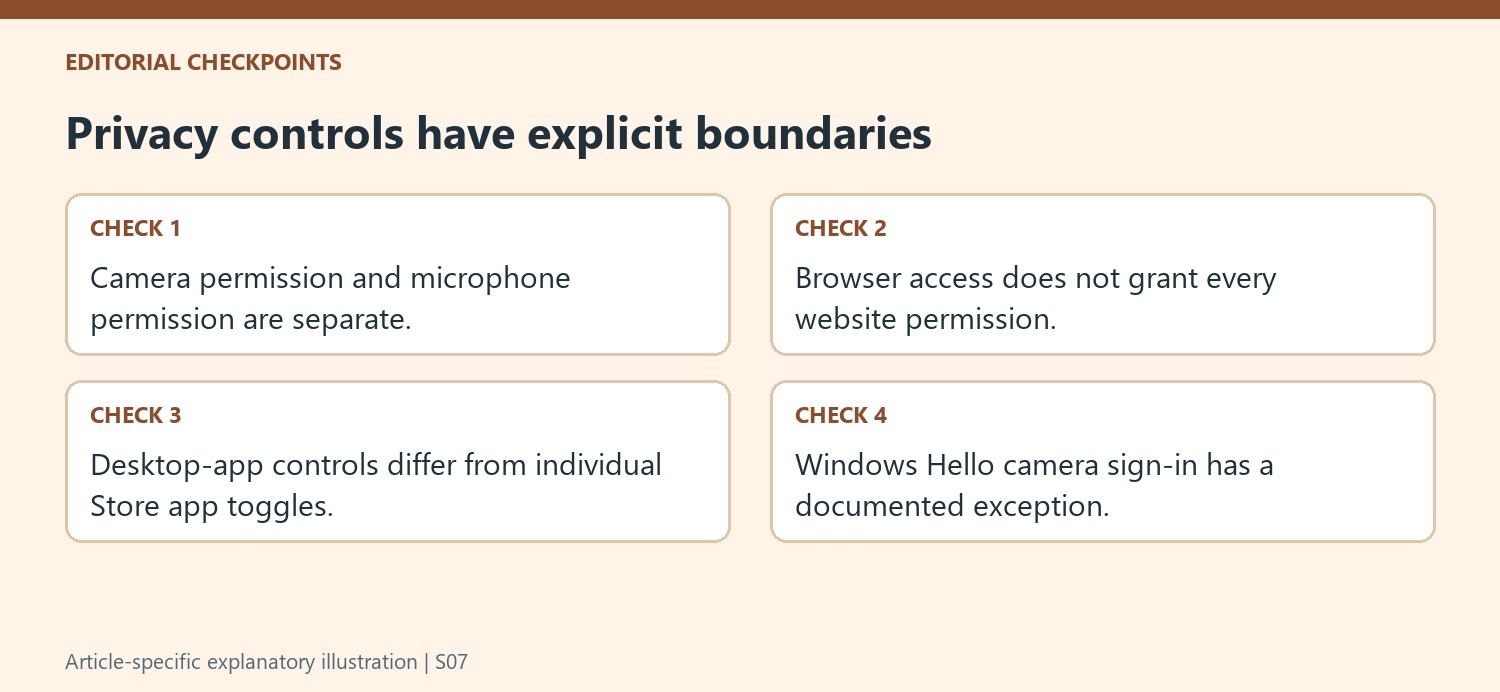
Allow the website as well as the browser when appropriate
The Microsoft Edge guidance adds another layer: enabling the browser's camera or microphone access does not automatically grant that access to every website. A site can ask for its own permission, and the user can allow or block it. Existing site choices can be reviewed in Edge's site-permission settings. This explains why one conferencing website may fail while another works in the same browser. Review the intended site's entry and the relevant camera or microphone choice instead of repeatedly reconnecting otherwise detected hardware. A blocked site may lose a function such as joining a video conference, so make the decision deliberately for the actual site and task.
Understand the limits of the desktop-app list
Microsoft explains that desktop applications have broader category controls rather than the same individual toggles available for supported Store apps. The detected-app list can also show a Windows component used indirectly by a feature, and the page notes limitations in how desktop access is reported or controlled. Windows Hello is a further explicit exception: its camera sign-in behavior is separate from ordinary app camera permission. These qualifications prevent a misleading assumption that the visible list is a complete inventory of every possible camera or microphone interaction. Read the current privacy guidance for the installed Windows version and the particular feature. Distinguishing device detection, category access, site permission, and special Windows behavior makes a failed call easier to investigate without treating all access decisions as one switch.
References
- Windows camera, microphone, and privacy. support.microsoft.com.
Microsoft explains that camera and microphone access is governed by Windows privacy settings as well as by the application. Under Privacy and security, enable the relevant device access and app controls. Microsoft Store apps can have individual switches, while desktop applications use a broader access control rather than appearing with identical per-app toggles.


Leave a Comment
Comments (0)