
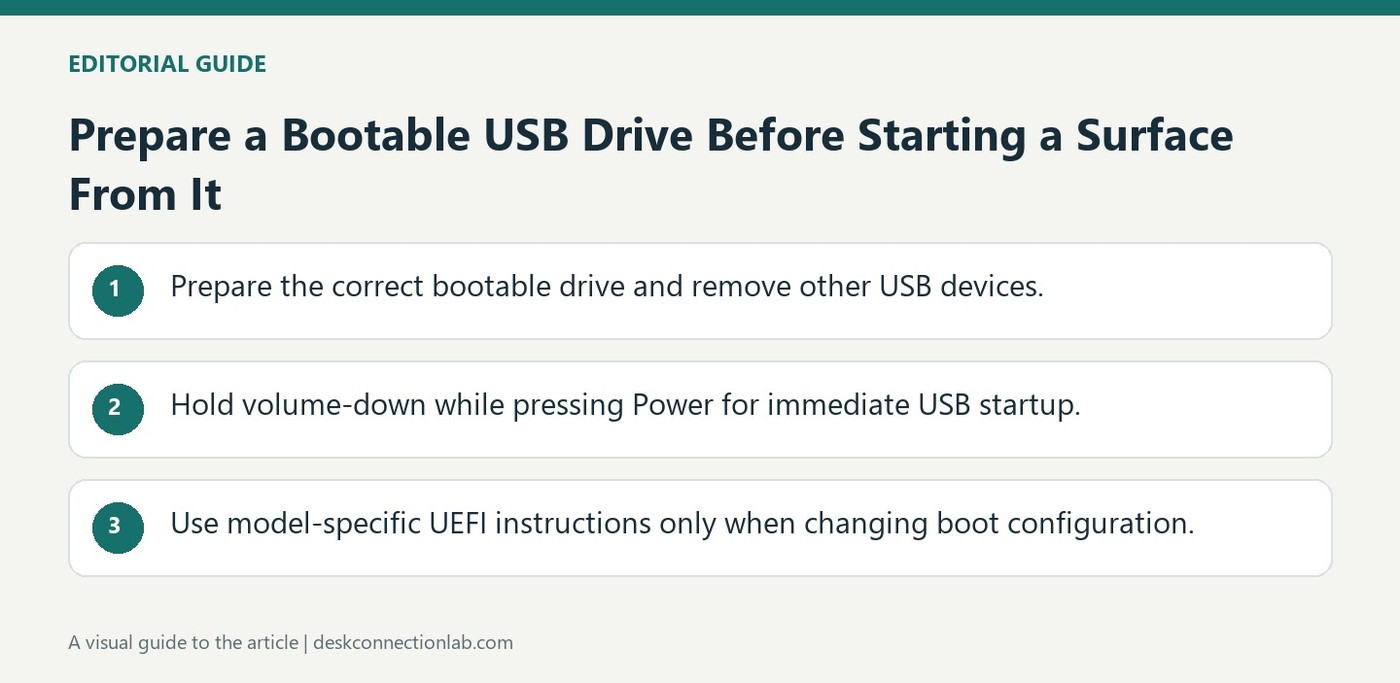
Prepare a Bootable USB Drive Before Starting a Surface From It
Microsoft distinguishes booting a Surface from USB from refreshing or resetting the computer. The USB drive must already contain an appropriate bootable operating system or recovery setup. Remove other USB devices first so they do not interfere with the intended startup choice.
For the hardware-button method, Microsoft instructs users to shut down, insert the bootable drive, hold volume-down and press the power button. The support page also describes starting through Windows recovery options when necessary. Follow the instructions for the Surface model and the prepared drive, rather than expecting an ordinary storage stick to become bootable merely by plugging it in.
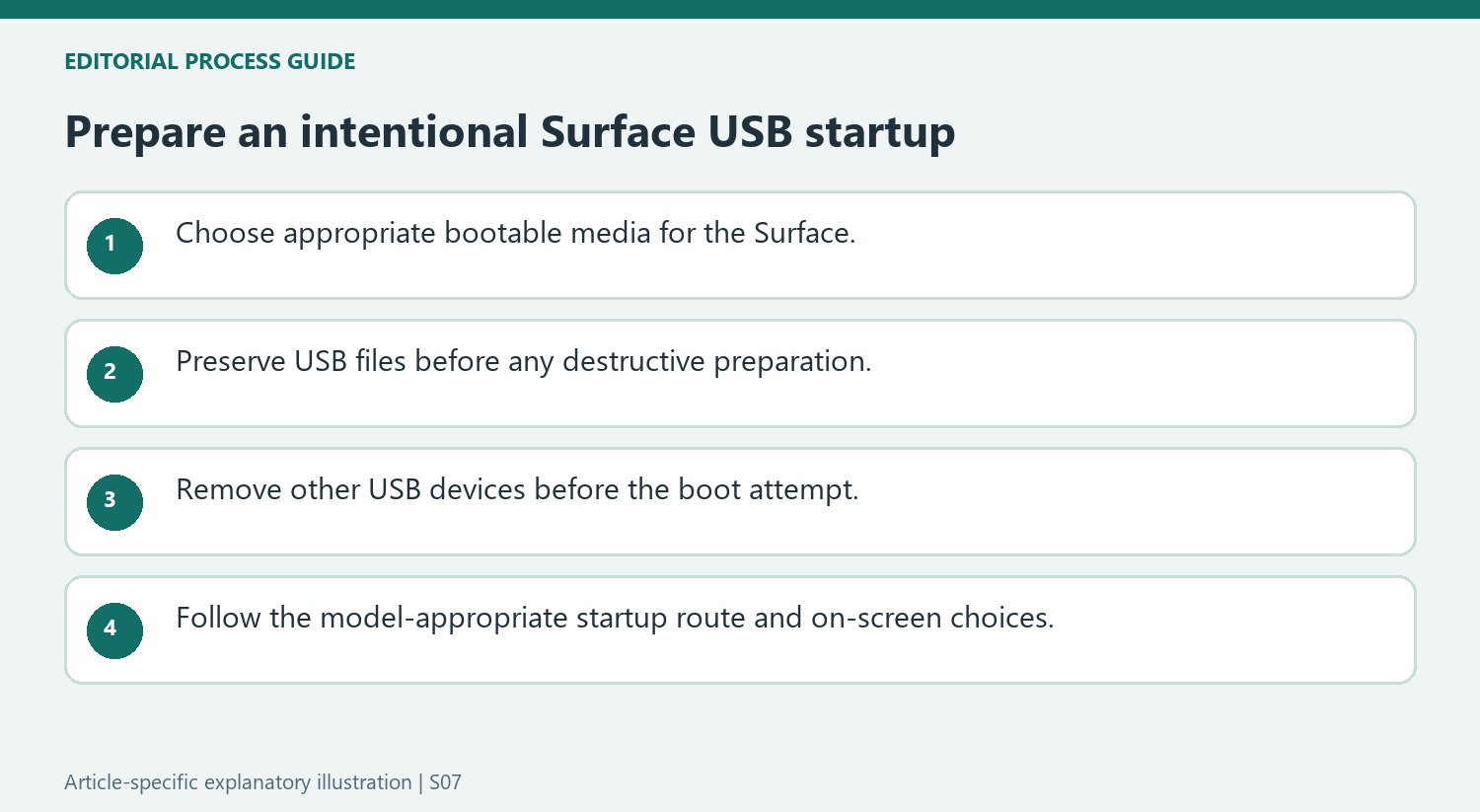
Keep the two Surface button sequences distinct
The immediate USB startup procedure uses volume-down with the power button, and Microsoft says to keep holding volume-down until spinning dots appear beneath the logo. Entering Surface UEFI instead uses volume-up while powering on. Confusing those sequences can lead to a firmware screen when the intention was simply to start the prepared USB operating system. If Windows still runs, System, Recovery, Advanced startup offers an alternative: restart to Choose an option, then select Use a device and USB Storage. Select the route matching the current state of the computer.
Check the prepared drive and model-specific boot options
Microsoft’s UEFI instructions depend on the Surface model. The documented Boot configuration can put USB Storage first, while swiping left on the entry starts it immediately without changing the stored order. If startup fails, the article checks USB-boot and alternate-sequence options and suggests another drive. Its FAT32 preparation instructions erase the selected USB device, so preserve its files and identify the correct drive before following them. Booting from an already prepared drive is separate from formatting one; simply inserting an ordinary storage stick does not supply the operating system required for this workflow.
Distinguish starting from USB from reinstalling Windows
Microsoft separates the act of booting from a USB device from refreshing or resetting the Surface. Starting from external media simply selects the operating environment on that media; any recovery action comes from the subsequent instructions and the choices made there. That distinction is important when preparing for troubleshooting. A drive that only stores ordinary files is not automatically bootable, and the operating system or recovery image must be appropriate for the machine. Use Microsoft's model-specific recovery guidance to prepare it. Before changing startup settings, be clear about whether the goal is a one-time start from external media or a persistent change to the normal boot order.
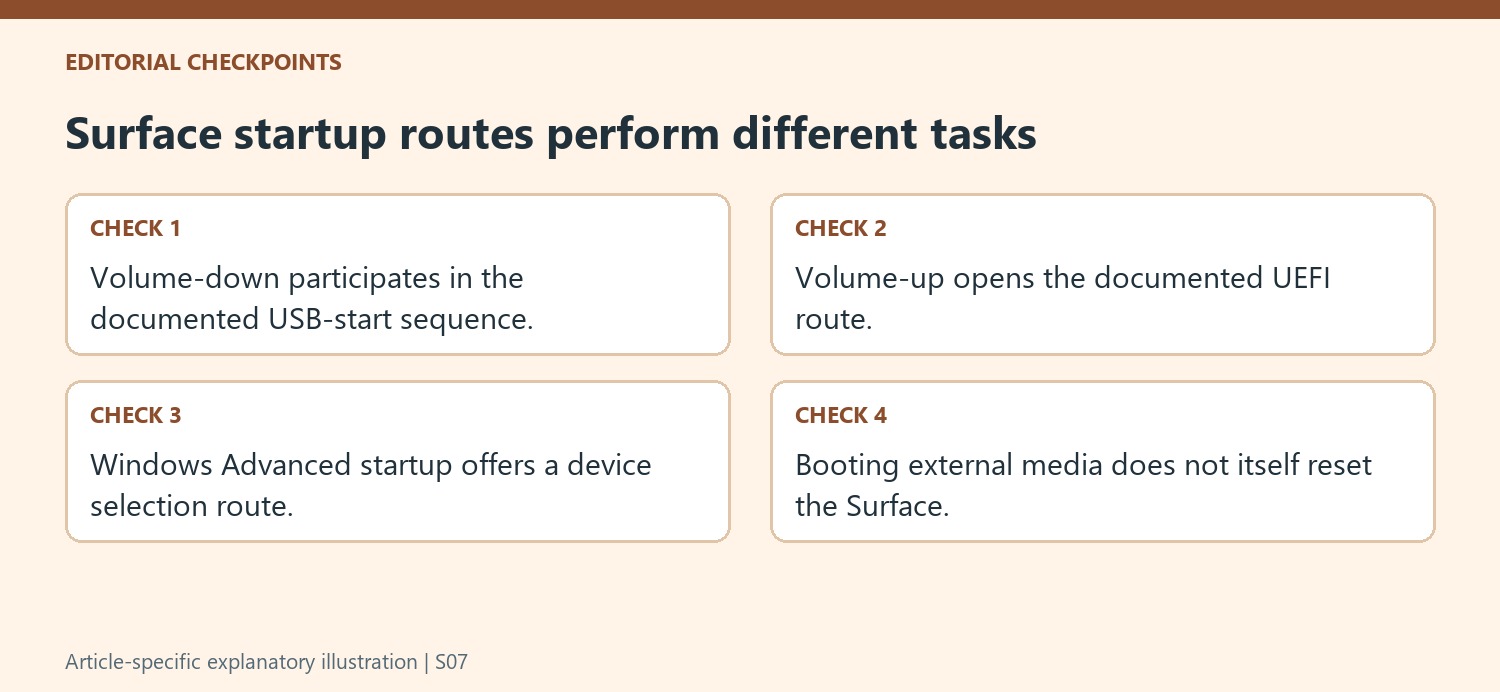
Use the correct button and startup route
The documented one-time hardware sequence uses volume-down while the power button is pressed and released, with volume-down held until the spinning dots appear. Entering Surface UEFI uses volume-up instead. Confusing those two routes changes where the device starts, so identify the intended procedure before beginning. Microsoft also offers a Windows route through Recovery, Advanced startup, and the USB Storage choice when Windows is available. For UEFI configuration, supported models have a Boot configuration list where USB Storage can be moved upward. The page also describes a one-time swipe option that does not change the order. Follow the instructions for the actual Surface model rather than combining parts of different startup procedures.
Protect the correct drive when preparing external media
The formatting instructions in the support article erase the selected USB drive. Copy anything needed from it before preparation and identify the target carefully, particularly when several disks are visible to a disk-management tool. Microsoft's guidance also calls for removing other USB devices before the boot attempt so the intended external drive is unambiguous. If startup fails, the page lists checks for USB boot settings, the alternate boot sequence, a different USB drive, and the required format. Those are targeted checks after media preparation, not reasons to change unrelated firmware settings at random. Work through the applicable guidance in order and confirm the recovery image, drive, and device are the intended combination before proceeding.
References
- Boot Surface from a USB device. support.microsoft.com.
Microsoft distinguishes booting a Surface from USB from refreshing or resetting the computer. The USB drive must already contain an appropriate bootable operating system or recovery setup. Remove other USB devices first so they do not interfere with the intended startup choice.


Leave a Comment
Comments (0)