
Find the Connection Fault Before Replacing a Keyboard
Establish a direct USB connection
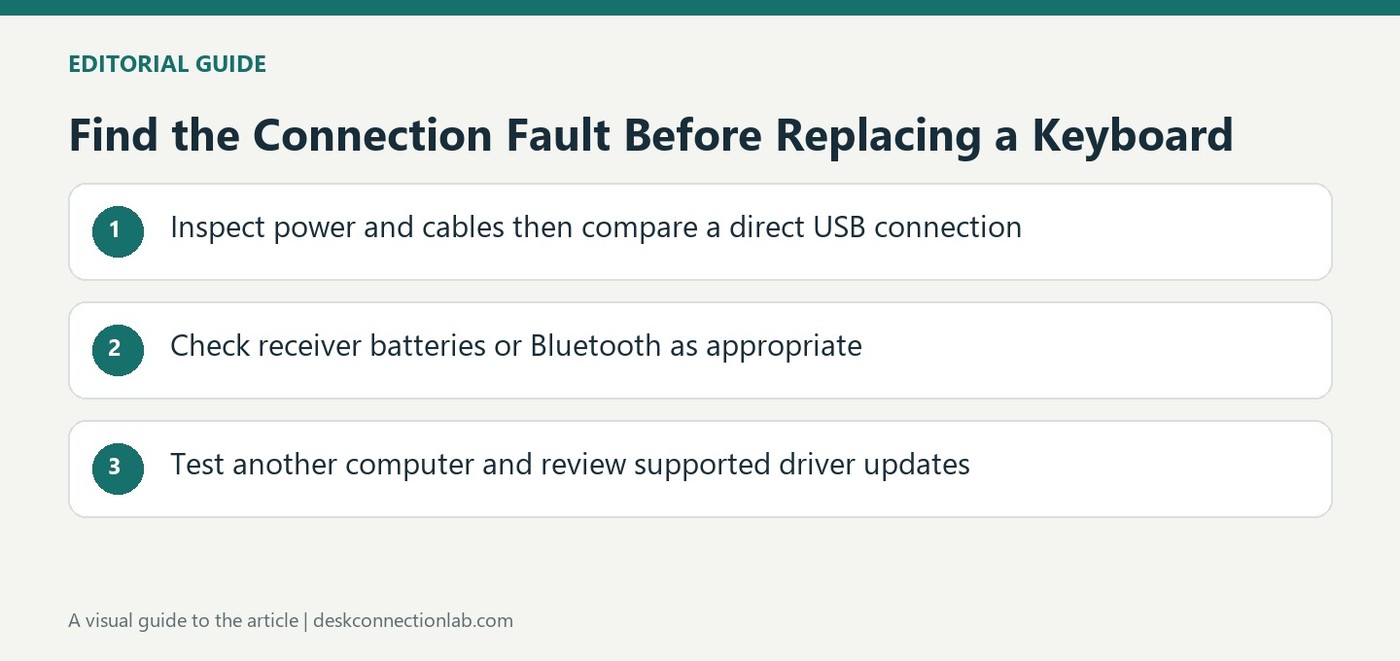
A keyboard or mouse that stops responding can have a connection problem rather than a failed input mechanism. Microsoft's troubleshooting guide starts with physical checks: inspect cables and plugs, confirm power and look for damage or dirt that could interfere with normal operation. For USB equipment, unplugging the device and allowing Windows to unload its driver before reconnecting can help establish a fresh connection. Try another computer USB port as well. If a hub is involved, check its power and compare the result with a direct computer connection. That comparison narrows the fault without assuming that every hub must be replaced.
Treat wireless power and pairing separately
Wireless equipment adds batteries and a radio connection to the same investigation. Check battery condition and the device's power switch before changing software. For a model using a USB receiver, Microsoft recommends removing the receiver for about ten seconds and then reconnecting it. A reset control may also be relevant when the particular model provides one. Bluetooth equipment needs its own connection checks, because a Bluetooth pairing problem is not the same as an unresponsive USB receiver. Follow the instructions for the actual connection method rather than treating all wireless accessories as interchangeable. Cleaning keys or a mouse sensor can address a local obstruction, but it cannot repair an unrelated pairing failure.
Use another computer to narrow the result
Testing the accessory on another computer provides an independent comparison. Ensure that any driver required by the device is available there before interpreting the outcome. If the accessory works elsewhere, return to the original computer's connection and software conditions. Microsoft's guide also points to Windows Update and Device Manager for appropriate driver checks. Apply these steps deliberately, checking whether input returns after each change. An accessory that remains unresponsive across suitable computers may need further manufacturer support or replacement, but the comparison is more informative than replacing hardware at the first sign of a temporary USB problem.
Use a direct connection to narrow the fault
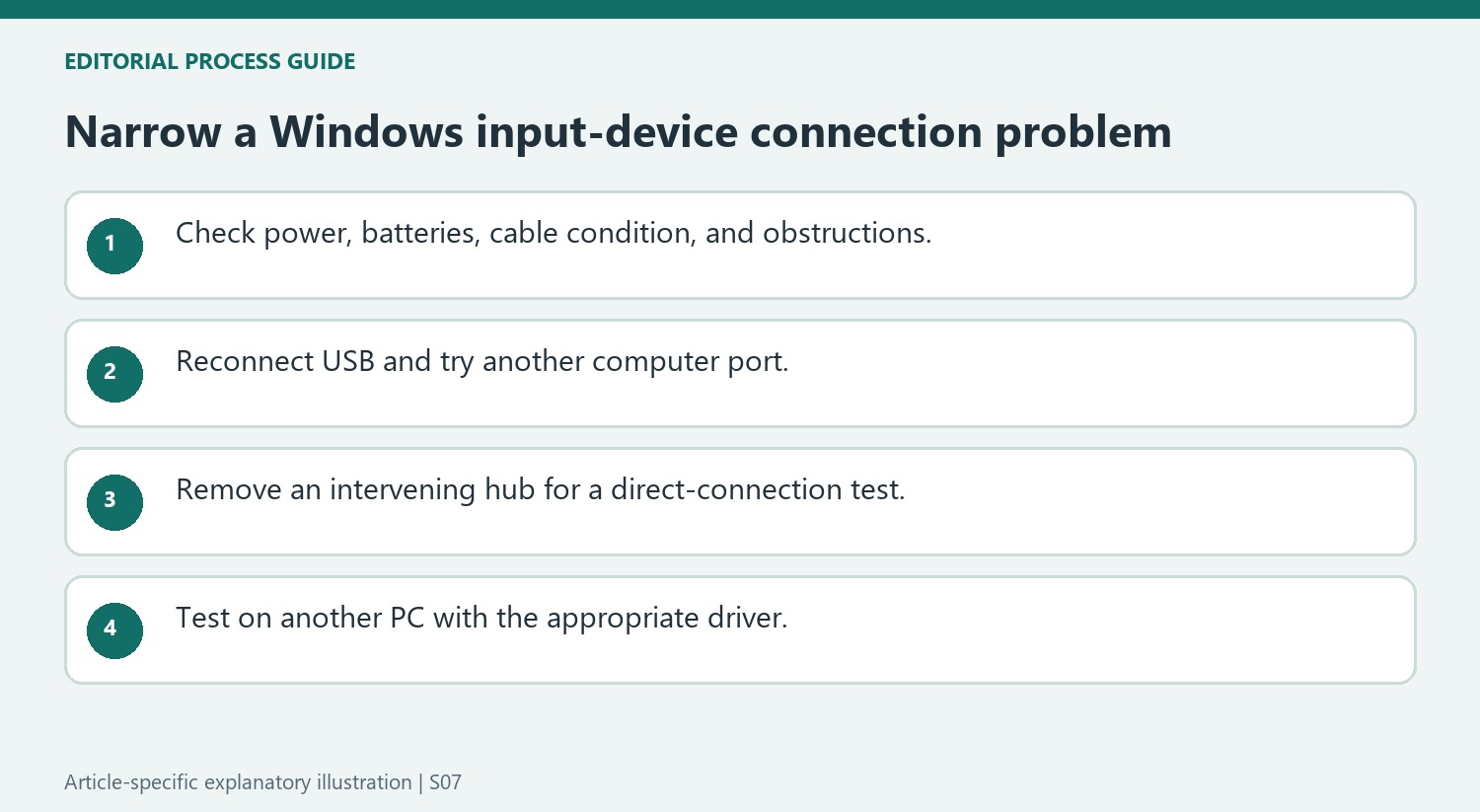
Microsoft's checks move through the connection chain before treating a keyboard or mouse as defective. Disconnecting and reconnecting a USB device allows Windows to unload and reload its driver, while changing ports tests a different physical connection. Removing an intervening hub is especially useful because it changes one identifiable part of the arrangement. If the device starts working when connected directly to the computer, that result points attention toward the hub path without proving that the keyboard itself needs replacement. Keep track of what changed between attempts. Replacing several cables, ports, and settings at once makes a successful result less informative because the cause remains unclear.
Distinguish wireless reconnection from ordinary USB checks
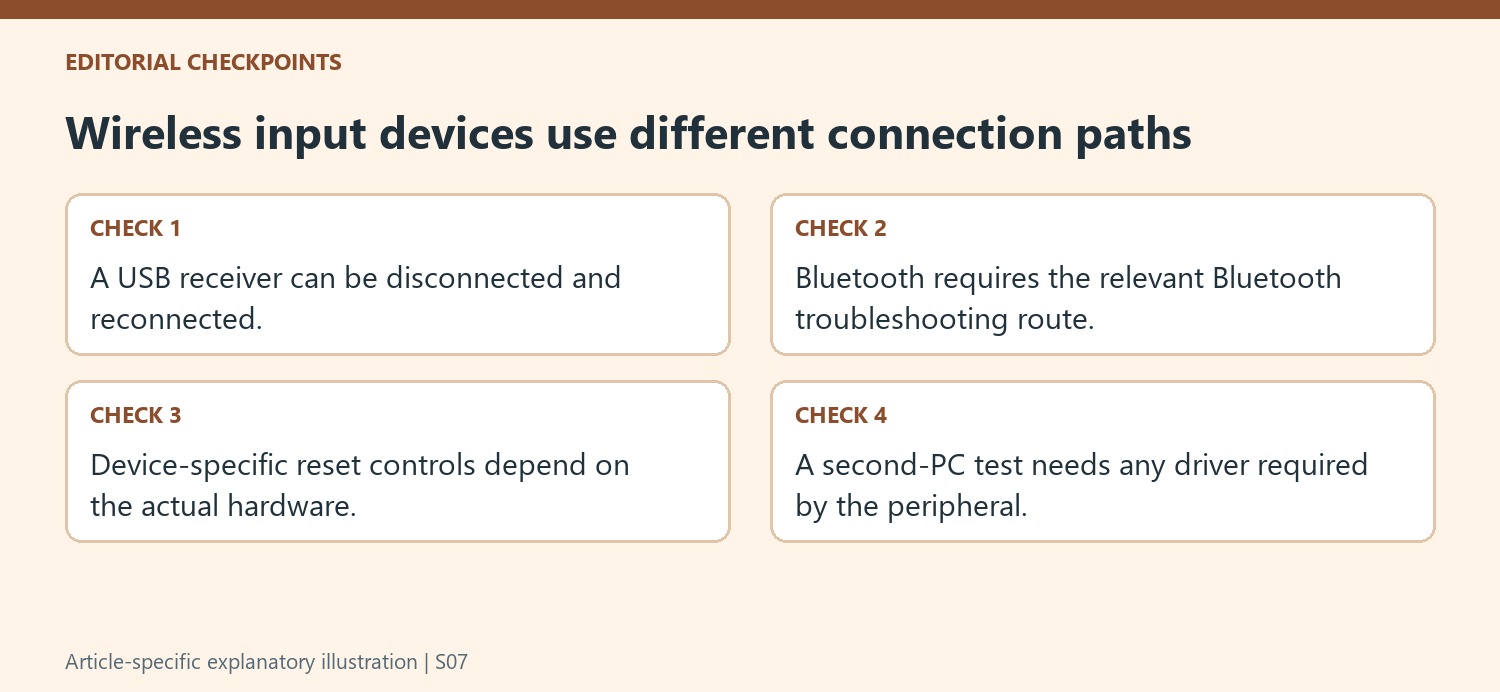
A wireless device may communicate through a USB receiver or through Bluetooth, and the next step depends on which system is in use. The support page suggests reconnecting a USB receiver after a short wait and checking any device-specific reset control. Bluetooth problems are directed to Microsoft's separate Bluetooth guidance. These are different connection paths, so a USB receiver procedure should not be treated as a universal reset for every wireless keyboard. Battery condition belongs in the same early check: a discharged device can appear to have a connection problem. Look at the actual hardware and its instructions before selecting a procedure, especially when several similar-looking wireless accessories are nearby.
Make a second-computer test meaningful
Trying the device on another computer helps separate a failing peripheral from a problem with the original PC. Microsoft adds an important qualification: some devices need the correct driver on the test computer. Without that support, a failed test may not tell the whole story. The same principle applies when reviewing updates on the original machine. Windows Update may provide relevant updates, and Device Manager offers a route to update the identified device's driver, but an update is not guaranteed to exist. Start with the simple power, cable, obstruction, and connection checks. Then use a properly configured comparison computer and the appropriate driver path to make a replacement decision based on evidence rather than a single unsuccessful connection.
References
- Mouse and keyboard problems in Windows. Microsoft Support.
Microsoft's mouse and keyboard checks separate port, power, receiver and driver problems before treating the accessory as faulty.


Leave a Comment
Comments (0)