
The Adaptive Hub's Ports Have Distinct Accessibility Roles
Distinguish charging from button connections
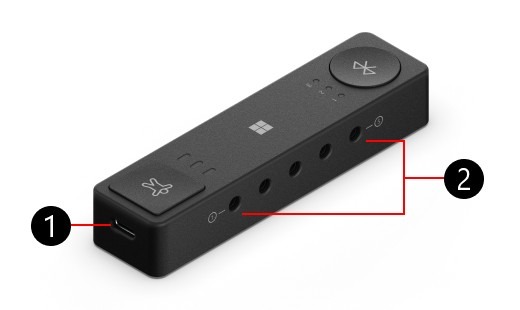
Microsoft Adaptive Hub is designed to bring adaptive controls into a computer setup. Its USB-C connections do not all perform the same job. Microsoft's guide identifies the charging connection on the short side of the hub as its power input. Three other USB-C connections are intended for compatible adaptive buttons, and they can charge those buttons while the hub receives power. Recognizing that division helps keep the power cable and accessory cables in the right places. The device should be understood through its documented accessibility functions rather than assumed to behave like a general-purpose desktop USB docking station.
Use the switch sockets for switches
Five 3.5 mm connections provide inputs for compatible wired assistive switches. Although that connector size is familiar from headphones, these sockets have a different purpose. They connect switches that a user can assign to useful actions through the supported configuration process. Begin by identifying the intended control and the documented connection for it, then configure its action and test the result. This approach makes the physical setup easier to understand, especially when a mixture of adaptive buttons and external switches is involved. It also avoids confusing a familiar connector shape with an unrelated audio function.
Keep device slots and profiles distinct
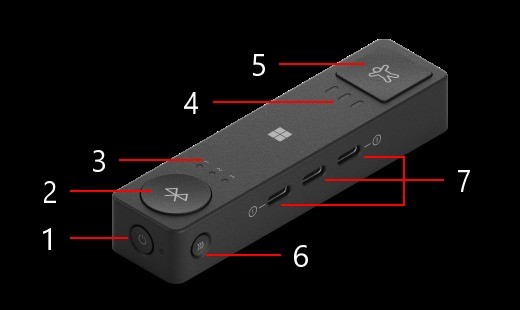
The Bluetooth control and its three indicators relate to paired-device slots. The separate profile control and its indicators relate to saved sets of button actions. Choosing another computer and choosing another action profile are therefore different operations. Microsoft describes configuration through Microsoft Accessory Center on Windows 10 or Windows 11. After Windows configuration, documented companion use includes other supported systems such as macOS, iOS, ChromeOS and Android. For a new Bluetooth pairing, select the intended device slot and hold the Bluetooth control until its indicator flashes, then complete pairing in the host's settings. Finally, verify both the connected device and the selected profile so that each press produces the intended action.
Separate device selection from action-profile selection
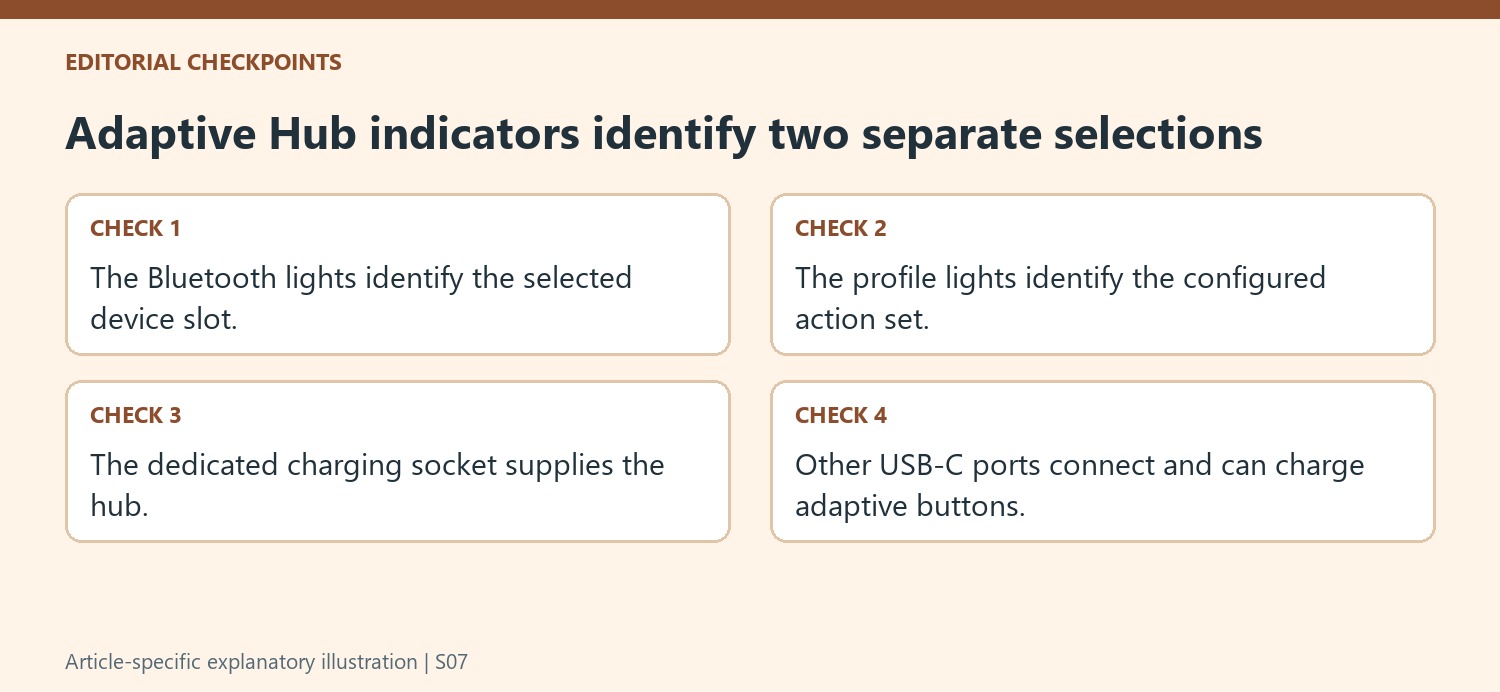
The Adaptive Hub has controls for switching the connected computer or device and separate controls for choosing an action profile. These are related parts of a custom input setup, but they answer different questions. The Bluetooth indicator identifies the selected device slot, while the profile indicator identifies the selected set of configured actions. If a button seems to trigger an unexpected result, checking both selections can clarify whether the hub is aimed at the intended device and using the intended mapping. A profile is not another paired computer, and pairing a new computer does not by itself explain which actions a button will perform. Keep those two selections distinct when learning the controls.
Identify the charging socket before connecting buttons
The dedicated USB-C charging connection is on the shortest side of the hub. Microsoft's instructions use that connection to power or charge the hub, while the other three USB-C connections attach Microsoft adaptive buttons. When the hub is receiving power, those button connections can also charge the buttons. The five 3.5mm sockets serve compatible assistive switches instead of ordinary headphone listening. Their familiar physical shape can otherwise be misleading. A clear port map is therefore part of making the device easier to use: identify the power input, button connections, and switch connections by function, then route the cables so the intended controls remain reachable in the user's arrangement.
Plan configuration before using companion devices
Microsoft describes Windows 10 or 11 with Microsoft Accessory Center as the configuration environment. Companion platforms such as macOS, iOS, Chrome, and Android can be part of the setup after configuration on the Windows PC. That distinction matters when planning access to a computer for initial customization. The pairing process also includes an alternative route through Windows Bluetooth settings if the automatic notification does not appear. A missing notification therefore does not immediately mean the hub cannot connect. Select the appropriate device slot, start pairing, and use the documented settings route when necessary. Once connected, check the selected profile and the individual switch or button behavior against the intended actions before relying on the arrangement for everyday input.
References
- How to use Microsoft Adaptive Hub. Microsoft Support.
Microsoft Adaptive Hub combines button connections, assistive switch inputs and device profiles; its USB-C ports have specific roles.


Leave a Comment
Comments (0)